Package: Invicti AppSec Enterprise (on-premise, on-demand)
Add and manage pentests
In this section, you can add new pentests in two ways:
- Manual entry: Add pentests individually through the interface
- CSV import: Import multiple pentests using a CSV file
You can find a sample CSV file by clicking the Import Pentest button.
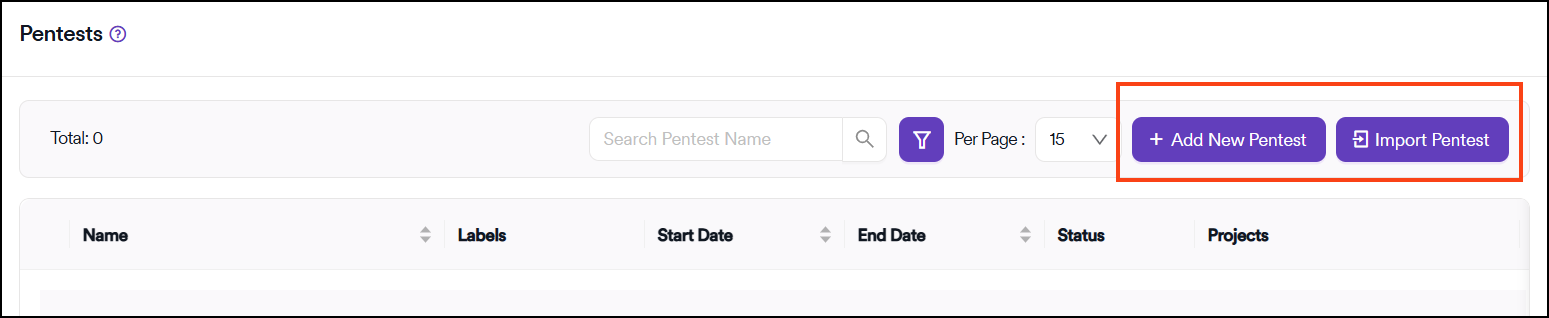

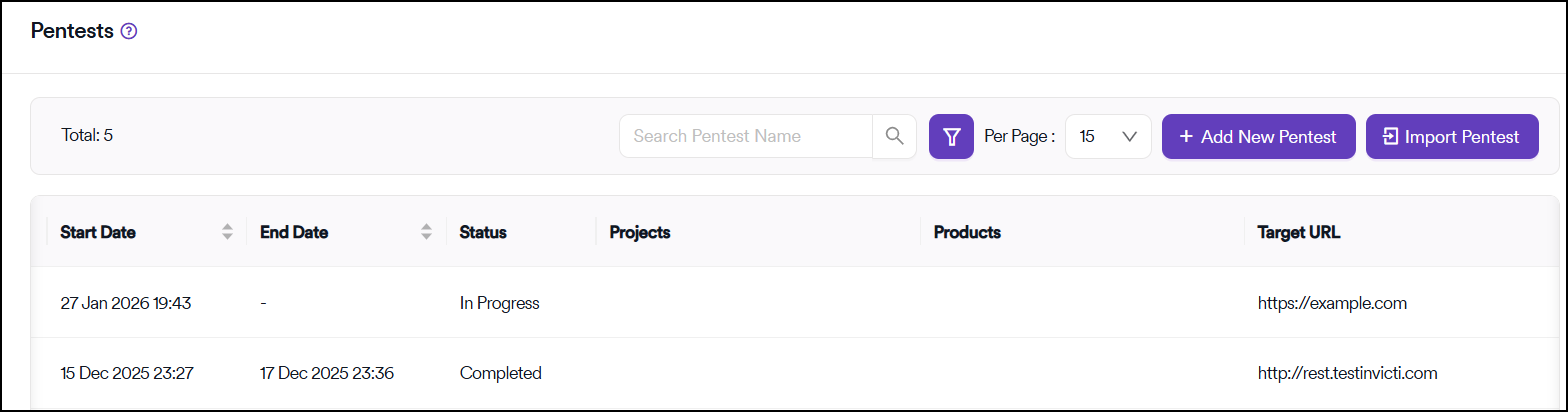
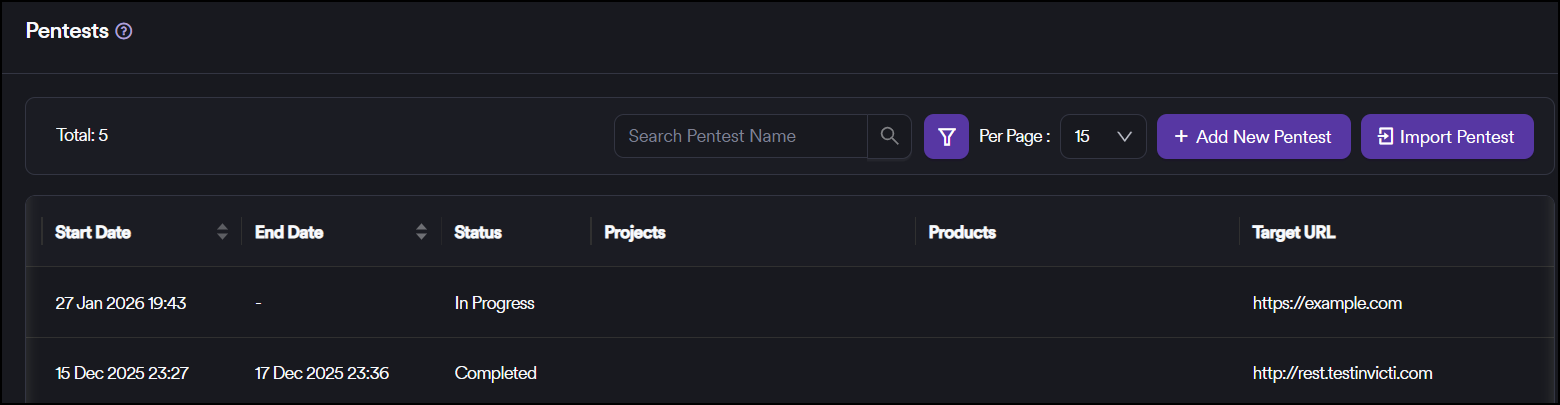
When added or imported for the first time, no data is expected in the Projects and Products columns.
Add vulnerabilities into pentests
Before importing vulnerabilities, ensure you have:
- Created a pentest in the system
- Access to the project where you want to import vulnerabilities
Steps to import vulnerabilities
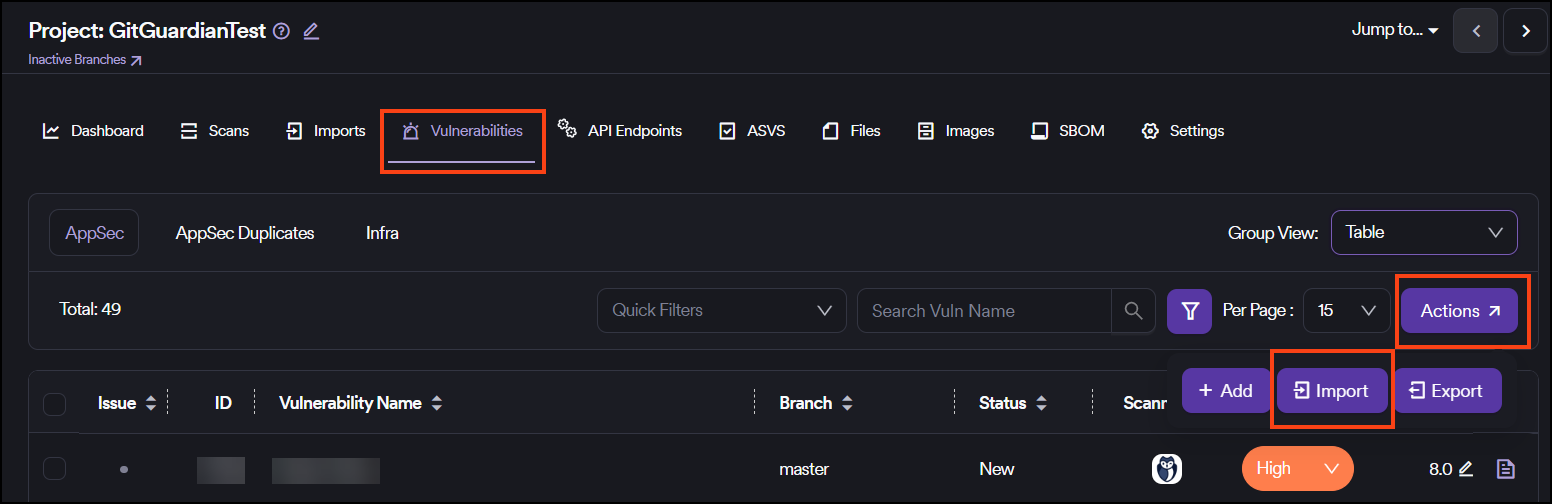
- Select Projects&Products > Projects from the left-side menu.
- Select the project.
- Select Vulnerabilities tab.
- Click Actions > Import
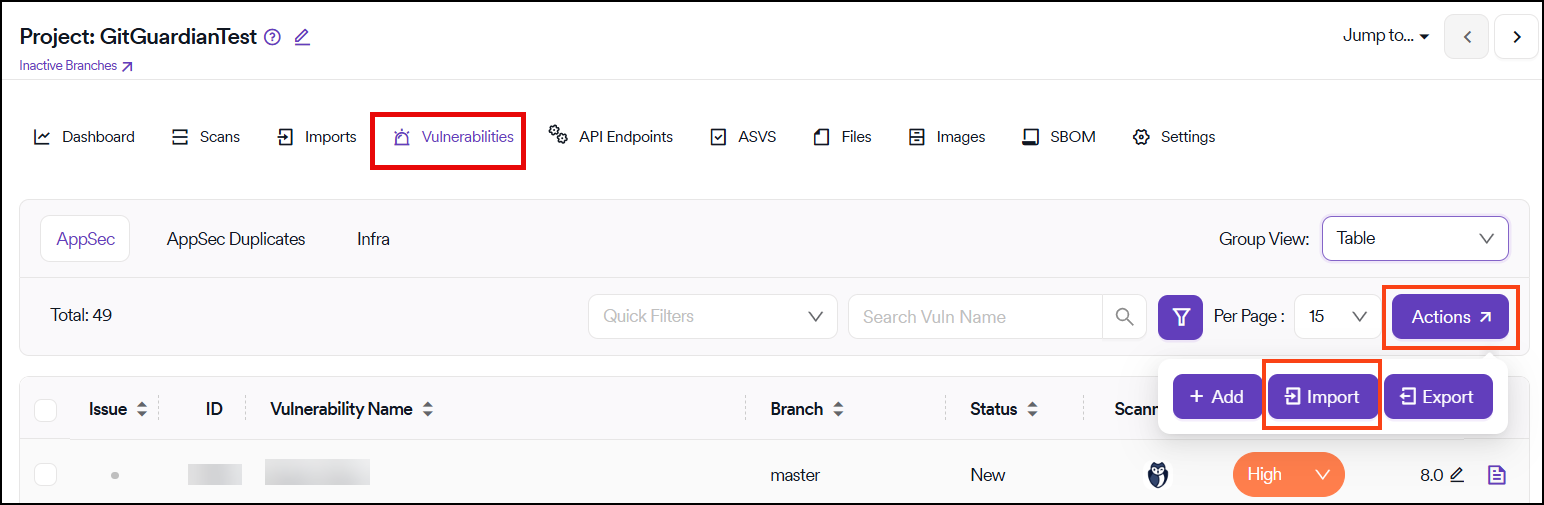
- Set Scanner Type to Pen Test
- Select pentests from the drop-down menu in Pentests field
- Add vulnerabilities into pentests by pressing Import
As vulnerabilities get imported to projects, Invicti AppSec automatically fills out the projects and products columns.
View pentest vulnerabilities
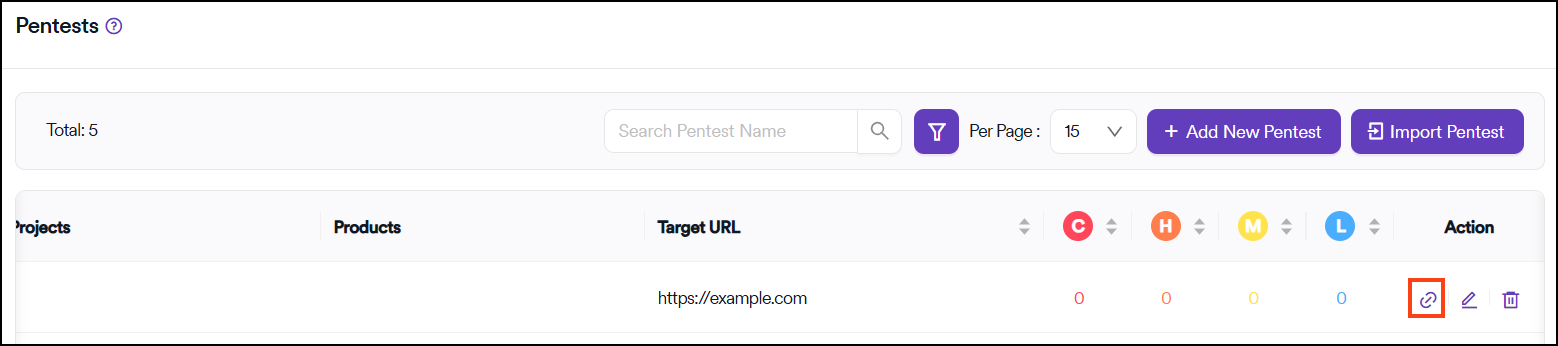
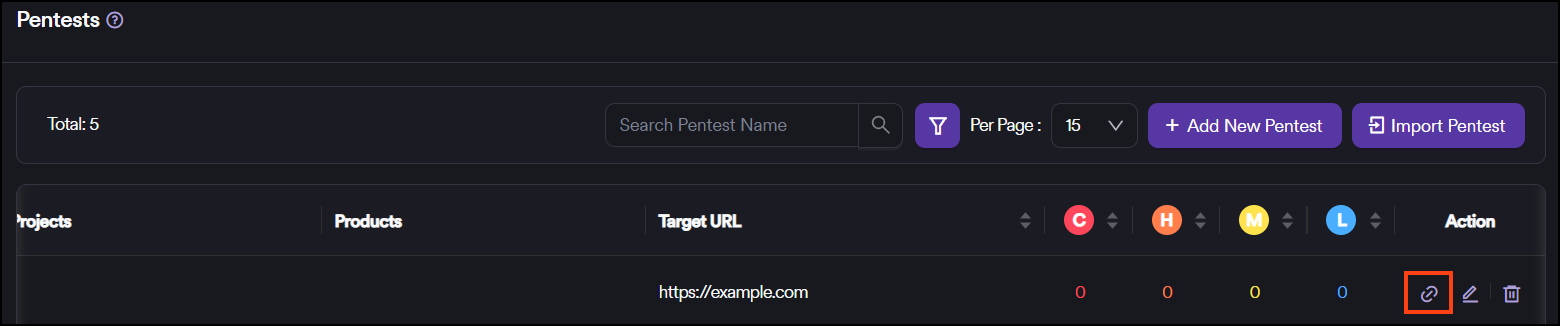
You can view vulnerabilities discovered in each pentest by clicking the Vulnerabilities button on the right-hand side of each pentest entry.
Edit and delete pentest
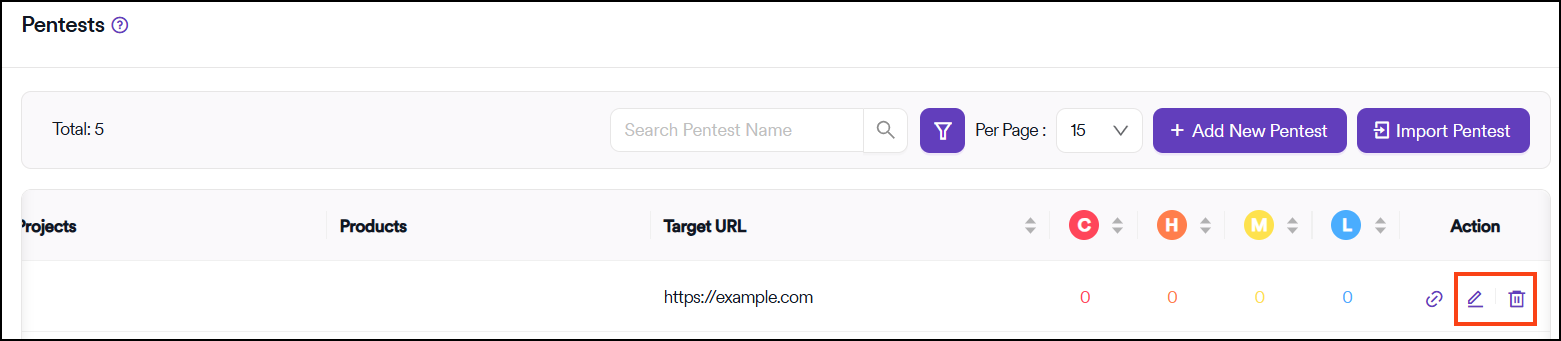
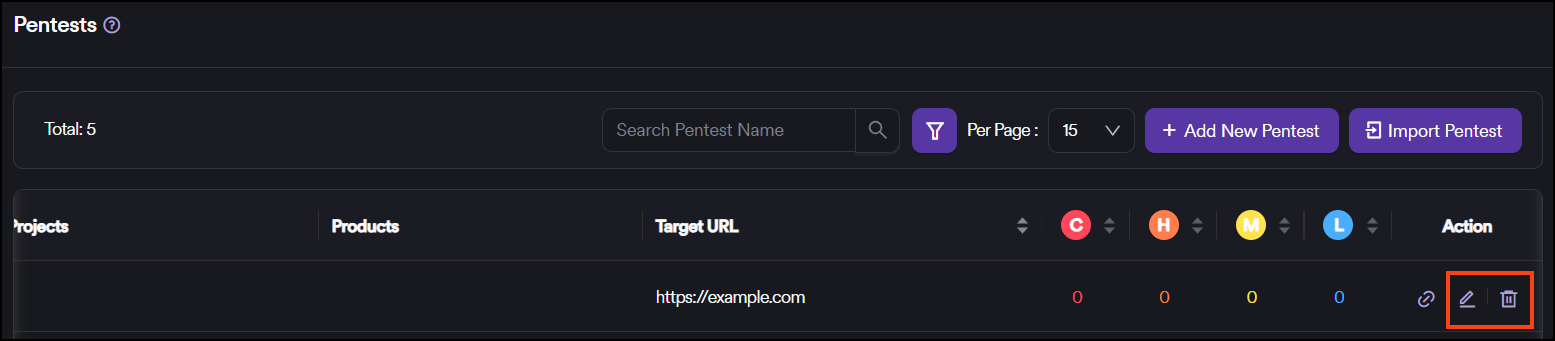
You can edit or delete each pentest by clicking the Edit or Delete button on the right-hand side of each pentest entry.
Need help?
Invicti Support team is ready to provide you with technical help. Go to Help Center