This integration is configured through the Invicti ASPM product.
Red Hat Advanced Cluster Security
Red Hat Advanced Cluster Security (RHACS) for Kubernetes provides container image vulnerability scanning and Kubernetes security posture management. In Invicti ASPM, the integration connects to your RHACS instance to import container image vulnerability findings.
Prerequisites
| Field | Description |
|---|---|
| Authentication Type | Choose between Basic (Username + Password) or Token authentication |
| Username | RHACS username (Basic auth only) |
| Password | RHACS password (Basic auth only) |
| Token | API token for RHACS (Token auth only) |
| URL | The base URL of your RHACS instance (e.g., https://central.rhacs.example.com) |
Get Credentials (on RHACS Side)
For Basic Authentication:
- Use your existing RHACS username and password.
For Token Authentication:
- Log in to the RHACS Central UI.
- Navigate to Platform Configuration > Integrations > Authentication Tokens.
- Click Generate Token.
- Select the appropriate role (e.g., Analyst for read-only access).
- Copy the generated token immediately — it is shown only once.
Step 1: Navigate to Integrations
From the left sidebar menu, click on Integrations.
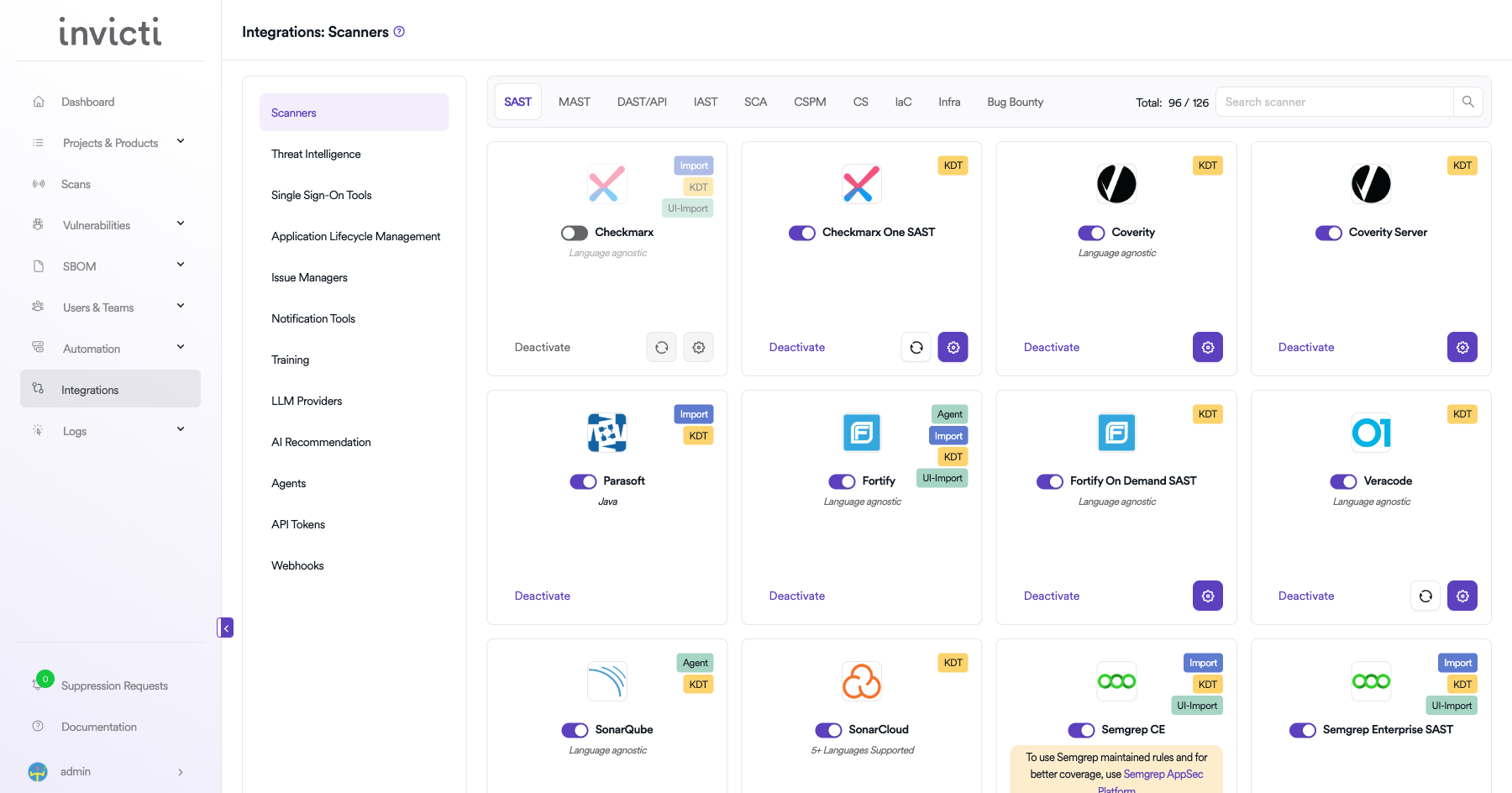
Step 2: Select the CS Tab
On the Integrations > Scanners page, click on the CS tab.
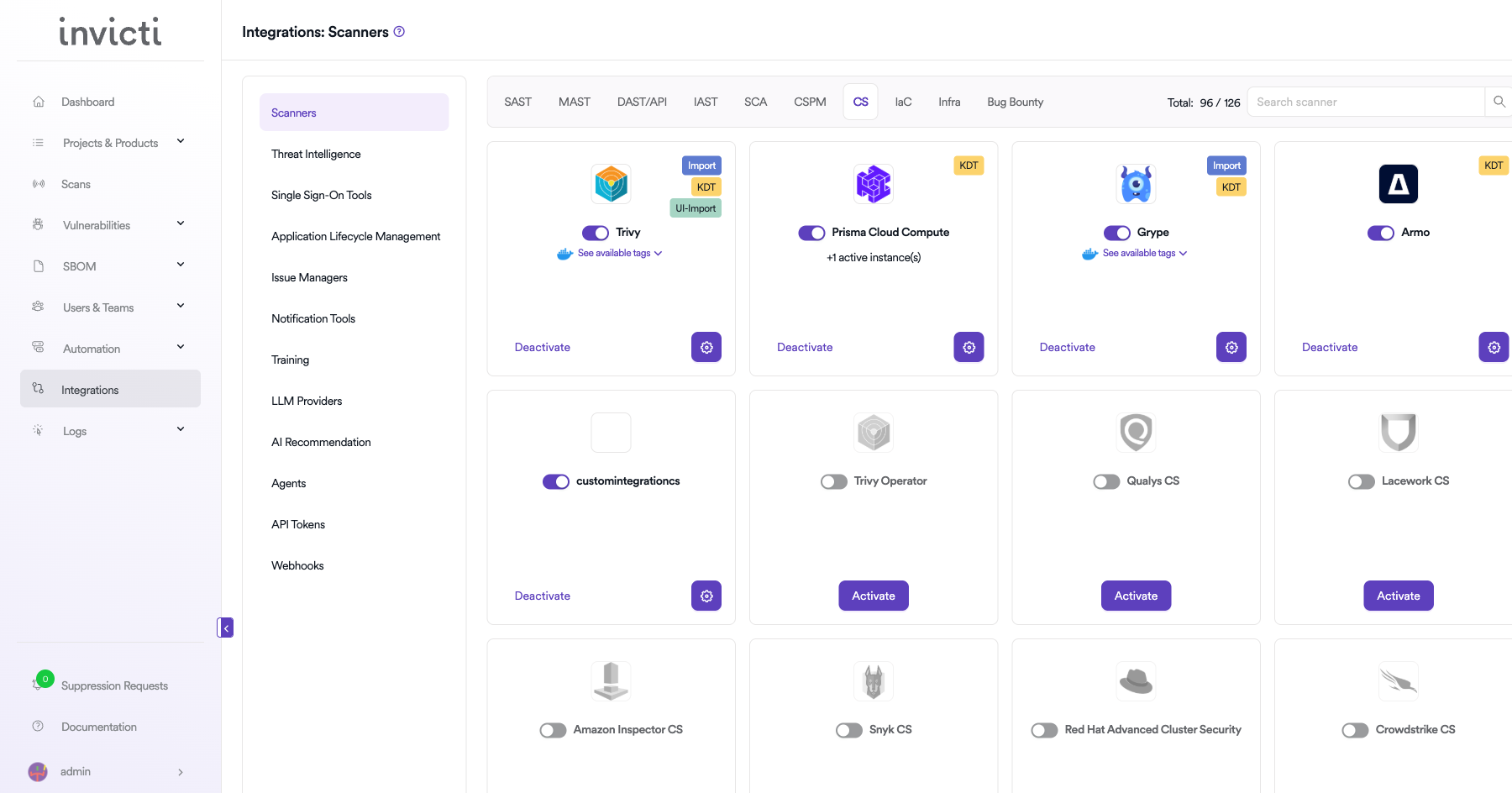
Step 3: Find and Activate Red Hat Advanced Cluster Security
Scroll through the list of CS scanners to find Red Hat Advanced Cluster Security.
- If RHACS is not activated, click the Activate button to enable the integration.
Step 4: Configure Connection Settings
Click the gear icon on the RHACS card to open the settings panel. Fill in the required fields:
| Field | Description | Required |
|---|---|---|
| Authentication Type | Select Basic (Username + Password) or Token | Yes |
| Username | RHACS username (shown when Basic is selected) | Yes (Basic only) |
| Password | RHACS password (shown when Basic is selected) | Yes (Basic only) |
| Token | RHACS API token (shown when Token is selected) | Yes (Token only) |
| URL | Base URL of your RHACS Central instance | Yes |
| Insecure | Skip TLS certificate verification (use only for self-signed certificates) | No |
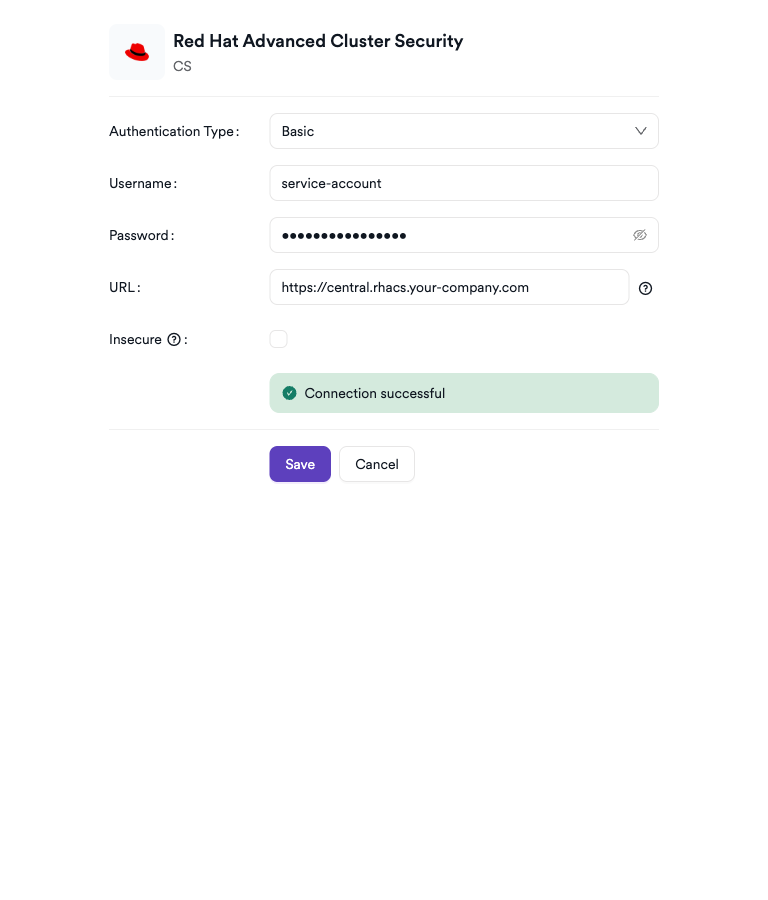
Step 5: Test the Connection
Click Test Connection. A green Connection successful message confirms that Invicti ASPM can authenticate with the RHACS API.
Summary
| Step | Action |
|---|---|
| 1 | Navigate to Integrations from the sidebar |
| 2 | Select the CS tab |
| 3 | Activate Red Hat Advanced Cluster Security |
| 4 | Select authentication type and enter credentials and URL |
| 5 | Test the connection |
Create a Scan
Navigate to Project Scanners
- Open a project in Invicti ASPM.
- Go to Settings > Scanners.
- Click Add Scanner.
Add Red Hat Advanced Cluster Security Scanner
- Select CS as the scanner type.
- Choose Red Hat Advanced Cluster Security from the scanner list.
- Click Add to open the scan configuration drawer.
Scan Configuration Fields
| Field | Description | Required |
|---|---|---|
| Environment | The deployment environment (e.g., feature, production) | No |
| Bind to | Select the container image from RHACS to associate with this scan | Yes |
| Branch | Source code branch for this scan | Yes |
| Meta Data | Additional metadata to tag the scan | No |
| Scan Tag | Free-text tag to identify or group scans | No |
| Fork Default Branch / Fork Source Branch | Enable to fork scan results from the default or source branch | No |
Bind to links the Invicti ASPM project to a specific container image tracked in RHACS. Vulnerability findings from that image will be imported into the project.
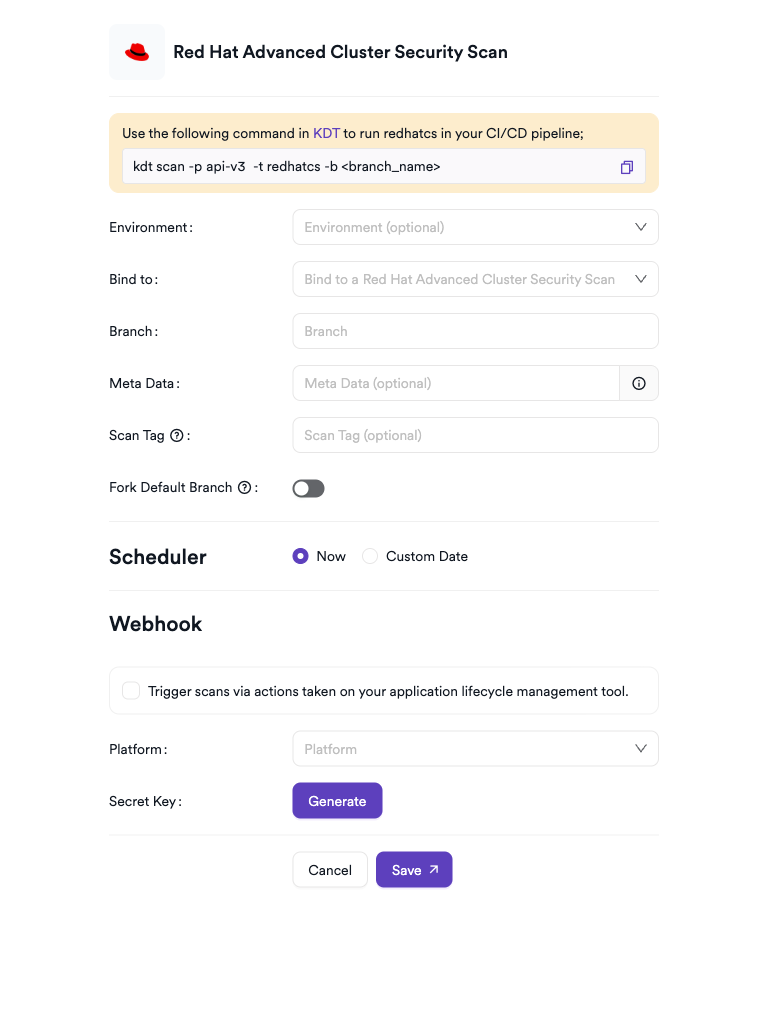
Scheduler
Enable the Scheduler toggle to automatically run RHACS scans on a recurring schedule.
Webhook (Optional)
Add a webhook URL to receive scan completion notifications.
KDT Command
kdt scan -p <project_name> -t redhatcs -b <branch_name>
Troubleshooting
Connection Fails
| Issue | Resolution |
|---|---|
| Invalid username or password | Verify the credentials against your RHACS Central instance. |
| Invalid API token | The token may have expired or been revoked. Generate a new token in RHACS under Authentication Tokens. |
| URL unreachable | Confirm the RHACS Central URL is reachable from the Invicti ASPM server. Check firewall and network rules. |
| TLS certificate error | If using a self-signed certificate, enable the Insecure option in the connection settings. |
| Insufficient permissions | Ensure the user or token has at least read access to image vulnerability data in RHACS. |
Scan Issues
| Issue | Resolution |
|---|---|
| No images available in Bind to dropdown | Ensure at least one container image has been scanned in RHACS and is accessible via the credentials provided. |
| Scan shows no findings | The image may have no known vulnerabilities, or the RHACS scan may not have completed yet. Check the RHACS console. |
| Scan not starting | Verify the scanner is activated and the connection test passes in the integration settings. |
Best Practices
- Prefer Token authentication over Basic authentication to avoid exposing user credentials.
- Use a dedicated RHACS service account or token with the minimum required permissions (read-only) for Invicti ASPM.
- Rotate API tokens periodically and update the integration settings in Invicti ASPM accordingly.
- Associate each Invicti ASPM project with the specific container image that represents its production artifact for accurate vulnerability tracking.
- Use the Scheduler to align scans with your container image rebuild cadence so findings always reflect the latest image state.
Limitations
- RHACS CS in Invicti ASPM imports vulnerability data from existing RHACS image scans — it does not trigger new RHACS scans.
- Only images already tracked within RHACS are available for binding; images not yet scanned by RHACS will not appear.
- Runtime threat detection signals from RHACS are not surfaced in Invicti ASPM findings; only vulnerability data is imported.
Need help?
Invicti Support team is ready to provide you with technical help. Go to Help Center