Package: Invicti AppSec Enterprise (on-premise, on-demand)
eShard esChecker
eShard esChecker is a Mobile Application Security Testing (MAST) platform that performs automated security analysis of mobile applications. It organizes testing around applications and campaigns — where a campaign is a predefined set of tests applied to a specific mobile application build. The Invicti AppSec integration connects to your esChecker server via API, retrieves the list of registered applications and their campaigns, and imports security findings from completed campaign runs.
Prerequisites
| Field | Description |
|---|---|
| Token | Your eShard esChecker API token |
| URL | The base URL of your eShard esChecker server instance (e.g., https://eschecker.company.com) |
Get an API token (on the eShard esChecker side)
- Log in to the eShard esChecker web interface.
- Navigate to Settings > API Tokens or User Profile > API Access.
- Generate a new API token.
- Copy the token and store it securely — it won't be shown again.
The token is sent as an X-API-Key header with every request. Ensure the associated user account has access to the applications and campaigns you intend to scan.
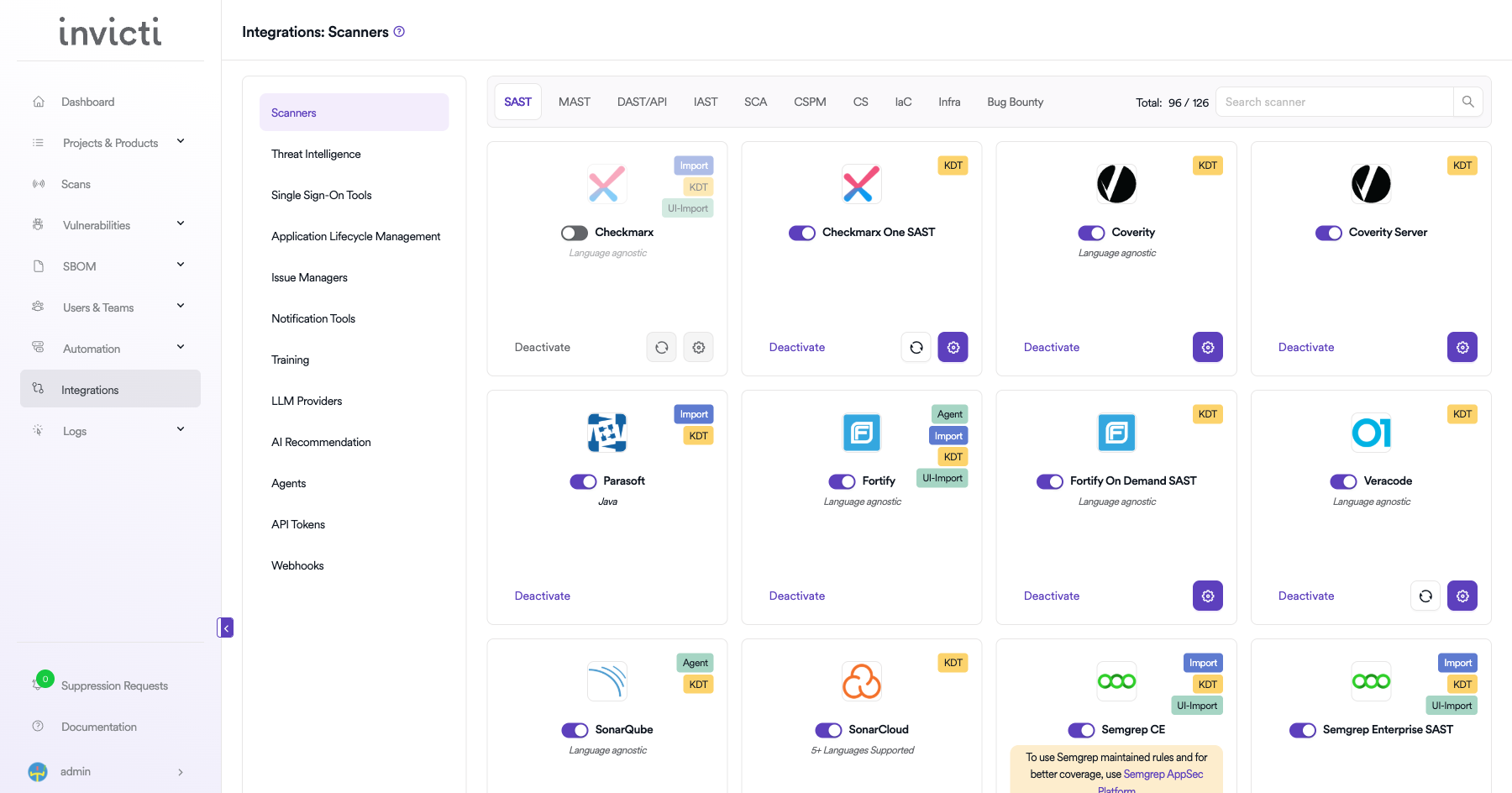
Step 1: Navigate to integrations
From the left sidebar, click Integrations.
Step 2: Select the MAST tab
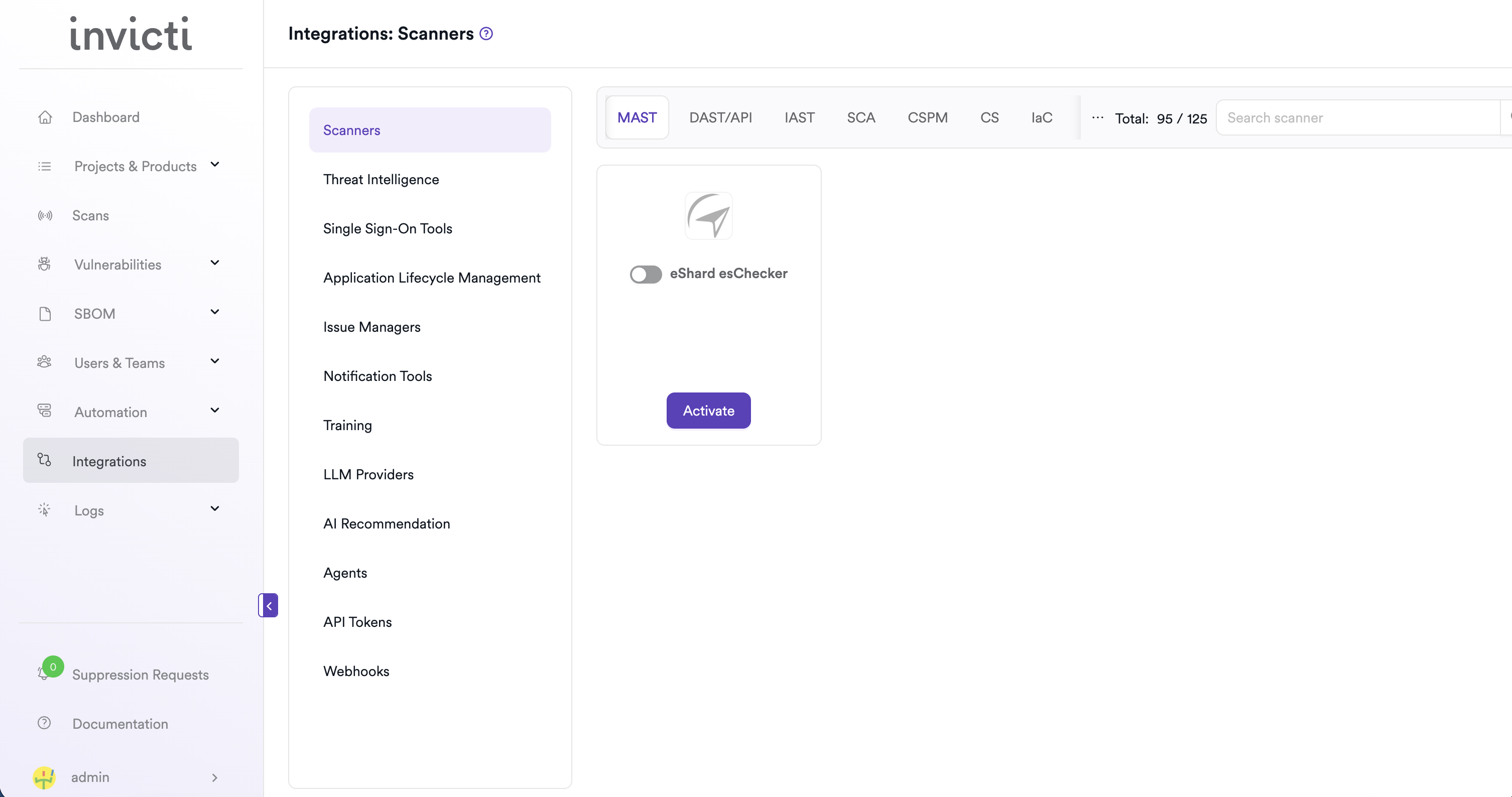
On the Integrations > Scanners page, click the MAST tab.
Step 3: Find and activate eShard esChecker
Scroll through the list of MAST scanners to find eShard esChecker.
- If eShard esChecker isn't activated, click Activate to enable the integration.
The scan method badges on the eShard esChecker card include Bind, KDT, and Import.
Step 4: Configure connection settings
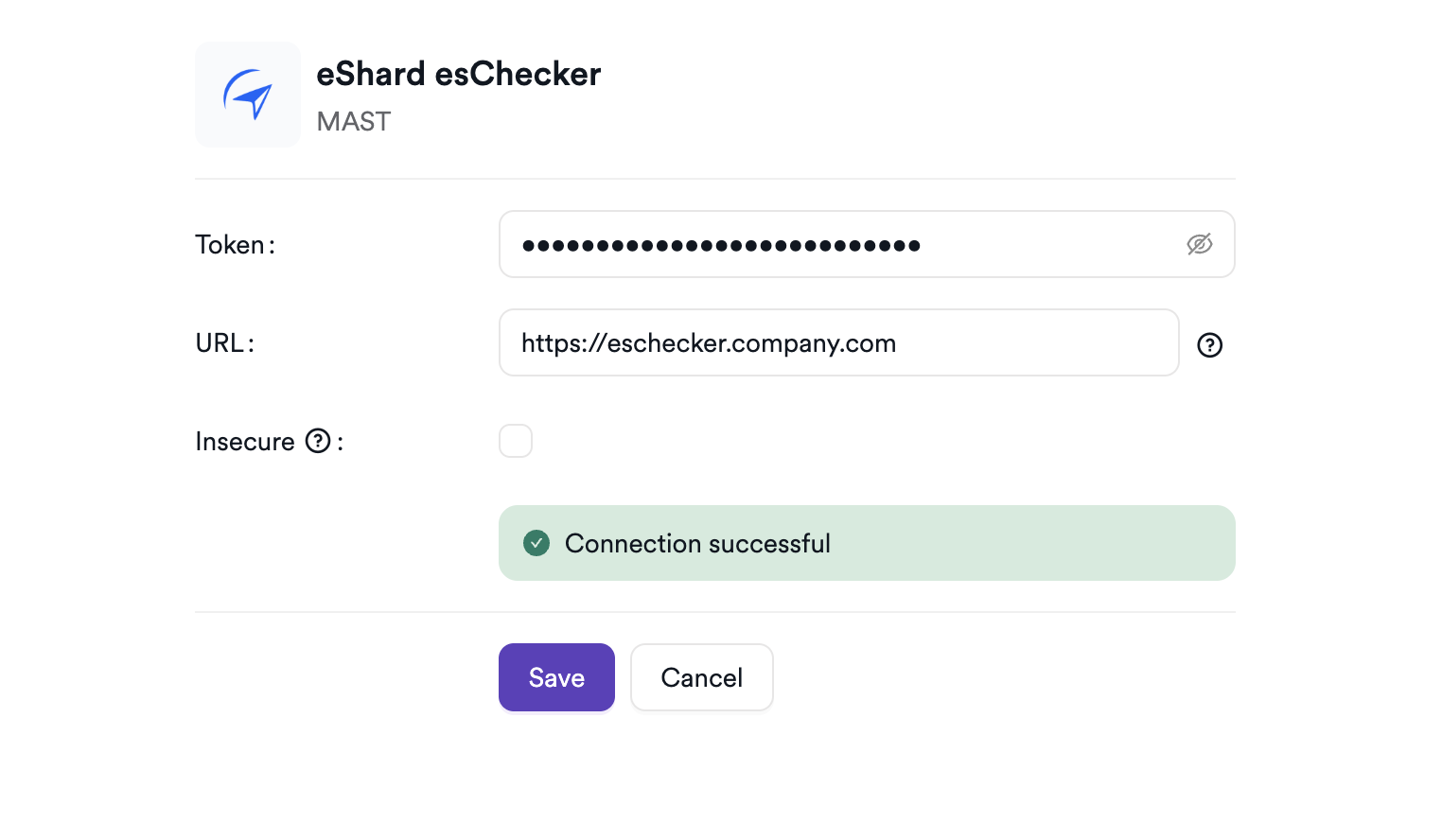
Click the gear icon on the eShard esChecker card to open the settings panel. Fill in the required fields:
| Field | Description | Required |
|---|---|---|
| Token | Your eShard esChecker API token | Yes |
| URL | Your esChecker server base URL | Yes |
| Insecure | Enable only if your instance uses a self-signed SSL certificate | No |
Step 5: Test the connection
Click Test Connection. A green Connection successful message confirms that Invicti AppSec can reach your eShard esChecker instance with the provided token.
Summary
| Step | Action |
|---|---|
| 1 | Navigate to Integrations from the sidebar |
| 2 | Select the MAST tab |
| 3 | Activate eShard esChecker |
| 4 | Enter Token and URL |
| 5 | Test the connection |
Create a scan
Navigate to project scanners
- Open a project in Invicti AppSec.
- Go to Settings > Scanners.
- Click Add Scanner.
Add eShard esChecker scanner
- Select MAST as the scanner type.
- Choose eShard esChecker from the scanner list.
- Click Add to open the scan configuration drawer.
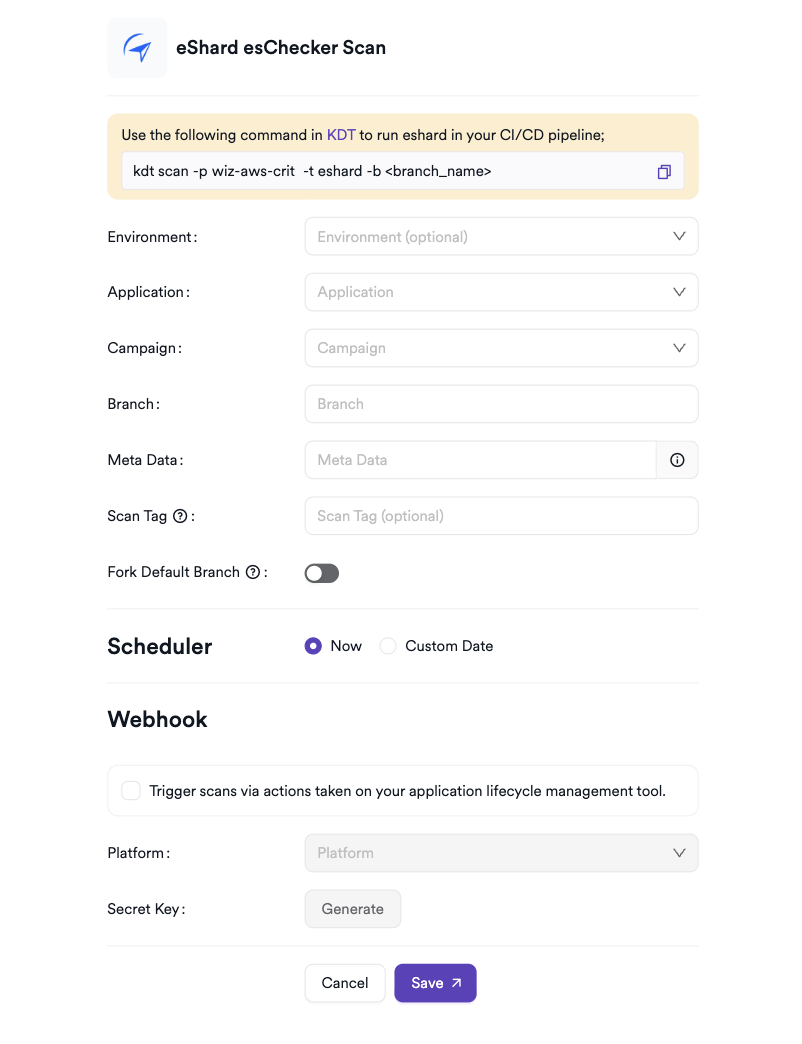
Scan configuration fields
| Field | Description | Required |
|---|---|---|
| Environment | Select the environment for the scan | No |
| Application | Select the mobile application registered in esChecker | Yes |
| Campaign | Select the campaign (test set) to run for the selected application | Yes |
| Branch | Source code branch associated with this scan | Yes |
| Meta Data | Additional metadata for the scan | No |
| Scan Tag | Tag to identify the scan | No |
The Application list is loaded from your eShard esChecker server. After selecting an application, the Campaign list is populated with available campaigns for that application.
Scheduler
Enable the Scheduler toggle to pull eShard esChecker findings on a recurring schedule.
Webhook (optional)
Add a webhook URL to receive scan completion notifications.
KDT command
kdt scan -p <project_name> -t eshard -b <branch_name>
Troubleshooting
Connection fails
| Issue | Resolution |
|---|---|
| 401 Unauthorized | Verify the API token is valid and hasn't been revoked. Regenerate it in the eShard esChecker interface if needed. |
| URL not reachable | Confirm the esChecker server URL is accessible from the Invicti AppSec network. Check firewall rules and proxy settings. |
| SSL certificate error | Enable the Insecure option for self-signed certificates, or add the certificate to your trust store. |
| No applications returned | Ensure the token's associated account has access to at least one registered application. |
Scan issues
| Issue | Resolution |
|---|---|
| No campaigns listed | Campaigns are application-specific. Verify the selected application has at least one campaign configured in esChecker. |
| Empty results | The campaign run may have no findings, or the campaign may not have completed successfully. Check the campaign run status in the esChecker interface. |
| Application not found | Confirm the application exists in esChecker and is visible to the account associated with the API token. |
Best practices
- Use a dedicated esChecker service account for the Invicti AppSec integration to avoid access disruptions when team members change roles.
- Rotate the API token periodically and update the integration promptly after each rotation.
- Ensure campaigns are fully configured in esChecker before assigning them to Invicti AppSec scans.
- For large applications with many campaigns, use the Scan Tag field to distinguish results from different campaign runs in Invicti AppSec.
- Store the API token in a secrets manager and avoid embedding it in pipeline scripts.
Limitations
- eShard esChecker results in Invicti AppSec reflect the findings from a specific campaign run — findings from other campaigns on the same application are tracked separately.
- The integration reads completed campaign run results; it doesn't initiate new campaign executions within esChecker.
- Only campaigns associated with the configured API token's accessible applications appear in the scan configuration drawer.
Need help?
Invicti Support team is ready to provide you with technical help. Go to Help Center