Package: Invicti AppSec Enterprise (on-premise, on-demand)
HackerOne integration
HackerOne is a leading bug bounty and vulnerability disclosure platform that connects organizations with a global community of security researchers. The Invicti AppSec integration connects to your HackerOne account via API, retrieves vulnerability reports submitted to your managed programs, and imports them as findings — giving your security team a unified view of both internal scan results and externally reported vulnerabilities.
Prerequisites
| Field | Description |
|---|---|
| Username | your HackerOne API username (the identifier used for API authentication) |
| Token | your HackerOne API token (used as the password in Basic Auth) |
Get API credentials (on HackerOne side)
- Log in to the HackerOne platform.
- Click your profile icon in the top right and select Settings.
- Navigate to API Token under the Authentication section.
- Click Create API Token.
- Enter a name for the token and click Create.
- Copy the Identifier (this is your Username) and the Token — the token is shown only once.
Keep both the Identifier and Token secure. The HackerOne API authenticates using HTTP Basic Auth with the Identifier as the username and the Token as the password.
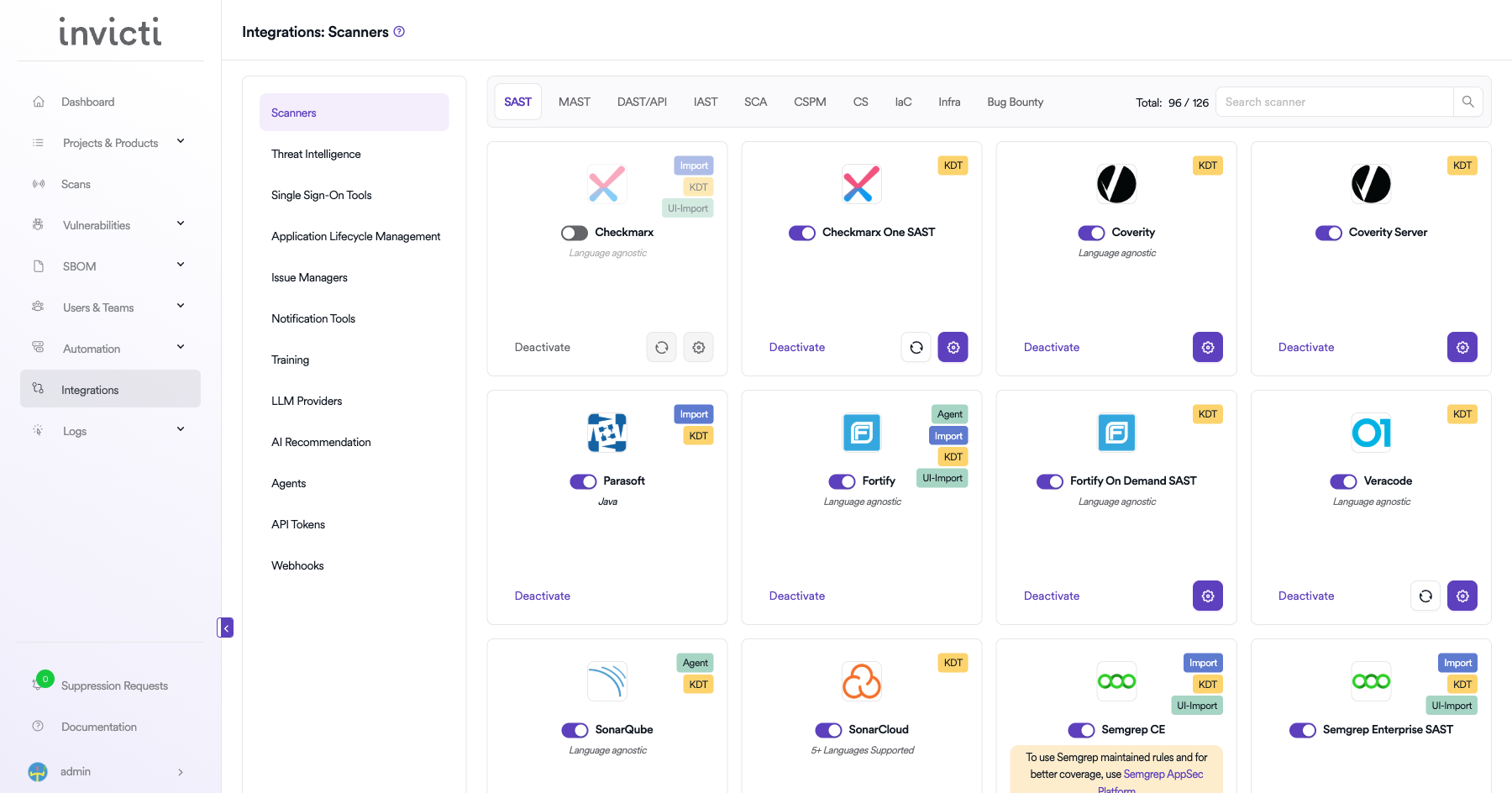
Step 1: Navigate to Integrations
From the left sidebar menu, click Integrations.
Step 2: Select the Bug Bounty tab
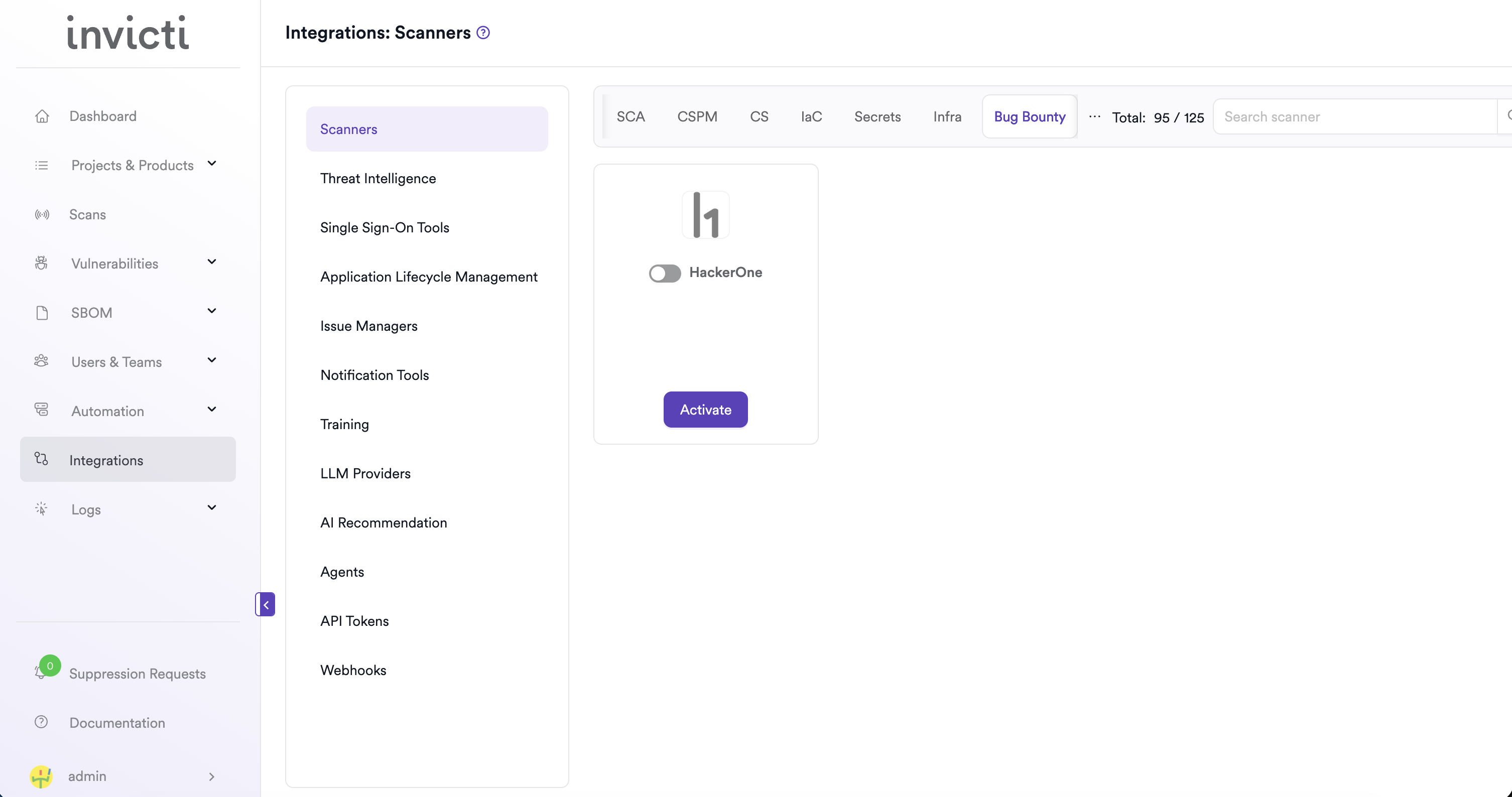
On the Integrations > Scanners page, click the Bug Bounty tab.
Step 3: Find and activate HackerOne
Scroll through the list of Bug Bounty scanners to find HackerOne.
- If HackerOne is not activated, click Activate to enable the integration.
The scan method badge on the HackerOne card is Bind.
Step 4: Configure connection settings
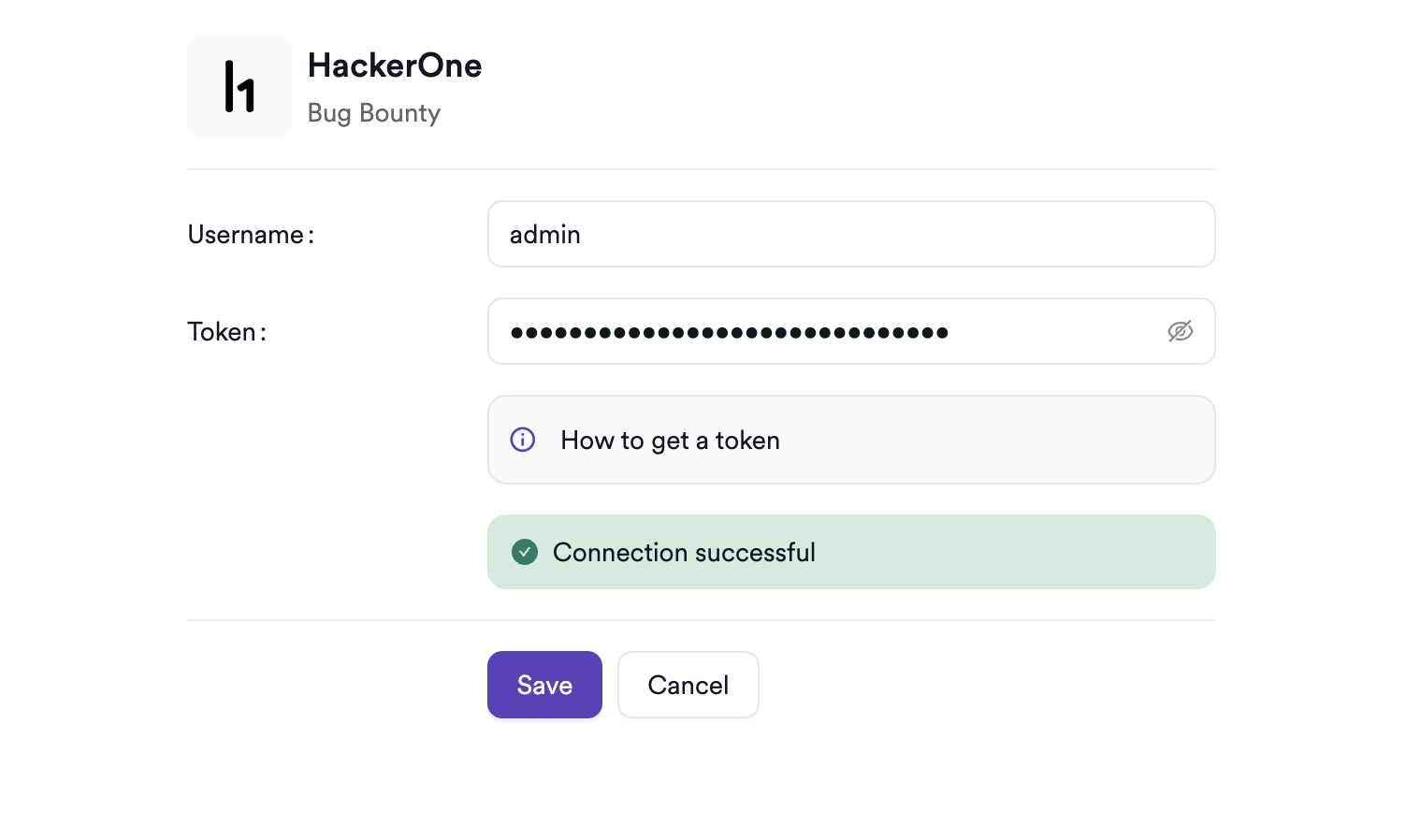
Click the gear icon on the HackerOne card to open the settings panel. Fill in the required fields:
| Field | Description | Required |
|---|---|---|
| Username | your HackerOne API identifier | Yes |
| Token | your HackerOne API token | Yes |
The HackerOne API base URL (https://api.hackerone.com/v1) is fixed and doesn't need to be configured.
Step 5: Test the connection
Click Test Connection. A green Connection successful message confirms that Invicti AppSec can authenticate with the HackerOne API and access your programs.
Summary
| Step | Action |
|---|---|
| 1 | Navigate to Integrations from the sidebar |
| 2 | Select the Bug Bounty tab |
| 3 | Activate HackerOne |
| 4 | Enter Username (API Identifier) and Token |
| 5 | Test the connection |
Create a scan
Navigate to project scanners
- Open a project in Invicti AppSec.
- Go to Settings > Scanners.
- Click Add Scanner.
Add HackerOne scanner
- Select Bug Bounty as the scanner type.
- Choose HackerOne from the scanner list.
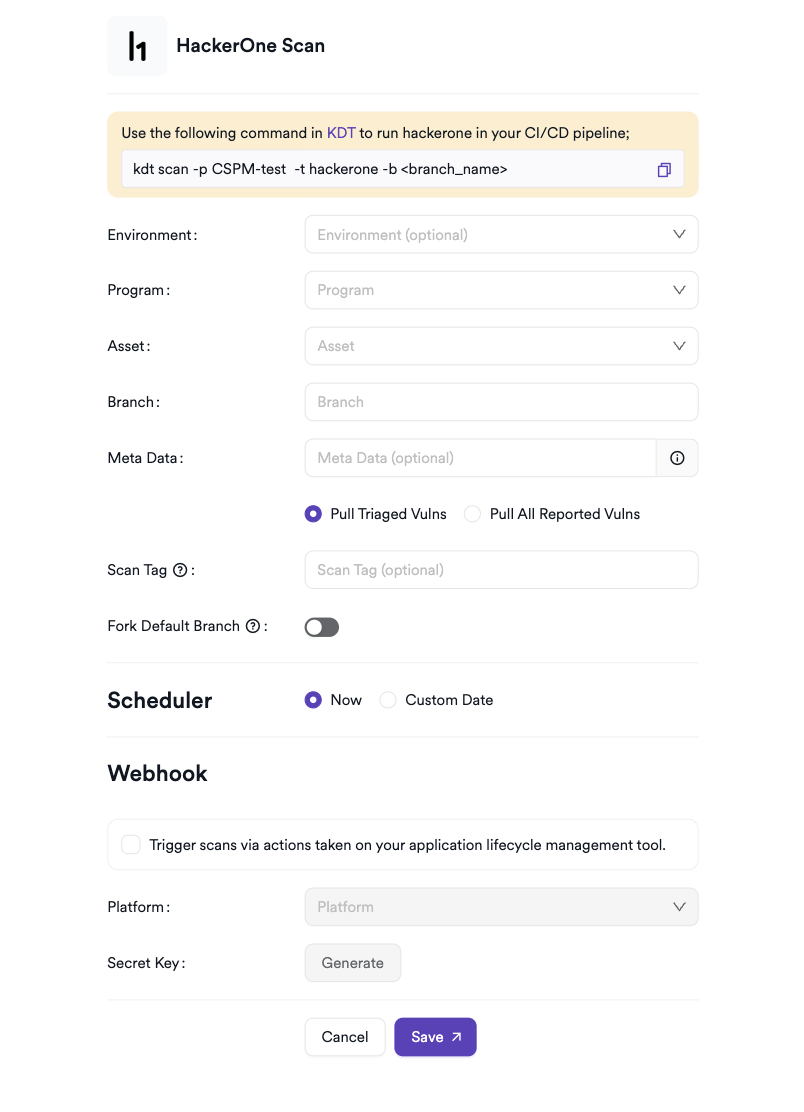
- Click Add to open the scan configuration drawer.
Scan configuration fields
| Field | Description | Required |
|---|---|---|
| Environment | select the environment for the scan | No |
| Program | select the HackerOne bug bounty program to pull reports from | Yes |
| Asset | select the specific asset (structured scope) within the program | Yes |
| Branch | source code branch associated with this scan | Yes |
| Reports to Pull | choose between Triaged only or All reported vulnerabilities | No |
| Meta Data | additional metadata for the scan | No |
| Scan Tag | tag to identify the scan | No |
The Program list is populated from your HackerOne account. After selecting a program, the Asset list shows the structured scopes defined for that program. The Reports to Pull option controls whether Invicti AppSec imports only triaged (validated) findings or all submitted reports including those pending triage.
Scheduler
Enable the Scheduler toggle to pull HackerOne reports on a recurring schedule.
Webhook (optional)
Add a webhook URL to receive scan completion notifications.
Troubleshooting
Connection fails
| Issue | Resolution |
|---|---|
| 401 Unauthorized | verify that both the API Identifier (Username) and Token are correct. Regenerate the API token in HackerOne Settings if needed. |
| No programs returned | ensure the HackerOne account associated with the API credentials has access to at least one managed program. |
| 403 Forbidden | the API token may lack the required permissions. Verify the token has read access to programs and reports. |
Scan issues
| Issue | Resolution |
|---|---|
| No assets listed | the selected program may have no structured scopes defined. Configure assets in the HackerOne program scope settings. |
| Empty results | the program may have no reports matching the selected asset and triage filter. Try switching to All reported to verify if any reports exist. |
| Missing reports | HackerOne API results are paginated. For programs with large numbers of reports, the initial sync may take longer than expected. |
Best practices
- Use a dedicated HackerOne API token for the Invicti AppSec integration rather than a personal account token, to avoid access loss when team members change.
- Rotate the API token periodically and update the integration promptly after each rotation.
- Use the Triaged only filter as the default to focus on validated findings and reduce noise from unverified reports.
- Map each HackerOne asset to its corresponding Invicti AppSec project so vulnerability data is organized by application.
- Review new HackerOne report submissions regularly and re-trigger syncs to keep Invicti AppSec findings current.
Limitations
- HackerOne is a Bind-only integration — scans can't be triggered via the KDT CLI; reports must be pulled through the Invicti AppSec web interface or scheduler.
- The integration imports reports submitted to your HackerOne programs; it doesn't create or manage programs, assets, or researcher interactions within HackerOne.
- Report data is fetched at sync time; new reports submitted after the last sync appear only on the next scheduled or manual run.
- The structured scope (asset) filter applies at the time of import — reports not associated with the selected asset in HackerOne's scope definition won't be included.
Need help?
Invicti Support team is ready to provide you with technical help. Go to Help Center