Package: Invicti AppSec Enterprise (on-premise, on-demand)
Infrastructure vulnerabilities
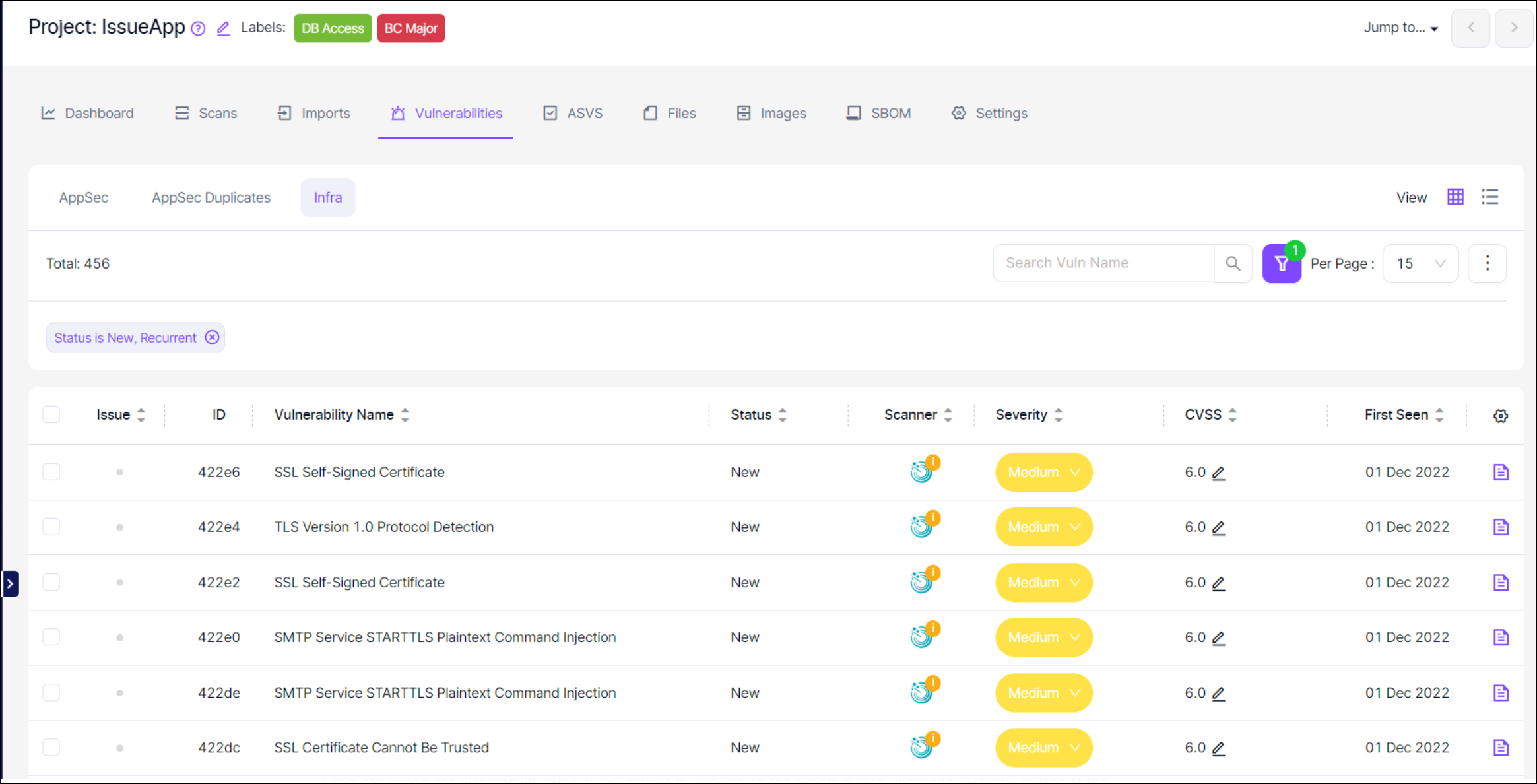
In this view, vulnerabilities discovered by automated Infra tools and those that have been manually imported can be viewed.
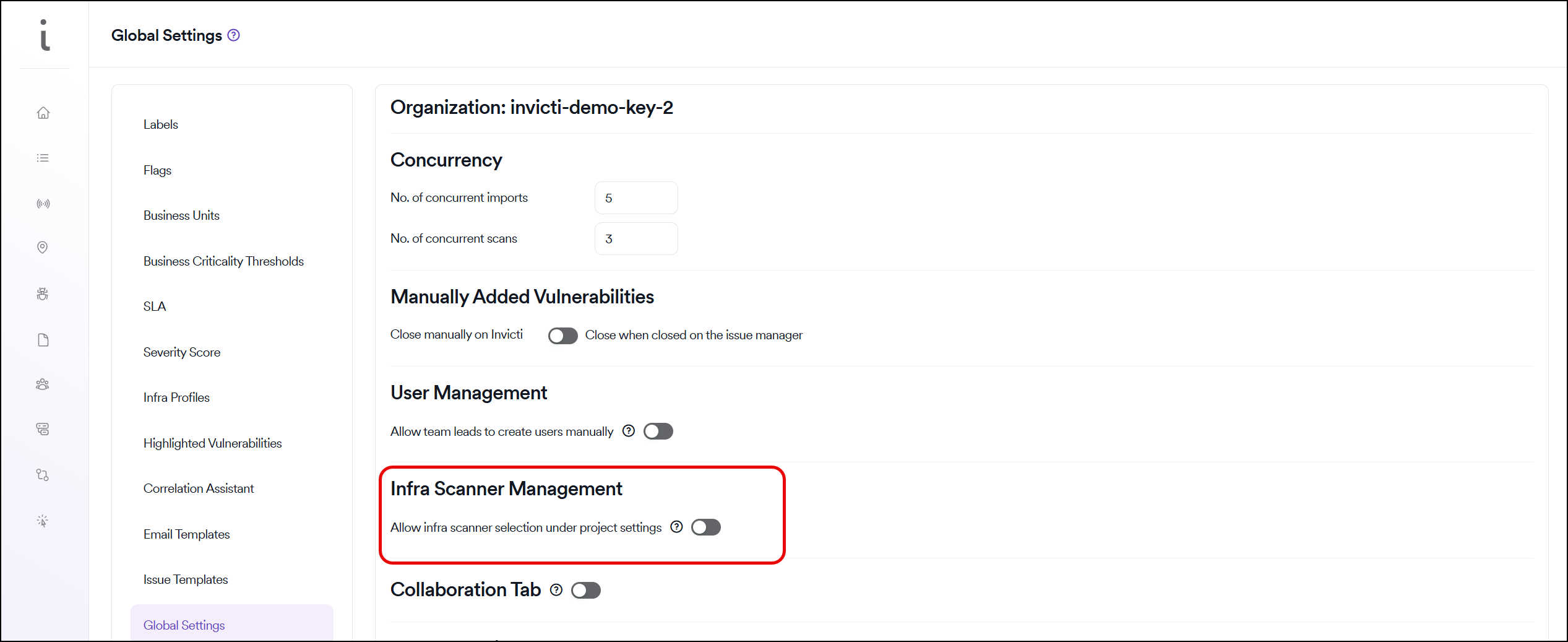
If infra scanner selection under project settings is enabled by an admin, then infra scans can also be scheduled under the project settings just like any other scan. If this toggle isn't enabled, infra scans can only be scheduled at a global level by an admin in Global Settings > Infra Profiles and vulnerabilities are distributed to projects based on the Infra Groups assigned to projects.
Five bulk actions can be taken on infrastructure vulnerabilities through the Action button in the upper left corner: Assign Issue, False Positive, Risk Accepted, Close, and Add Screenshot.
If you need to assign an issue for a single vulnerability or multiple vulnerabilities, use the checkboxes on the left-hand side of each row and click the Assign Issue button from the "Choose an action" drop-down menu that appears in the upper left corner.
Close action is available only for vulnerabilities manually imported to Invicti AppSec and not for vulnerabilities discovered by automated Infra tools.
Vulnerabilities closed on Invicti AppSec, which have been sent to the issue manager are also closed automatically on the issue manager.
Using the three-dot menu (⋮) in the upper right corner, it's possible to add a single vulnerability, import multiple vulnerabilities or export current vulnerabilities in CSV format.
The Add button allows adding a single vulnerability by filling out a form, whereas it's possible to import multiple vulnerabilities by using the template provided under the Import section.
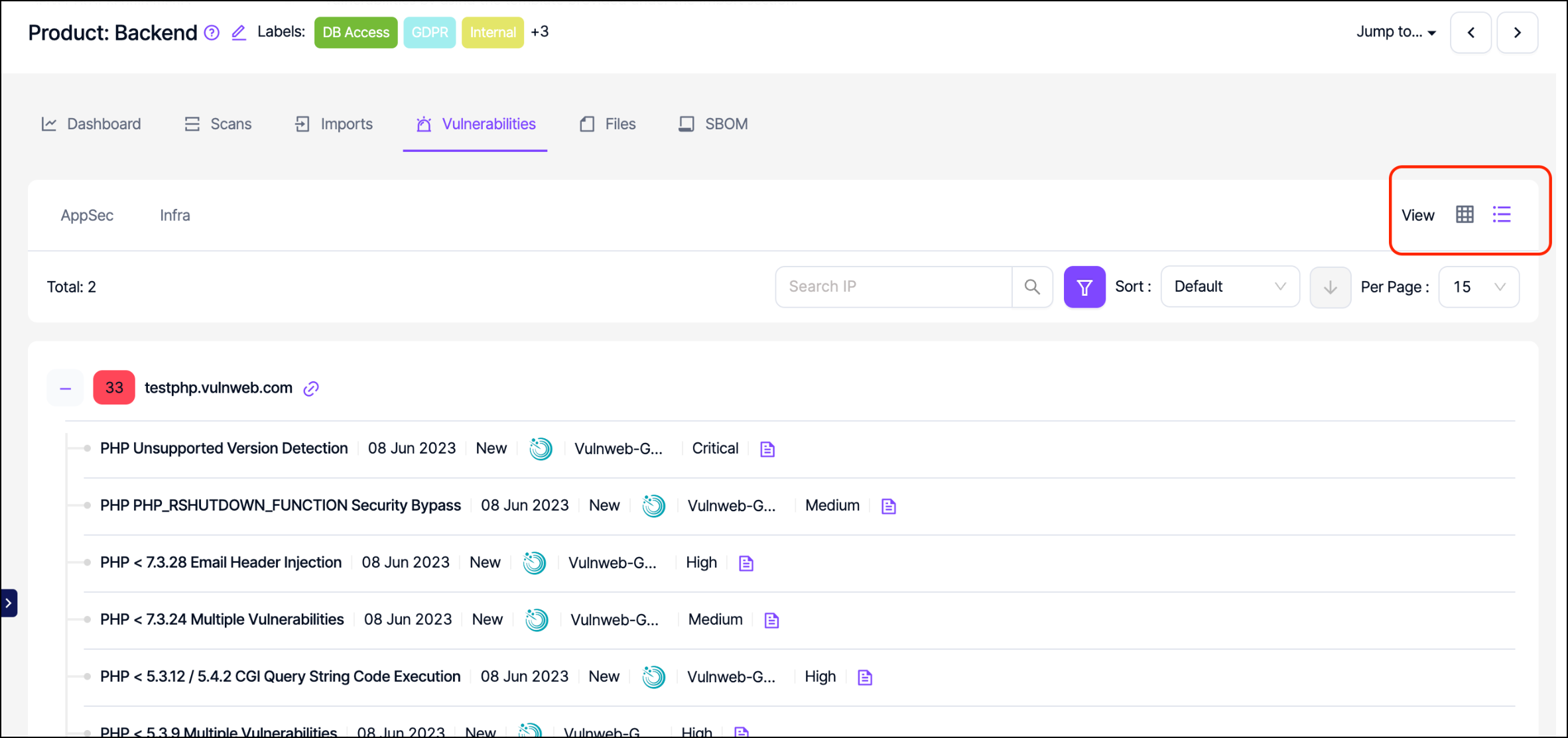
Vulnerability view can be changed using the view options as seen in the screenshot below.
Users can export the vulnerability table in CSV format by clicking the export button under the Actions button at the top right corner of the page. The columns available on the table can be changed by clicking the gear icon located in the top right corner of the table.
Need help?
Invicti Support team is ready to provide you with technical help. Go to Help Center