Package: Invicti AppSec Enterprise (on-premise, on-demand)
Seeker integration
Seeker is Synopsys's IAST (Interactive Application Security Testing) solution that detects security vulnerabilities in running web applications using instrumentation. Seeker monitors application behavior at runtime — during functional testing, QA, or normal use — and identifies vulnerabilities such as SQL injection, XSS, path traversal, and more without requiring dedicated attack traffic. The Invicti AppSec integration connects to your Seeker server via API and retrieves findings for specified projects.
Prerequisites
| Field | Description |
|---|---|
| Token | a Seeker API token with access to the target projects |
| URL | the base URL of your Seeker server instance (e.g., https://seeker.company.com) |
Get a Seeker API token (on Seeker side)
- Log in to the Seeker web interface.
- Navigate to Settings > API Access Tokens (or Administration > API Tokens depending on your Seeker version).
- Click Generate Token or Create New Token.
- Assign appropriate permissions — at minimum, read access to projects and vulnerabilities.
- Copy the generated token and store it securely.
The token grants access to all projects visible to the associated user account. Use a dedicated service account with limited scope for production integrations.
Step 1: Navigate to Integrations
From the left sidebar menu, click Integrations.
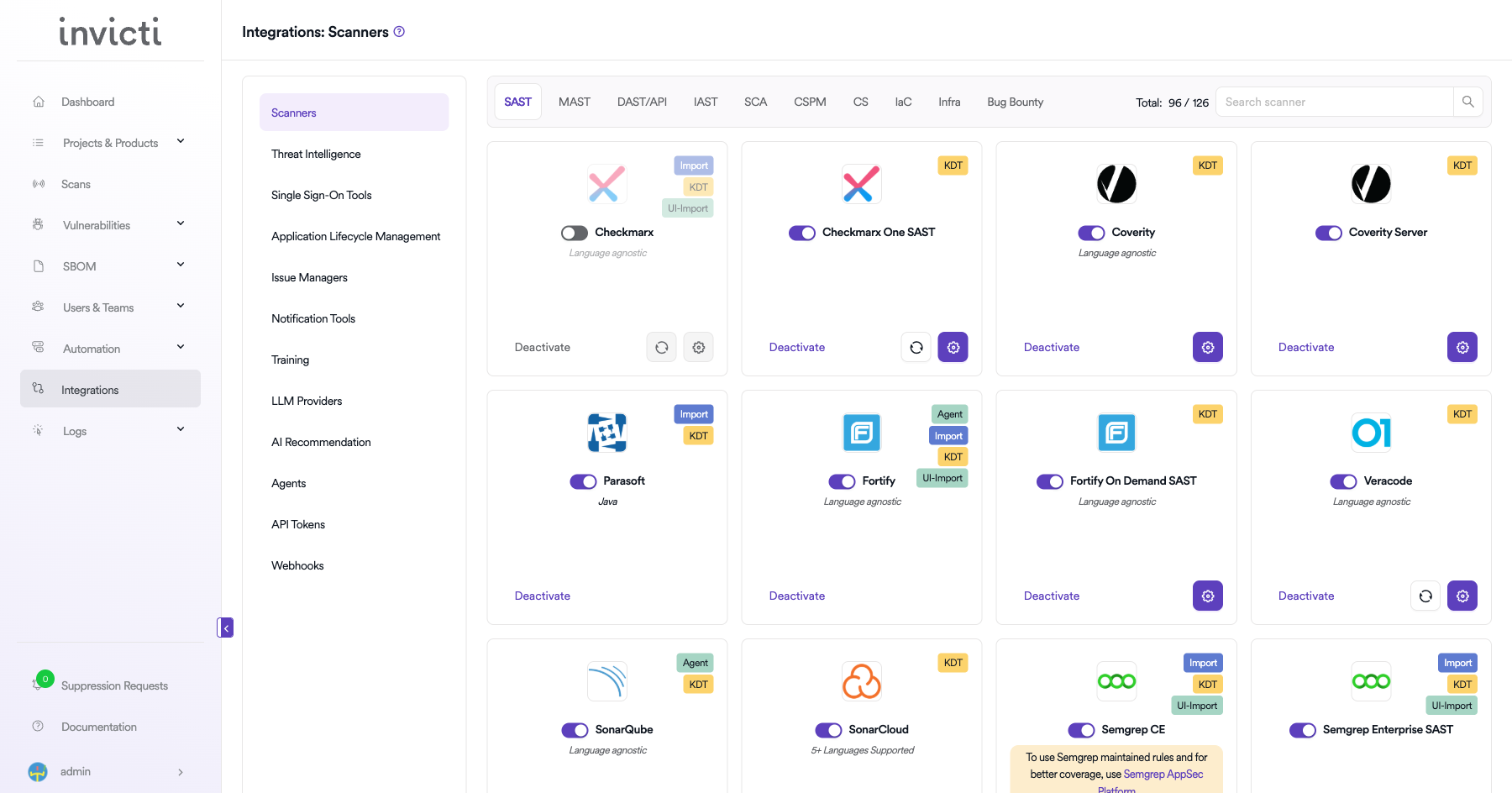
Step 2: Select the IAST tab
On the Integrations > Scanners page, click the IAST tab.
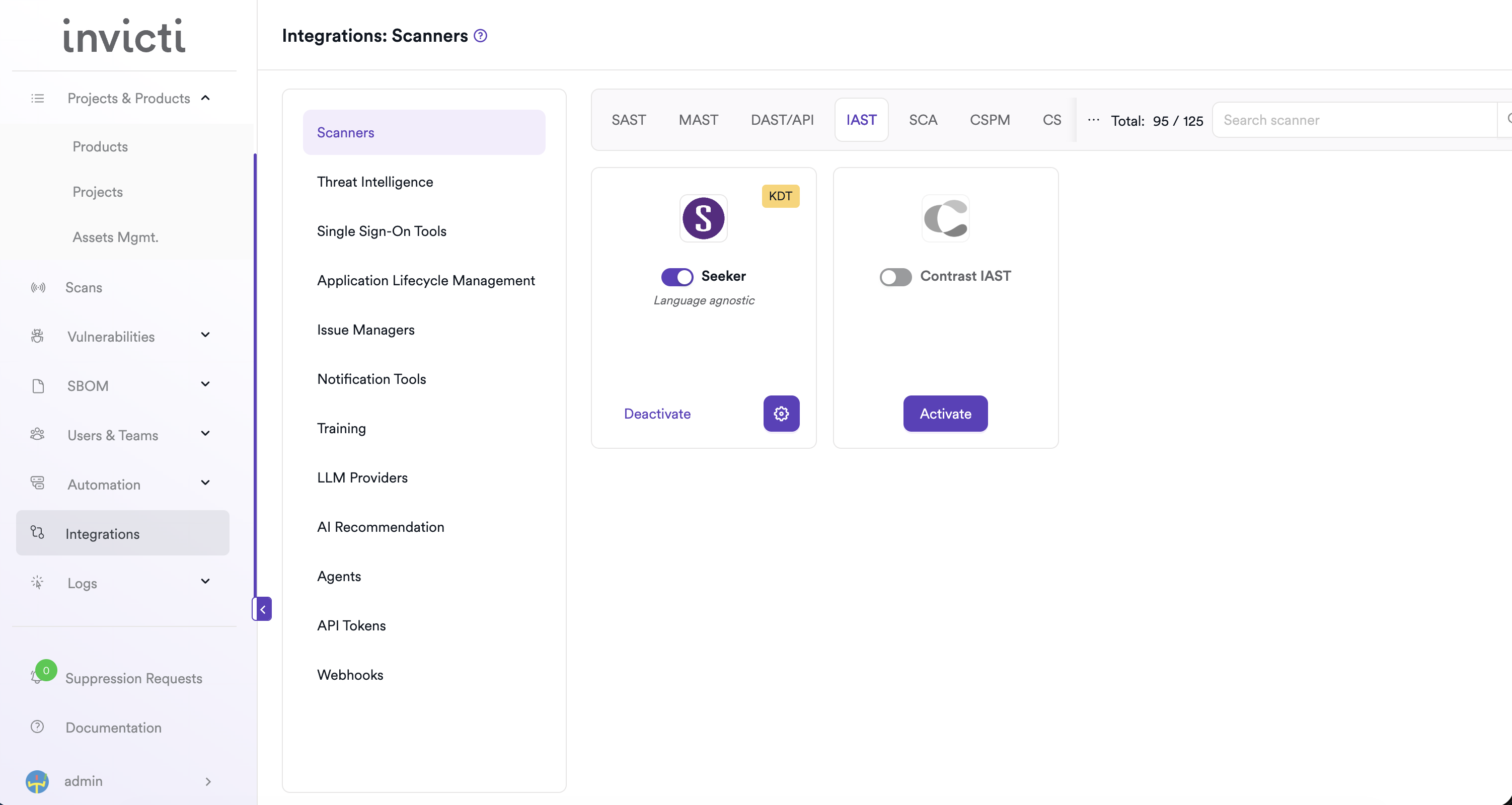
Step 3: Find and activate Seeker
Scroll through the list of IAST scanners to find Seeker.
- If Seeker is not activated, click Activate to enable the integration.
The scan method badges on the Seeker card include Bind and KDT. Seeker supports multiple instances — you can configure up to 10 separate Seeker server connections.
Step 4: Configure connection settings
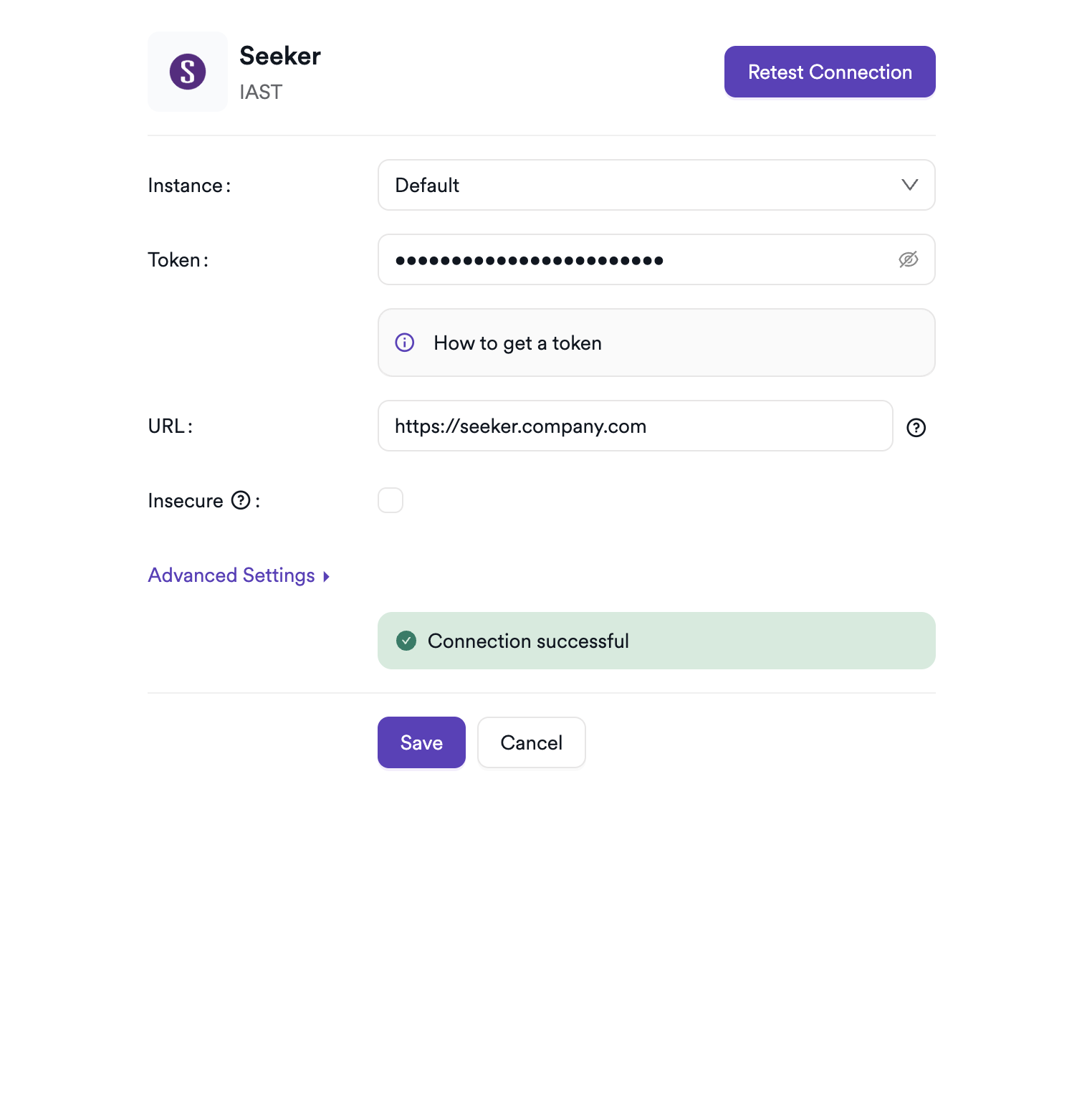
Click the gear icon on the Seeker card to open the settings panel. Fill in the required fields:
| Field | Description | Required |
|---|---|---|
| Instance | select Default for the primary instance, or choose an existing named instance | Yes |
| Instance Name | a unique label for this instance (required for non-default instances) | Conditional |
| Token | your Seeker API bearer token | Yes |
| URL | your Seeker server base URL | Yes |
| Insecure | enable only if your instance uses a self-signed SSL certificate | No |
Instance access controls (available for the Default instance):
| Option | Description |
|---|---|
| Allow team leads to scan this instance | grants team lead users the ability to use this Seeker instance for scans |
| Allow team leads to create new instances | permits team leads to add their own Seeker instance connections |
Step 5: Test the connection
Click Test Connection. A green Connection successful message confirms that Invicti AppSec can reach your Seeker server with the provided token.
Summary
| Step | Action |
|---|---|
| 1 | Navigate to Integrations from the sidebar |
| 2 | Select the IAST tab |
| 3 | Activate Seeker |
| 4 | Enter Token and URL (and Instance Name if adding a non-default instance) |
| 5 | Test the connection |
Create a scan
Navigate to project scanners
- Open a project in Invicti AppSec.
- Go to Settings > Scanners.
- Click Add Scanner.
Add Seeker scanner
- Select IAST as the scanner type.
- Choose Seeker from the scanner list.
- Click Add to open the scan configuration drawer.
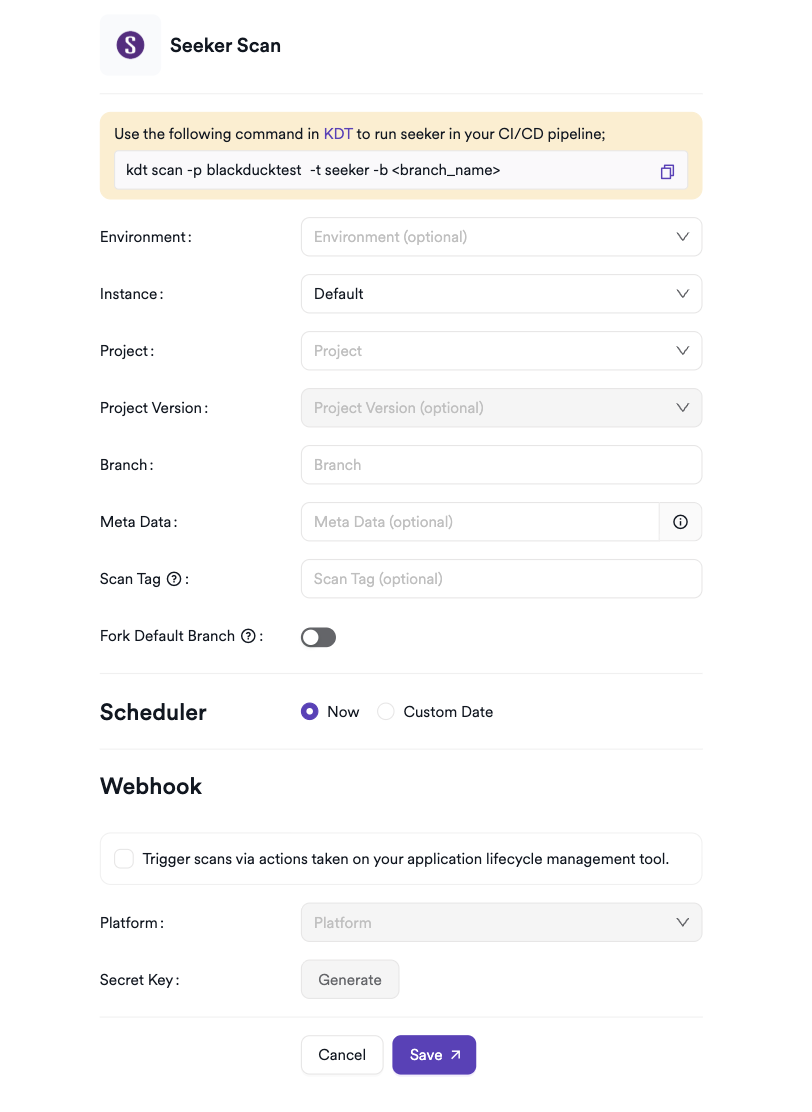
Scan configuration fields
| Field | Description | Required |
|---|---|---|
| Environment | select the environment for the scan | No |
| Instance | select the Seeker server instance to use | Yes |
| Project | select the Seeker project to retrieve findings from | Yes |
| Project Version | optionally filter findings to a specific project version | No |
| Branch | source code branch associated with this scan | Yes |
| Meta Data | additional metadata for the scan | No |
| Scan Tag | tag to identify the scan | No |
The Project list is loaded from the selected Seeker instance. Project Version narrows results to a specific version tag within that project — useful when a single Seeker project tracks multiple release branches.
Scheduler
Enable the Scheduler toggle to pull Seeker findings on a recurring schedule.
Webhook (optional)
Add a webhook URL to receive scan completion notifications.
KDT command
kdt scan -p <project_name> -t seeker -b <branch_name>
Troubleshooting
Connection fails
| Issue | Resolution |
|---|---|
| 401 Unauthorized | verify the API token is valid and hasn't expired. Regenerate it in the Seeker web interface if needed. |
| URL not reachable | confirm the Seeker server URL is accessible from the Invicti AppSec network. Check firewall rules and proxy settings. |
| SSL certificate error | enable the Insecure option for self-signed certificates, or add the certificate to your trust store. |
| No projects returned | ensure the token's associated user account has read access to the target Seeker projects. |
Scan issues
| Issue | Resolution |
|---|---|
| Empty results | the Seeker project may have no findings, or the application may not have been exercised under the Seeker agent during the reporting period. |
| Project not listed | confirm the project exists in Seeker and is visible to the user account associated with the API token. |
| Version not listed | project versions are populated dynamically. Ensure the version exists in the selected Seeker project. |
Best practices
- Use a dedicated Seeker service account with read-only access scoped to the required projects.
- Rotate the API token periodically and update the Invicti AppSec integration promptly after each rotation.
- Use Project Version to separate findings by release cycle when a single Seeker project tracks multiple application versions.
- Ensure the Seeker agent is instrumented and the application is being exercised before scheduling recurring syncs.
- For multi-team setups, use the Allow team leads to create new instances option to delegate Seeker instance management to individual teams.
- Store the API token in a secrets manager and avoid sharing it across unrelated integrations.
Limitations
- Seeker retrieves findings only for applications instrumented with the Seeker agent. Applications without the agent return no results.
- The integration reads findings already recorded by Seeker — it doesn't trigger new scans or agent deployments.
- Endpoint coverage metrics (tested vs. untested endpoints) collected by Seeker aren't currently surfaced in Invicti AppSec findings views.
- Up to 10 Seeker instances can be configured per integration; additional instances beyond this limit aren't supported.
- Invicti AppSec imports vulnerabilities available at the time of the sync. Findings detected after the sync appear in the next scheduled run.
Need help?
Invicti Support team is ready to provide you with technical help. Go to Help Center