Package: Invicti AppSec Enterprise (on-premise, on-demand)
Webhook integration with audit log events
Introduction
Invicti AppSec provides webhook support to notify external systems about important events occurring on the platform. With this feature, you can transmit audit log records created in Invicti AppSec to your own applications or third-party services in real-time.
This article examines the webhook setup, HTTP header configuration, and audit log event capturing process in Invicti AppSec step by step.
What is a webhook?
A webhook is a mechanism that automatically sends an HTTP POST request to another URL when a specific event occurs in an application. Invicti AppSec webhooks send data in JSON format to your specified endpoint when an audit log record is created on the platform.
Set up a webhook integration
Step 1: Access the webhook page
First, navigate to the webhook management page in the Invicti AppSec interface:
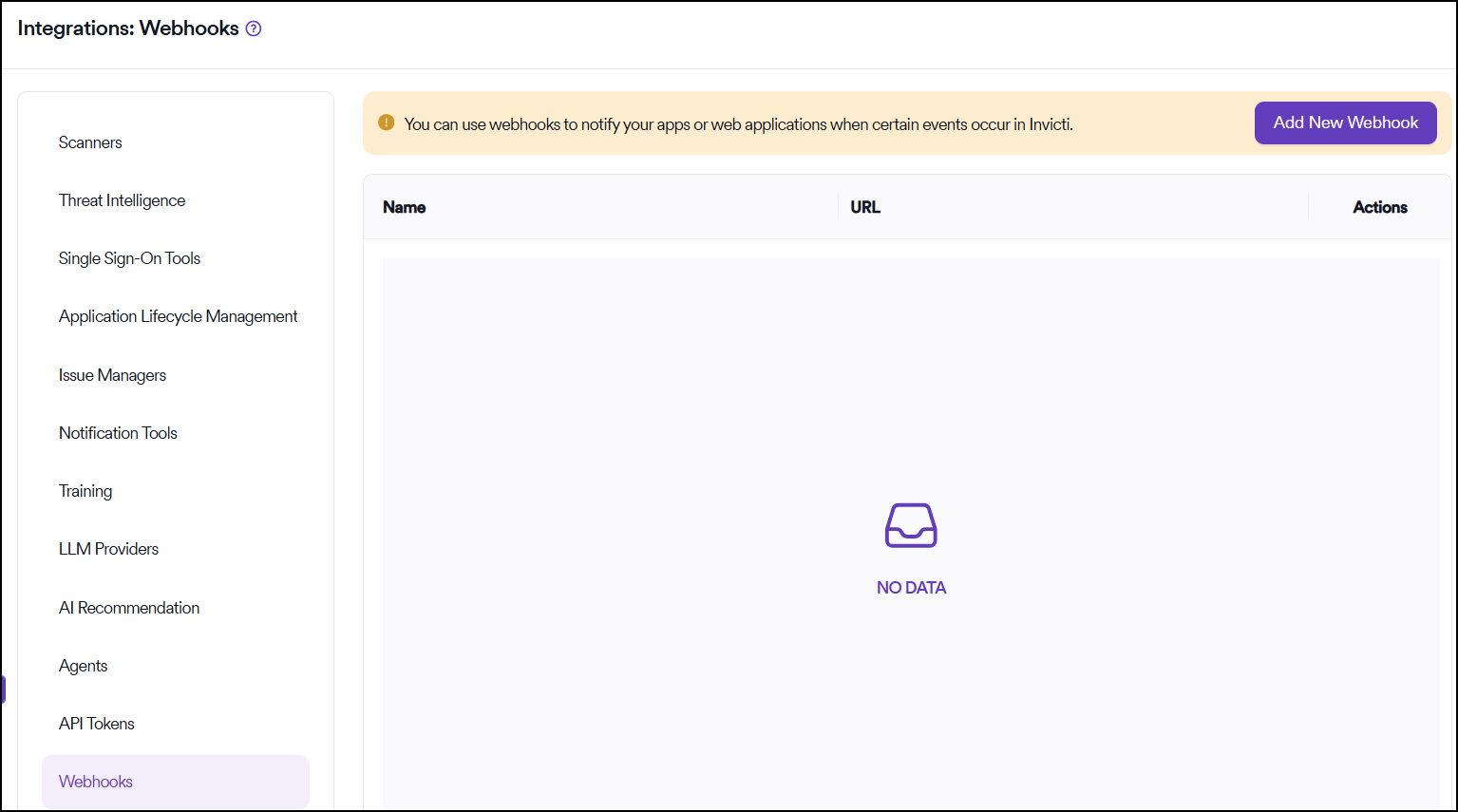
Select Integrations from the left-side menu, then select Webhooks
On the webhook page, you can view your existing webhooks and add new ones. At the top of the page, there's a green informational message: "You can use webhooks to notify your apps or web applications when certain events occur in Invicti."
To create a new webhook, click the Add New Webhook button in the upper right corner.
Step 2: Configure basic information
When you click the Add New Webhook button, a modal window opens. This window contains fields where you need to configure your webhook:
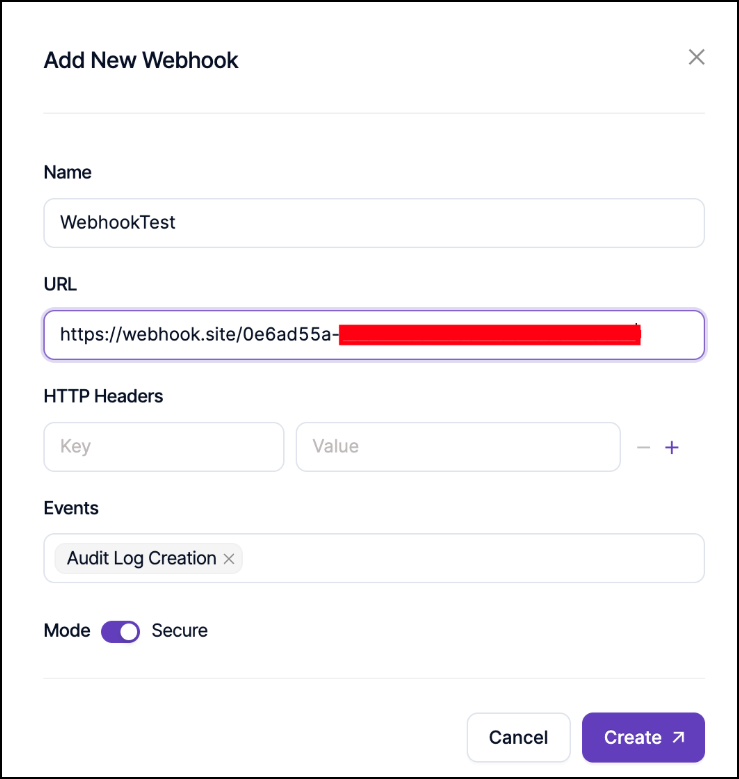
Webhook name
Give your webhook a descriptive name. For example, "WebhookTest". This name is used to manage and distinguish the webhook later.
Webhook URL
Enter the target URL where Invicti AppSec will send events. This can be an endpoint on your own server or a URL from testing tools like webhook.site.
Example URL: https://webhook.site/0e6ad55a-...
HTTP headers
You can add custom HTTP headers to webhook requests. Initially, the Key and Value fields are empty until you add headers.
Events
Select the "Audit Log Creation" event to determine when the webhook is triggered.
Mode
The toggle switch shows that Secure mode can be activated for enhanced security.
Step 3: Add HTTP headers
To add custom HTTP headers:
- Enter the header name in the Key field (for example, "Test")
- Enter the header value in the Value field (for example, "Webhook")
- Use the + button to add multiple headers
- Use the - button to remove a header
After filling in all fields, click the Create button at the bottom of the modal window to save the webhook.
Step 4: View the webhook list
After the webhook is successfully created, it's displayed in a table on the main webhook page. The table contains the following information:
- Name: Webhook name (WebhookTest)
- URL: Webhook endpoint URL
- Actions: Operations you can perform on the webhook
- Copy
- Edit
- Delete
Step 5: Examine webhook details
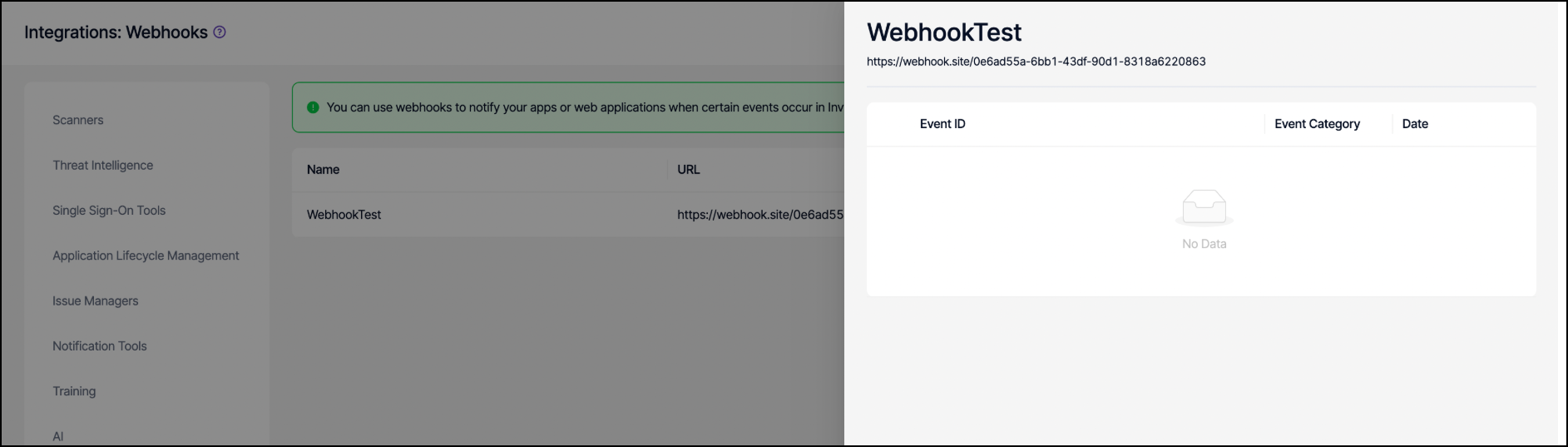
The webhook detail page initially shows:
- The webhook name and URL at the top
- A table listing events (Event ID, Event Category, Date columns)
- Initially, a "No Data" message appears because no events have been triggered yet
Step 6: Monitor webhook events
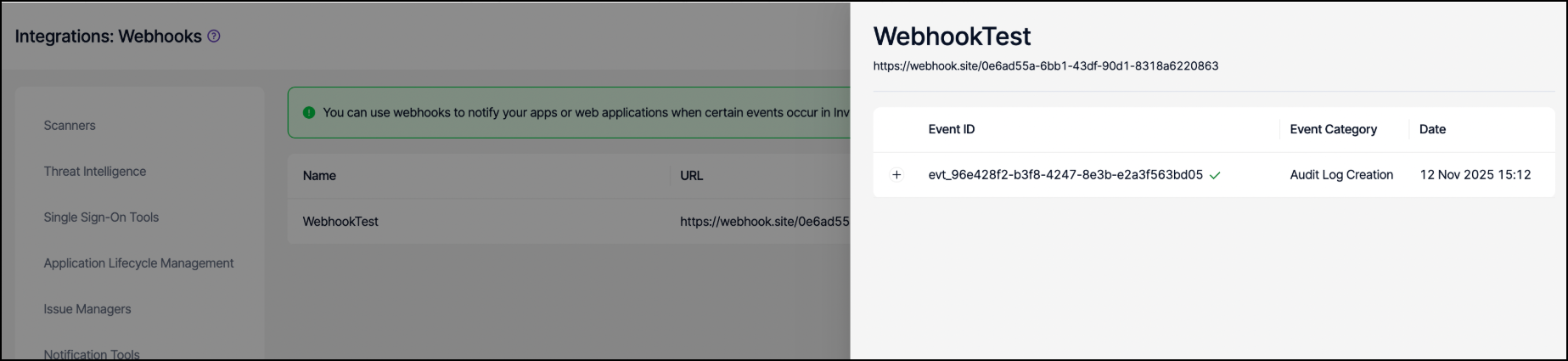
When events are triggered, the first webhook event appears in the list displaying:
- Event ID: evt_96e428f2-b3f8-4247-8e3b-e2a3f563bd05 (shown with a + sign at the beginning)
- Event Category: Audit Log Creation
- Date: 12 Nov 2025 15:12
- Successful events are shown with a green checkmark (✓)
Analyze webhook event details
Request tab
When you click an event, a detail page appears showing two tabs: Request and Response. The Request tab displays:
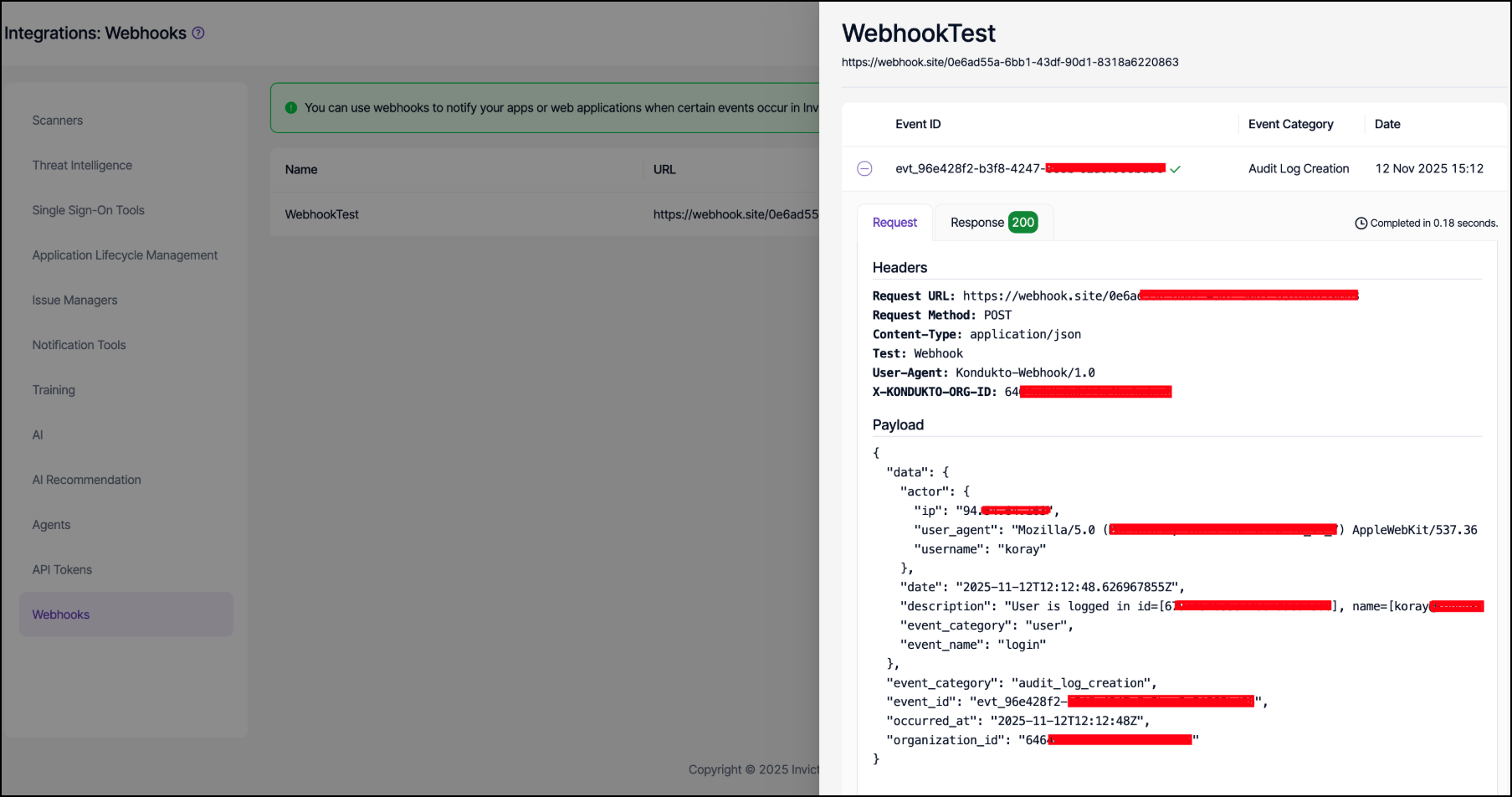
Headers section
The HTTP headers sent with the request:
Request URL: https://webhook.site/0e6ad...
Request Method: POST
Content-Type: application/json
Test: Webhook
User-Agent: Kondukto-Webhook/1.0
X-KONDUKTO-ORG-ID: 646...
Payload section
The JSON data sent in the request:
{
  "data": {
    "actor": {
      "ip": "94.xxx.xxx.xxx",
      "user_agent": "Mozilla/5.0 (KHTML, like Gecko) Chrome/...",
      "username": "koray"
    },
    "date": "2025-11-12T12:12:48.626967855Z",
    "description": "User is logged in id=[67...], name=[koray...]",
    "event_category": "user",
    "event_name": "login"
  },
  "event_category": "audit_log_creation",
  "event_id": "evt_96e428f2-...",
  "occurred_at": "2025-11-12T12:48Z",
  "organization_id": "646..."
}
The completion time is displayed in the upper right corner (for example, "Completed in 0.18 seconds").
Response tab
The Response tab displays the information returned by your webhook endpoint:
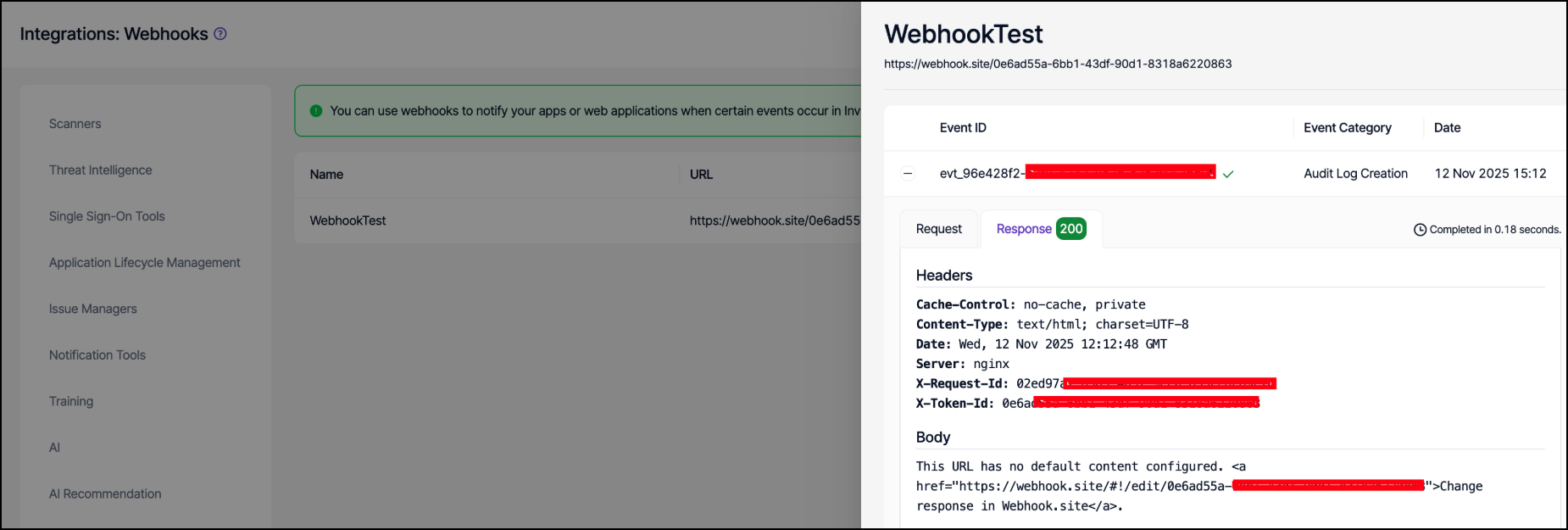
Response headers
The headers returned by the webhook endpoint:
Cache-Control: no-cache, private
Content-Type: text/html; charset=UTF-8
Date: Wed, 12 Nov 2025 12:12:48 GMT
Server: nginx
X-Request-Id: 02ed97a...
X-Token-Id: 0e6a...
Response body
The content returned by the webhook endpoint. For webhook.site, this typically shows the default message: "This URL has no default content configured."
Test with webhook.site
When testing your webhook integration with webhook.site, you can examine the data in real-time:
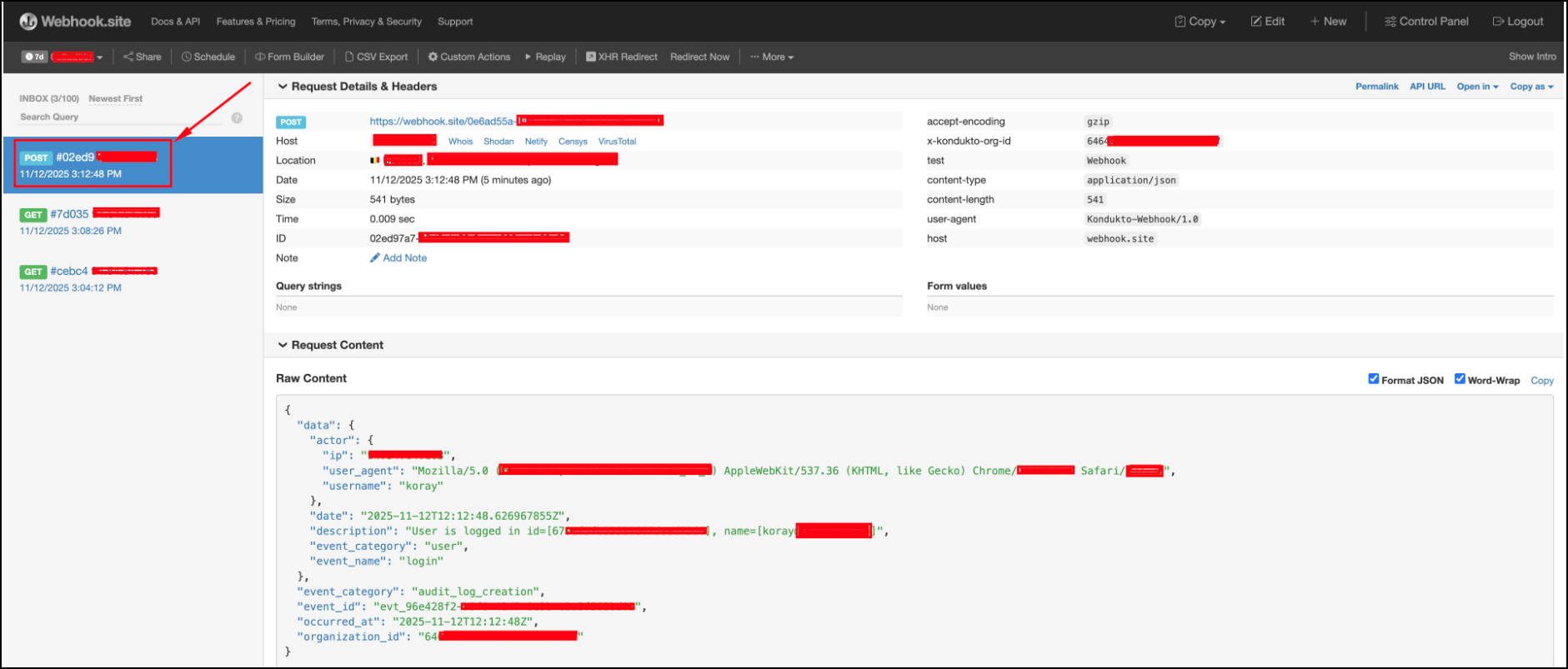
Left panel (INBOX)
Lists incoming requests showing:
- HTTP method (POST, GET, etc.)
- Request ID and timestamp
- Selected requests are highlighted
Right panel
Shows details of the selected request including:
- Request Details & Headers tab
- Host, Location, Date, Size, Time, and ID information
- Query strings and Form values sections
- Custom headers like:
- accept-encoding: gzip
- x-kondukto-org-id: 646...
- test: webhook
- content-type: application/json
- user-agent: Kondukto-Webhook/1.0
Request content section
At the bottom of the screen:
- Format JSON and Word-Wrap options
- Raw JSON data display (same content as the payload sent by Invicti AppSec)
This allows you to examine the data sent by Invicti AppSec in real-time and verify that your webhook integration is working correctly.
Webhook payload structure
The webhook payload sent by Invicti AppSec has the following main structure:
{
  "data": {
    "actor": {
      "ip": "IP address",
      "user_agent": "Browser information",
      "username": "Username"
    },
    "date": "ISO 8601 date format",
    "description": "Event description",
    "event_category": "Event category",
    "event_name": "Event name"
  },
  "event_category": "audit_log_creation",
  "event_id": "Unique event ID",
  "occurred_at": "Event time",
  "organization_id": "Organization ID"
}
Security recommendations
Follow these recommendations to ensure secure webhook implementation:
- Use HTTPS: Your webhook URL must use the HTTPS protocol
- Header validation: Use custom headers to validate incoming requests
- IP restriction: If possible, only accept requests from Invicti AppSec IP addresses
- Secure mode: Enable Secure mode when creating the webhook
- Error handling: Implement proper error handling in your webhook endpoint
Need help?
Invicti Support team is ready to provide you with technical help. Go to Help Center