Deployment: Invicti Platform on-demand, Invicti Platform on-premises
Audit log
Review and export a verifiable record of activity in Invicti Platform - who logged in, which targets and scans changed, and when permissions changed. This document explains how to open the Audit log, filter entries, and export them for compliance reviews or incident investigations.
You need the Owner, Security Manager, Security Analyst, or a custom role with Audit log permissions to view the Audit log.
Why this matters
The Audit log is your record of who did what in Invicti Platform. You need it to satisfy compliance reviews, investigate security incidents, and hold users accountable for changes. Without it, you can't reconstruct who triggered a scan, who updated a target, or when a role changed.
Open Audit log
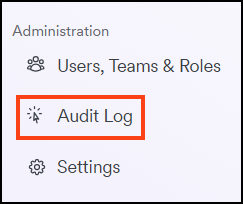
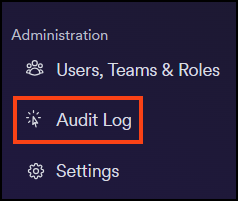
Select Audit log from the left-side menu to open the page.
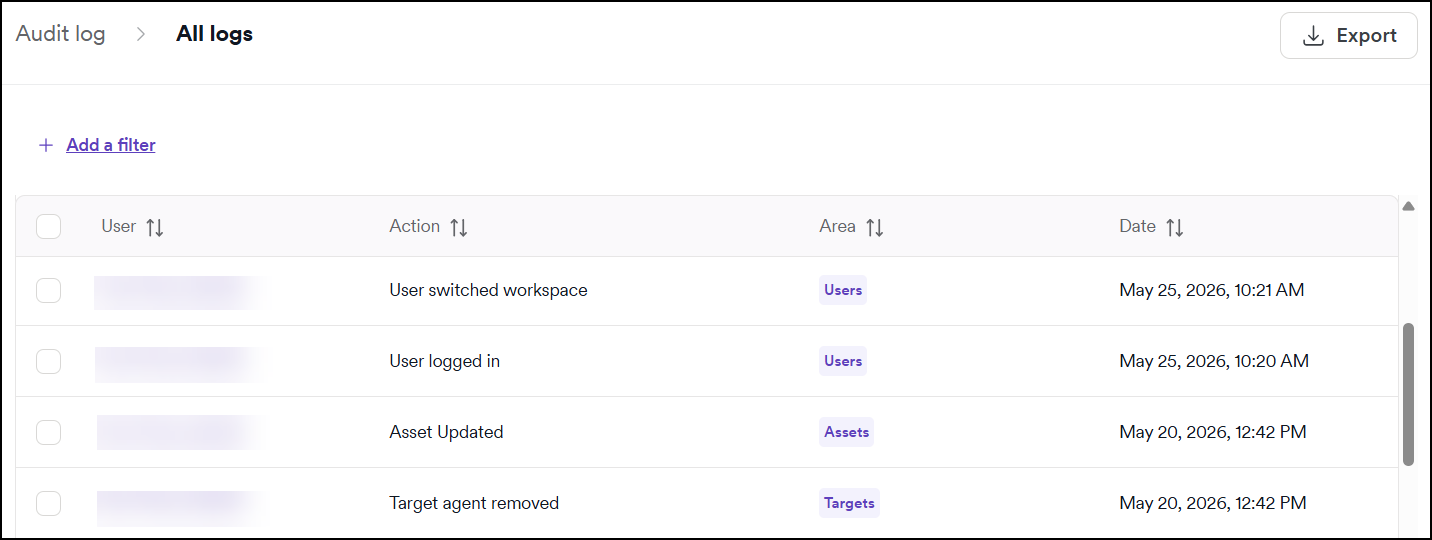
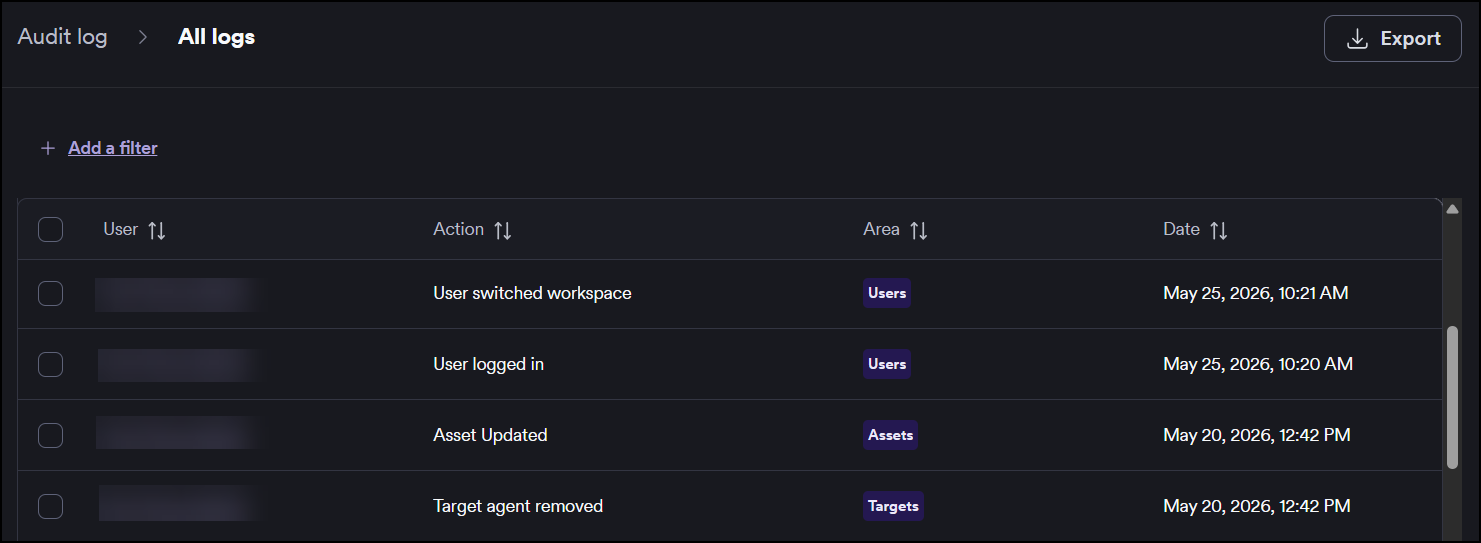
The Audit log captures system and organization activities such as user login and logout, target updates, scan scheduling, found vulnerabilities, and team management.
Filter logs
Narrow log entries to focus on a specific action, area, user, or date range.
- Open the Audit log page.
- Select one or more filters from the toolbar:
- Action (for example, scan started)
- Area (for example, scans)
- User
- Date
The log view updates automatically as you apply or change filters.
Export logs
Export all entries or a filtered subset to a CSV or JSON file for offline review or external sharing.
- Optionally, apply filters on the Audit log page to narrow the entries to export.
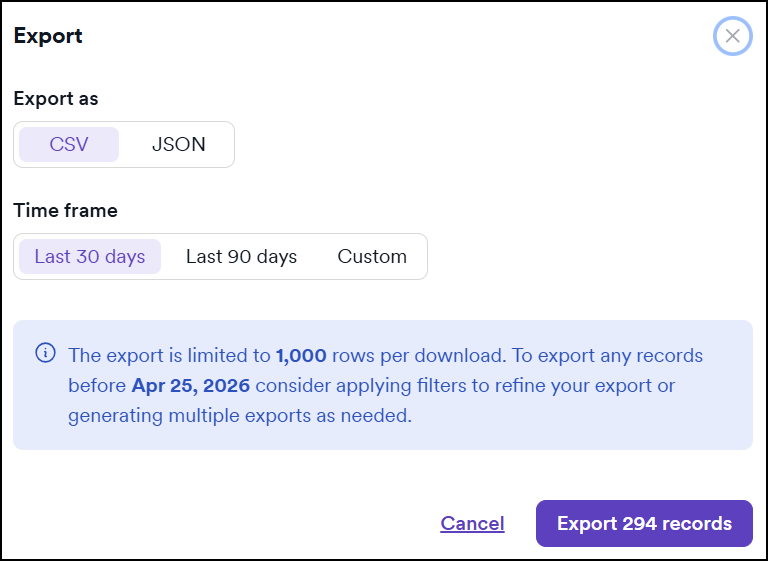
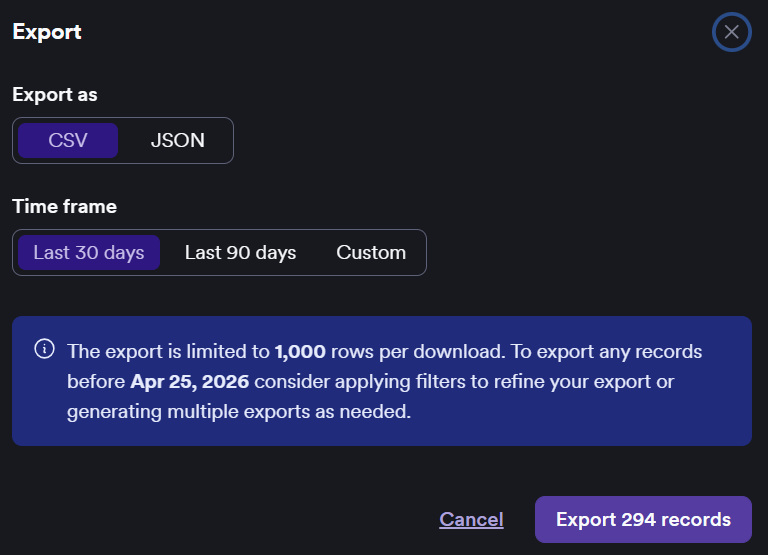
- Click Export to open the Export dialog.
- Under Export as, select CSV or JSON.
- Under Time frame, select Last 30 days, Last 90 days, or Custom.
- Click the Export (n) records button at the bottom of the dialog to download the file. The button label includes the number of records to export (for example, Export 294 records).
Each export file is limited to 1,000 rows. For data sets exceeding 1,000 records, generate multiple files with custom time ranges or apply additional filters.
Troubleshooting
I can't see Audit log in the left-side menu
Only users with the Owner, Security Manager, Security Analyst, or a custom role that includes Audit log permissions can see the Audit log. If the option doesn't appear under Administration in the left-side menu, your account doesn't have a role that grants access. Contact your Invicti Platform administrator to request the appropriate role or to add Audit log permissions to your custom role.
The Audit log page loads but no entries appear
Check the active filters at the top of the page. A narrow date range or a restrictive action, area, or user filter can hide recent events. Clear the filters or widen the date range and reload the page.
My export is missing rows
Each export file is capped at 1,000 rows. If your filtered result set is larger, the file contains only the first 1,000 entries. Apply a narrower date range and generate multiple exports with custom time ranges, then combine the files locally.
Need help?
Invicti Support team is ready to provide you with technical help. Go to Help Center