Locate the Invicti IAST sensor logs
The Invicti IAST produce logs, which can help troubleshoot problems with the IAST sensors. Each Invicti IAST sensor has its own way of logging. This document provides more information about the log location for each Invicti IAST sensor and any related configuration options.
.NET Framework for both Windows and Linux
- Locate the Invicti .NET IAST sensor’s
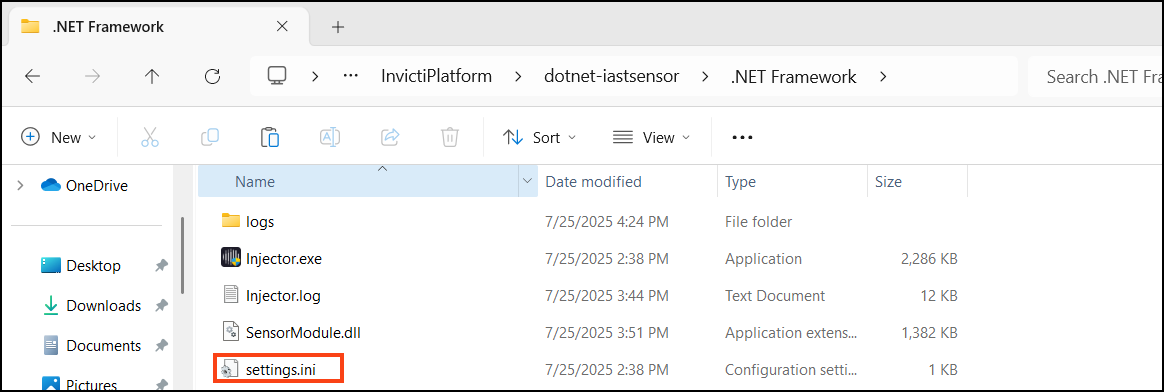
settings.inifile.- For .NET Framework, the
settings.inifile is located in the same folder asinjector.exe, which by default is named .NET Framework inside the folder where you extracted thedotnet-iastsensor.zipfile. In the example screenshot, we extracted the dotnet-iastsensor.zip file insideC:\ProgramData\InvictiPlatform\dotnet-iastsensor.
- For .NET Framework, the
- Uninstall the current sensor.
- Modify the
settings.inifile. With administrative privileges and read/write permission, open the settings.ini file using a text editor. - Amend the
log.pathto point to an existing folder.

- Save the changes made to the settings.ini file before closing the text editor.
- Install/inject the sensor again.
.Net Core for both Windows and Linux
- Locate the Invicti .NET IAST sensor’s
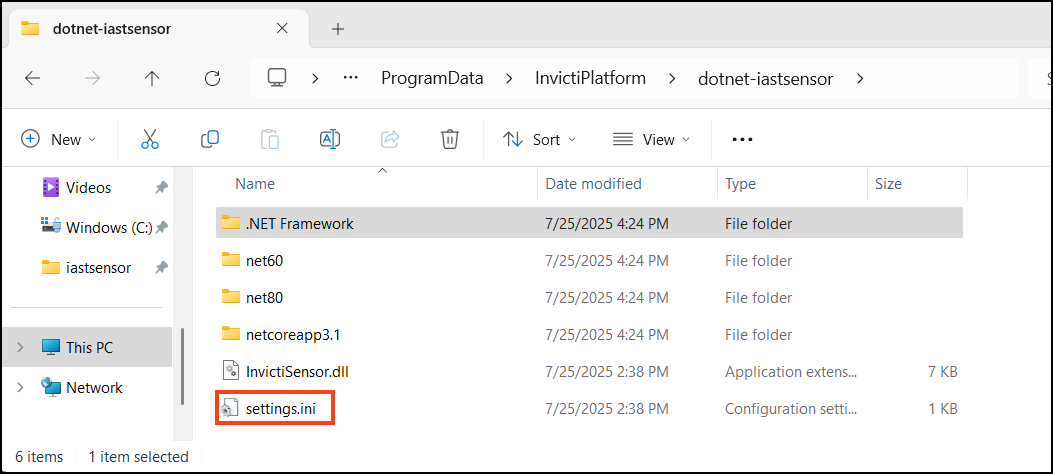
settings.inifile.- For .Net Core, .Net6, and .NET8 (both Windows and Linux), the
settings.inifile is located inside the folder where you extracted thedotnet-iastsensor.zip. For example, we extracted the dotnet-iastsensor insideC:\ProgramData\InvictiPlatform\dotnet-iastsensor.
- For .Net Core, .Net6, and .NET8 (both Windows and Linux), the
- Once you have extracted the files, amend the
settings.inifile. With administrative privileges and read/write permission, open the settings.ini file using a text editor. - Amend the
log.pathto point to an existing folder.
- Save the changes made to the settings.ini file before closing the text editor.
- Restart the application/server/service for the changes to take effect.
Node.js log location
- In Node.js, logs are integrated with the application's output, appearing directly in the terminal alongside other application logs.
- By utilizing
npx node-iastsensor app.js >> c:\temp\sensor.log, you're able to designate the location for saving logs. - Restart the application/server/service for the changes to take effect.
Java log location
- To enable debug logs, add this Java parameter to the command line or to the ‘JAVA_OPTS’ environment variable:
Diastsensor.debug.log=ON - The sensor outputs logs with the server logs. Refer to your web server documentation to identify your server’s default log location.
- Restart the application/server/service for the changes to take effect.
PHP log location
The PHP Sensor records entries in the web application error logs, which are managed via the error log directive of the web server.
- Detailed instructions for configuring this functionality are provided in the documentation for each supported web server:
- Apache 2: Refer to https://httpd.apache.org/docs/2.4/mod/core.html#errorlog
- Nginx: Refer to https://docs.nginx.com/nginx/admin-guide/monitoring/logging/
- Restart the application/server/service for the changes to take effect.
Need help?
Invicti Support team is ready to provide you with technical help. Go to Help Center
Was this page useful?