Deployment: Invicti Platform on-demand, Invicti Platform on-premises
System notices
The System notices settings let you configure two types of organization-wide messages in Invicti Platform: a login confirmation message that users must acknowledge after logging in, and a system-wide banner that's persistently visible throughout users' sessions. This document explains how to configure both settings.
Only owners can access and configure System notices.
Display a login confirmation message
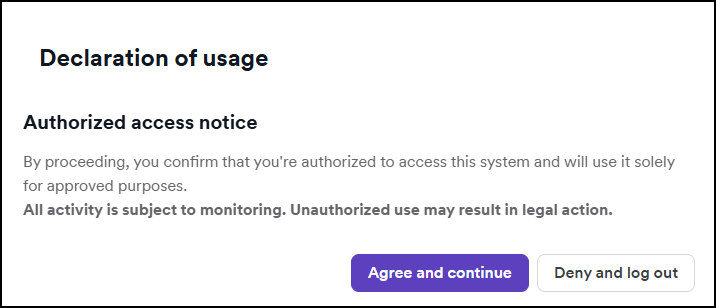
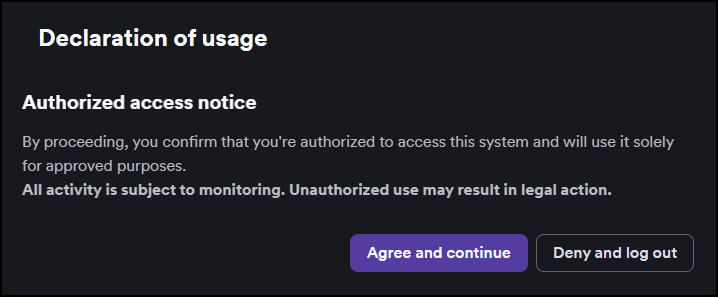
A login confirmation message appears to users immediately after they authenticate. They must click Agree and continue to access Invicti Platform, or Deny and log out to exit the application without gaining access.
- Select Settings > System notices from the left-side menu.
- Under Display a login confirmation message, click Yes.
- Open the Template dropdown and select one of the following:
- Nuclear Regulatory Commission Office - Pre-configured notice for U.S. NRC information systems.
- Internal Revenue Service - Pre-configured notice for IRS information systems.
- Unified Compliance Framework - Pre-configured notice based on UCF requirements.
- Custom - A Custom message field appears. Enter your own notice using markdown and basic HTML tags (up to 5000 characters).
- Click Preview to review how the message appears to users before saving.
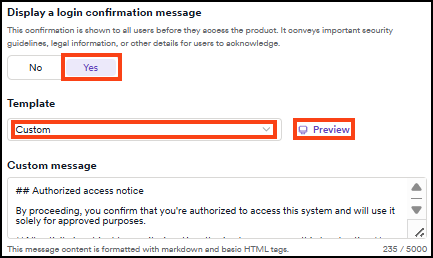
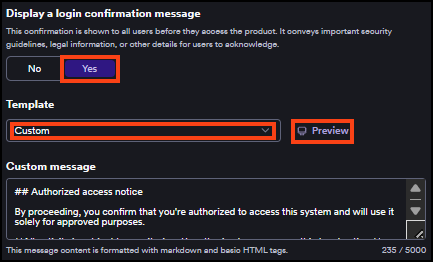
- Click Save.
After saving, users see the message in a Declaration of usage dialog on their next login.
Display a system-wide banner
A system-wide banner is a persistent message displayed at the top of Invicti Platform for all users in your organization. Users can't dismiss it - it remains visible throughout the entire session.
Organizations commonly use this feature to display a persistent compliance reminder, essential update, or organization-wide policy acknowledgment.
- Select Settings > System notices from the left-side menu.
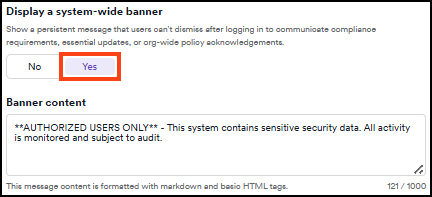
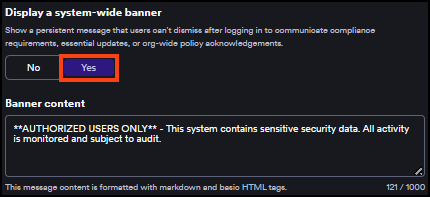
- Under Display a system-wide banner, click Yes.
- In the Banner content field, enter your message using markdown and basic HTML tags (up to 1000 characters).
- Click Save.


To remove the banner, return to Settings > System notices, click No under Display a system-wide banner, and click Save.
Need help?
Invicti Support team is ready to provide you with technical help. Go to Help Center