availability
Package: Invicti AppSec Core (on-demand)
Okta
Integrate Invicti AppSec to Okta
- Enter the Okta Admin panel.
- Click Applications > Applications from the left menu.
- Click Create App Integration.
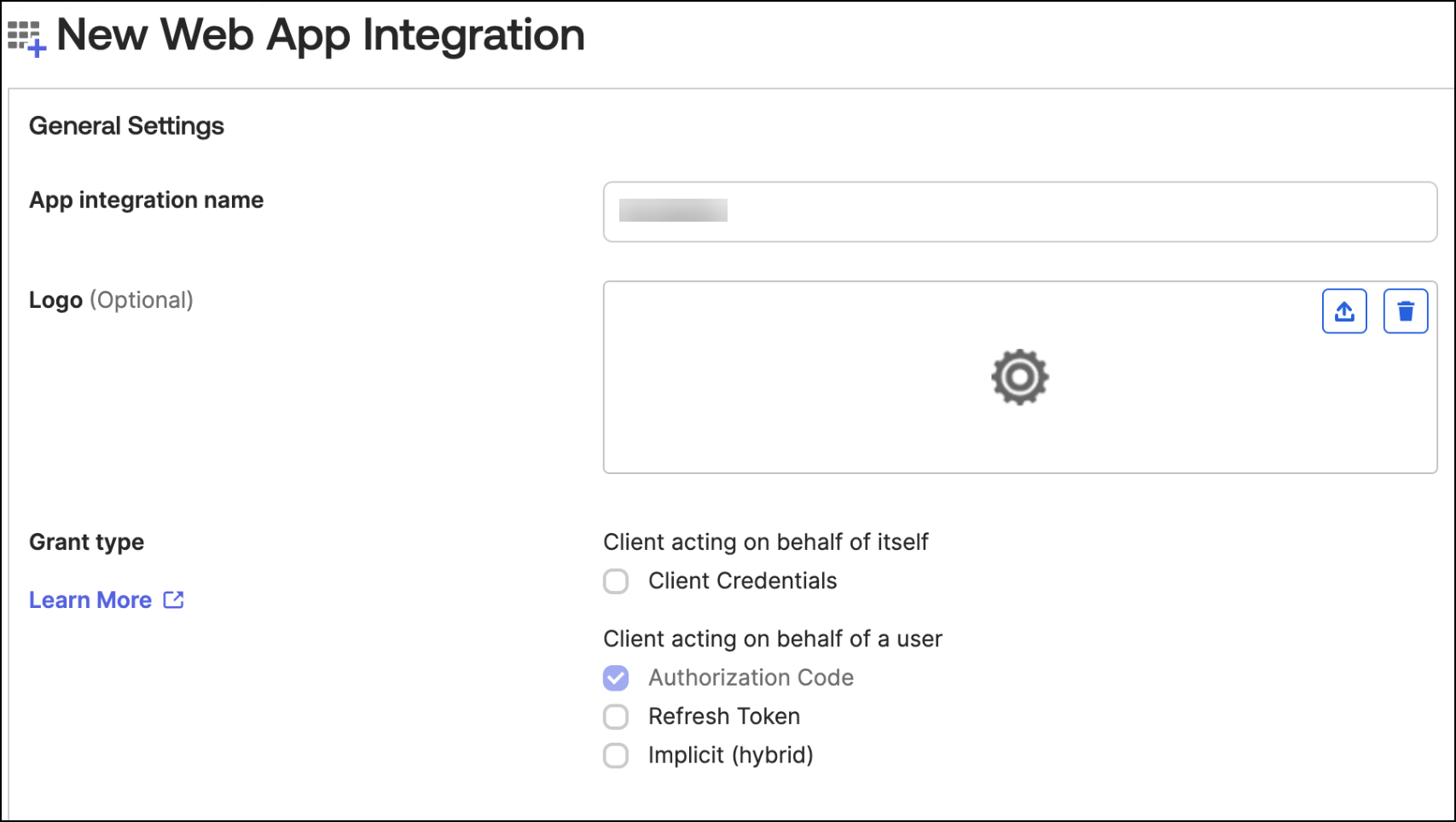
- Check OIDC - OpenID Connect as the Sign-in method.
- Check Web Application as the Application type. Then click the Next button.
- Type
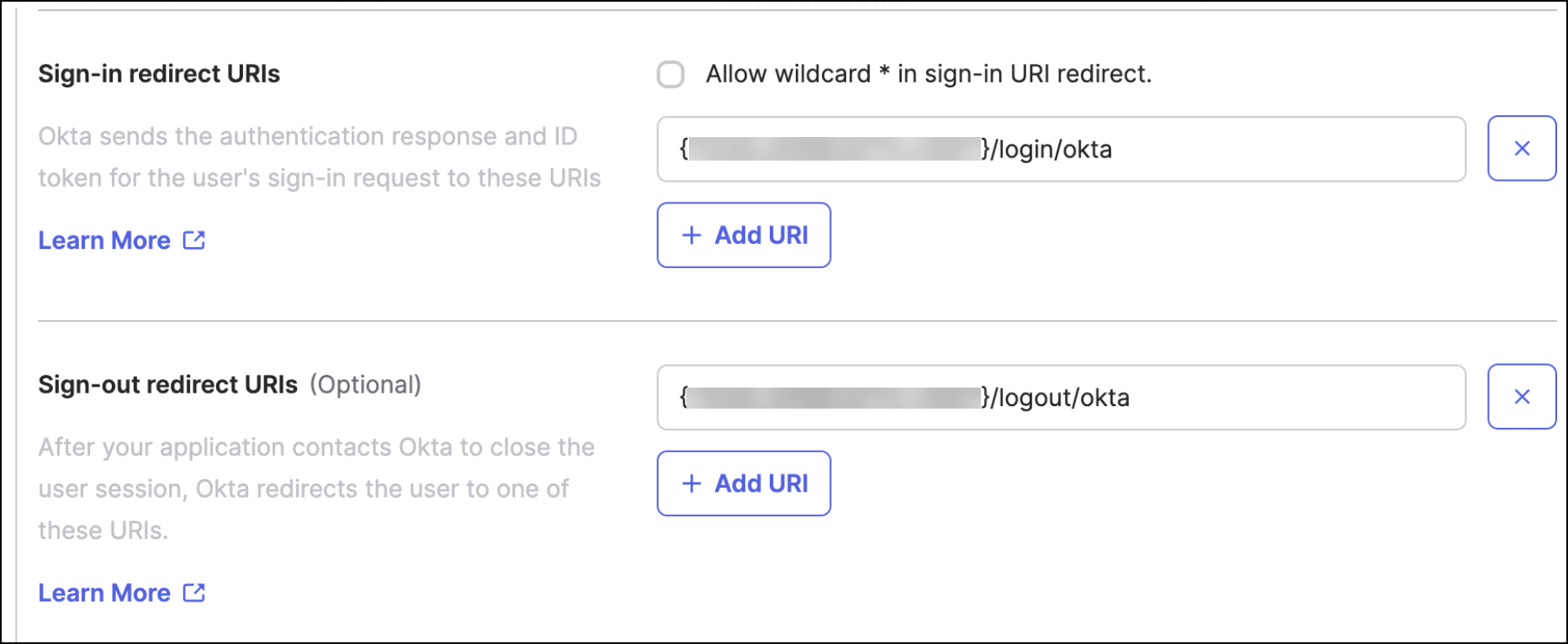
{YOUR_INVICTI_AppSec_HOST}/login/oktato the Sign-in redirect URIs. - Type
{YOUR_INVICTI_AppSec_HOST}/logout/oktato the Sign-out redirect URIs.
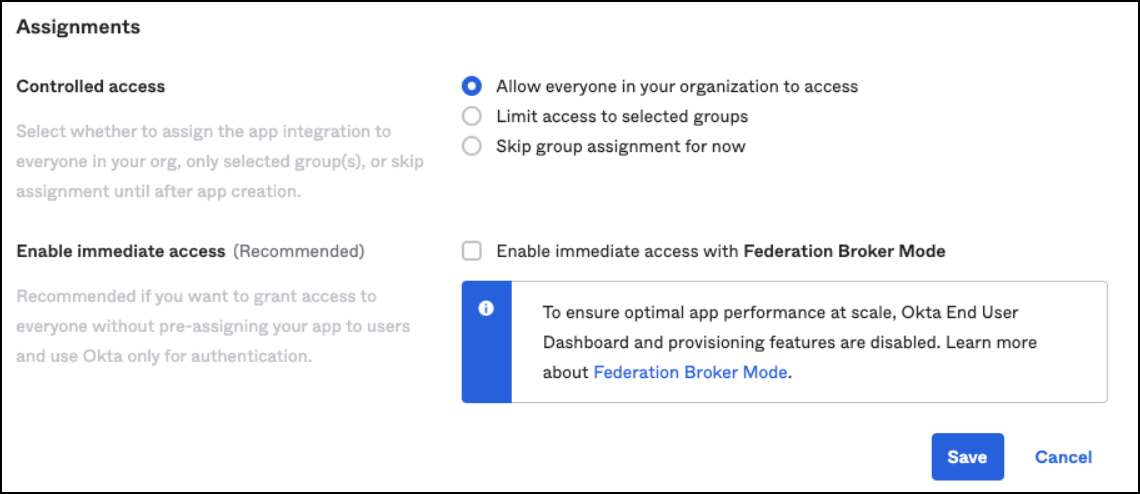
- Select "Allow everyone in your organization to access" as Controlled Access in the Assignments section.
- Uncheck "Enable immediate access with Federation Broker Mode" as shown below. Then click the Save button.
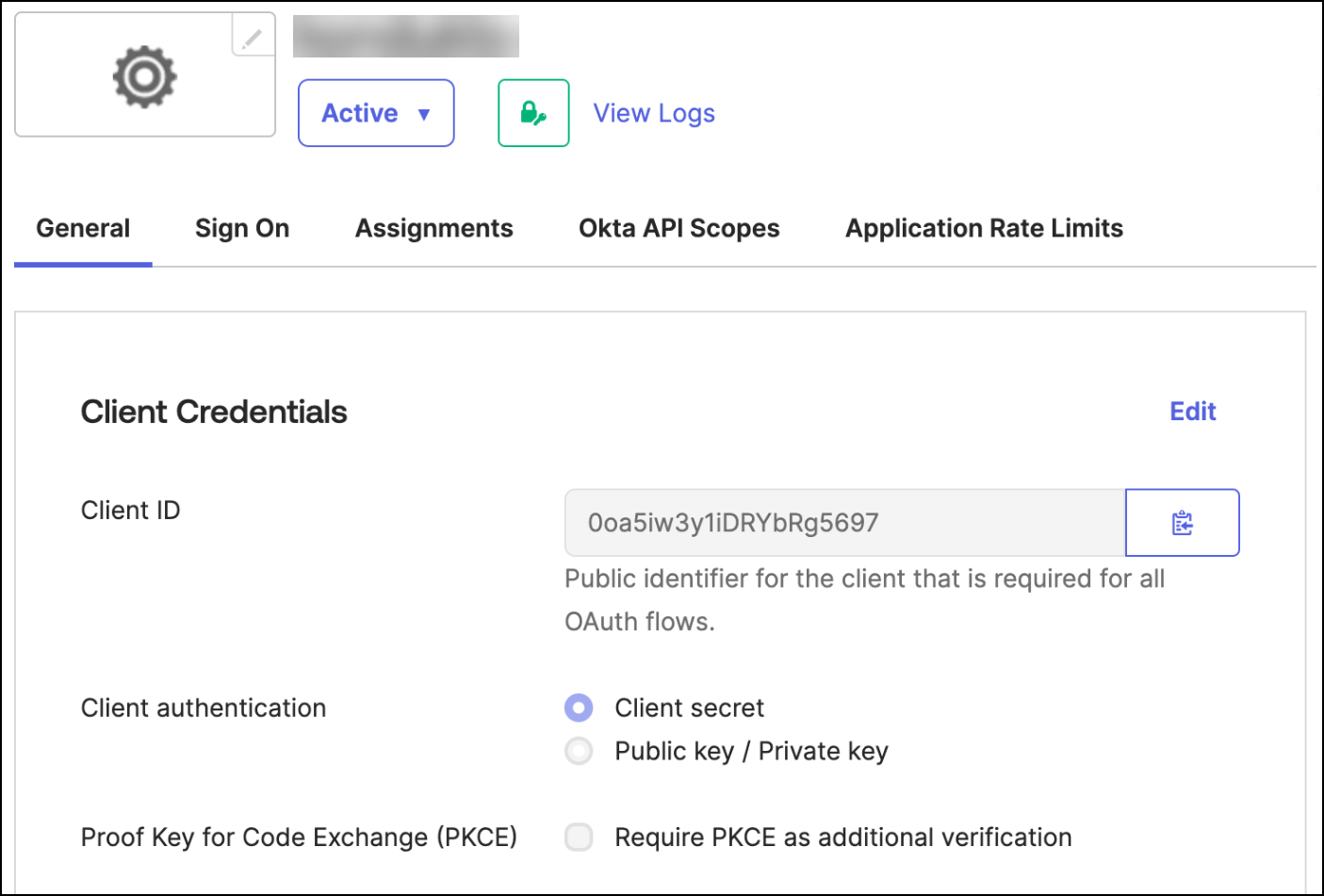
- Copy the Client ID value to a safe place.
- Click the Generate new secret button.
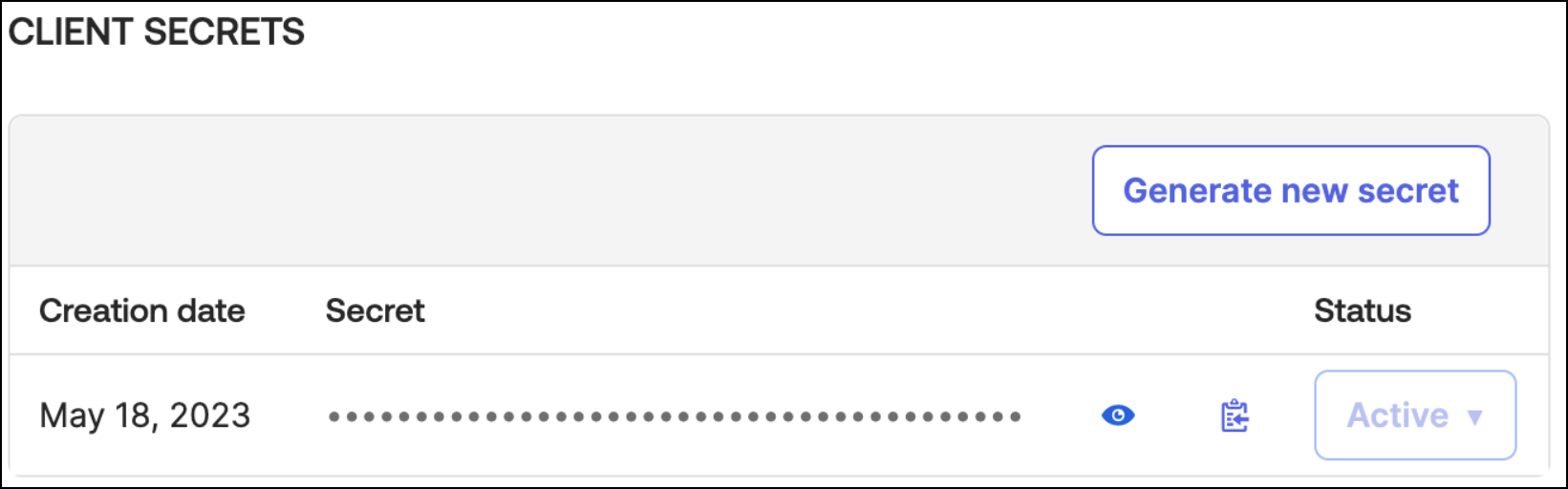
- Copy the Client secret value to a safe place.
- Go to the Sign On menu.
- Scroll down and click the Edit button in the OpenID Connect ID Token panel.
- Select Matched regex and type ".*" to the Groups claim filter.
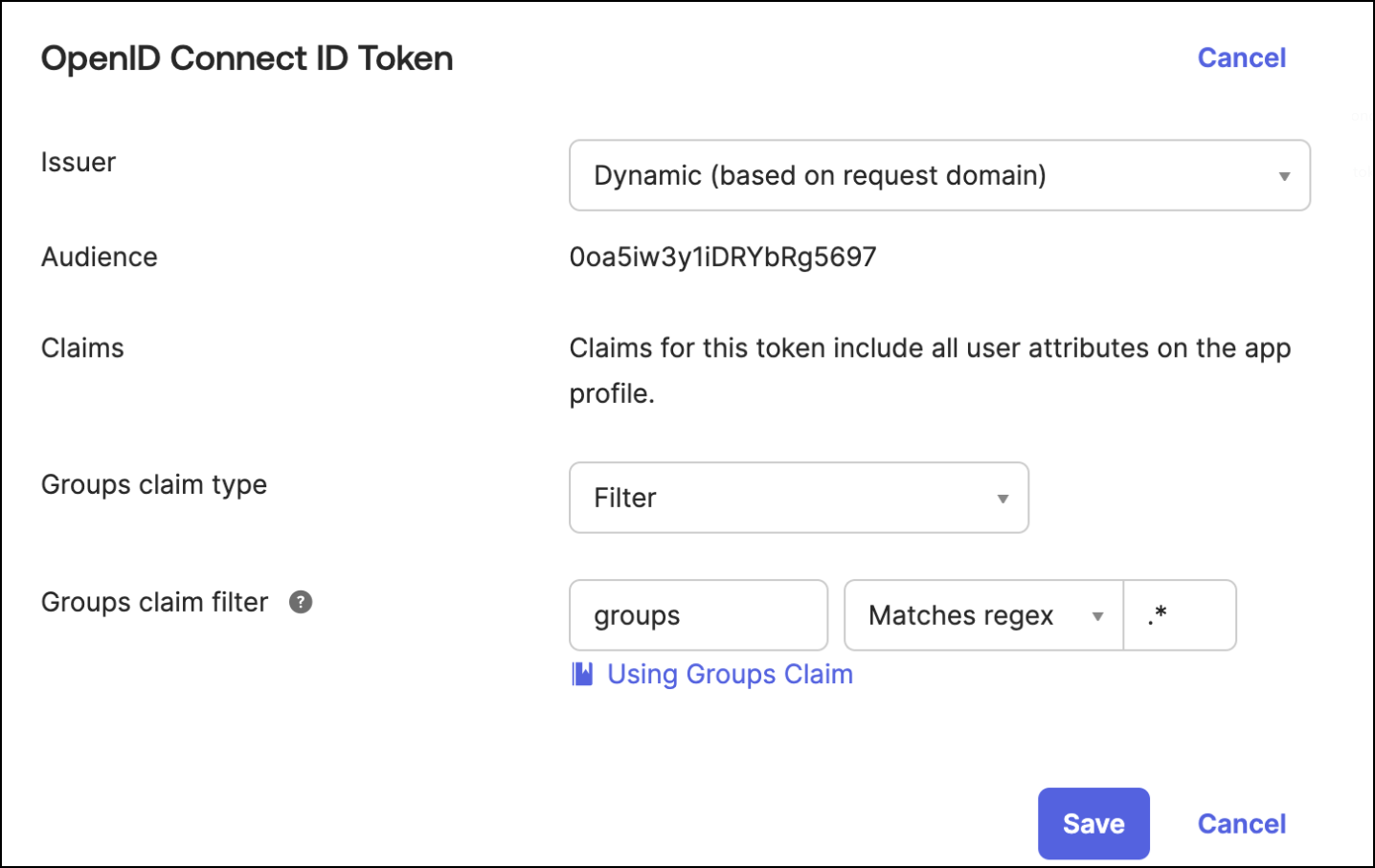
- Click the Save button.
- Select Directory > Groups from the left menu.
- Click the Add group button and create the groups below:
- InvictiAppSecAdmin
- InvictiAppSecProductOwner
- InvictiAppSecManager
- InvictiAppSecTeamLead
- InvictiAppSecDeveloper
- InvictiAppSecPentester
- Assign users to the groups.
- Select Applications from the left menu and select "invictiappsec" app integration.
- Go to the Assignments menu.
- Assign all created groups to the "invictiappsec" application.
- Click the Done button.
- Then going to the Invicti AppSec side. You can complete Okta integration by entering Okta Trial URL, Client ID, Client Secret, and Issuer URL, and defining roles at the bottom. You can get the Issuer URL from the API screen.
Generate a token in Okta
- In admin panel, select API under the Security dropdown tab.
- Move to Tokens tab and click Create Token button.
- Name the token as you wish and click Create Token button.
- Copy the Token Value to a safe place and click the green OK, got it button.
Need help?
Invicti Support team is ready to provide you with technical help. Go to Help Center
Was this page useful?