Activate 2FA for your account
This document is for Invicti Platform
Two-factor authentication (2FA) adds an extra level of security when logging in to Invicti Platform. Individual users can enable 2FA for their Invicti account through their profile settings. Owners can also set a policy for all users to enable 2FA.
This document explains how to enable 2FA through the user profile settings. For information about how Owners can require 2FA for all users, refer to Company-wide Passwords, 2FA & Session settings.
Prerequisites
Install a two-factor authentication app on your phone. Google Authenticator is a popular choice. You can download it from Google Play or the App Store.
Configure 2FA for your account
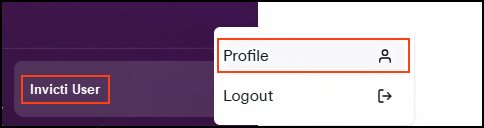
- Click [Your Name] in the bottom left corner of the page, then select Profile.
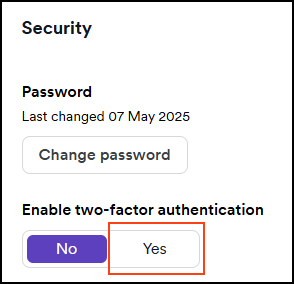
- Scroll down to the Security section and click Yes on the Enable two-factor authentication toggle.
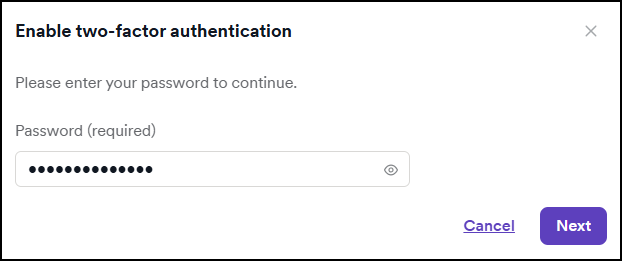
- Enter your Invicti password, then click Next.
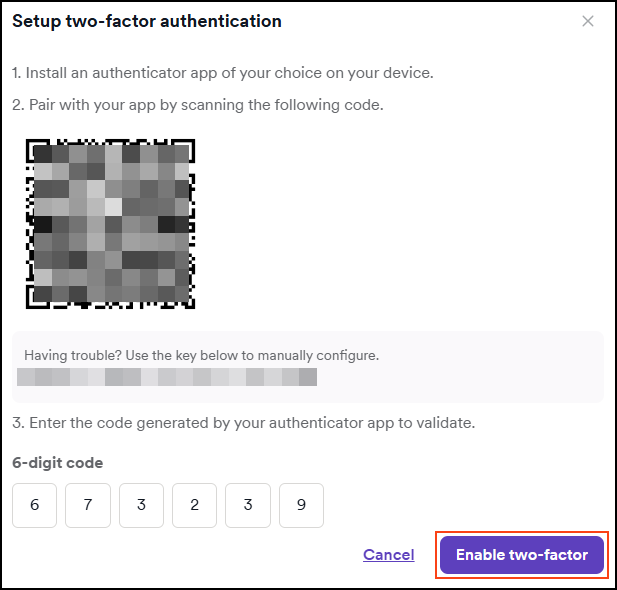
- Launch your 2FA Authentication app on your phone and use it to scan the QR Code displayed. Once the code is scanned, the mobile authenticator app displays codes for your Invicti 2FA account.
- Enter two consecutive codes generated by your authentication app.
- Select Enable two-factor.
2FA is now active on your Invicti Platform account. Going forward, you'll need to enter a code from your authentication app whenever you log in.
Need help?
Invicti Support team is ready to provide you with technical help. Go to Help Center