Deployment: Invicti Platform on-demand, Invicti Platform on-premises
Add paths
You can add paths to your targets by uploading files or API specifications to guide the Invicti Platform crawler. This is useful when there are parts of a site that aren't linked to the main target. Specifying paths for the scanner allows it to include unlinked pages and directories in the scan.
This document explains how to add API specification files and links, imported files to your target and use them during scans. For more information on target configuration, refer to the Edit target document.
You can add paths by one of the two methods:
- Importing a file: Accepted file formats are listed at the end of this document.
- Linking from URL: This is useful if the file is hosted so you can be sure the latest file is always used (for example, API definitions hosted on the target’s URL or another URL).
Linked URLs are accessed by the engine. This means the engine or internal agent (if using one for the target) needs to have access to any linked URLs.
Why this matters
By default, Invicti crawls a target starting from its main URL and follows links it finds. Paths that aren't linked - such as API endpoints, specific directories, or unlinked pages - won't appear in the scan. Providing API specification files or imported project files gives Invicti a complete map of those additional paths, so the scanner tests your target's full surface, not just what the crawler can reach on its own.
Add imported files/API specifications to a target
Imported files and API definitions apply to individual targets, and each target can have multiple files and linked URLs. Follow the instructions to import a file to a target or link a URL to a target:
- Select Inventory > Targets from the left-side menu.
- Click the three-dot menu (⋮) > Edit target by the selected target to access its settings page.
- Select General under Scan configuration in the target settings.
- Use your preferred option:
- Upload specification: click the button to select the API specification file you want to import to the target.
- Link from URL: click the button to enter the URL where your API specifications are hosted.
- Upload file: click the button to upload the project or session file.
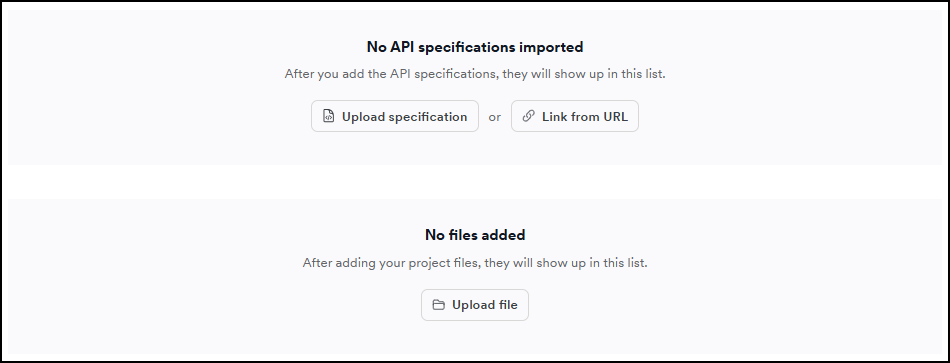
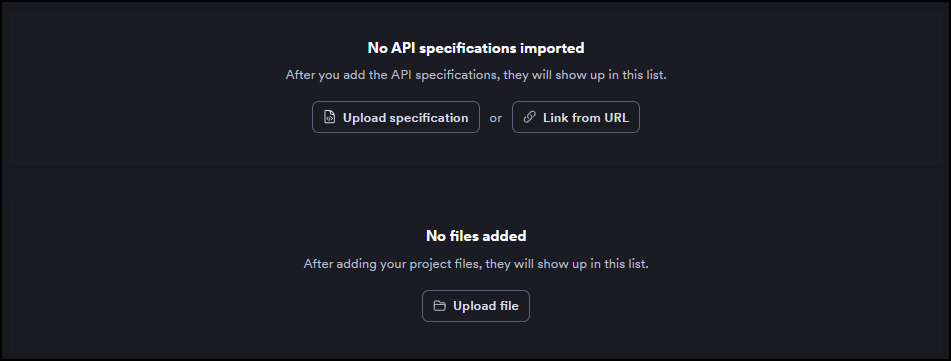
To remove an imported file or URL from a target, click the trash icon next to the item you have imported.
Restrict scans to imported files
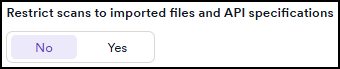
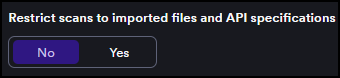
When importing a file or linking a URL, you can also specify whether scans of the target should be restricted to only the paths contained in your imported or linked files.
- Yes: If you turn on Restrict scans to imported files, then the crawler adds to the scan ONLY the paths listed in the import file, ignoring all other parts of the target.
- No: If you turn off Restrict scans to import files, then the crawler crawls the target as usual and use the import file to add other paths listed in the import file, EVEN if no other part of the target links to them (orphaned folders/files).
Illustrative scenario
For example, if you create a target with the URL http://www.example.com and use an import file containing the following data:
http://www.example.com/main/sub1/http://www.example.com/extra/sub3/
Then, depending on whether the option Restrict scans to import files is turned on or off, you get the following behavior:
Accepted file formats
You can add paths to a target using output from the following tools and files.
API specifications
- OpenAPI / Swagger: Used to describe RESTful APIs (.json, .yaml, and .yml files)
- GraphQL Schema/Introspection: Used to define structure of GraphQL API (.graphql and .json)
- RAML: Used to describe RESTful APIs (.raml)
- Web Application Description Language: Used to describe restful APIs (.wadl)
- Web Services Definition Files: Used to describe SOAP web services (.wsdl)
- gRPC Protocol Buffer: Used to describe gRPC services (.proto)
Imported files
- ASP.NET Project Files (.csproj and .vbproj)
- Burp Saved Items (.xml)
- Fiddler Session Archives (.saz)
- HTTP Archives (.har) Can be exported from various tools, including developer tools included with major browsers.
- Selenium (.html and .side)
- Postman OpenAPI (.json)
- Generic files: Text files with lists of URLs (.txt)
Currently Invicti Platform doesn’t support multiple related API files with dependencies/links between them.
Troubleshooting
A linked URL isn't being accessed during the scan
Linked URLs are accessed by the scanning engine. If your target uses an internal agent, that agent also needs access to the linked URL. Check that the URL is reachable from the network where the engine or internal agent runs.
An uploaded file was rejected
Check that the file is under 20 MB and uses a supported format for the selected type. Each specification type accepts specific file extensions - for example, gRPC Protocol Buffer accepts only .proto files.
The scanner isn't testing paths from the imported file
Check the Restrict scans to imported files toggle under Scan configuration > General in the target settings. If it's off, Invicti crawls the target normally and uses the imported file to add extra paths on top. Turn it on if you want to scan only the paths in the imported file.
Need help?
Invicti Support team is ready to provide you with technical help. Go to Help Center