Create and manage roles
This document is for Invicti Platform
Invicti Platform provides role-based access control (RBAC) to manage user permissions effectively. With RBAC, System Administrators can restrict and grant access based on assigned user roles.
This document explains how to add and manage custom roles.
Each user must have at least one role assigned to them.
Default roles
When creating a user, you must assign a role to that user. The first account created is assigned the Owner role, which has the ability to create additional users, assign roles to them, and configure which scan targets can be scanned or reported on. Users can be granted permissions for specific Target Groups, allowing them to create new targets, scan them, or generate reports on the targets within the group.
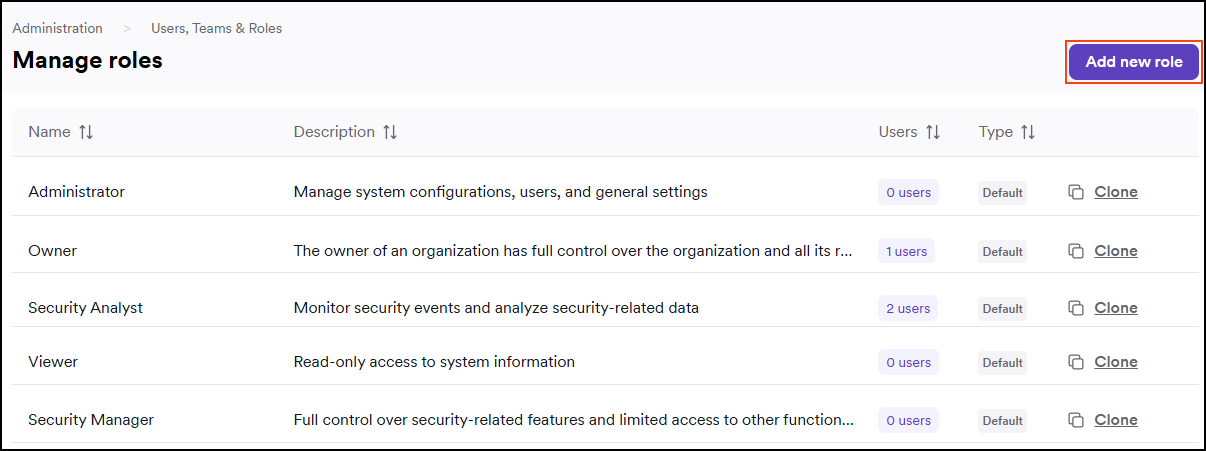
Invicti Platform comes with five Default roles with specific Role permissions.
Managing custom roles
In addition to the default roles, Owners can create custom roles with specific permissions, clone default roles, edit custom roles, and delete them. This provides greater control over user access and allows for fine-tuned permissions. A role can be assigned to a user during the user creation process.
Create a custom role
- As an Owner, go to Users, teams & roles > Manage roles from the left-side menu.
- Select Add new role.
- On the Edit role page, enter the role name and description, and choose one or more permissions based on the role's needs.
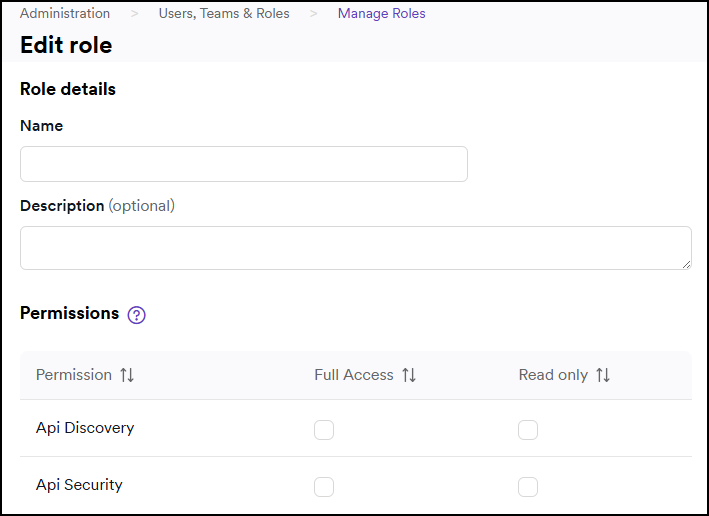
- Click Save role to save your custom role.
Once saved, your new role appears on the Roles page.
To assign the new role to users, go to the Users tab. For more information, refer to Create a user and Edit, delete, or turn off users.
Edit a custom role
- As an Owner, go to Users, teams & roles > Manage roles from the left-side menu.
- Select Edit next to the custom role.
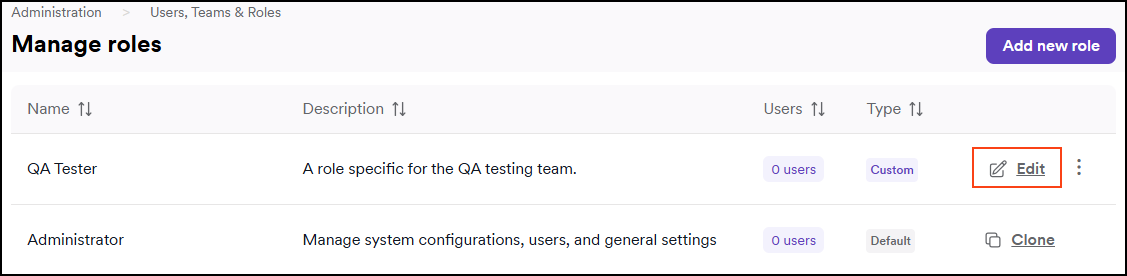
- Make your changes to the role name, description, and permissions.
- Click Save role to confirm.
Delete a custom role
- As an Owner, go to Users, teams & roles > Manage roles from the left-side menu.
- Click the three-dot menu (⋮) next to a custom role to display the options.
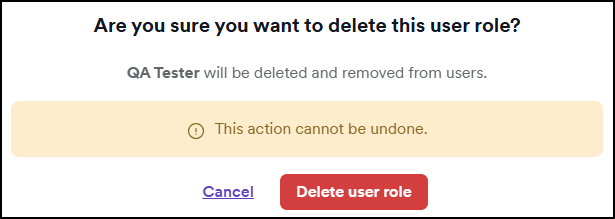
- Select Delete role.

- On the confirmation dialog, click Yes to delete the role.
Clone a role
- As an Owner, go to Users, teams & roles > Manage roles from the left-side menu.
- Click the three-dot menu (⋮) next to a custom role to display the options.
- If you are to clone a custom role, click the three-dot menu (⋮) next to a role to display the options. If you are to clone a default role, click Clone.
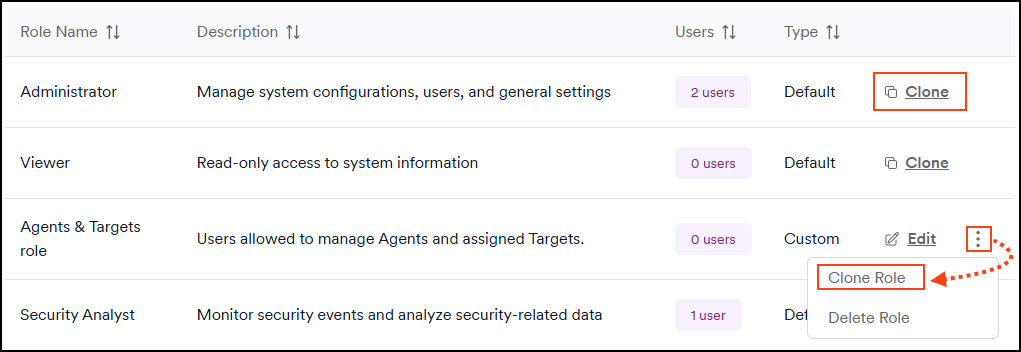
- On the Clone Role page, enter a role name and description, then choose permissions.
- Click Save role to save your cloned role.
Once saved, your new role appears on the Manage roles page.
Need help?
Invicti Support team is ready to provide you with technical help. Go to Help Center