Edit, delete or suspend user
This document is for Invicti Platform
This document explains how to view a list of all users, edit a user's details, and delete, suspend, or enable users.
To enable, suspend, or delete multiple users at a time or to add or remove them from a team, choose the checkbox next to each user and use the Bulk Actions drop-down to choose an action.
View all users
- In Invicti, as an Owner, go to Users, teams & roles > Manage users from the left-side menu.
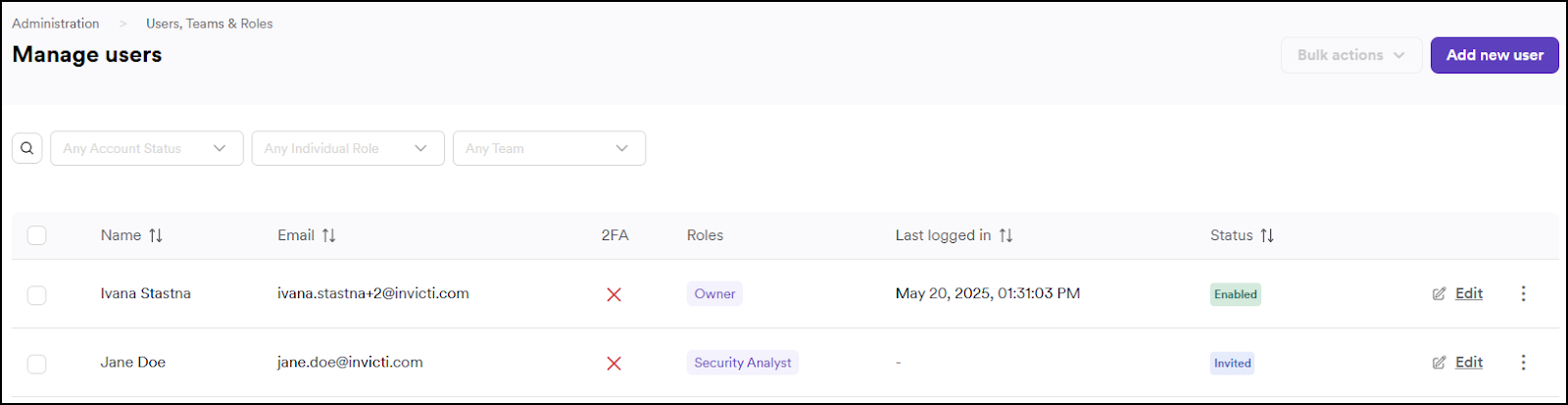
- Use the search and filter options to view users based on their account status and their roles.

-
The following columns appear in the Manage users page:
- Name - Displays the user's full name.
- email - Displays the user's email address.
- Status - Indicates whether the user is activated or suspended. Suspended users can't access the Invicti Platform.
- 2FA - Shows whether Two-Factor Authentication is activated for the user.
- Roles - Lists the roles assigned to the user.
Edit a user
-
In Invicti, as an Owner, go to Users, teams & roles > Manage users from the left-side menu.
-
Click Edit next to the relevant user.

- Edit the user's information as required, then click Save. Note, that if Admin or Administrator roles are assigned to the user, the option to specify collections isn't available. These roles have access to all collections.
Invicti regenerates the invitation link if you choose Copy new invite or Save and send invite on the Edit user page. If the user has already logged in to Invicti, you can't access these options.
Delete a user
-
In Invicti, as an Owner, go to Users, teams & roles > Manage users from the left-side menu.
-
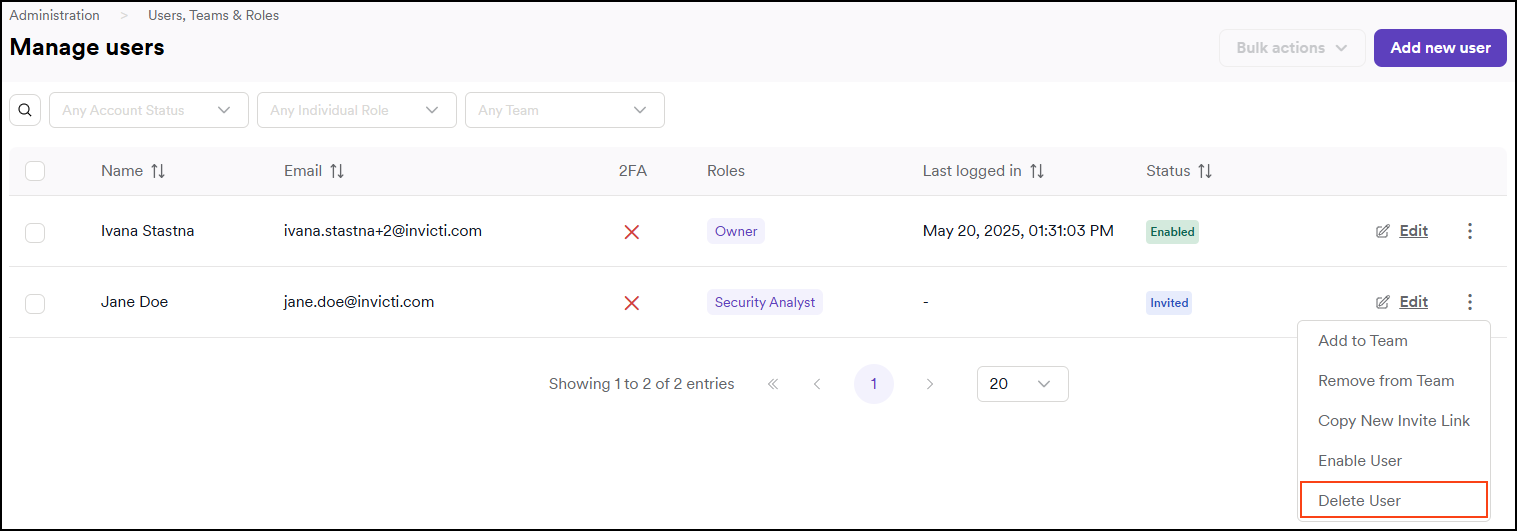
Click the three-dot menu (⋮) next to the relevant user and choose Delete User.
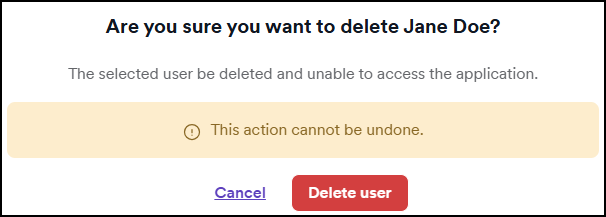
- On the confirmation dialog, choose Delete user to confirm.
Suspend or activate a user
-
In Invicti, as an Owner, go to Users, teams & roles > Manage users from the left-side menu.
-
Click the three-dot menu (⋮) next to the relevant user and choose Activate or suspend user.
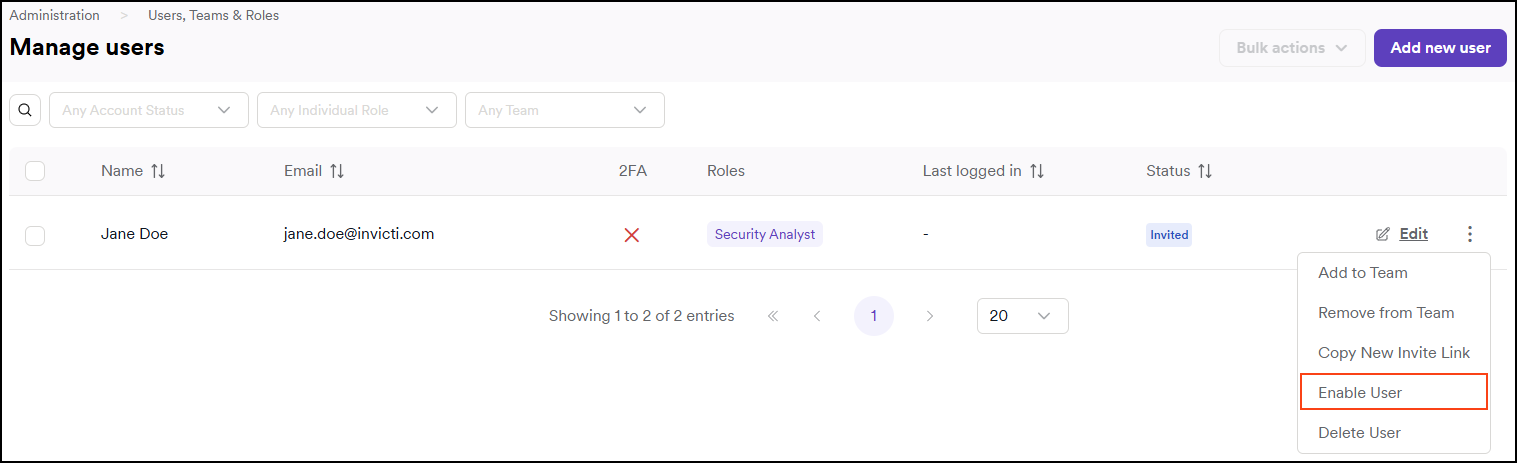
- Confirm this in the confirmation dialog.
Need help?
Invicti Support team is ready to provide you with technical help. Go to Help Center