Create user
Invicti Platform provides role-based access control (RBAC) to manage user permissions effectively. With RBAC, users with the role of Owner can restrict and grant access based on assigned user roles.
This document explains how to add new users, as well as assign roles to them.
Owners and Admins can create and manage users.
Step 1: User details
- As an Owner, select Users, teams & roles > Manage users from the left-side menu.
- Select Add new user.

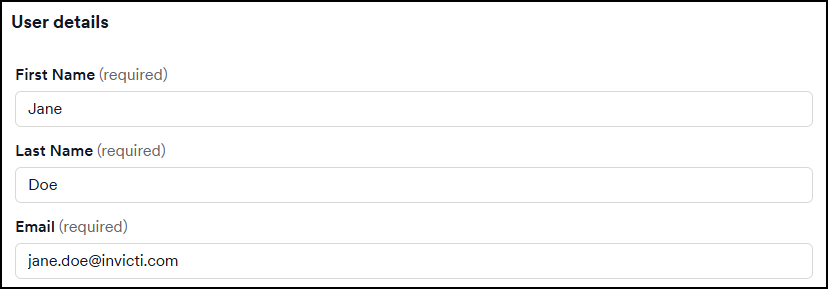
- On the Add new user page enter the user's first name, last name, and email address.
Step 2: User roles and collections
- In the User roles drop-down, select a role and confirm by pressing Add. You can choose from five default roles or a custom one.
if Admin or Administrator roles are assigned, the option to specify collections isn't available. These roles have access to all collections.
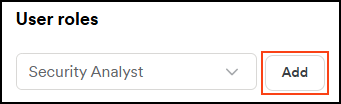
-
Each role you add to the user is automatically assigned to all current and future collections.
-
To change this and choose specific collections, click Select collections and follow the following steps. If you aren't changing this setting, continue with step 3.

- Choose the Select collections checkbox and use the drop-down to select the collections.
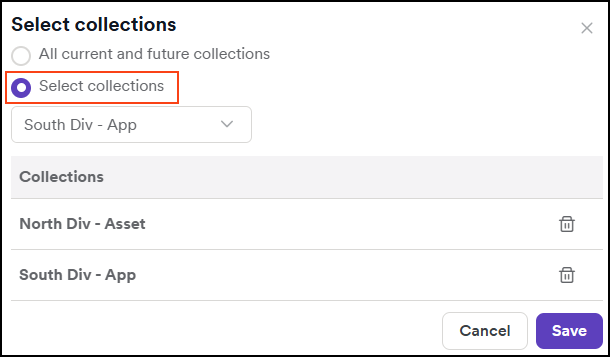
- Click Save to confirm the Collections.
Step 3: Assign team (optional)
- Select a team using the drop-down field. The user group is added to the user.
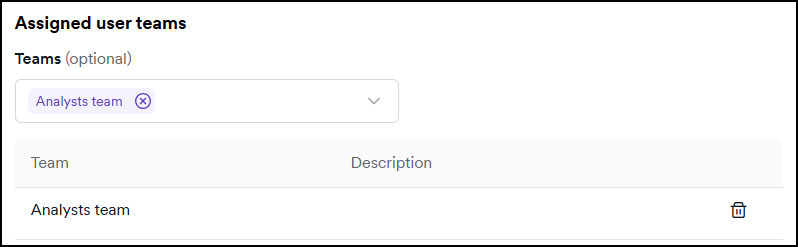
- More than one team can be added.
Step 4: Activation
-
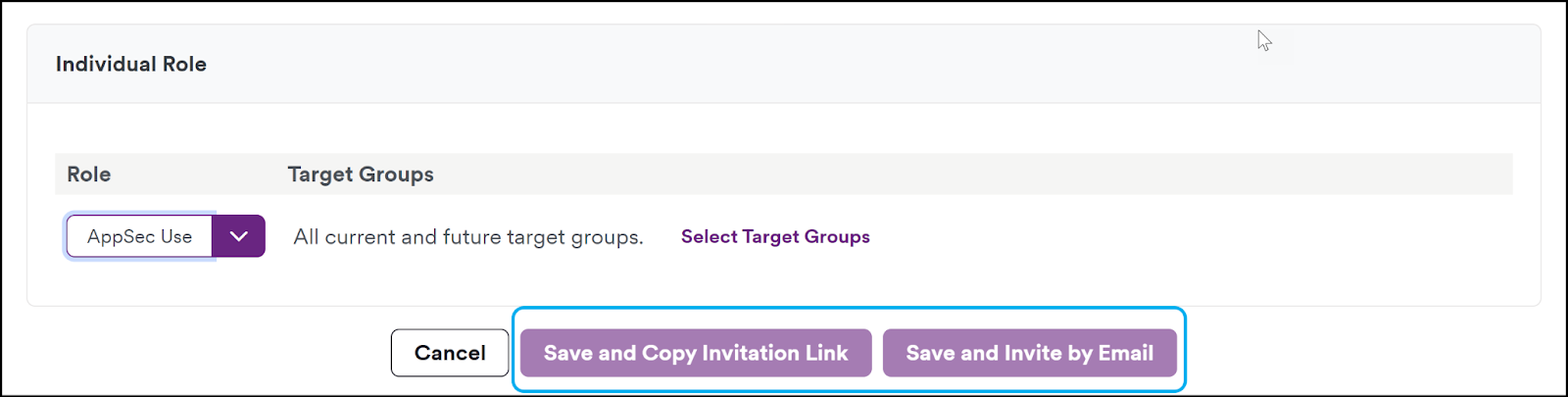
To send the new user an invitation link manually, choose Save and copy invite.
-
To send the user an invitation link via Invicti, choose Save and send invite.

The invitation link expires in 72 hours. To renew the invitation, go to Settings > Users & Access > Users. Next to the user, click the three-dot icon, then choose Copy new invite link. This renews the link.
Your newly added user is now visible on the Users tab.
Need help?
Invicti Support team is ready to provide you with technical help. Go to Help Center