Deployment: Invicti Platform on-demand, Invicti Platform on-premises
Integrate CI-driven scans
This document explains how to integrate Invicti Platform with your CI/CD pipelines (Jenkins, GitLab CI/CD, Azure Pipelines, GitHub Actions, CircleCI) to automate web application vulnerability scans and identify security issues before deployment.
The integration uses the Invicti scan-cli container - a lightweight Docker container configured entirely through environment variables. It connects to Invicti Platform to trigger and monitor scans, works with any CI/CD platform that supports Docker, and stores all scan results and reports centrally in Invicti Platform.
The scan-cli container triggers scans and monitors them. The actual scan duration is the same as running the same scan in the UI - you're using the pipeline to trigger it.
Why this matters
Integrating Invicti scans into your CI/CD pipeline means security testing runs automatically on every build - catching vulnerabilities before they reach production rather than discovering them after deployment. Scans run against your application in a test environment as part of the same pipeline that builds and deploys it, so your team gets scan results alongside other build feedback without any manual steps.
Prerequisites
Ensure the following requirements are met before proceeding:
- Permission to create and configure pipeline jobs in your CI/CD tool (Jenkins, GitLab CI/CD, Azure Pipelines, CircleCI, etc.). Admin access isn't required.
- Docker command-line tool installed and running on the agent or node that executes your pipeline
- Invicti Platform account with API Security enabled
- Access to the Invicti Scan CLI Docker image. Refer to access Invicti registries for more information.
- A target already created in Invicti Platform. CI-driven scans always reference an existing target, including internal targets scanned with an ephemeral agent.
Step 1: Generate an API token
You need an API token to authenticate the scan requests.
- In Invicti Platform, select your initials or avatar in the top right corner, then select User settings.
- Select API key.
- Copy the existing token, or select Generate new to create a new one. (If you generate a new token, the previous one becomes invalidated.)
- Store this token securely using your CI/CD platform's secret management. You'll need it for your CI/CD script.
Step 2: Retrieve the Asset ID for your target (API-based workflows only)
If you're preparing your script manually via API (rather than using the Invicti Platform UI script generator), retrieve the Asset ID for your target.
Invicti Platform shows two different IDs for each target. Both are UUIDs and look identical, but INVICTI_TARGET_ID requires the Asset ID only - the UUID visible in the browser URL as ?assetId=7809d1b4-871a-4fc2-af0f-5d36c9f4b86d when you open a target. Don't use the DAST target ID shown in the target's Details drawer - it's a different value and causes a "Failed to retrieve target" error.
curl -X 'GET' \
'https://platform.invicti.com/api/inventory/v1/assets?assetType=target&pageSize=50&pageNumber=1' \
-H 'accept: application/json' \
-H 'X-Auth: {your-api-token}'
You can find the Asset ID at $.items[0].id in the JSON response. For more options, refer to Retrieve the target ID.
Asset IDs don't change, so you can save them alongside the target name and reuse them across different pipelines and configurations.
If you're using the Invicti Platform UI to generate your script, skip this step - the asset ID is automatically populated based on the target you select in Step 3.
Step 3: Prepare your script
- Generate from Invicti Platform
- Write a custom script
Invicti Platform provides a tool-specific script generator that produces pre-configured scripts with environment variables and platform-specific syntax.
- Choose Integrations from the left-side menu.
- Open the Browse Integrations tab.
- Choose your CI/CD platform (for example, Jenkins) and click Configure.
- Choose the Asset (target) and Scan Profile you want to use.
- (Optional) Set Build failure conditions. If you want the pipeline to fail when the scan finds vulnerabilities, select Fail if vulnerability severity equals and choose a severity level (Critical, High, Medium, Low, or Info).
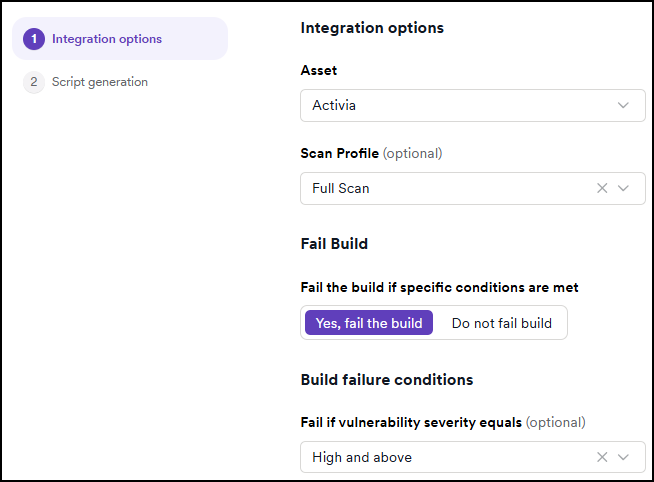
- Click Generate script.
If you selected an internal target, the generated script defaults to CloudAgent, which can't reach it. Change INVICTI_SCAN_AGENT: "CloudAgent" to INVICTI_SCAN_AGENT: "EphemeralAgent" so the pipeline launches a temporary agent inside your network.
If you already run an agent on that network, use INVICTI_SCAN_AGENT: "PreDefinedAgent" instead, and set INVICTI_AGENT_ID to its GUID (from Scans > DAST agents) to scan through it rather than launching a temporary one. INVICTI_AGENT_ID only takes effect alongside PreDefinedAgent - setting it with EphemeralAgent is a CLI error.
Only add INVICTI_TARGET_URL if the target is a dynamic URL (ephemeral) target.
See the following CI/CD platform examples for full script examples.
Write your own script to pull the image, define environment variables, and run the container. This offers more control and is useful for complex pipelines. The general flow is the same: pull the container, define environment variables, and run it.
Step 4: Amend your script
If you generated a script from the UI, review and amend it as needed. The most common change is for internal targets: the script generator defaults to CloudAgent, which can only reach targets exposed to the internet.
Common amendments for internal targets:
- Change
INVICTI_SCAN_AGENTfrom"CloudAgent"to"EphemeralAgent". The scan then runs from wherever you launched the CLI, so it can reach anything that container can reach. No extra configuration is needed. - If you already run an agent on that network, use
"PreDefinedAgent"instead and additionally setINVICTI_AGENT_IDto its GUID (from Scans > DAST agents) to reuse that agent instead of the CLI.
INVICTI_AGENT_ID is only honored alongside PreDefinedAgent, where it's required. EphemeralAgent and CloudAgent reject it with an error, and TargetDefault ignores it in favor of the agent configured against the target without reporting an error, so the scan runs from the wrong place.
Keep INVICTI_TARGET_ID in every case. It's required for every target type, internal ones included, because the target must already exist in Invicti Platform.
Add INVICTI_TARGET_URL only if your target is a dynamic URL (ephemeral) target - one created with the Is this an ephemeral (short-lived) development target? option, which stores no URL of its own. This is a property of the target, not of the agent. Refer to Add dynamic URL target.
Refer to the following examples and the CI environment variables reference for guidance.
Environment variables overview
All scripts require these core variables, whatever the target type or agent:
| Variable | Description |
|---|---|
INVICTI_API_BASE_URL | API base URL for your Invicti instance |
INVICTI_API_TOKEN | Your personal Invicti Platform API key. It can have an expiration date. Refer to Manage your API key |
INVICTI_TARGET_ID | Asset ID of the pre-configured target (from the browser URL - see Retrieve the target ID) |
INVICTI_SCAN_PROFILE | Scan profile name |
Invicti Source Scan reads the same INVICTI_API_TOKEN variable. For more information, refer to the Invicti source scan document.
Two further variables depend on choices that are independent of each other:
| Variable | When to set it |
|---|---|
INVICTI_SCAN_AGENT | CloudAgent for a publicly accessible target. EphemeralAgent for an internal target with no agent already running. PreDefinedAgent to scan through a permanent or shared agent you manage. Omit it, or leave it as TargetDefault, to use the agent already assigned to the target. |
INVICTI_AGENT_ID | Required alongside PreDefinedAgent, to name the agent to assign to the target instead of launching a temporary one. Rejected with an error alongside EphemeralAgent or CloudAgent. Silently ignored with TargetDefault. |
INVICTI_TARGET_URL | Only for dynamic URL (ephemeral) targets, which store no URL of their own. Not needed for a standard target, internal or otherwise. |
For optional variables (timeout, report template, etc.), refer to CI environment variables.
Generic Docker examples
- Publicly accessible target (CloudAgent)
- Internal target (not publicly accessible) (EphemeralAgent)
docker pull invicti/scan-cli:latest
docker run \
  -e INVICTI_API_BASE_URL="https://platform.invicti.com" \
  -e INVICTI_API_TOKEN="<your-api-token>" \
  -e INVICTI_TARGET_ID="<your-target-id>" \
  -e INVICTI_SCAN_AGENT="CloudAgent" \
  -e INVICTI_SCAN_PROFILE="Full Scan" \
  invicti/scan-cli:latest
docker pull invicti/scan-cli:latest
docker run \
  -e INVICTI_API_BASE_URL="https://platform.invicti.com" \
  -e INVICTI_API_TOKEN="<your-api-token>" \
  -e INVICTI_TARGET_ID="<your-target-id>" \
  -e INVICTI_SCAN_AGENT="EphemeralAgent" \
  -e INVICTI_SCAN_PROFILE="Full Scan" \
  invicti/scan-cli:latest
The Invicti Scan CLI is available from:
- Docker Hub (public):
invicti/scan-cli - Invicti private registry:
platform-registry.invicti.com/invicti-platform/invicti-scan-cli
For access to private registries, refer to access Invicti registries.
Optional variables and advanced configuration
For optional variables (scan timeout, report templates, export formats, etc.) and advanced options, refer to CI environment variables.
Target authentication
If your target requires authentication:
- Configure credentials in Targets > Edit > Authentication in Invicti Platform.
Network accessibility
- On-premises Invicti with cloud-hosted CI/CD: Ensure your CI/CD environment can reach your on-premises
INVICTI_API_BASE_URL. Network connectivity must exist before running scans. - Cloud-hosted CI/CD with internal targets: Use
EphemeralAgentso the scan runs from within your CI/CD network, allowing access to internal applications.
Step 5: Embed the script in your CI/CD pipeline
Once you have your script (generated or custom), integrate it into your pipeline:
- Share the script with your developer team.
- Add it as a build step towards the end of your pipeline, after building your application.
- Deploy the application to a test environment before running the scan.
- Configure the scan to run against that deployed environment.
This ensures you're scanning the actual built and deployed version of your application, not source code.
Each CI/CD tool has its own method for embedding the script. Make sure the script runs at the appropriate phase (for example, post-build, pre-deploy).
GitHub Actions
- Publicly accessible target
- Internal target (not publicly accessible)
name: Invicti Scan

on:
  workflow_dispatch: {}
  push:
    branches: [ main ]
  pull_request: {}

jobs:
  scan:
    runs-on: ubuntu-latest
    container:
      image: invicti/scan-cli:latest
    env:
      INVICTI_API_BASE_URL: "https://platform.invicti.com"
      INVICTI_API_TOKEN: ${{ secrets.INVICTI_API_TOKEN }}
      INVICTI_TARGET_ID: "<your-target-id>"
      INVICTI_SCAN_AGENT: "CloudAgent"
      INVICTI_SCAN_PROFILE: "Full Scan"

    steps:
      - name: Run Invicti Scan CLI
        run: /home/invicti/scancli/ScanCLI

      - name: Upload scan artifacts
        if: always()
        uses: actions/upload-artifact@v4
        with:
          name: invicti-scan-results
          path: |
            ./scan-results/**
            ./reports/**
            ./*.json
            ./*.html
          if-no-files-found: ignore
          retention-days: 7
name: Invicti Scan - Internal Target

on:
  workflow_dispatch: {}
  push:
    branches: [ main ]
  pull_request: {}

jobs:
  scan:
    runs-on: ubuntu-latest
    container:
      image: invicti/scan-cli:latest
    env:
      INVICTI_API_BASE_URL: "https://platform.invicti.com"
      INVICTI_API_TOKEN: ${{ secrets.INVICTI_API_TOKEN }}
      INVICTI_TARGET_ID: "<your-target-id>"
      INVICTI_SCAN_AGENT: "EphemeralAgent"
      INVICTI_SCAN_PROFILE: "Full Scan"
      INVICTI_MINIMUM_SEVERITY: "Critical"

    steps:
      - name: Run Invicti Scan CLI
        run: /home/invicti/scancli/ScanCLI

      - name: Upload scan artifacts
        if: always()
        uses: actions/upload-artifact@v4
        with:
          name: invicti-scan-results
          path: |
            ./scan-results/**
            ./reports/**
            ./*.json
            ./*.html
          if-no-files-found: ignore
          retention-days: 7
- Store
INVICTI_API_TOKENas a GitHub secret, not in plain text. Refer to GitHub Actions secrets.
Jenkins
Jenkins requires the Docker Pipeline plugin (via Manage Jenkins > Manage Plugins). Add the script to your pipeline configuration as a stage.
- Publicly accessible target
- Internal target (not publicly accessible)
pipeline {
    agent {
        docker {
            image "invicti/scan-cli:latest"
            args '--entrypoint=""'
        }
    }
    environment {
        INVICTI_API_BASE_URL = "https://platform.invicti.com"
        INVICTI_API_TOKEN = credentials('INVICTI_API_TOKEN')
        INVICTI_TARGET_ID = "<your-target-id>"
        INVICTI_SCAN_AGENT = "CloudAgent"
        INVICTI_SCAN_PROFILE = "Full Scan"
    }
    stages {
        stage('Scan') {
            steps {
                sh '/home/invicti/scancli/ScanCLI'
            }
        }
    }
}
pipeline {
    agent {
        docker {
            image "invicti/scan-cli:latest"
            args '--entrypoint=""'
        }
    }
    environment {
        INVICTI_API_BASE_URL = "https://platform.invicti.com"
        INVICTI_API_TOKEN = credentials('INVICTI_API_TOKEN')
        INVICTI_TARGET_ID = "<your-target-id>"
        INVICTI_SCAN_AGENT = "EphemeralAgent"
        INVICTI_SCAN_PROFILE = "Full Scan"
    }
    stages {
        stage('Scan') {
            steps {
                sh '/home/invicti/scancli/ScanCLI'
            }
        }
    }
}
GitLab CI/CD
Place the script in a job step within your .gitlab-ci.yml file.
- Publicly accessible target
- Internal target (not publicly accessible)
test:
  image: invicti/scan-cli:latest
  stage: test
  variables:
    INVICTI_API_BASE_URL: "https://platform.invicti.com"
    INVICTI_API_TOKEN: $INVICTI_API_TOKEN
    INVICTI_TARGET_ID: "<your-target-id>"
    INVICTI_SCAN_AGENT: "CloudAgent"
    INVICTI_SCAN_PROFILE: "Full Scan"
  script:
    - /home/invicti/scancli/ScanCLI
  artifacts:
    expire_in: 1 week
test:
  image: invicti/scan-cli:latest
  stage: test
  variables:
    INVICTI_API_BASE_URL: "https://platform.invicti.com"
    INVICTI_API_TOKEN: $INVICTI_API_TOKEN
    INVICTI_TARGET_ID: "<your-target-id>"
    INVICTI_SCAN_AGENT: "EphemeralAgent"
    INVICTI_SCAN_PROFILE: "Full Scan"
  script:
    - /home/invicti/scancli/ScanCLI
  artifacts:
    expire_in: 1 week
Azure Pipelines
Add the script steps within your azure-pipelines.yml file.
- Publicly accessible target
- Internal target (not publicly accessible)
trigger:
  - main

pool:
  name: "your-pool-name"

variables:
  INVICTI_API_BASE_URL: "https://platform.invicti.com"
  INVICTI_API_TOKEN: "INVICTI_API_TOKEN"
  INVICTI_TARGET_ID: "<your-target-id>"
  INVICTI_SCAN_AGENT: "CloudAgent"
  INVICTI_SCAN_PROFILE: "Full Scan"

steps:
  - task: DockerInstaller@0
    displayName: "Ensure Docker is installed"

  - script: |
      echo "Pulling Invicti CLI image..."
      docker pull invicti/scan-cli:latest
    displayName: "Pull Scan CLI Image"

  - script: |
      echo "Running Invicti Scan CLI..."
      docker run --rm \
        -e INVICTI_API_BASE_URL="$(INVICTI_API_BASE_URL)" \
        -e INVICTI_API_TOKEN="$(INVICTI_API_TOKEN)" \
        -e INVICTI_TARGET_ID="$(INVICTI_TARGET_ID)" \
        -e INVICTI_SCAN_AGENT="$(INVICTI_SCAN_AGENT)" \
        -e INVICTI_SCAN_PROFILE="$(INVICTI_SCAN_PROFILE)" \
        invicti/scan-cli:latest \
        /home/invicti/scancli/ScanCLI
    displayName: "Run Invicti Scan"
    failOnStderr: true

  - task: PublishBuildArtifacts@1
    inputs:
      PathtoPublish: "$(Build.ArtifactStagingDirectory)"
      ArtifactName: "scan-results"
      publishLocation: "Container"
    displayName: "Publish Scan Results"
trigger:
  - main

pool:
  name: "your-pool-name"

variables:
  INVICTI_API_BASE_URL: "https://platform.invicti.com"
  INVICTI_API_TOKEN: "INVICTI_API_TOKEN"
  INVICTI_TARGET_ID: "<your-target-id>"
  INVICTI_SCAN_AGENT: "EphemeralAgent"
  INVICTI_SCAN_PROFILE: "Full Scan"

steps:
  - task: DockerInstaller@0
    displayName: "Ensure Docker is installed"

  - script: |
      echo "Pulling Invicti CLI image..."
      docker pull invicti/scan-cli:latest
    displayName: "Pull Scan CLI Image"

  - script: |
      echo "Running Invicti Scan CLI..."
      docker run --rm \
        -e INVICTI_API_BASE_URL="$(INVICTI_API_BASE_URL)" \
        -e INVICTI_API_TOKEN="$(INVICTI_API_TOKEN)" \
        -e INVICTI_TARGET_ID="$(INVICTI_TARGET_ID)" \
        -e INVICTI_SCAN_AGENT="$(INVICTI_SCAN_AGENT)" \
        -e INVICTI_SCAN_PROFILE="$(INVICTI_SCAN_PROFILE)" \
        invicti/scan-cli:latest \
        /home/invicti/scancli/ScanCLI
    displayName: "Run Invicti Scan"
    failOnStderr: true

  - task: PublishBuildArtifacts@1
    inputs:
      PathtoPublish: "$(Build.ArtifactStagingDirectory)"
      ArtifactName: "scan-results"
      publishLocation: "Container"
    displayName: "Publish Scan Results"
CircleCI
Create a file named config.yml inside the .circleci directory with the appropriate configuration.
- Publicly accessible target
- Internal target (not publicly accessible)
version: 2.1

jobs:
  invicti-scan:
    docker:
      - image: invicti/scan-cli:latest
    resource_class: medium
    environment:
      INVICTI_API_BASE_URL: "https://platform.invicti.com"
      INVICTI_API_TOKEN: "INVICTI_API_TOKEN"
      INVICTI_TARGET_ID: "<your-target-id>"
      INVICTI_SCAN_AGENT: "CloudAgent"
      INVICTI_SCAN_PROFILE: "Full Scan"
    steps:
      - run:
          name: Run Invicti Security Scan
          command: /home/invicti/scancli/ScanCLI
      - store_artifacts:
          path: /home/invicti/publicdata/
          destination: invicti-scan-results

workflows:
  version: 2
  security-scan-workflow:
    jobs:
      - invicti-scan
version: 2.1

jobs:
  invicti-scan:
    docker:
      - image: invicti/scan-cli:latest
    resource_class: medium
    environment:
      INVICTI_API_BASE_URL: "https://platform.invicti.com"
      INVICTI_API_TOKEN: "INVICTI_API_TOKEN"
      INVICTI_TARGET_ID: "<your-target-id>"
      INVICTI_SCAN_AGENT: "EphemeralAgent"
      INVICTI_SCAN_PROFILE: "Full Scan"
    steps:
      - run:
          name: Run Invicti Security Scan
          command: /home/invicti/scancli/ScanCLI
      - store_artifacts:
          path: /home/invicti/publicdata/
          destination: invicti-scan-results

workflows:
  version: 2
  security-scan-workflow:
    jobs:
      - invicti-scan
For more information, refer to the official CircleCI documentation.
Step 6: Run and monitor the pipeline
- Trigger a pipeline run.
- The CI/CD tool performs the following actions:
- Pulls the Invicti Scan CLI Docker image
- Runs the scan
- Generates a security report
- Monitor the console/log output.
- Download and review the report if required.
Invicti Platform stores all scan results and reports centrally:
- Select Scans from the left-side menu to view all scan activities
- Select Reports to access generated reports
- Check Vulnerabilities for detailed findings
Best practices
- Use the script generation feature in Invicti Platform as a starting point - every CI/CD environment has different requirements.
- Store API tokens securely using your CI/CD platform's secret management.
- Run scans after you build and deploy your application to a test environment.
- Multiple shorter scans are better than one large scan. Use
INVICTI_SCAN_TIMEOUTto set the maximum scan duration. - Schedule regular scans using scheduled pipelines or cron jobs.
Troubleshooting
Target not found
This error typically occurs when the scan-cli can't locate the target using the provided credentials.
For CloudAgent:
- Verify that
INVICTI_TARGET_IDcontains the Asset ID - the UUID from the browser URL (?assetId=...) when you open the target in Invicti Platform. Don't use the DAST target ID from the target's Details drawer - both look identical but are different values. Refer to Retrieve the target ID. - Confirm the target exists in Invicti Platform under Targets.
- Verify
INVICTI_API_TOKENis valid and hasn't expired.
For dynamic URL (ephemeral) targets:
- Verify
INVICTI_TARGET_URLis set. These targets store no URL of their own, so the scan has no address without it. - Confirm the URL format is correct (for example,
https://staging.company.net, notstaging.company.netwithout the protocol). - Ensure the URL is accessible from the CI/CD environment. Test with
curlorpingfrom the same CI/CD agent. - If the target isn't a dynamic URL target, remove
INVICTI_TARGET_URLand let the scan use the URL stored against the target.
Scan started but timed out
The INVICTI_SCAN_TIMEOUT variable limits scan duration (default from target configuration, typically 48 hours).
- Increase the timeout:
INVICTI_SCAN_TIMEOUT: "240"(in minutes). - Check that your target is responding and the scan is actively running. Monitor the Invicti Platform UI under Scans.
- Verify the CI/CD environment has network access to the target and to
INVICTI_API_BASE_URL.
API token rejected or authentication failed
- Verify
INVICTI_API_TOKENis correct, hasn't been regenerated, and hasn't passed its expiration date. Regenerating or revoking an API key invalidates the previous one. Refer to Manage your API key. - Confirm you've stored the token as a secret in your CI/CD platform (not visible in logs).
- Check that the user account associated with the token still has active access to Invicti Platform.
Scan profile not found
- Verify
INVICTI_SCAN_PROFILEmatches exactly a profile configured in Invicti Platform under Scans > Scan profiles. - Profile names are case-sensitive. For example,
Full Scanandfull scanare different. - Check for extra spaces or typos in the profile name.
Need help?
Invicti Support team is ready to provide you with technical help. Go to Help Center