Deployment: Invicti Platform on-demand, Invicti Platform on-premises
Moving from Acunetix on-premises to Invicti Platform
This document explains how to move your existing data from Acunetix on-premises to Invicti Platform. By following this guide, you can transition your security posture to Invicti Platform while retaining critical historical data, including targets, scan profiles, and vulnerability reports.
Upgrade from Acunetix on-premises is possible for Invicti Platform on-premises and on-demand deployments.
Upgrade to Invicti Platform on-demand also gives you access to AI-powered capabilities:
- AI-enhanced coverage and crawling - improves scan coverage for modern, dynamic applications
- Predictive risk scoring - prioritizes your web assets before scanning using AI-calculated risk scores
- Agentic pentests - AI-powered penetration testing that reasons about findings and generates pentest-style reports
- LLM-based vulnerability testing - tests LLM-powered applications for AI-specific security vulnerabilities
Upgrading from Acunetix on-premises involves a two-stage process:
- Exporting your data from the source Acunetix environment.
- Importing that data into Invicti Platform.
For a full breakdown of what's carried over and what isn't, refer to the Acunetix on-premises upgrade reference document.
Before you begin
This section applies to Invicti Platform on-premises. If you're upgrading to Invicti Platform on-demand, skip to Export your data from Acunetix.
- Invicti Platform on-premises must be installed on a server before you can import data.
- For installation instructions, refer to the Helm installation document or the Windows installation guides.
Before starting the upgrade, review the following requirement.
Don't complete the registration process. Invicti Platform can only have one account, and the import won't be allowed if a user is already registered. Your previous account is registered in the new platform.
Export your data from Acunetix
To move your data, extract it from your current Acunetix environment using the Invicti exporter tool. Select the tab for your operating system to download and run the tool.
- Windows
- Linux
- Docker
- Download the exporter tool for Windows:
- Right-click the file and select Run as administrator.
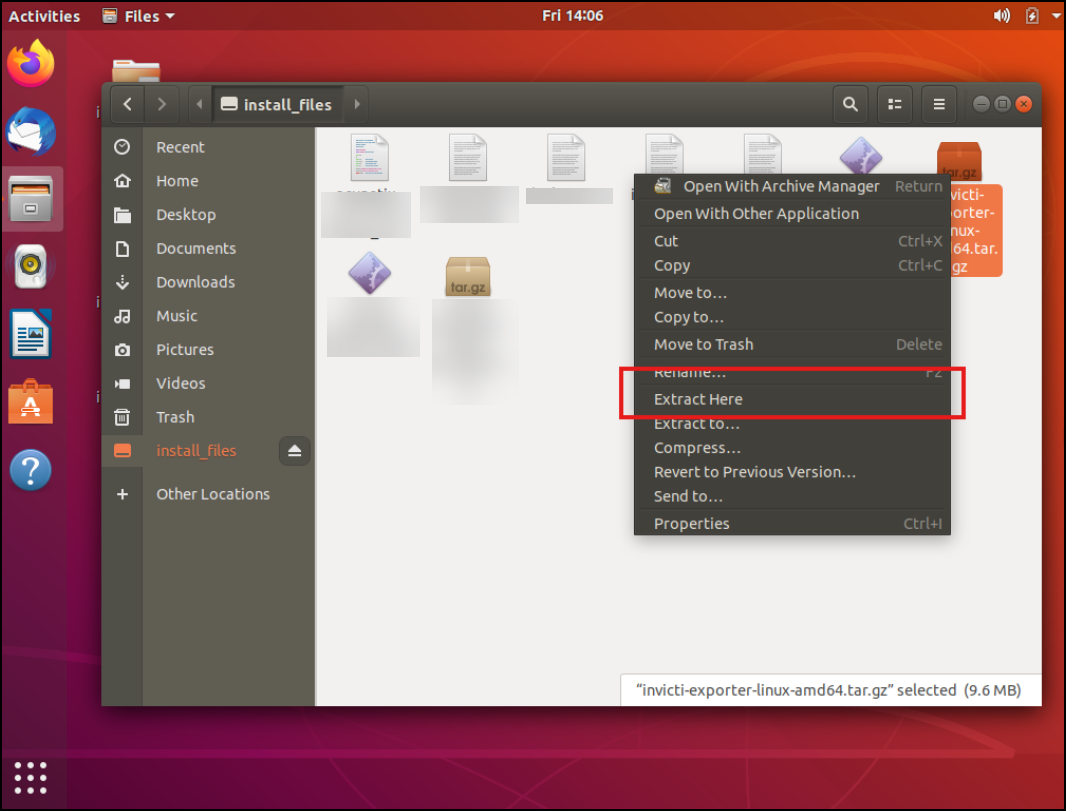
- Download invicti-exporter-linux-amd64.tar.gz.
- Extract the archive.
- Confirm that the Acunetix service is active:
systemctl status acunetix - Run the exporter tool:
sudo ./invicti-exporter-linux-amd64 - Follow the export steps in the next section.
- Download the exporter tool:
- Run this command inside the container:
wget -P /tmp "https://static-platform.invicti.com/upgrade-tools/invicti-exporter-linux-amd64.tar.gz" - Or copy it from your local machine:
docker cp "/path/to/invicti-exporter-linux-amd64.tar.gz" <container-id>:/tmp/invicti-exporter-linux-amd64.tar.gz
- Run this command inside the container:
- Open a root shell inside the container:
docker exec -u 0 -it <container-id> bash-u 0- runs as the root user (ID 0)-it- opens an interactive terminalbash- opens the bash shell
- Extract the archive:
tar -xzvf /tmp/invicti-exporter-linux-amd64.tar.gz -C /tmp - Run the exporter tool:
./tmp/invicti-exporter-linux-amd64
Export data
Once the tool is running, select your target deployment and press Enter.
- On-premises
- On-demand
Select 1 - Invicti Platform on-premises and press Enter.
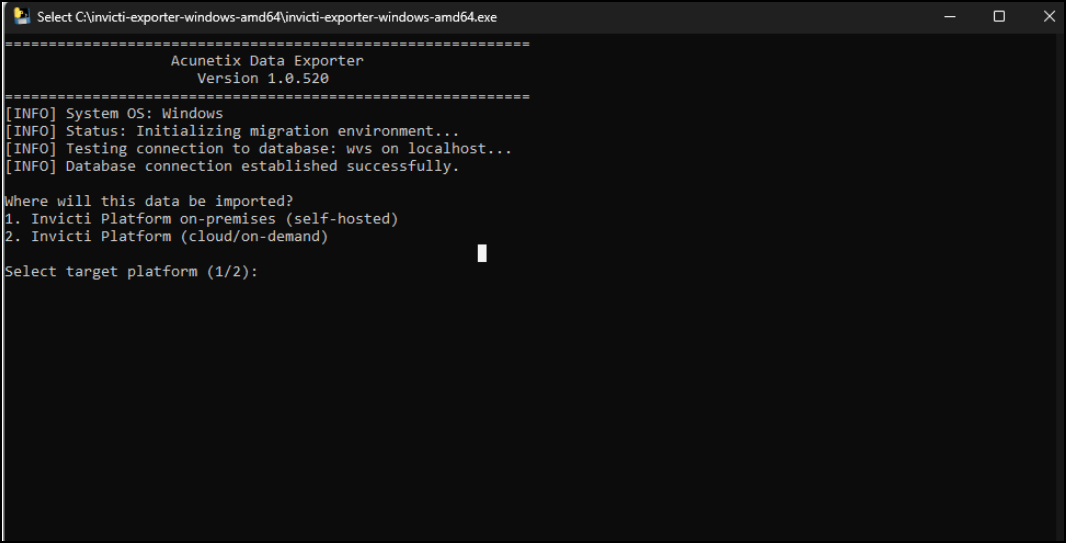
Select 2 - Invicti Platform on-demand and press Enter.
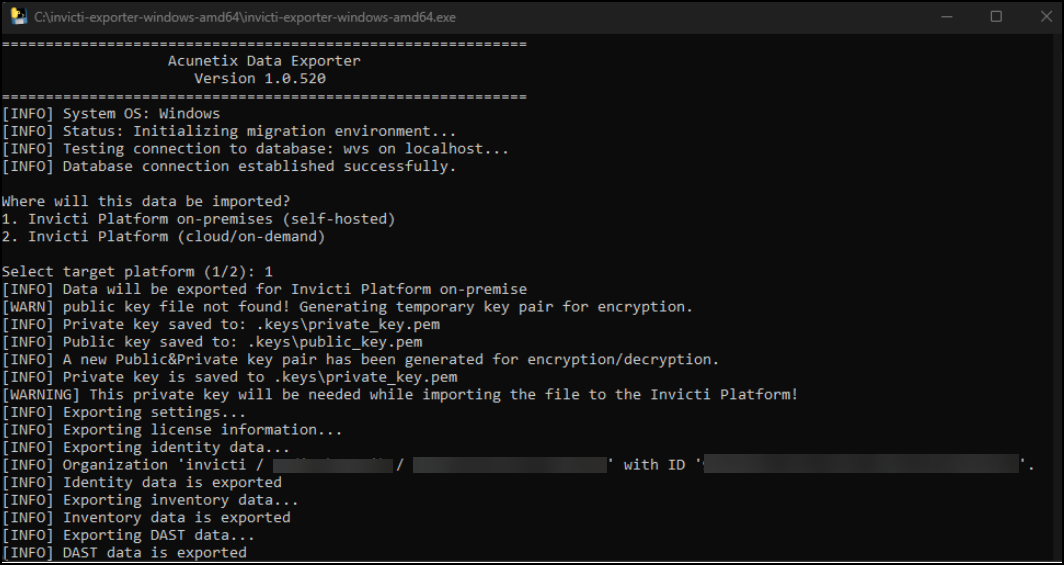
The tool runs the export automatically. The following stages complete without any action required:
- Certificate generation to encrypt the sensitive data.
-
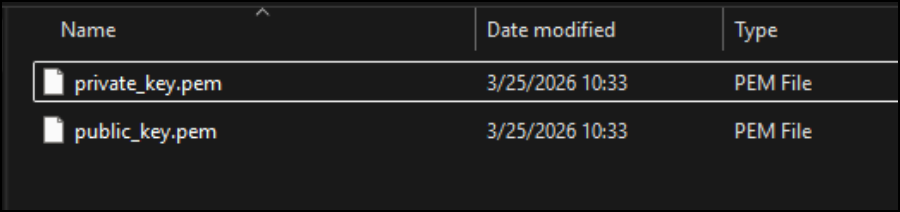
Certificate file storage in the
.keysfolder in the same directory.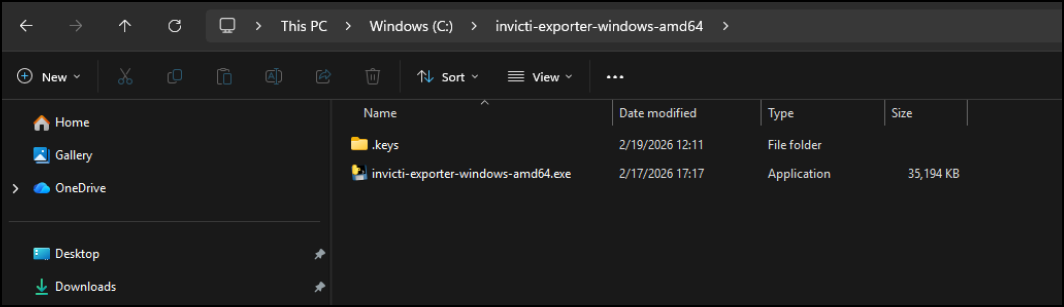
- The private key file inside this folder is required for the import process for Invicti Platform on-premises.
-
Archive creation in the temp folder.
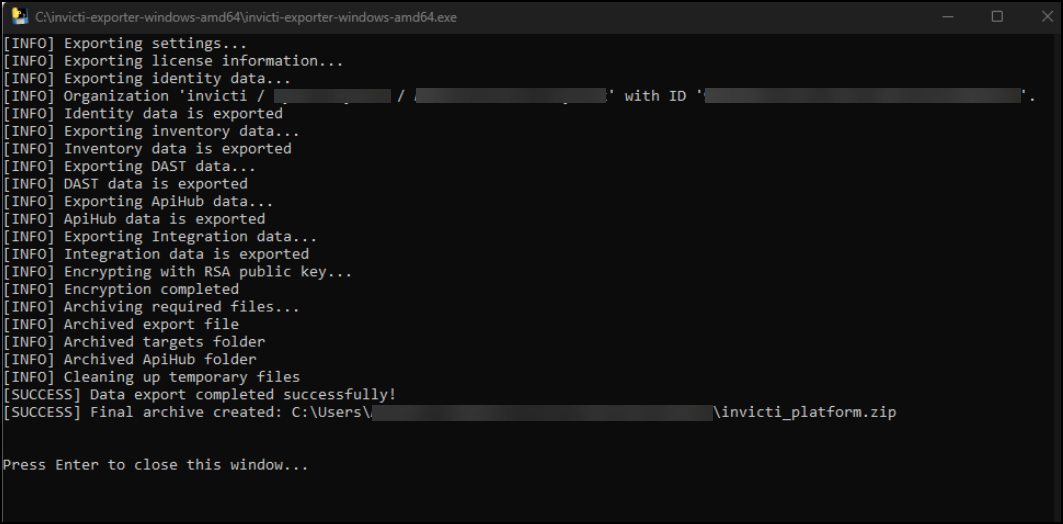
When the export is complete, use the archive and the private key in the import step.
Import your data into Invicti Platform
Follow the instructions depending on your Invicti Platform deployment: on-premises or on-demand.
- On-premises
- On-demand
- Navigate to the import page at
https://[YOUR-INVICTI-PLATFORM-URL]/import.
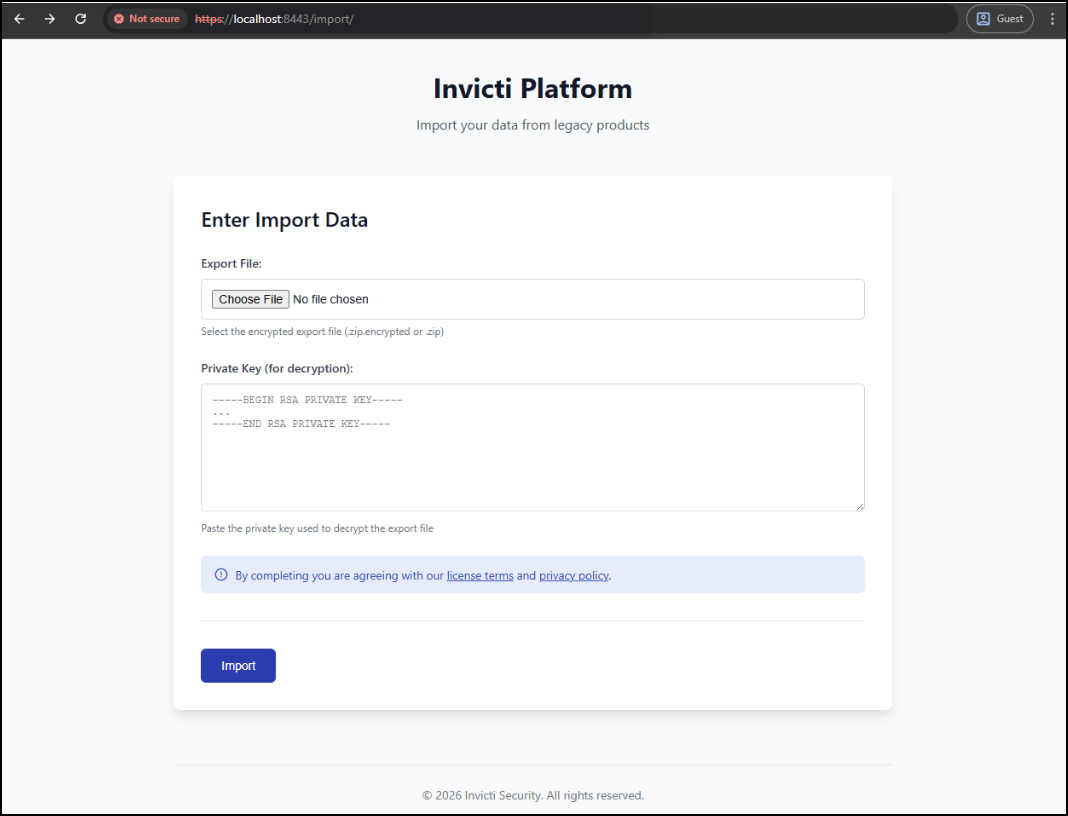
- Enter the export file and private key, then select Submit. Invicti Platform uploads the files and starts the import process immediately.
- Once the import is complete, open the login page and sign in with your existing credentials.
Your data import is managed directly by Invicti. To complete the upgrade, follow these steps:
- Request upload link - Reach out to the Support team via your existing Zendesk ticket to request a secure data upload link.
- Upload data package - Using the link provided by support, upload your exported archive file.
- Notify support - Once the files are uploaded, reply to your Zendesk ticket to notify the team that your data package is ready.
- Import and confirmation - The team processes the import into Invicti Platform on-demand and notifies you via Zendesk when it's complete.
- Platform access - Log in to your new Invicti Platform on-demand instance using your existing account credentials.
Need help?
Invicti Support team is ready to provide you with technical help. Go to Help Center