Package: Invicti API Security Standalone or Bundle
NTA with F5 BIG-IP iRule
This document provides a comprehensive guide for integrating F5 BIG-IP with NTA (Network Traffic Analyzer) using a custom iRule. The purpose of this integration is to enable real-time traffic logging and observability by intercepting HTTP requests and responses at the F5 level, transforming them into structured JSON format, and transmitting them to an external logging service via High-Speed Logging (HSL) over UDP.
The custom iRule leverages F5 BIG-IP's event-driven scripting capabilities to capture detailed metadata from HTTP transactions, including request and response headers, body content, timing, and client/server identifiers. This data is formatted as enriched JSON objects, which can be ingested and analyzed by NTA or any compatible logging and monitoring platform.
Once configured, this solution provides visibility into app traffic flows, helps with troubleshooting, and supports security or compliance monitoring by capturing complete HTTP transaction data in real-time.
The integration process consists of four key steps:
- Install and configure NTA using a Helm deployment with the required custom values.
- Create a log pool in F5 BIG-IP to define the destination for log traffic.
- Deploy the iRule, which listens to HTTP events and constructs the logs.
- Attach the iRule to your Virtual Server, enabling the live traffic data collection.
Step 1: Install and configure NTA
- Follow the installation instructions in the linked document to install NTA with Istio Mesh service.
- When you reach "Step 2: Authenticate with the Invicti Registry" of the linked document, use the following command instead:
helm upgrade --install -f values.yaml \
  --set reconstructor.JWT_TOKEN="<YOUR TOKEN HERE>" \
  --set trafficSource.tsa.enabled=true \
  --set trafficSource.tsa.bigIpEnabled=true \
  invicti-api-discovery . -n invicti-api-discovery
Step 2: Create a log pool in F5 BIG-IP
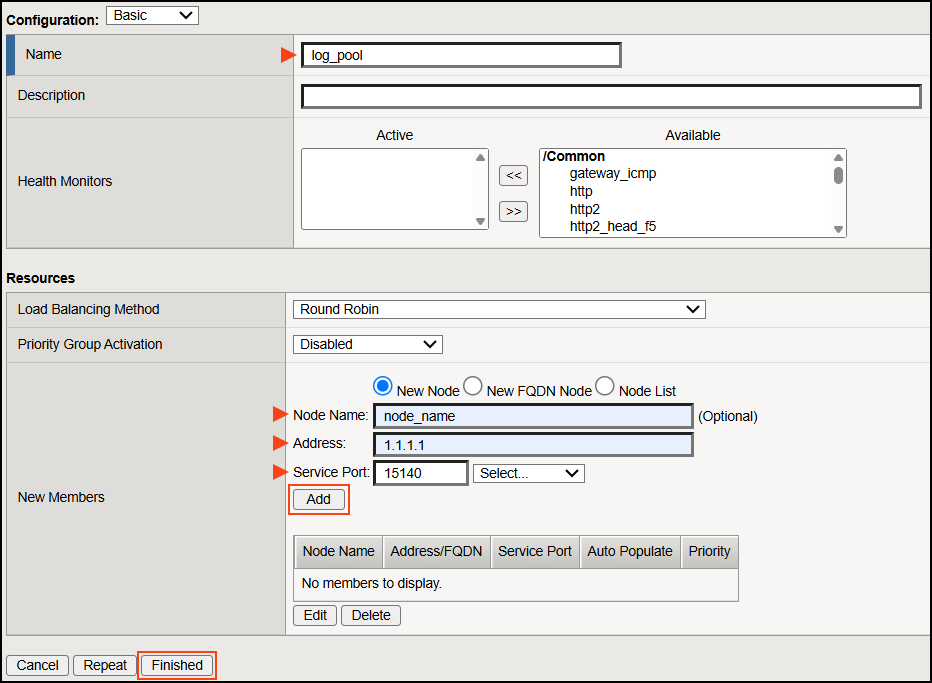
- In F5, select Local traffic > Pools.
- Click Create to add a new Pool.
- Fill in the following information:
- Name: Enter
log_poolas the name. - Node name: Enter the node name from the NTA installation.
- Address: Enter the IP address of your NTA machine.
- Port: Port number of the NTA. The default port is 15140. The F5 BIG-IP system must be able to reach UDP port 15140 on the server where NTA is installed.
- Name: Enter
- Click Add, followed by Finished.
Step 3: Deploy the iRule
The iRule should be attached to a Virtual Server that has an HTTP profile enabled.
Ensure there are no conflicting HTTP::respond commands in other iRules assigned to the same Virtual Server.
- In F5, select Local traffic > iRules.
- Click Create to add a new iRule.
- Fill in the following information:
- Name: Enter a name for the iRule.
- Definition: Enter the following script:
when CLIENT_ACCEPTED {
   set conn_key "[IP::client_addr]:[TCP::client_port]"
   table set "counter:$conn_key" 0 60
}
when HTTP_REQUEST {
   set conn_key "[IP::client_addr]:[TCP::client_port]"
   set counter [table lookup "counter:$conn_key"]
   incr counter
   table set "counter:$conn_key" $counter 60
   set request_id "$conn_key-$counter"
   table set "reqid:$conn_key:$counter" $request_id 60
   set request_time [clock clicks -milliseconds]
   set method [HTTP::method]
   set uri [HTTP::uri]
   set headers ""
   foreach hname [HTTP::header names] {
       set header_value [string map {"\"" "\\\""} [HTTP::header value $hname]]
       append headers "\"$hname\":\"$header_value\","
   }
   if {[string length $headers] > 0} {
       set headers [string range $headers 0 end-1]
   }
   set truncated false
   if {($method eq "POST" || $method eq "PUT" || $method eq "PATCH") && [HTTP::header exists "Content-Length"]} {
       if {[HTTP::header "Content-Length"] < 4096} {
           HTTP::collect [HTTP::header "Content-Length"]
       } else {
           set truncated true
       }
   }
   set version "HTTP/[HTTP::version]"
   set scheme "http"
   if {[TCP::local_port] == 443} {
       set scheme "https"
   }
   set dest_addr "[IP::local_addr]:[TCP::local_port]"
   set dest_namespace "f5"
   set src_addr "[IP::client_addr]"
   set host [HTTP::host]
   set json_request "{
       \"RequestID\": \"$request_id\",
       \"Scheme\": \"$scheme\",
       \"DestinationAddress\": \"$dest_addr\",
       \"DestinationNamespace\": \"$dest_namespace\",
       \"SourceAddress\": \"$src_addr\",
       \"Request\": {
           \"Method\": \"$method\",
           \"Path\": \"$uri\",
           \"Host\": \"$host\",
           \"Common\": {
               \"Version\": \"$version\",
               \"Headers\": { $headers },
               \"Body\": \"\",
               \"TruncatedBody\": $truncated,
               \"Time\": $request_time
           }
       }
   }"
   table set $request_id $json_request 180
}
when HTTP_REQUEST_DATA {
   set conn_key "[IP::client_addr]:[TCP::client_port]"
   set request_id ""
   for {set i 10} {$i > 0} {incr i -1} {
       set request_id [table lookup "reqid:$conn_key:$i"]
       if {$request_id ne ""} { break }
   }
   set json [table lookup $request_id]
   if {$json eq ""} { return }
   set body [HTTP::payload]
   binary scan $body a* body_string
   set escaped_body [string map {"\"" "\\\""} $body_string]
   set old "\"Body\": \"\""
   set new "\"Body\": \"$escaped_body\""

   set updated_json [string map [list $old $new] $json]
   table set $request_id $updated_json 180
}
when HTTP_RESPONSE {
   set conn_key "[IP::client_addr]:[TCP::client_port]"
   set request_id ""
   for {set i 10} {$i > 0} {incr i -1} {
       set try_key "reqid:$conn_key:$i"
       set request_id [table lookup $try_key]
       if {$request_id ne ""} { break }
   }
   set req_json [table lookup $request_id]
   if {$req_json eq ""} {
       log local0. "Record not found"
       return
   }
   set status [HTTP::status]
   set headers ""
   foreach hname [HTTP::header names] {
       set header_value [string map {"\"" "\\\""} [HTTP::header value $hname]]
       append headers "\"$hname\":\"$header_value\","
   }
   if {[string length $headers] > 0} {
       set headers [string range $headers 0 end-1]
   }
   set version "HTTP/[HTTP::version]"
   set response_time [clock clicks -milliseconds]
   if {[HTTP::header exists "Content-Length"] && [HTTP::header "Content-Length"] < 4096} {
       HTTP::collect [HTTP::header "Content-Length"]
   } elseif {[HTTP::header exists "Content-Length"]} {
       set truncated true
       set json_response "{
           \"StatusCode\": \"$status\",
           \"Common\": {
               \"Version\": \"$version\",
               \"Headers\": { $headers },
               \"Body\": \"\",
               \"TruncatedBody\": true,
               \"Time\": $response_time
           }
       }"
       set combined_json "{
           \"request\": $req_json,
           \"response\": $json_response
       }"
       set hsl [HSL::open -proto UDP -pool log_pool]
       HSL::send $hsl $combined_json
       table delete $request_id
   }
}
when HTTP_RESPONSE_DATA {
   set conn_key "[IP::client_addr]:[TCP::client_port]"
   set request_id ""
   for {set i 10} {$i > 0} {incr i -1} {
       set try_key "reqid:$conn_key:$i"
       set request_id [table lookup $try_key]
       if {$request_id ne ""} { break }
   }
   set req_json [table lookup $request_id]
   if {$req_json eq ""} {
       log local0. "Record not found"
       return
   }
   set body [HTTP::payload]
   set escaped_body [string map {"\"" "\\\""} $body]
   set status [HTTP::status]
   set headers ""
   foreach hname [HTTP::header names] {
       set header_value [string map {"\"" "\\\""} [HTTP::header value $hname]]
       append headers "\"$hname\":\"$header_value\","
   }
   if {[string length $headers] > 0} {
       set headers [string range $headers 0 end-1]
   }
   set version "HTTP/[HTTP::version]"
   set response_time [clock clicks -milliseconds]
   set json_response "{
       \"StatusCode\": \"$status\",
       \"Common\": {
           \"Version\": \"$version\",
           \"Headers\": { $headers },
           \"Body\": \"$escaped_body\",
           \"TruncatedBody\": false,
           \"Time\": $response_time
       }
   }"
   set combined_json "{
       \"request\": $req_json,
       \"response\": $json_response
   }"
   set hsl [HSL::open -proto UDP -pool log_pool]
   HSL::send $hsl $combined_json
   table delete $request_id
}
- Click Finished.
Step 4: Attach the iRule to your virtual server
- In F5, select Local traffic > Virtual Servers.
- Open your server and navigate to the Resources tab.
- In the iRules section, select Manage.
- In the Available column, select the iRule you just created and use the left arrow to move it to the Enabled column.
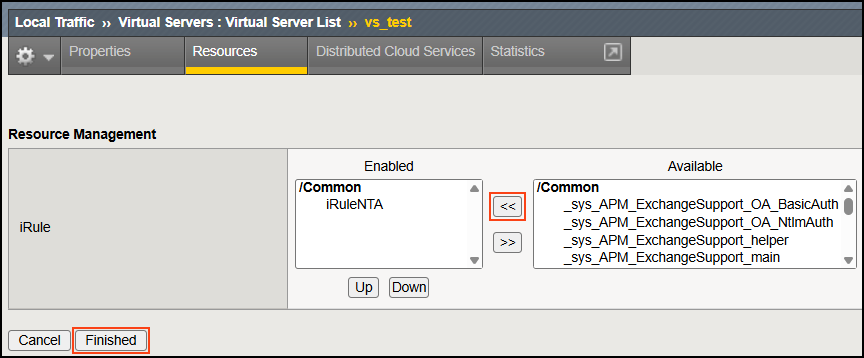
- Click Finished when done.
- You are now collecting data from NTA and the F5.
Need help?
Invicti Support team is ready to provide you with technical help. Go to Help Center