Install standalone LSR on Linux
The Invicti standalone Login Sequence Recorder (LSR) allows you to record login sequences and business logic flows (BLR) for use with internal agents. This is especially useful when scanning internal targets that require authentication or involve multi-step user interactions.
This document shows you how to install the Invicti standalone Login Sequence Recorder on Linux and how to open it in business logic recorder mode.
You need to install the standalone LSR on a machine in the same network as the target.
Installation
-
Click this link to download the Invicti LSR setup file:
https://cdn.invicti.com/product/download/linux-standalone-lsr.zip
-
Extract the files.
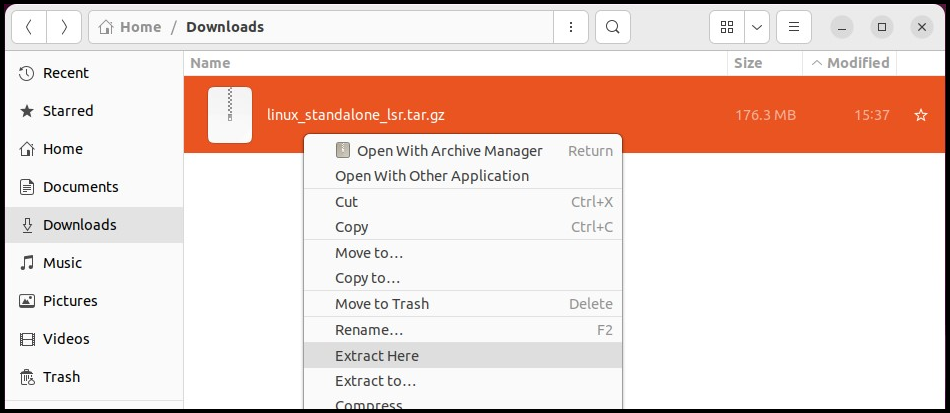
-
Open Terminal from the newly created folder.
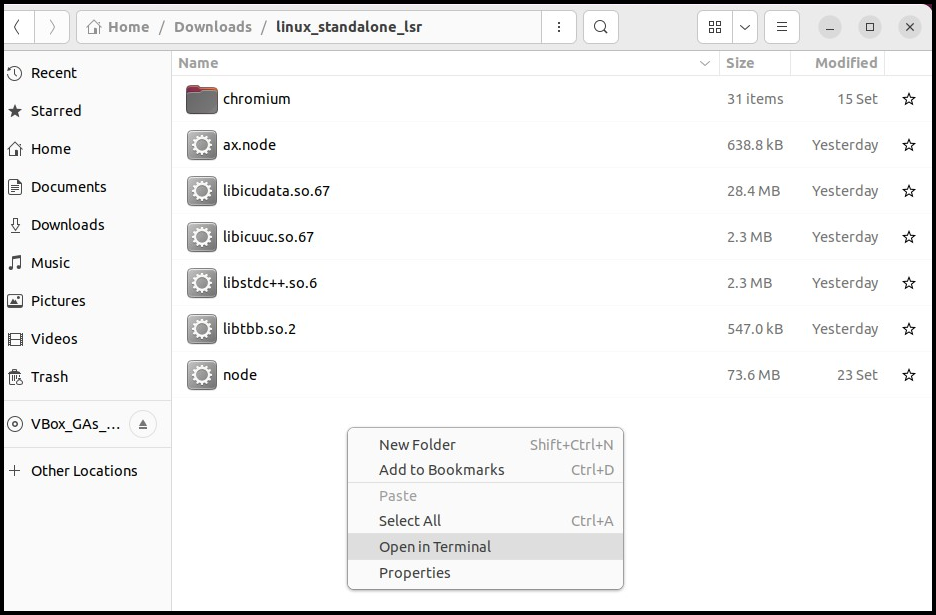
-
Run the following command to open the LSR Recorder:
./node lsr -
The LSR is now running.
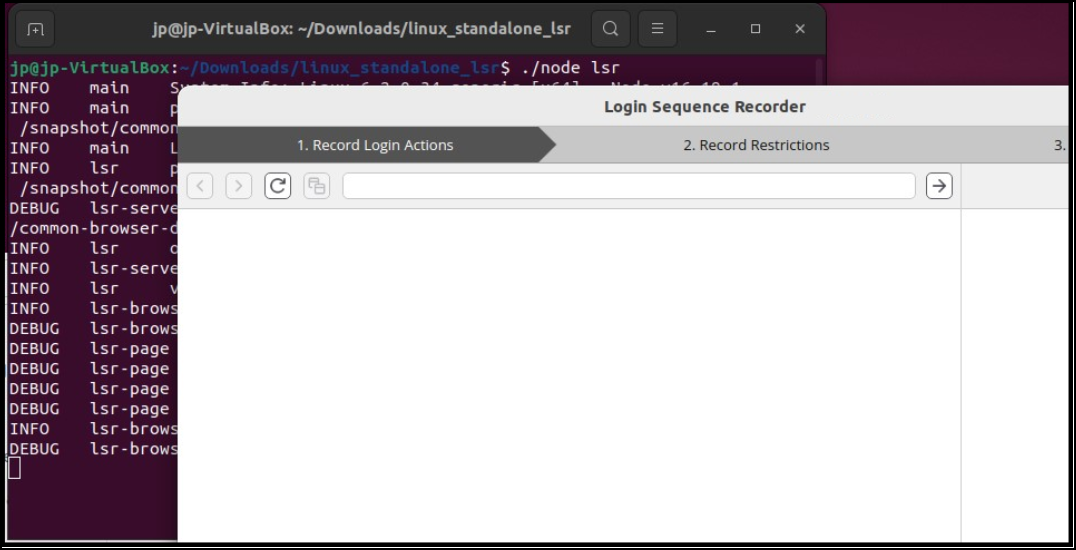
Open in business logic recorder mode
You would use the Business logic recorder mode to record complex user interactions that go beyond standard login, such as:
- Multi-step forms
- Conditional input flows
- Custom user workflows such as shopping cart, checkout, and onboarding
Running the LSR in business logic recorder mode allows you to define these sequences so the scanner can fully explore and test areas of the application that require specific user actions to reach.
To open the LSR in business logic recorder mode, follow these steps:
-
Once you have installed the standalone LSR using the steps preceding, open Terminal and change to the Invicti LSR directory.
-
After opening Terminal, run the following command to open the business logic recorder:
./node lsr logic -
The LSR now runs in business logic recorder mode.
Need help?
Invicti Support team is ready to provide you with technical help. Go to Help Center