Deployment: Invicti Platform on-demand, Invicti Platform on-premises
Update, clone, or turn off automations
Automations define how Invicti Platform interacts with your other systems. This document explains how to view and manage your automation by editing, cloning, turning off, or deleting it. For information about creating an automation, refer to New automation.
Full access to manage automations is only available to users with the Automations: full Access permission.
View all created automations
After you create an automation, it immediately appears on the All automations page where you can also view all the automations you have set up.
Use the filter options at the top of the table to view your automations by target group, specific target, integration, or status.

Edit an automation
-
Click the three-dot menu (⋮) next to the automation you want to edit.
-
Select Edit from the dropdown menu.
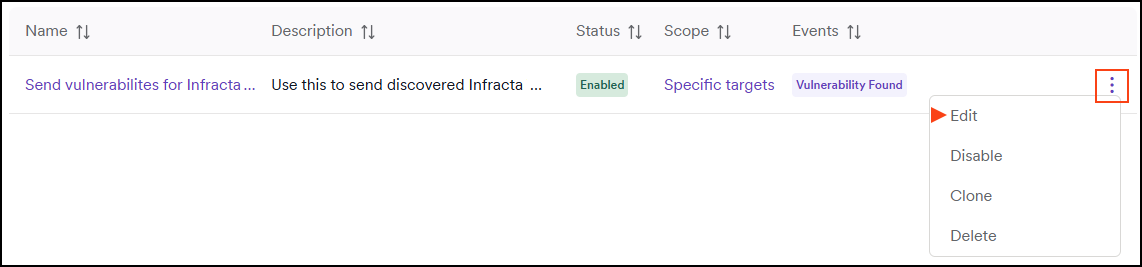
- Click the pencil icon next to the name or description to make changes. Click Save when finished.

- Hover over the Scope, Event, or Action sections to reveal Edit or Delete options.
The scope cannot be deleted.
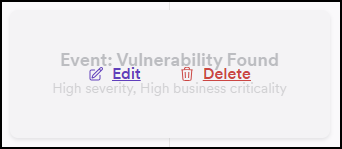
-
To add more events or actions, click the plus (+) icons in the relevant sections.
-
Click Save changes to apply your updates.
-
To discard your edits, select Discard changes.

You return to the All automations page, where you can view all existing automations.
Clone an automation
-
Click the three-dot menu (⋮) next to the automation you want to clone.
-
Select Clone from the dropdown menu.
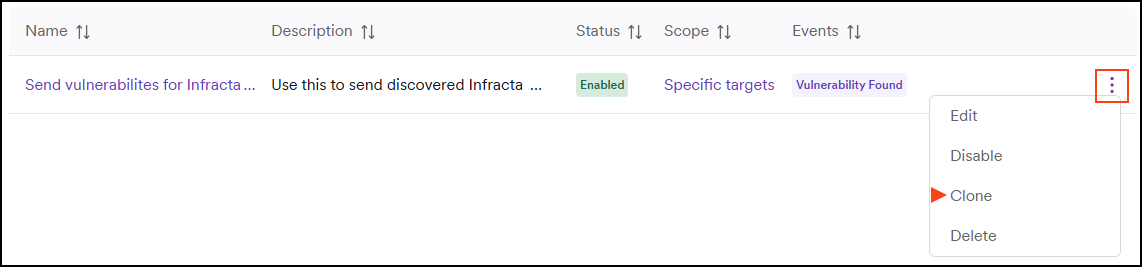
- Enter a name and description for your new automation, then select Save.
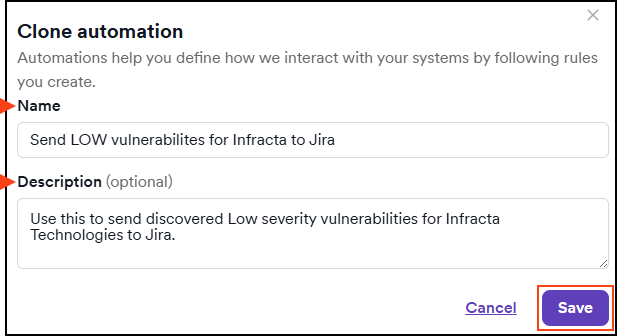
-
The components of your cloned automation are now visible. Click on any component to edit its specifications, or click the + (plus) icons to add more events or actions.
-
Click Save changes to save your new automation.
-
To discard your edits, select Discard changes.
Your cloned automation is now visible on the All automations page.
Turn off or delete an automation
-
Click the three-dot menu (⋮) next to the automation you want to turn off or delete.
-
Select Turn off or Delete from the dropdown menu.
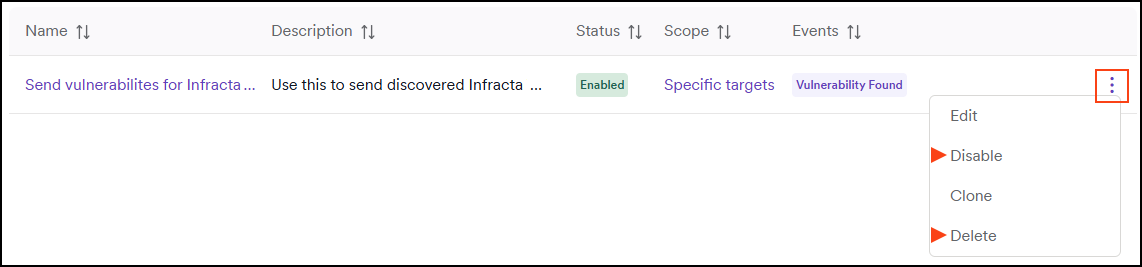
- If deleting, click Yes to confirm deletion of the automation.
Turned off automations are marked as Off in the Status column. To enable an automation, click the three-dot menu (⋮) icon and select Enable.
Need help?
Invicti Support team is ready to provide you with technical help. Go to Help Center