Deployment: Invicti Platform on-demand
Use Business Logic Recorder (BLR)
The Business Logic Recorder (BLR) enables you to test complex web applications without manual effort or extra tools. Most scanners struggle with business logic, but this tool helps "explain" how user input affects application behavior. Some web forms require specific field values that a scanner engine may not be able to guess.
This document covers how the Business Logic Recorder works and how and when to use it. The in-product BLR works for any target type, including targets that use an internal scanning agent.
Why this matters
Many vulnerabilities live in workflows the scanner can't reach unguided - shopping carts, sign-up forms, and applications where each step depends on a specific input from the step before. When the scanner guesses an invalid field value, the form bounces it back to the start and the later, often more sensitive, parts of the workflow never get tested. A recorded business logic sequence captures the exact inputs and clicks a real user makes, so the scanner can replay the path and find vulnerabilities behind multi-step forms.
Use cases
Many web applications use multi-step forms, where later steps depend on user input from earlier ones. Shopping carts and airline reservations commonly follow this approach.
A key concept is that different input values can trigger different workflow paths. For example, a car rental form might use a birth date field to determine eligibility:
- Ages 20 or younger, or 65 and over: Rental unavailable, process stops.
- Ages 26 to 64: Proceeds normally.
- Ages 21 to 25: Adds an extra step for insurance acknowledgment.
The Business Logic Recorder (BLR) captures such sequences, ensuring scanners can test all workflow variations for vulnerabilities.
Record a business logic sequence
To enter the Business Logic Recorder:
- Select Inventory > Targets from the left-side menu.
- Locate the target you'd like to edit, select the three-dot menu (⋮) > Edit target.
- Select Business Logic Recorder.
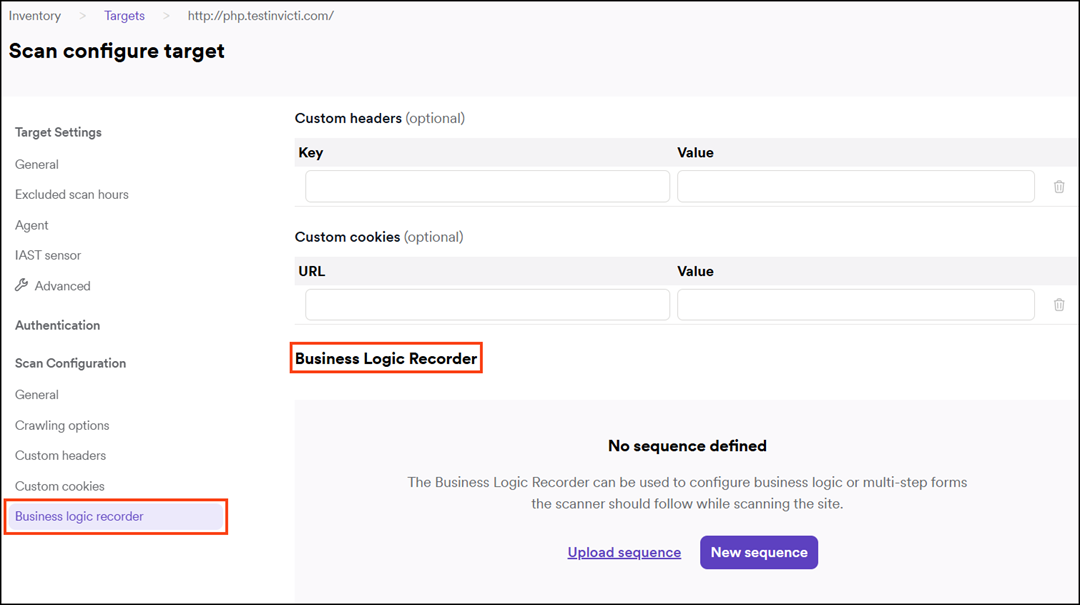
- Click New sequence.
For targets that use an internal scanning agent, the BLR window can take up to about 30 seconds to open. The agent picks up the recording job on its next polling cycle. The default polling interval is 30 seconds, set by poll_frequency in the agent's agent.yaml configuration file. To open the recorder more quickly, lower the value - for example, poll_frequency: 10s - then restart the internal agent service for the change to take effect.
The agent.yaml file sits in the agent's installation directory - the folder you created when installing the agent (for example, C:\InvictiAgent).
- In the Business Logic Recorder, navigate to the element where you need to record business logic (for example, a multi-part web form). The Record button is pre-selected for you.
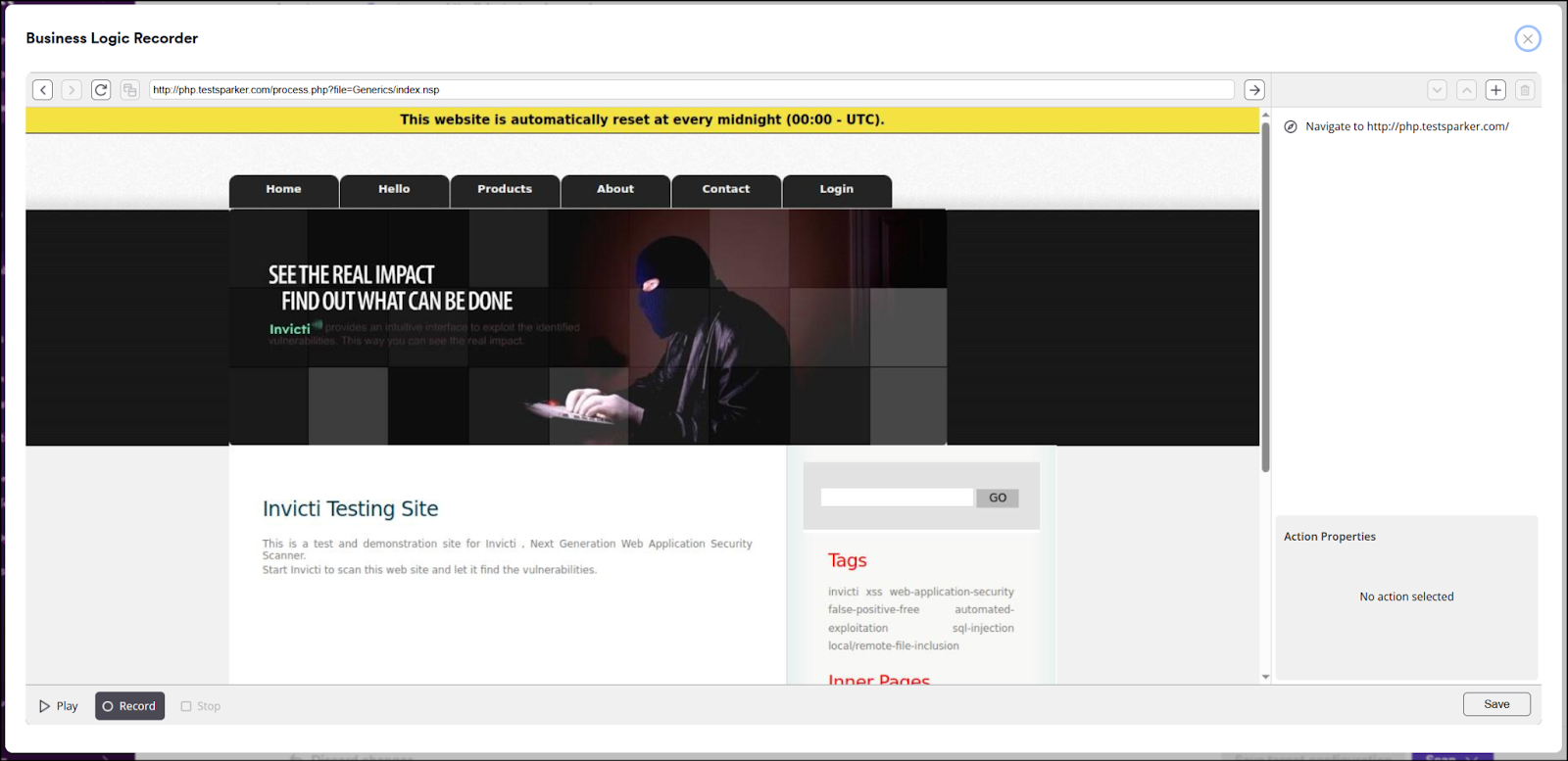
- Click and fill in the elements in the form, and submit the form. As you click, the panel on the right updates with the recorded actions.
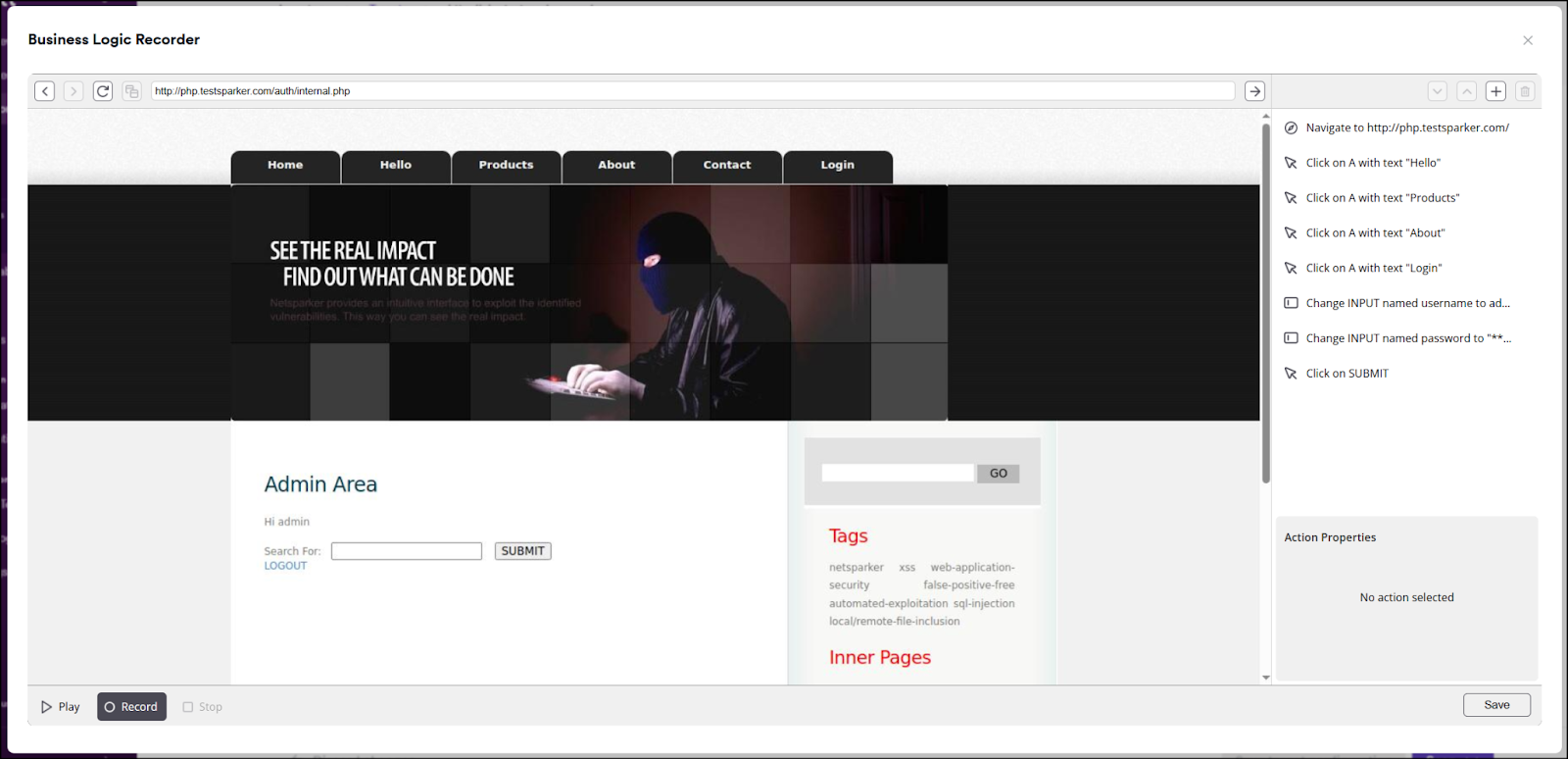
- Select Record again to stop the recording.
- Select Play to review the recording.
- Click Save for the BLR to store the recorded actions for use in the next scan.
- The BLR creates a
.blrfile and adds it to the target.
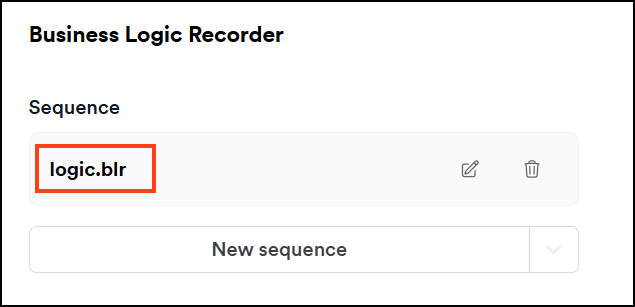
- Click Save target configuration.
Troubleshooting
The Business Logic Recorder window doesn't open after about a minute
For targets that use an internal scanning agent, the recorder waits for the agent's next polling cycle. If the window still doesn't open after the polling interval has passed:
- Confirm the internal scanning agent is running and shows as connected under Scans > DAST agents.
- Verify the
agent_token,auth_token, andurlin the agent'sagent.yamlare current. An expired or revokedauth_tokenprevents the agent from polling. - Make sure
poll_frequencyinagent.yamlhas a reasonable value. The default is 30 seconds; anything higher than a few minutes can make the recorder appear stuck.
"BLR session timed out" or "An error occurred during the Login Sequence Recording session"
The connection between the browser, the platform, and the internal scanning agent dropped. Close the recorder, then try again. If the error repeats:
- Confirm the agent is still running and connected.
- Confirm you haven't moved the browser tab running the recorder to a network with stricter outbound restrictions mid-recording (for example, switching from office Wi-Fi to a VPN).
- For long sequences, finish and save the recording in segments rather than leaving the recorder idle for extended periods.
Need help?
Invicti Support team is ready to provide you with technical help. Go to Help Center