Deployment: Invicti Platform on-demand
Install internal agent on Windows
Invicti Platform allows you to use internal agents to scan targets within your internal environment that aren't publicly accessible from the internet. This is also useful when you prefer not to trustlist Invicti cloud agents.
This document explains how to install the Invicti internal agent in a Windows environment. For other installation methods, refer to:
- Install an internal agent using Docker
- Install an internal agent with proxy settings
- Install an autoscaling agent using Kubernetes
When the site is internal and you prefer using internal agents for the scan, you can create and import Login Sequence Records (LSRs) through the Windows agent. However, Business Logic Records can only be imported - you can't record them through an internal agent. For more information, refer to the Standalone login sequence recorder overview.
When creating an LSR through a Windows internal agent, the LSR window can take up to about 30 seconds to open. The agent picks up the recording job on its next polling cycle. The default polling interval is 30 seconds, configured by poll_frequency in the agent's agent.yaml file, located in the agent installation directory (for example, C:\InvictiAgent). To reduce the wait, lower the value — for example, poll_frequency: 10s — then restart the internal agent service for the change to take effect.
Prerequisites
System requirements
To run scans successfully, the agent requires sufficient system resources. The agent only initiates a new scan if the following minimum resources are available:
- CPU: 2 free cores on a 64-bit processor
- Memory (RAM): 6 GB available
- Disk space: 50 GB free
- Supported systems: Microsoft Windows 10 or Windows Server 2019 or later
Access requirements
- Administrator privileges for command execution
- Invicti Platform Administrator role
Trustlisting requirements
- Trustlist requirements for the CA region
- Trustlist requirements for the EU region
- Trustlist requirements for the US region
- Consequences of scanning without trustlisting
Resource allocation behavior
When the agent starts, it checks the available CPU, RAM, and disk space and calculates how many scans it can run in parallel, running the lowest number those resources allow. You can adjust the per-slot thresholds or set a fixed limit. For the calculation details and override options (agent.yaml thresholds, jobs_override, and the --max-jobs flag), refer to Concurrent scans and resource allocation in the internal scanning introduction.
Steps to install an agent on Windows
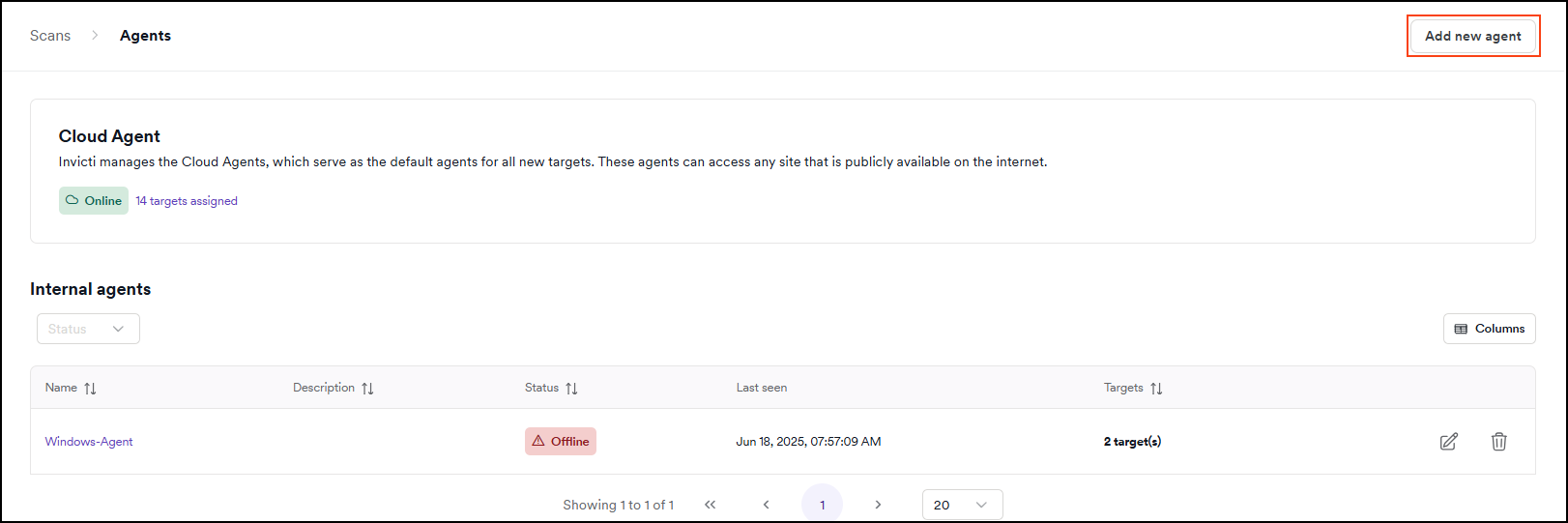
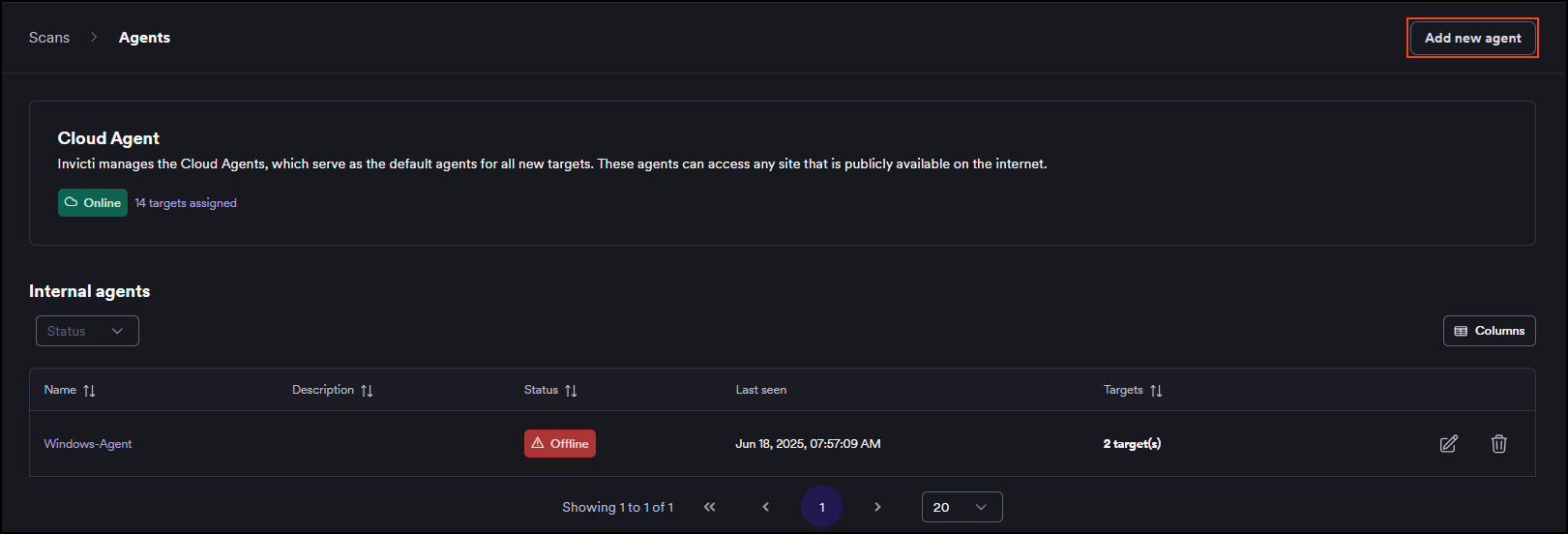
- Select Scans > Agents from the left-side menu.
- Click Add new agent.
- Enter a name for the agent and click the Windows tile. The token that's displayed here is then used in the installation command. The agent name must not contain any whitespace characters or special characters.
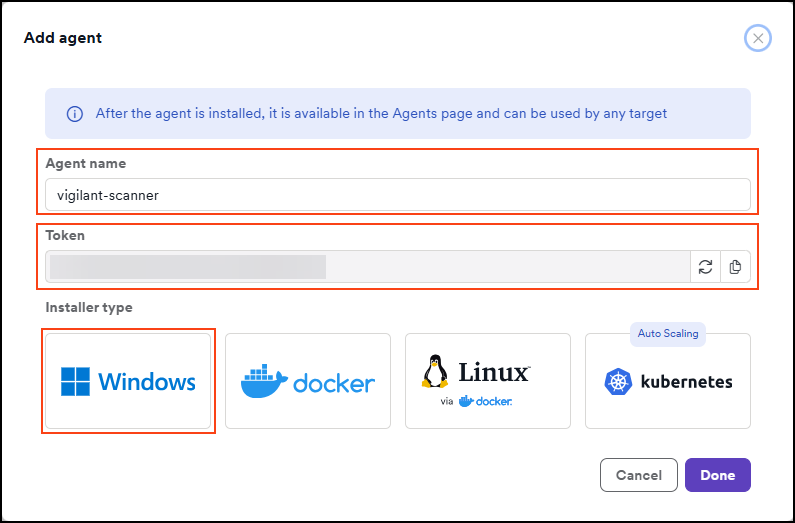

- By following the on-screen instructions you're going to:
- Create a folder where you are going to save the agent
- Download the agent
- Run two commands - one with and one without administrative privileges
To avoid permission-related errors, don't install the agent within your User directory (for example, Downloads, Desktop, or Documents). Instead, install it directly to a folder in the system root, such as C:\InvictiAgent.
The installation path must not contain any whitespace characters or special characters. Using a simple directory name consisting only of standard alphanumeric characters is recommended to ensure proper installation and execution.
-
Click Done.
-
Your agent is now installed. You can view it in Invicti by going to the Scans > Agents page.
You can now assign targets to the installed agent and start scanning your targets.
Troubleshooting
To troubleshoot any issues, review the logs located in the logs folder within the agent installation directory you created.
If you encounter an error when starting the agent, try adding Local Service permission inside the agent folder. To do this, right-click your agent folder and select Properties > Security > Edit > Add. Then type Local Service in the text field and click OK > Apply. Once completed, navigate to Services to start the agent service.
For further assistance, contact our Support team.
Uninstall the service
If you need to uninstall the service, run the following command as a user with administrative privileges:
.\invicti-agent.exe service -u --log-level=info --log-file
Need help?
Invicti Support team is ready to provide you with technical help. Go to Help Center