This integration is configured through the Invicti ASPM product.
Dependabot SCA integration
Invicti ASPM supports Dependabot as an SCA (Software Composition Analysis) scanner. This guide explains how to activate and use the Dependabot integration.
Dependabot is GitHub's built-in dependency management tool that automatically scans repositories for vulnerable dependencies and generates pull requests to update them. It supports a wide range of package ecosystems and integrates natively with GitHub repositories.
Prerequisites
Before starting the integration, ensure you have the following:
| Requirement | Description |
|---|---|
| GitHub repository | A GitHub repository with Dependabot alerts enabled |
| KDT CLI | Access to the Kondukto CLI tool (KDT) for importing Dependabot results |
| Dependabot alerts | Dependabot security alerts enabled in your GitHub repository settings |
Dependabot is an import-only scanner. There are no connection settings to configure in Invicti ASPM. Results are imported through the KDT CLI.
Enable Dependabot Alerts (on GitHub Side)
- Navigate to your GitHub repository.
- Go to Settings > Code security and analysis.
- Enable Dependabot alerts.
- Optionally, enable Dependabot security updates for automatic pull request creation.
Step 1: Navigate to Integrations
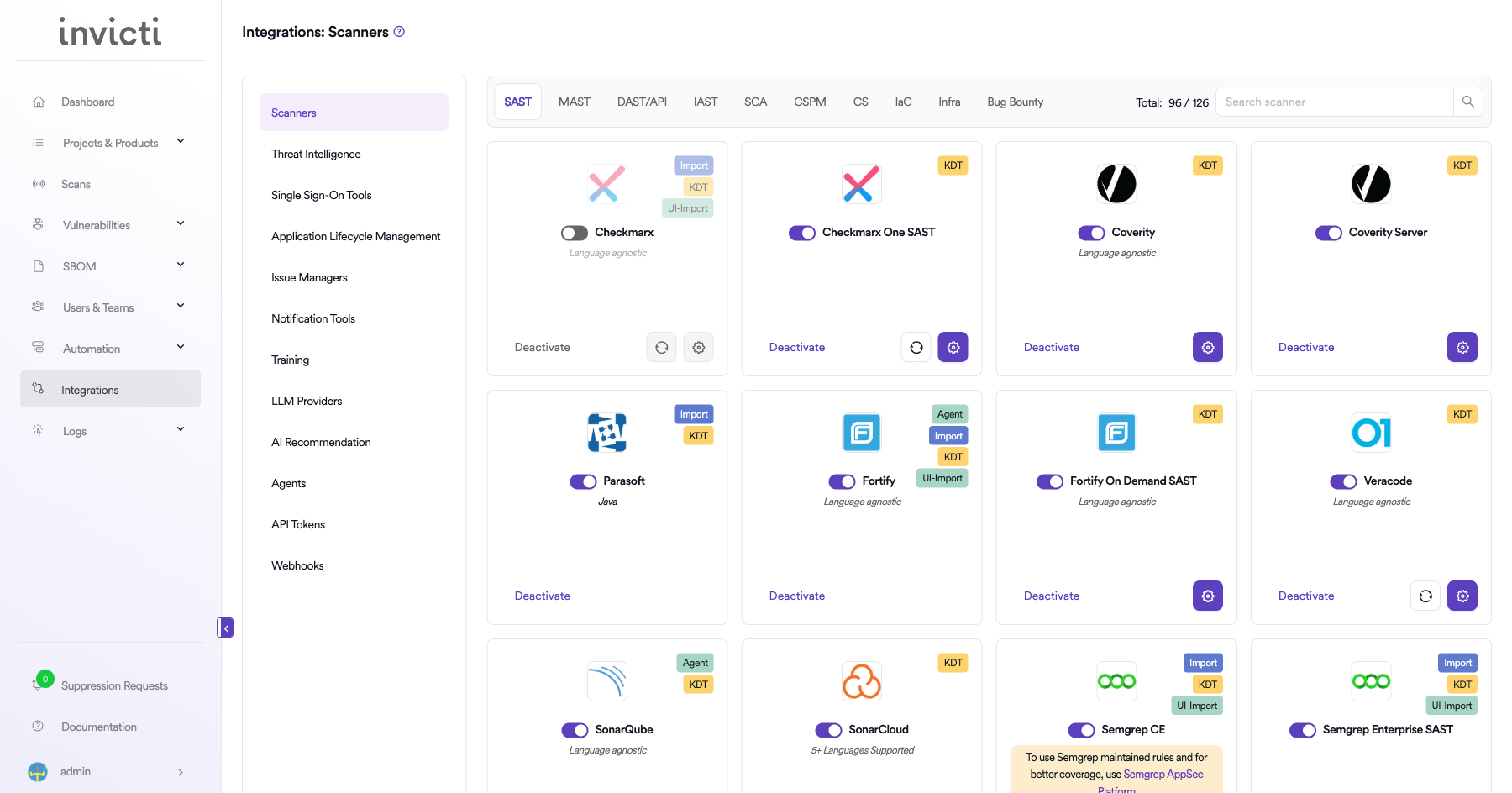
From the left sidebar menu, click on Integrations.
Step 2: Select the SCA Tab
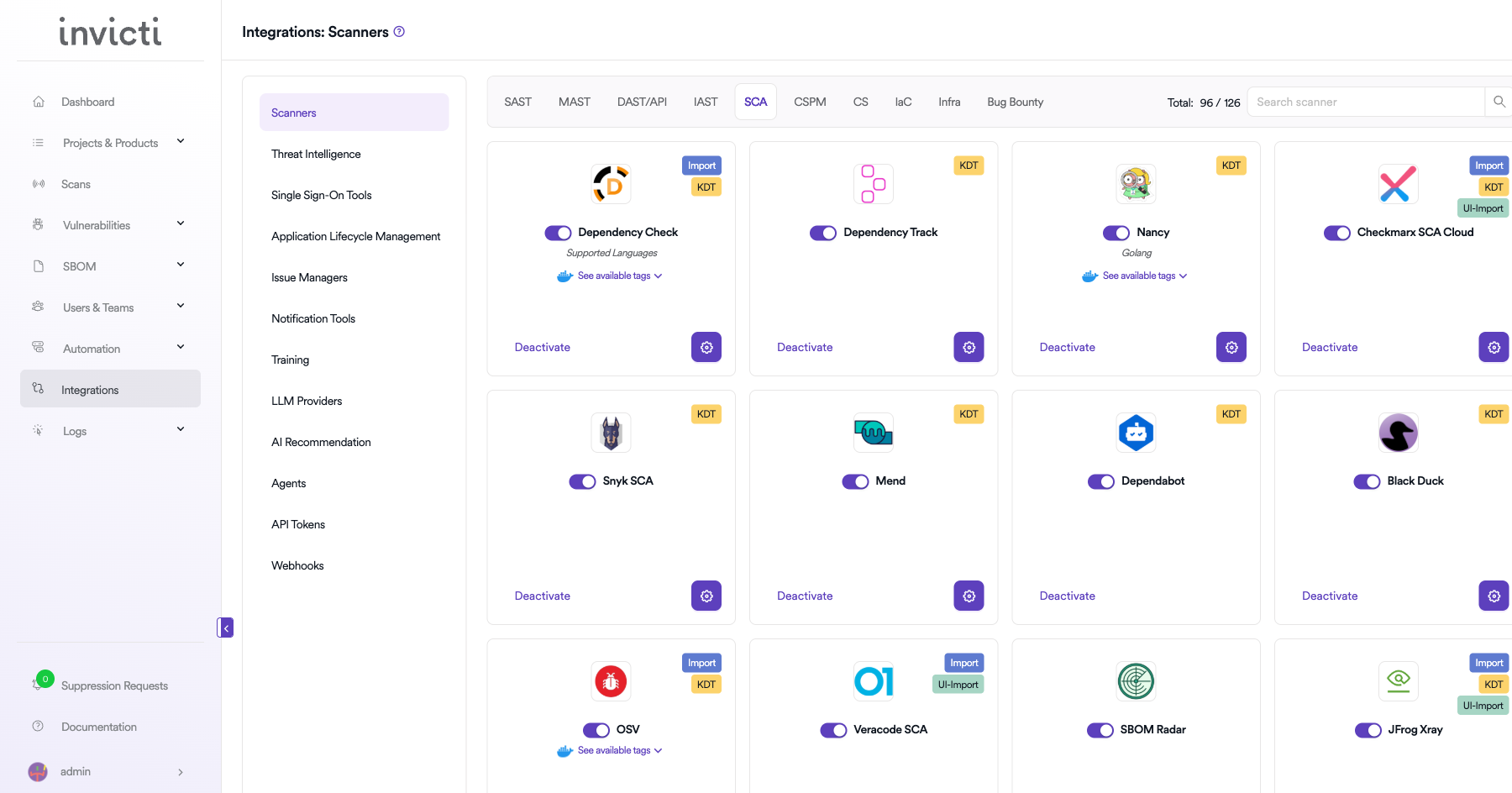
On the Integrations page, you will see the Scanners section with multiple tabs. Click on the SCA tab.
Step 3: Find and Activate Dependabot
Scroll through the list of SCA scanners to find Dependabot.
- If Dependabot is not activated, you will see an "Activate" button. Click it to enable the integration.
- If Dependabot is already activated, you will see a toggle switch in the ON position and a "Deactivate" button.
Dependabot does not have a gear icon for configuration settings. The scan method badge on the Dependabot card shows KDT, which means results are imported through the Kondukto CLI tool (KDT).
Step 4: Import Scan Results
Since Dependabot is an import-only scanner, there are no connection settings to configure. Import results using the KDT CLI:
Import via KDT CLI
Use the Kondukto CLI tool to import Dependabot scan results:
kdt scan -p <project-name> -t dependabot -b <branch> -f <path-to-dependabot-report.json>
Step 5: Verify Import
After importing, verify that the scan results appear correctly:
- Check the Scans page for the newly imported scan.
- Review the Vulnerabilities tab to confirm findings were imported successfully.
- Verify severity levels and vulnerability details are accurate.
CI/CD Pipeline Example
Here is an example of integrating Dependabot results with the KDT CLI in a CI/CD pipeline:
# Example: GitHub Actions
dependabot_import:
  runs-on: ubuntu-latest
  steps:
    - name: Export Dependabot Alerts
      uses: github/codeql-action/upload-sarif@v2
      # Export Dependabot alerts to a file

    - name: Import to Invicti ASPM
      run: |
        kdt scan -p my-project -t dependabot -b ${{ github.ref_name }} -f dependabot-report.json
Summary
| Step | Action |
|---|---|
| 1 | Navigate to Integrations from the sidebar |
| 2 | Select the SCA tab under Scanners |
| 3 | Find Dependabot and click Activate (if not already active) |
| 4 | Import results via the KDT CLI |
| 5 | Verify imported results in the project's Scans and Vulnerabilities sections |
Need help?
Invicti Support team is ready to provide you with technical help. Go to Help Center