This integration is configured through the Invicti ASPM product.
Nancy SCA integration
Invicti ASPM supports Nancy as an SCA (Software Composition Analysis) scanner. This guide explains how to activate and use the Nancy integration.
Nancy is a tool for checking Go dependencies for known vulnerabilities. It uses the Sonatype OSS Index to identify vulnerable components in Golang projects, making it a specialized SCA tool for Go-based applications.
Prerequisites
Before starting the integration, ensure you have the following:
| Requirement | Description |
|---|---|
| Docker | Docker installed and running in your CI/CD environment |
| Nancy Docker image | The Nancy Docker image for running scans |
| KDT CLI | Access to the Kondukto CLI tool (KDT) for triggering scans and importing results |
| Golang project | A Go project with a go.sum file for dependency analysis |
Nancy runs inside a Docker container and does not use a traditional Test Connection flow. Instead, configuration is done through the Docker activation dialog.
Supported Languages
Nancy exclusively supports Golang projects. It analyzes go.sum files to identify vulnerable dependencies.
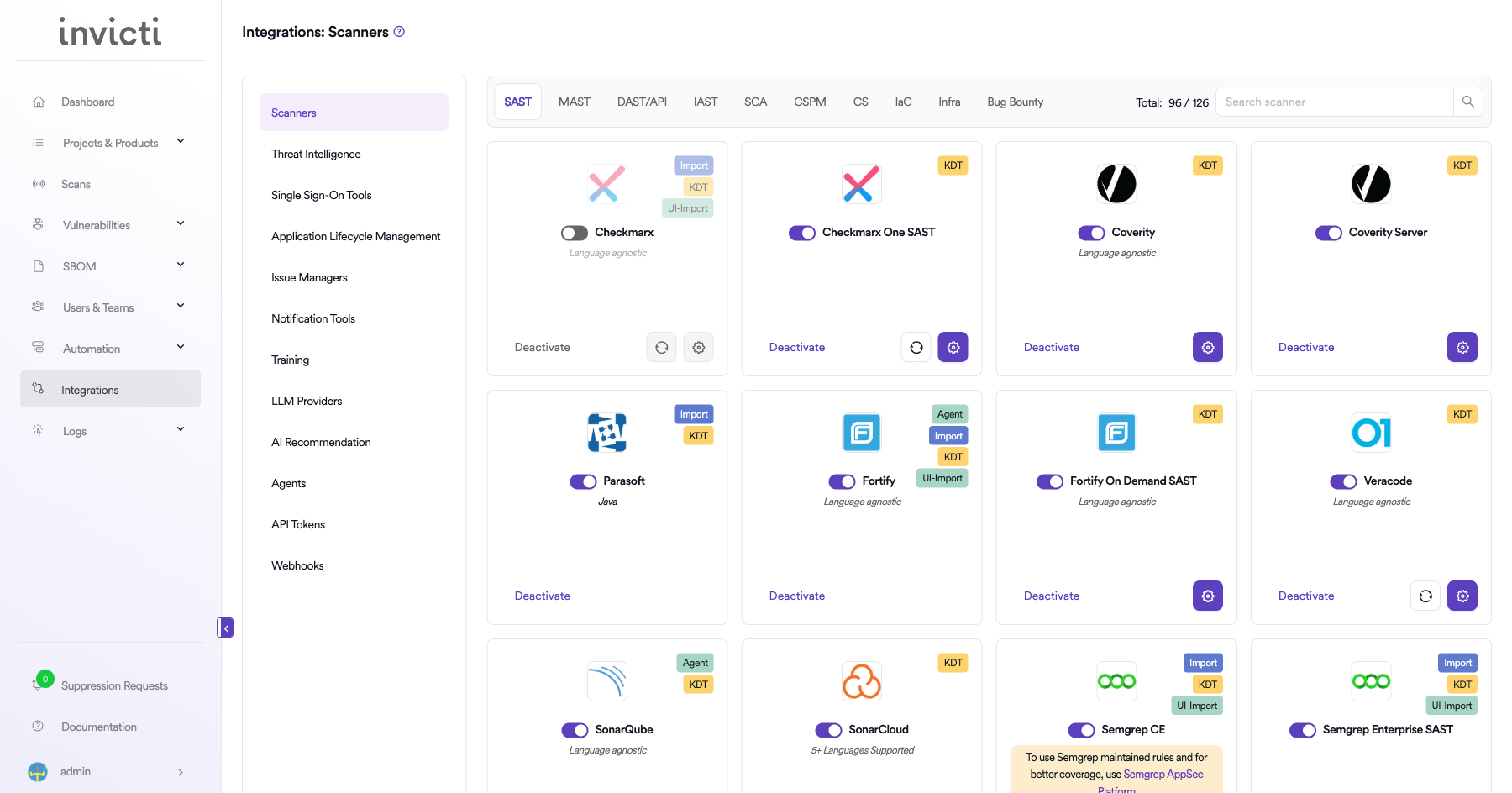
Step 1: Navigate to Integrations
From the left sidebar menu, click on Integrations.
Step 2: Select the SCA Tab
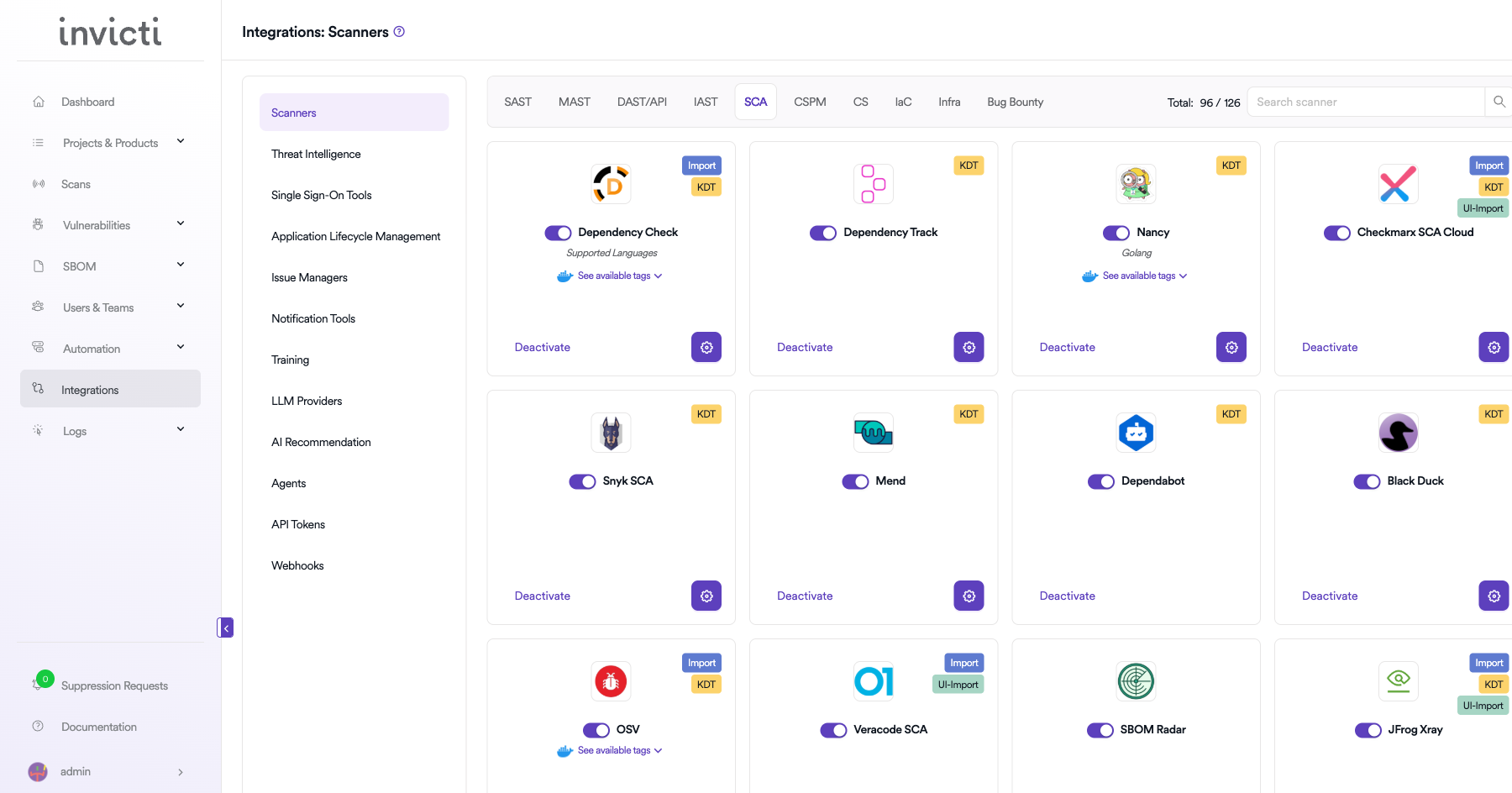
On the Integrations page, you will see the Scanners section with multiple tabs. Click on the SCA tab.
Step 3: Find and Activate Nancy
Scroll through the list of SCA scanners to find Nancy.
- If Nancy is not activated, you will see an "Activate" button. Click it to enable the integration. An activation dialog will appear where you can configure the Docker settings.
- If Nancy is already activated, you will see a toggle switch in the ON position and a "Deactivate" button, along with a gear icon for configuration.
The scan method badge on the Nancy card shows KDT, which means scans are triggered through the Kondukto CLI tool (KDT).
Step 4: Configure Docker Settings
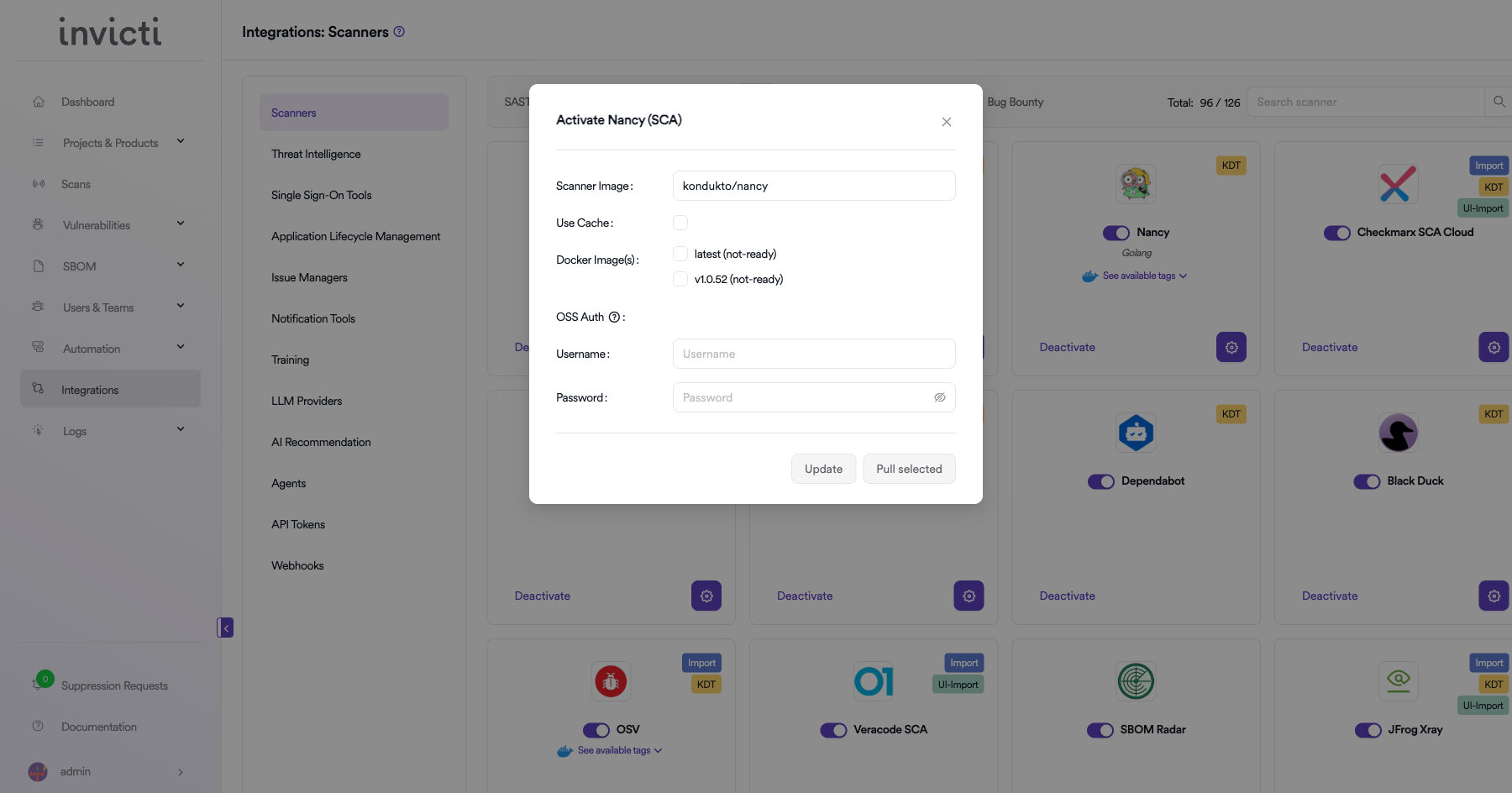
Click on the gear icon on the Nancy card to open the configuration panel. Fill in the following fields:
| Field | Description | Required |
|---|---|---|
| Scanner Image | The Docker image to use for Nancy scans | Yes |
| Use Cache | Enable caching to speed up subsequent scans by reusing downloaded vulnerability data | No |
| Docker Images | Additional Docker image versions available for scanning | No |
| OSS Auth - Username | Username for authenticating with the Sonatype OSS Index (for higher rate limits) | No |
| OSS Auth - Password | Password/token for authenticating with the Sonatype OSS Index | No |
OSS Index Authentication
By default, Nancy uses the Sonatype OSS Index with anonymous access, which has rate limits. To increase rate limits, you can register for a free OSS Index account:
- Visit Sonatype OSS Index and create an account.
- Use your registered email as the Username.
- Use your API token as the Password.
Step 5: Trigger Scans via KDT CLI
Use the Kondukto CLI tool to trigger Nancy scans:
kdt scan -p <project-name> -t nancy -b <branch>
Step 6: Verify Scan Results
After the scan completes, verify that the results appear correctly:
- Check the Scans page for the newly completed scan.
- Review the Vulnerabilities tab to confirm findings were imported successfully.
- Verify severity levels and vulnerability details are accurate.
CI/CD Pipeline Example
Here is an example of integrating Nancy with the KDT CLI in a CI/CD pipeline:
# Example: GitLab CI/CD
nancy_scan:
  stage: security
  image: golang:latest
  script:
    - kdt scan -p my-go-project -t nancy -b $CI_COMMIT_BRANCH
Summary
| Step | Action |
|---|---|
| 1 | Navigate to Integrations from the sidebar |
| 2 | Select the SCA tab under Scanners |
| 3 | Find Nancy and click Activate (if not already active) |
| 4 | Configure Scanner Image, Use Cache, Docker Images, and optionally OSS Auth credentials |
| 5 | Trigger scans via the KDT CLI |
| 6 | Verify scan results in the project's Scans and Vulnerabilities sections |
Need help?
Invicti Support team is ready to provide you with technical help. Go to Help Center