Package: Invicti AppSec Core (on-demand)
Bitbucket Server
Bitbucket Server (also known as Bitbucket Data Center) is Atlassian's self-hosted Git repository management solution. Invicti AppSec integrates with Bitbucket Server as an Repository Access tool, enabling you to connect your on-premises Bitbucket Server instance to the platform for repository discovery, project synchronization, issue tracking, and pull request decoration.
Overview
| Attribute | Value |
|---|---|
| Integration Type | Repository Access |
| Auth Method | Basic Auth (Username + Password/HTTP Access Token) |
| Protocol | REST API v1.0 |
| Hosting | Self-hosted / On-premises |
Where It Is Used in Invicti AppSec
Bitbucket Server integration is available and used across the following areas of Invicti AppSec:
| Page / Feature | Path | Purpose |
|---|---|---|
| Integrations | Integrations → Repository Access | Activate and configure the Bitbucket Server connection |
| Project Settings | Project → Settings → Source Control | Link a project to a Bitbucket Server repository for VCS-based scanning |
| Repository Sync | Integrations → Repository Access → Sync | Fetch all repositories and branches from the connected Bitbucket Server instance |
| Issue Tracker | Vulnerabilities → Issue Actions | Create and track issues directly in Bitbucket Server repositories |
| PR Decoration | Triggered on PR events | Post scan results as comments on Bitbucket Server pull requests |
| KDT CLI | CI/CD pipeline | Trigger scans from Bitbucket Server pipelines using the KDT CLI |
Purpose in Invicti AppSec
Connecting Bitbucket Server enables the platform to:
- Discover repositories from your self-hosted Bitbucket Server instance and map them to Invicti AppSec projects
- Synchronize branches so that security scans target the correct branch of each repository
- Create and track issues directly in Bitbucket Server, keeping security findings linked to development work
- Decorate pull requests by posting automated scan result summaries as PR comments, blocking or informing reviewers before merge
- Support CI/CD workflows via the KDT CLI, allowing scan triggers from Bitbucket Server pipelines
Prerequisites
| Requirement | Description |
|---|---|
| Bitbucket Server URL | The base URL of your self-hosted Bitbucket Server instance (e.g., https://bitbucket.example.com) |
| Username | A Bitbucket Server user account with access to the target repositories |
| HTTP Access Token or Password | An HTTP access token (recommended) or account password for authentication |
| Network Access | Invicti AppSec must be able to reach your Bitbucket Server instance on the configured port |
| Permissions | The user account must have at least Project Read and Repository Read permissions |
Obtain an HTTP Access Token
Using an HTTP access token is strongly preferred over a password for security reasons.
- Log in to your Bitbucket Server instance.
- Click your profile picture in the top-right corner.
- Select Manage account.
- In the left sidebar, click HTTP access tokens.
- Click Create token.
- Set a descriptive token name and an optional expiry date.
- Under Project permissions, select Project Read.
- Under Repository Permissions, select Read (inherited).
- Click Create.
- Copy the generated token immediately. The token is only shown once and cannot be retrieved after you leave the page.
Store the token in a secure secret manager. If the token is lost, you must generate a new one and update the integration settings in Invicti AppSec.
Step 1: Navigate to Integrations
From the left sidebar, go to Integrations.
On the Integrations page, select the *Repository Access tab to view Application Lifecycle Management tools.
Step 2: Find and Open Bitbucket Server
Locate the Bitbucket Server card in the integrations list.
Click the gear icon (⚙️) or the card itself to open the configuration drawer.
Step 3: Fill In the Configuration Drawer
The Bitbucket Server configuration drawer opens on the right side of the screen.
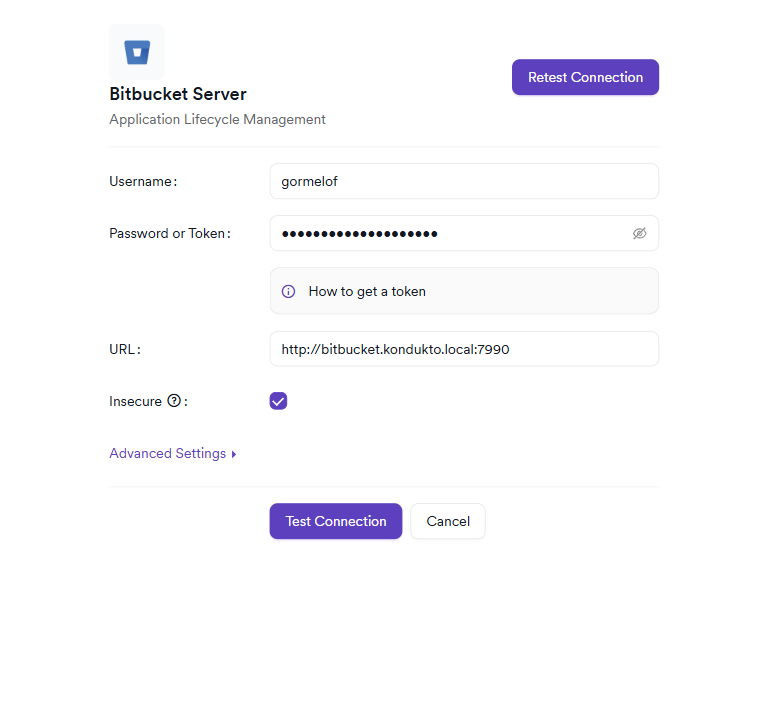
Fill in the following required fields:
| Field | Type | Required | Description |
|---|---|---|---|
| Username | Text input | Yes | Your Bitbucket Server account username |
| Password or Token | Password input (masked) | Yes | Your account password or HTTP access token. Using an HTTP access token is recommended. |
| URL | Text input | Yes | The base URL of your Bitbucket Server instance (e.g., https://bitbucket.example.com) |
| Insecure | Checkbox | No | Enable this only if your Bitbucket Server uses a self-signed certificate. When checked, SSL/TLS verification is skipped. Not recommended for production environments. |
Advanced Settings (Optional)
Click Advanced Settings to expand additional configuration options:
| Field | Type | Default | Description |
|---|---|---|---|
| Stash Mode | Toggle | Off | Enable if your instance uses the legacy Stash API endpoint format. Applies to very old Bitbucket Server versions that use the /rest/api/1.0/repos Stash endpoint. |
| Disable .git Trimming | Toggle | Off | By default, Invicti AppSec removes the .git suffix from clone URLs. Enable this option to preserve the .git suffix if your environment requires it. |
Step 4: Test the Connection
After filling in the required fields, click Test Connection.
- If the credentials and URL are valid, a green "Connection successful" message appears below the form fields.
- If the test fails, verify your URL, username, and token, then try again. See the Troubleshooting section below.
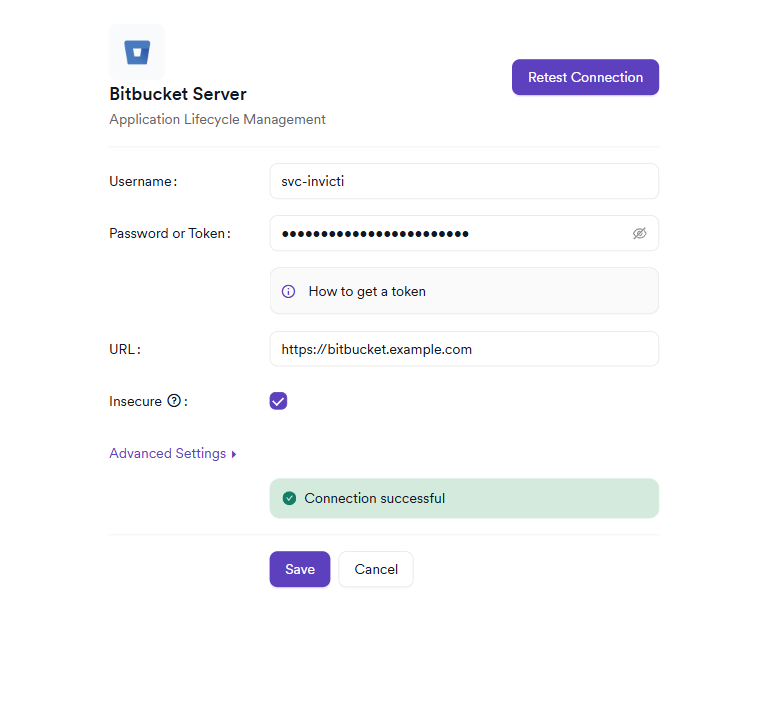
Step 5: Save the Integration
Once the connection test is successful, the Save button becomes active. Click Save to store the Bitbucket Server integration settings.
After saving, the Bitbucket Server card on the Repository Access integrations page will display a green active badge and show the number of active instances.
Summary
| Step | Action |
|---|---|
| 1 | Navigate to Integrations → Repository Access |
| 2 | Locate the Bitbucket Server card and open the configuration drawer |
| 3 | Enter your Username, Password or Token, and URL |
| 4 | (Optional) Configure Insecure and Advanced Settings |
| 5 | Click Test Connection and verify the success message |
| 6 | Click Save |
Repository Sync
After activating the integration, sync your repositories to make Bitbucket Server projects visible in Invicti AppSec.
- On the integrations page, locate the active Bitbucket Server card.
- Click the Sync button.
- Select Sync Projects to fetch all accessible repositories from your Bitbucket Server instance.
- After a project sync, use Sync Branches to fetch the latest branches for the synced repositories.
You can also configure a daily automated sync to keep repositories and branches up to date without manual intervention.
Troubleshooting
Connection Fails
| Problem | Possible Cause | Solution |
|---|---|---|
| Invalid credentials | Username or token is incorrect, expired, or revoked | Re-enter the correct credentials or generate a new HTTP access token |
| URL unreachable | Invicti AppSec cannot reach the Bitbucket Server host | Verify network connectivity and firewall rules allow HTTPS traffic from Invicti AppSec to your Bitbucket Server host |
| SSL/TLS error | Bitbucket Server uses a self-signed or untrusted certificate | Enable the Insecure checkbox if you accept the risk, or add the certificate to your trust store |
| 401 Unauthorized | Token lacks required permissions | Ensure the token has Project Read and Repository Read permissions |
| Wrong URL format | URL includes a trailing path or incorrect scheme | Use only the base URL (e.g., https://bitbucket.example.com), without a trailing slash or path |
Sync Issues
| Problem | Possible Cause | Solution |
|---|---|---|
| No repositories found | User account has no project access | Grant the service account access to the relevant Bitbucket Server projects |
| Stash repositories not appearing | Legacy Stash API is in use | Enable Stash Mode in Advanced Settings |
Clone URL contains .git suffix | Default trimming behavior | If your environment requires the .git suffix, enable Disable .git Trimming |
| Rate limit errors | Too many API requests in a short period | The integration includes built-in rate limiting. Wait and retry, or reduce the frequency of sync operations |
Best Practices
-
Use an HTTP access token instead of a password: Tokens can be scoped to minimum required permissions and revoked independently without affecting the user account.
-
Create a dedicated service account: Use a dedicated Bitbucket Server account for the Invicti AppSec integration rather than a personal account. This prevents disruption when employees leave or change roles.
-
Grant minimum permissions: The service account only needs Project Read and Repository Read permissions. Do not grant write access unless issue tracker functionality is required.
-
Set a token expiry and rotate regularly: Set an expiry date on HTTP access tokens and update the integration settings in Invicti AppSec before expiry to avoid connection interruptions.
-
Enable Insecure only in non-production environments: The Insecure option disables TLS verification, which exposes connections to man-in-the-middle attacks. Use valid certificates in production.
-
Use Stash Mode only for legacy instances: Stash Mode enables a legacy API path and should only be enabled if your Bitbucket Server instance uses the old Stash repository listing endpoint.
Limitations
-
Self-hosted only: This integration is for Bitbucket Server (self-hosted). For Bitbucket Cloud, a separate integration is available.
-
Tags not supported: The
ListProjectTagsoperation is not implemented for Bitbucket Server. Only branches are supported for project-branch mapping. -
HTTP clone URLs only: Repository cloning uses the HTTP/HTTPS clone URL. SSH-based clone URLs are not used.
-
Single instance per configuration: Each configuration drawer entry represents one Bitbucket Server instance. To connect multiple instances, create multiple integration entries.
-
Rate limiting: Bitbucket Server API access is subject to built-in rate limiting. Syncing very large numbers of repositories in rapid succession may be throttled.
Need help?
Invicti Support team is ready to provide you with technical help. Go to Help Center