Package: Invicti AppSec Core (on-demand)
Prioritize vulnerabilities with Bullseye
Even after filtering by severity, a typical project can surface hundreds of findings - making it difficult to decide what your team should fix first. Bullseye helps you cut through that noise by applying a series of cumulative checks to your existing findings: severity and status, suppression state, exploitability signals, and verification evidence. Each check narrows the list further, so you end up with a smaller set of vulnerabilities that are genuinely urgent and ready to act on.
This document explains how the Bullseye funnel works, how to start using it, and how to configure organization-specific prioritization.
Bullseye is not a separate scanner. It applies prioritization logic to findings already imported from your existing scanner integrations.
Why this matters
Without prioritization, high-severity findings compete for attention equally - a theoretical vulnerability with no known exploit looks the same as one that's actively being used in attacks. Bullseye surfaces the findings that are both severe and demonstrably risky, so your team can remediate what matters most instead of working through an undifferentiated backlog.
Understand the Bullseye funnel stages
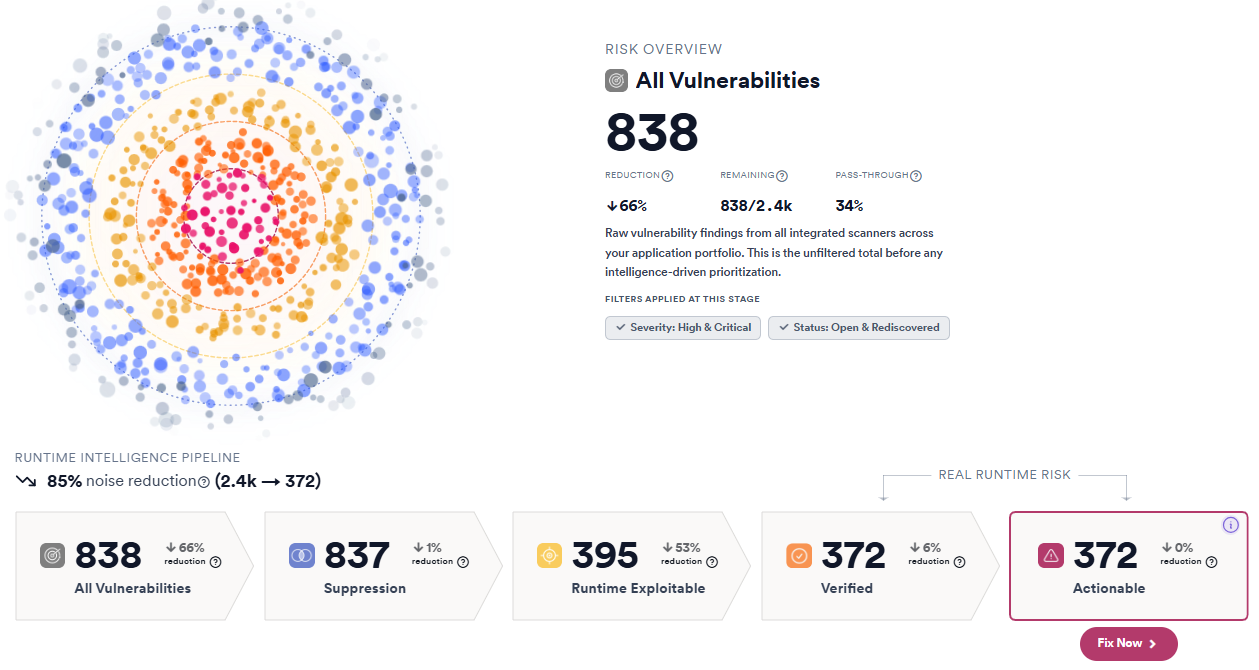
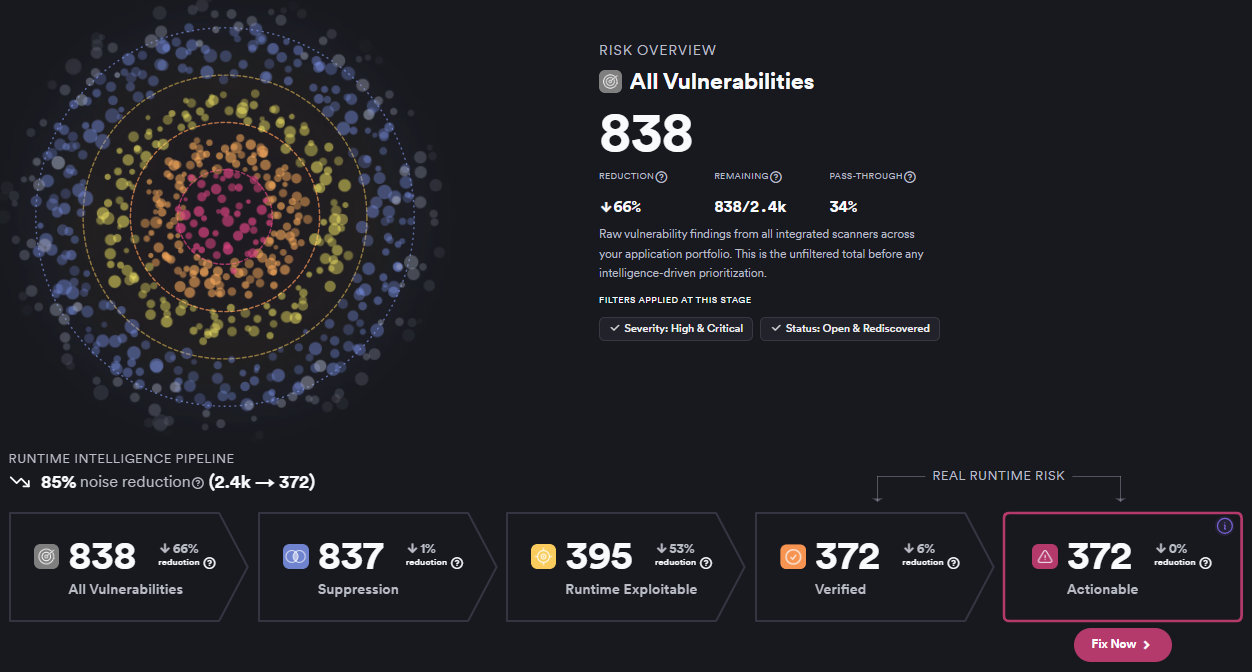
Bullseye applies five cumulative stages to your findings. A finding must pass every earlier stage before it can appear in the next one. The count shown at each stage reflects findings that satisfy that stage and all preceding ones.


Stage 1: All vulnerabilities
This is the baseline population from which Bullseye calculates all subsequent reductions. A finding is included if it meets all of the following criteria:
- Severity is High or Critical.
- Status is New or Recurrent.
- The finding is not a clone.
- The finding has not been merged into another finding.
Stage 2: Suppression
This stage removes findings your team has already reviewed and acted on. A finding is excluded if it's marked as any of the following:
- False positive - the finding was confirmed not to represent a real vulnerability.
- Won't fix - the finding is acknowledged but your team has decided not to remediate it.
- Mitigated - a compensating control is in place.
Findings without any of these statuses set pass this stage automatically.
Stage 3: Runtime exploitable
This stage keeps only findings with at least one exploitability signal, so you can focus on vulnerabilities that an attacker could realistically use. A finding passes if it has at least one of the following:
- Known exploit - the CVE has a known or actively exploited record from a threat-intelligence source such as KEV or Mandiant.
- EPSS percentile ≥ 50 - the CVE is in the top half of all CVEs by exploitation probability, based on the FIRST.org EPSS percentile score. Because EPSS values update daily, a finding can move into or out of this stage over time.
- Reachable - the scanner reported the affected code path as reachable. Note that some scanners, such as Snyk for package-level results, may report reachability without confirming the affected path is executed at runtime.
- Deployed - an SCA or Container Security package was matched to a running cloud workload through CSPM data in the same project.
- Confirmed - proof-based evidence was supplied by Invicti DAST.
- CSPM has exploit - the CSPM provider's own exploit database (such as Wiz, Orca, or Sysdig) has a record for this finding. This signal is independent of general threat-intelligence data.
EPSS and known-exploit enrichment require the finding to have a CVE. Findings without a CVE can't be enriched and won't pass this stage through those signals.
Stage 4: Verified
This stage keeps findings for which there's additional evidence that the vulnerability is real and worth fixing. For non-DAST findings, a finding passes if at least one of the following applies:
- True positive - may be set by the scanner, confirmed manually through an approval workflow, or derived from evidence such as reachability or proof-based confirmation.
- Fix available - a patched package or fixed version exists. Applies to SCA, Container Security, and CSPM findings.
- Correlated - a SAST and a DAST finding with the same CWE were matched within the same product.
DAST findings must be confirmed as true positive to pass this stage.
For some integrations, the true positive status is derived from the same evidence used in Stage 3. In those cases it doesn't represent an independent second verification.
Stage 5: Actionable
This is the output of the full Bullseye funnel, refined by your organization's own prioritization criteria. If you've configured a custom Actionable rule in Global Configuration, Invicti AppSec applies that rule on top of Stage 4 findings.
If no custom rule is configured, Actionable and Verified contain identical findings and show the same count.
Bullseye counts are pre-calculated to keep the view responsive. They may be up to five minutes behind the latest vulnerability changes. Click Refresh to load the latest counts.
Use Bullseye to prioritize your findings
-
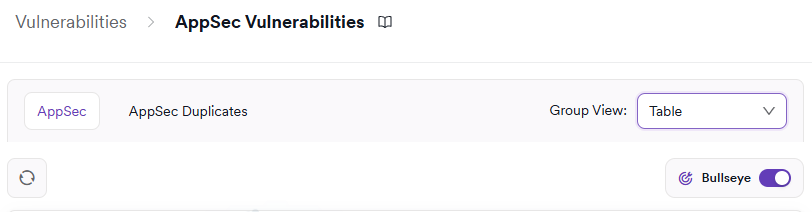
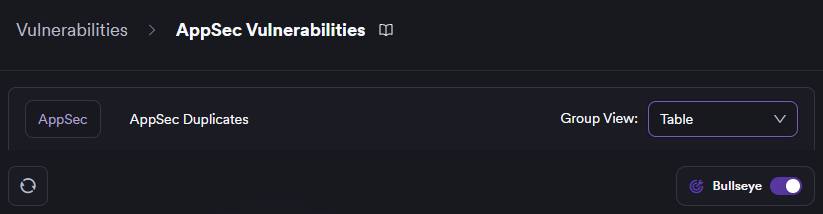
Select Vulnerabilities from the left-side menu.
-
Enable the Bullseye toggle.
-
Review how the finding count decreases from left to right across the stages. Each number tells you how many findings meet the criteria for that stage and every stage before it.
-
Select a stage to apply its filters to the vulnerability table below and work through the narrowed list.
-
If you need to apply additional organization-specific criteria beyond Stage 4, configure a custom Actionable rule (see Set a custom Actionable rule).
Set a custom Actionable rule
If your organization needs prioritization beyond the built-in Bullseye criteria, you can add conditions to the Actionable vulnerability filters setting. Stage 5 applies those conditions on top of Stage 4 findings.
- Select Settings > Global settings from the left-side menu.
- Locate the Actionable vulnerability filters section.
- Add one or more conditions. For example:
- Branch IS main - limits Actionable findings to those from the main branch.
- Branch IS NOT main - excludes main-branch findings from the Actionable stage.
- Save the configuration.
Once saved, the Actionable stage applies your conditions and its count will differ from Verified. If the counts remain equal after saving, confirm the conditions are saved correctly and scoped to the right projects.
Troubleshooting
A finding isn't appearing in Stage 1
Stage 1 requires all of the following to be true:
- Severity is High or Critical - confirm the finding's severity in the vulnerability details.
- Status is New or Recurrent - check whether the finding has been closed or resolved.
- The finding is not a clone - check the finding's clone state.
- The finding has not been merged into another finding - check whether it has been consolidated with another entry.
A finding stops at Stage 2 (Suppression)
Check whether the finding is marked as False positive, Won't fix, or Mitigated. If any of those statuses is set, the finding is intentionally excluded from Stage 2 and all subsequent stages.
A finding stops at Stage 3 (Runtime exploitable)
A finding needs at least one exploitability signal to pass Stage 3. Check the following:
- EPSS and known-exploit enrichment require a CVE. If the finding has no CVE, it can't be enriched through those signals.
- Reachability must be reported by a scanner feature that supports it and that is licensed in your setup.
- The Deployed signal requires both a CSPM integration and SCA or Container Security scans in the same project.
- The Confirmed signal requires Invicti DAST with proof-based evidence enabled.
- The CSPM exploit signal requires a supported CSPM integration such as Wiz, Orca, or Sysdig.
A finding stops at Stage 4 (Verified)
Check each of the three signals in turn:
- True positive - confirm whether the scanner set this, whether it was manually approved, or whether it can be derived from existing evidence.
- Fix available - check whether a patched version or fixed package exists for this finding.
- Correlated - check whether there's a DAST finding in the same product with a matching CWE that could be correlated with this SAST finding.
Actionable and Verified show the same count
This is expected when no custom Actionable rule is configured. If you've already configured a rule and the counts are still equal, verify the FIQL syntax, confirm the rule was saved correctly, and check that the rule's scope covers the project or product you're looking at.
The counts look out of date
Bullseye counts refresh every five minutes. Click Refresh to load the latest counts before treating the result as outdated.
The vulnerability table doesn't match the selected stage
Check the following:
- Confirm which stage is selected - it's easy to accidentally leave the previous stage active.
- Check whether any additional table filters are applied. Filters you've set independently stack on top of the stage filter and can make the table appear inconsistent with the stage count.
- If the table still doesn't match after clearing extra filters, review the Global vulnerability filters under Settings > Global settings. An active global filter may be narrowing the results independently of the stage.
Threat intelligence data isn't updating
Check the following:
- Confirm that a supported threat-intelligence source is active in your configuration.
- Avoid running conflicting sources for the same data type (for example, multiple EPSS, Mandiant, or EUVD sources configured simultaneously).
- Confirm that the affected findings have a CVE - findings without one can't receive TI enrichment.
- If the Change severity setting is enabled, threat intelligence data can automatically adjust a finding's severity, which may move it into or out of Stage 1.
Need help?
Invicti Support team is ready to provide you with technical help. Go to Help Center