Package: Invicti AppSec Core (on-demand)
FAQs
How does Invicti AppSec calculate WOE and MTTR?
Invicti AppSec assigns a First Seen Date to all vulnerabilities. For vulnerabilities directly fetched from scanners, that date is set as the date on which that vulnerability is introduced to Invicti AppSec. The First Seen date is set for imported vulnerabilities as the Date Imported information on the file.
When vulnerabilities are no longer identified in a new scan, Invicti AppSec assigns the latest scan date when the vulnerability wasn't identified as the date the vulnerability was closed.
To calculate WOE, Invicti AppSec calculates the number of days between today and the First Seen date of the vulnerabilities whose status is either new or recurrent.
To calculate MTTR, Invicti AppSec calculates the number of days between the Closed On Date and First Seen Date of the vulnerability and adds 1 to the result.
How does Invicti AppSec calculate the risk score of projects?
The risk score is calculated by assigning scores to each severity category and multiplying each score by the number of vulnerabilities in each severity category.
Invicti AppSec assigns the following scores to each severity category by default which can be changed in the config file by the user:
| Severity | Score |
|---|---|
| Critical | 10 |
| High | 9 |
| Medium | 4 |
| Low | 2 |
If a project has five high and three medium-severity vulnerabilities, the risk score is calculated as follows:
(9 × 5) + (4 × 3) = 57
On the dashboard, when a scanner type filter is applied (SAST, DAST, IAST, SCA, etc.), only the number of vulnerabilities identified by the scanners in the selected type is considered to calculate the risk score.
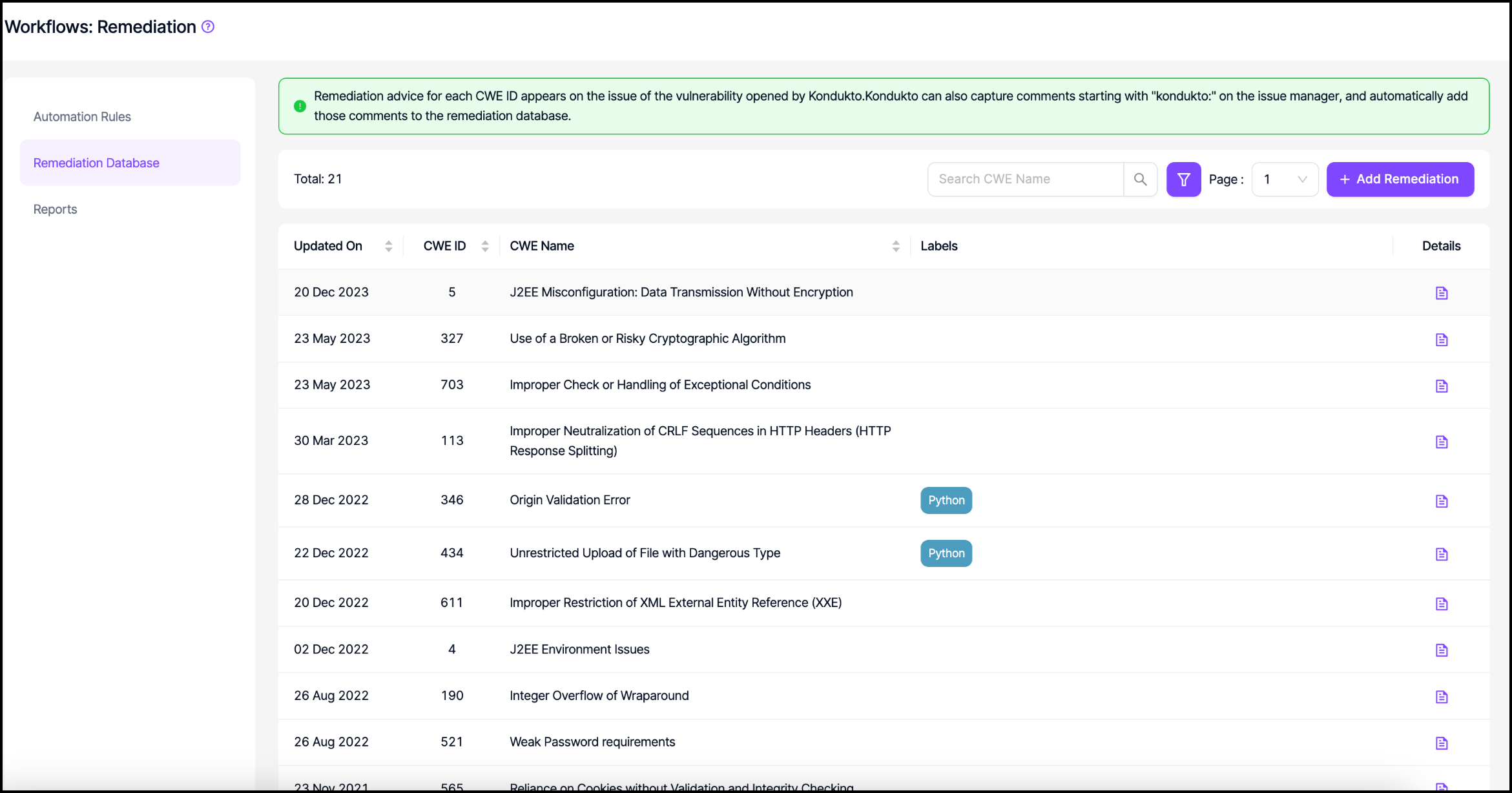
Can a developer contribute to the Remediation DB?
Yes. Comments entered after closing the issue on the issue manager are automatically added to the Remediation DB by Invicti AppSec.
When developers start typing comments in the issue manager with "kondukto: ", Invicti AppSec automatically captures the comment as remediation advice from the developer and adds it to the Remediation DB.
Admin-level users can edit or delete the remediation advice entered by the developers.
What is the impact of marking a vulnerability as a false positive on Invicti AppSec?
Marking a vulnerability as a false positive has the following impacts on Invicti AppSec:
- Even if the same scanner reports the same vulnerability in the future, the vulnerability keeps showing as a false positive on Invicti AppSec.
- If an issue has been previously opened on the issue manager, Invicti AppSec automatically closes the issue and doesn't trigger a validation scan.
- The vulnerability is instantly excluded from all charts and metrics.
- The vulnerability is excluded from the calculation of overdue vulnerabilities exceeding SLA.
Who can mark a vulnerability as a false positive on Invicti AppSec?
Admin and team lead level users can directly mark a vulnerability as a false positive by entering a description of why they think the vulnerability is a false positive.
Developer-level users can only send requests to mark a vulnerability as a false positive, along with a description that needs approval from the team lead in the project or admin.
What do the colored circles in the first column indicate in vulnerability tables?
The colored circles indicate whether an issue has been opened on the issue manager for the corresponding vulnerability and, if so, what the issue's status is.
Grey indicates that an issue hasn't been created yet for the vulnerability.
Purple indicates that an issue has been opened, and its status is still open on the issue manager.
Red indicates that the issue manager has opened and closed an issue.
Even though the issue is closed on the issue manager, for the vulnerability status to be closed on Invicti AppSec, it must be verified by the scanner first and disappear in a subsequent scan result.
Invicti AppSec switches the vulnerability status to closed when the vulnerability no longer exists in the scan results.
How does Invicti AppSec decide that the status of a vulnerability should be closed?
For vulnerabilities discovered by automated tools
Invicti AppSec relies only on the scan results to switch the status of a vulnerability to closed.
Even if an issue has been assigned to the issue manager via Invicti AppSec, Invicti AppSec doesn't close the vulnerability when the issue manager closes the issue status.
Instead, when the issue is closed on the issue manager if validation scans are enabled, Invicti AppSec can run an automated validation scan to ensure the scanner doesn't find the same vulnerability.
If validation scans aren't enabled, Invicti AppSec waits for the next scan date to decide if the vulnerability's status is closed.
The following need to be the same for Invicti AppSec to classify vulnerabilities as recurrent or closed in the subsequent scans:
- Project name
- Tool name
- Branch name
- Metadata
For manually imported vulnerabilities
Depending on the configuration under Automation > Setup > Global Settings > Manually Added Vulnerabilities, vulnerabilities manually added to Invicti AppSec can be closed in two ways. If "Close when closed on the issue manager" is enabled, the vulnerability status also transitions to Closed automatically on Invicti AppSec when the issue is closed on the issue manager.
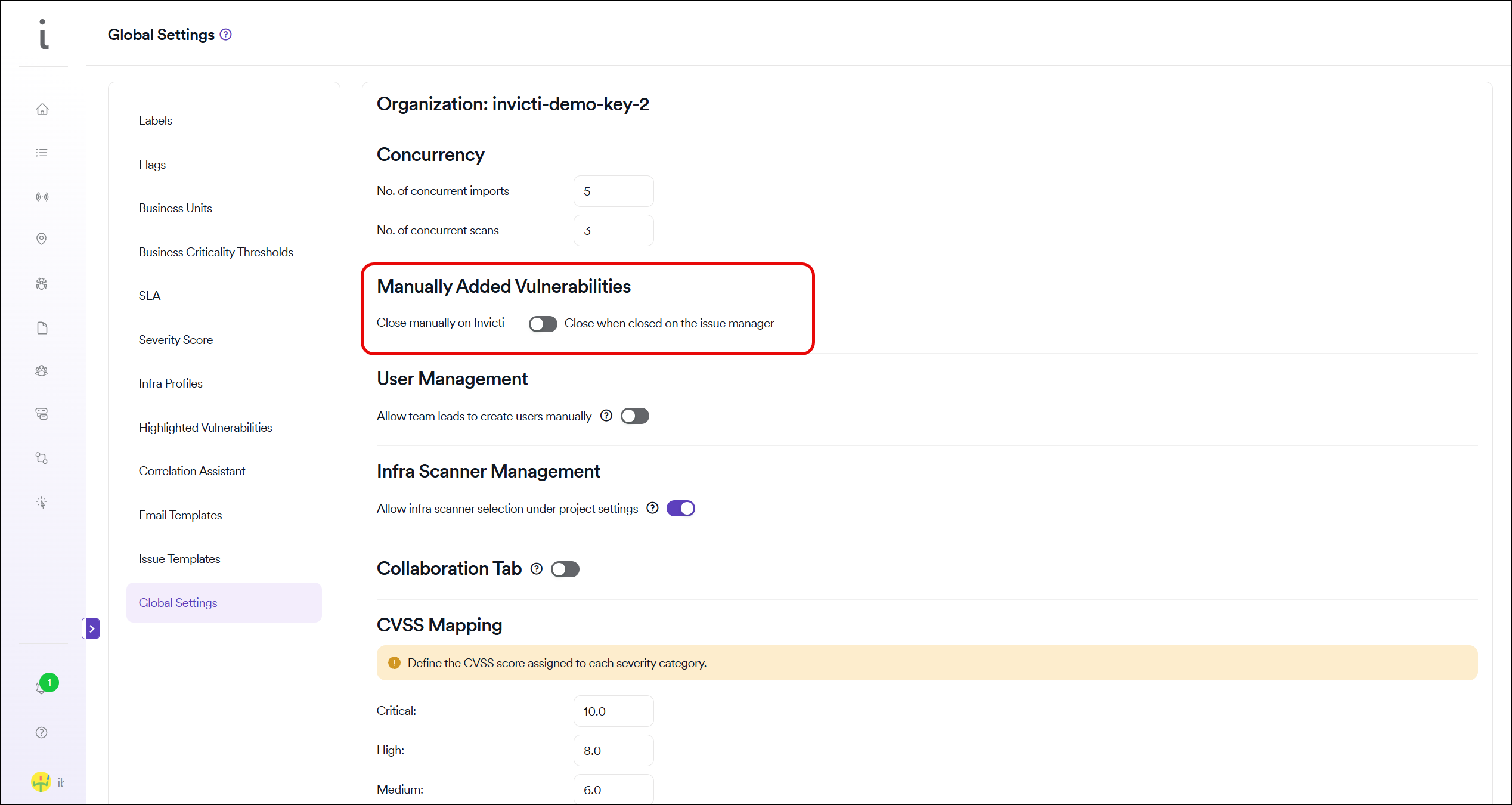
Invicti AppSec also allows the transition of the status of manually imported vulnerabilities to Closed manually. If "Close manually on Invicti AppSec" is selected under Global Settings, manual closure is the only way to transition the status of these vulnerabilities to Closed.
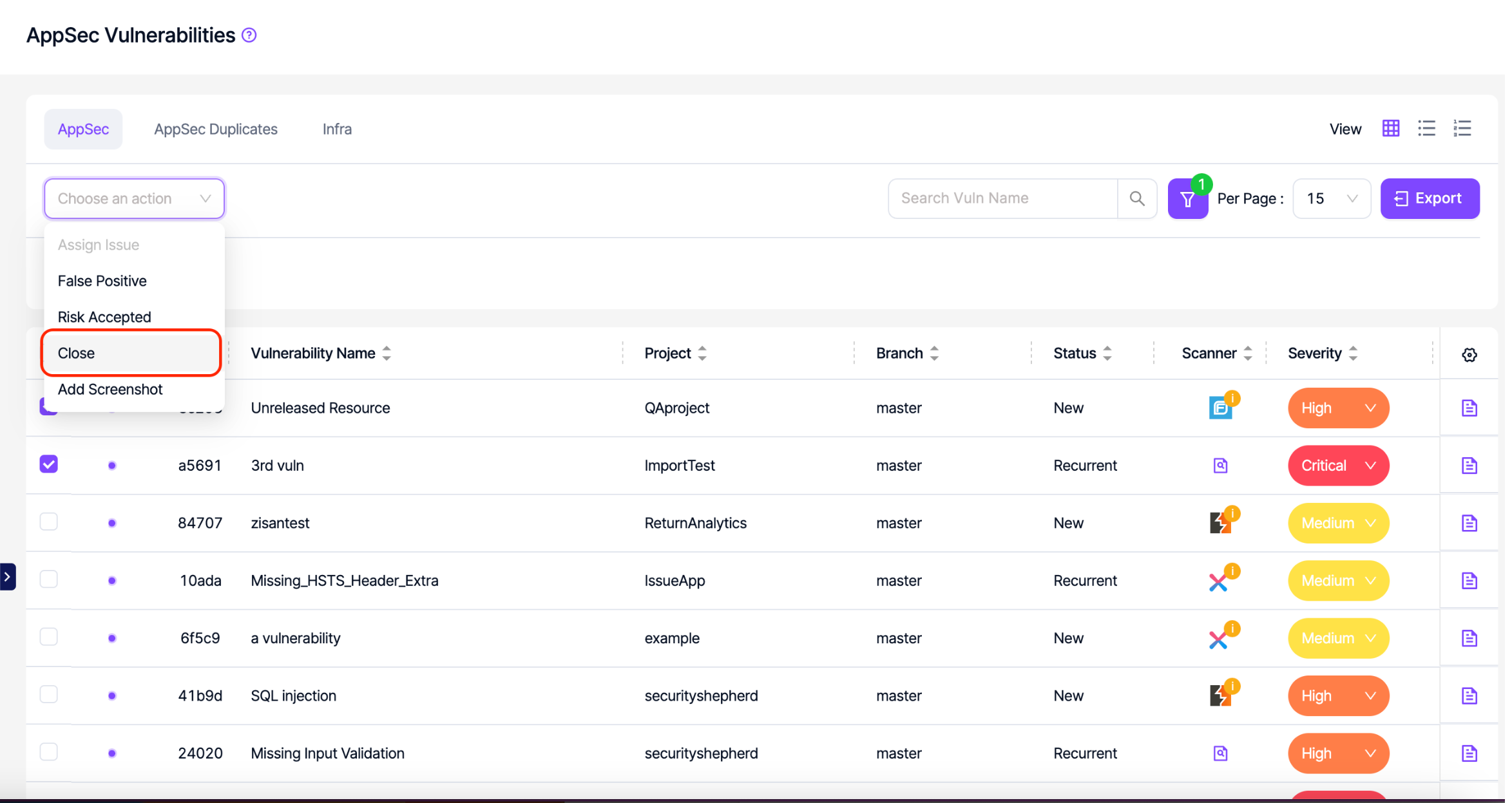
Just like in automated scans, Invicti AppSec also compares imported vulnerabilities with previously imported vulnerabilities to decide on the status of a vulnerability.
Invicti AppSec looks at the following parameters before deciding whether the status of a vulnerability needs to be switched to recurrent or closed in a subsequent import:
- Project name
- Tool name
- Branch name
- Metadata
Therefore, you can use different metadata to import new vulnerabilities to Invicti AppSec without changing the status of the vulnerabilities previously imported to a project. If all these parameters are the same and if a new vulnerability is imported, Invicti AppSec closes the previous vulnerabilities as they're not present in the new import.
What happens when I delete a project?
Deleting the project results in deleting all vulnerabilities discovered in that project. The project is also immediately removed from all charts and metrics in the dashboard. You can fetch the same project from the ALM tool in the future without having the "Added Before" error.
What happens if I set the time of a scheduled scan to a past time?
It results in triggering a scan immediately. Once the first scan is completed, it initiates the following scan according to the scheduler.
If I import the same vulnerability twice, will its status be transitioned to recurrent on Invicti AppSec?
Yes, Invicti AppSec can set the status of vulnerabilities imported more than once to recurrent.
The following parameters must be the same for each vulnerability imported to Invicti AppSec for the vulnerability to be treated as the same by Invicti AppSec:
| SAST | DAST | SCA |
|---|---|---|
| Project | Project | Project |
| Scanner | Scanner | Scanner |
| Branch | Branch | Branch |
| CWE | CWE | CWE |
| Severity | Severity | Severity |
| File name | Target | File name |
| Language | Method | License |
| Code | HTTP Request | Packages |
| Line number |
Why am I having problems in opening issues for vulnerabilities?
If you're having an error message when trying to open issues for your vulnerabilities:
- Make sure to integrate with your issue manager using a token with the correct scopes indicated in the how to get a token section.
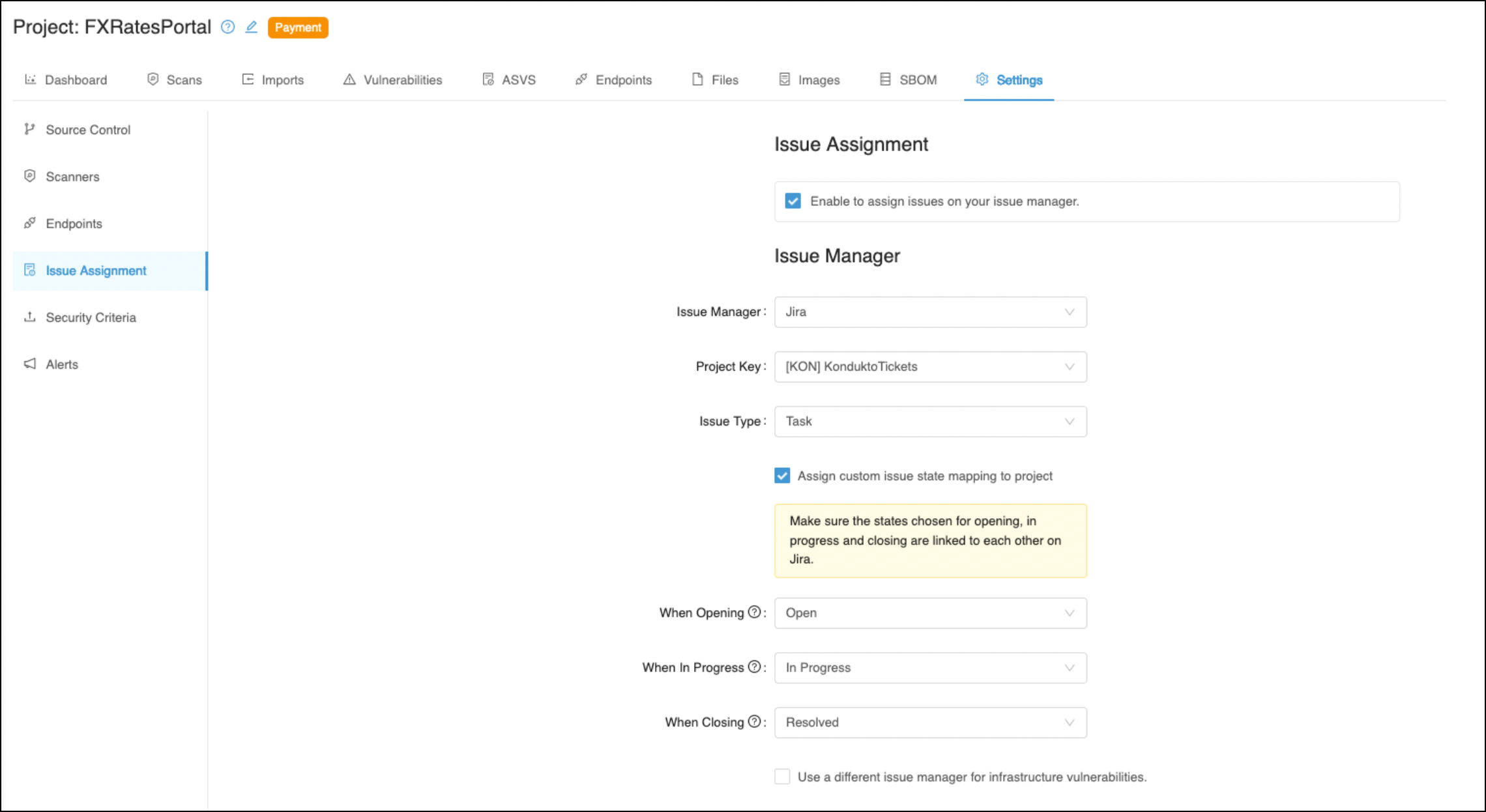
- For Jira, make sure that the correct configurations are selected for the assignee, reporter, custom priority fields under the Advanced Settings in the global Jira integration page.
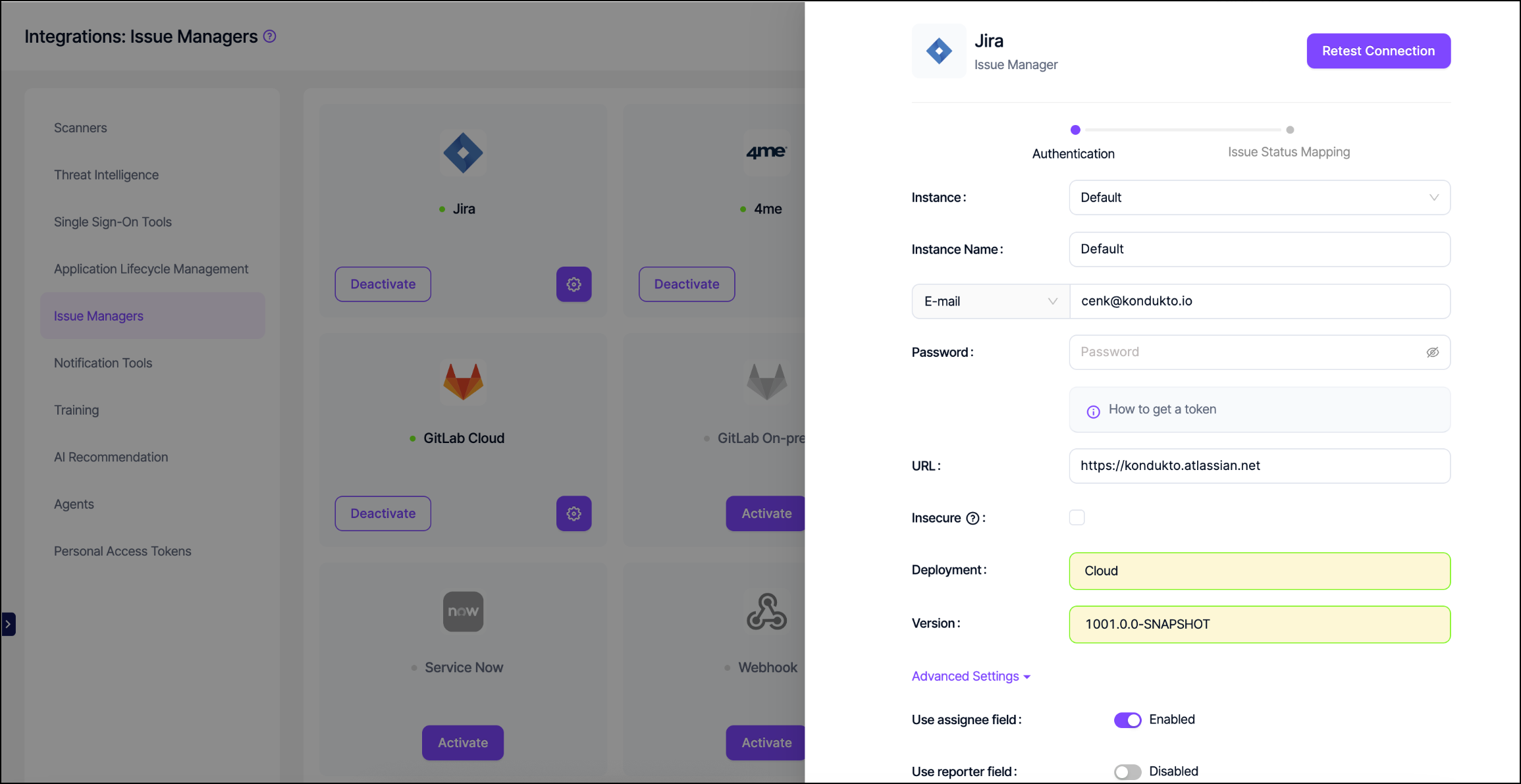
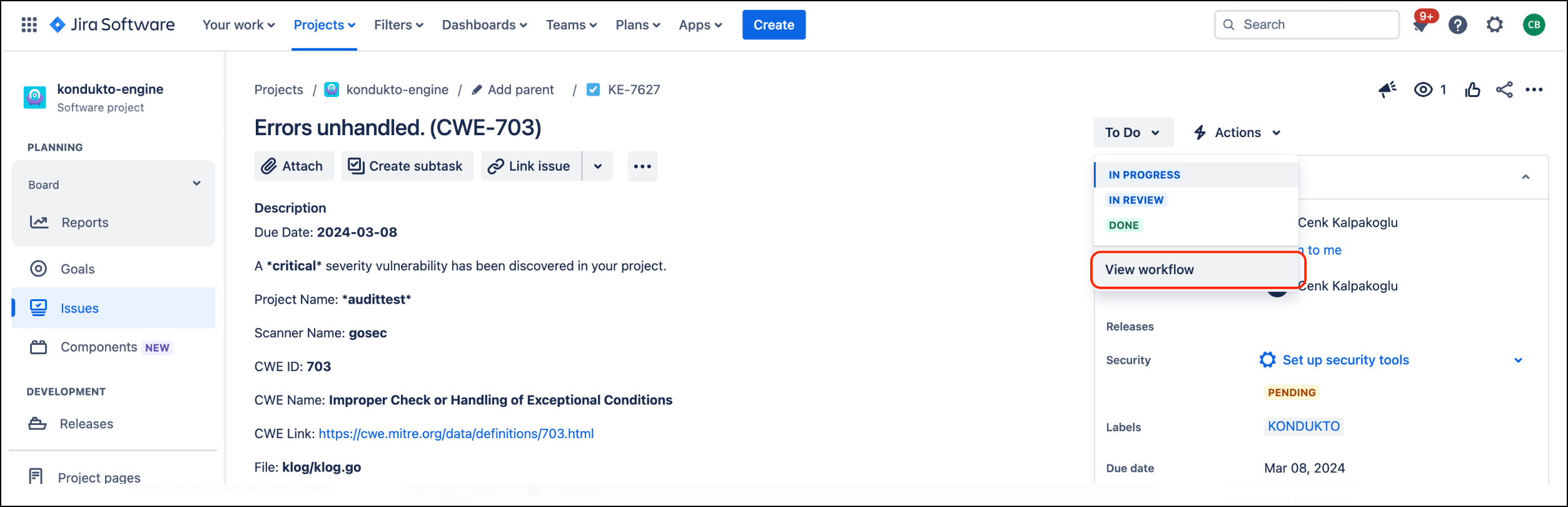
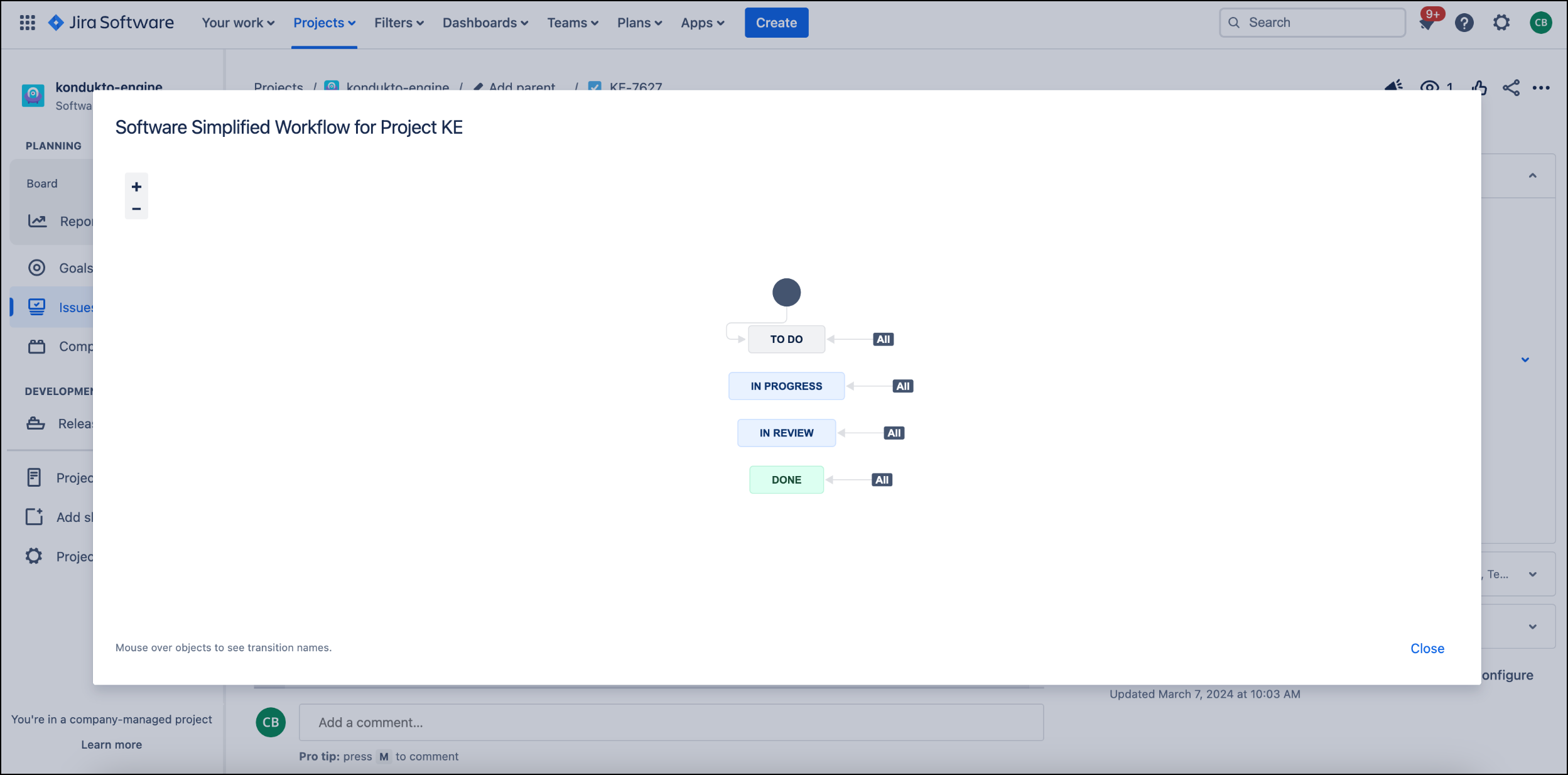
- On Jira, make sure the states chosen for opening and closing vulnerabilities are properly linked to each other.
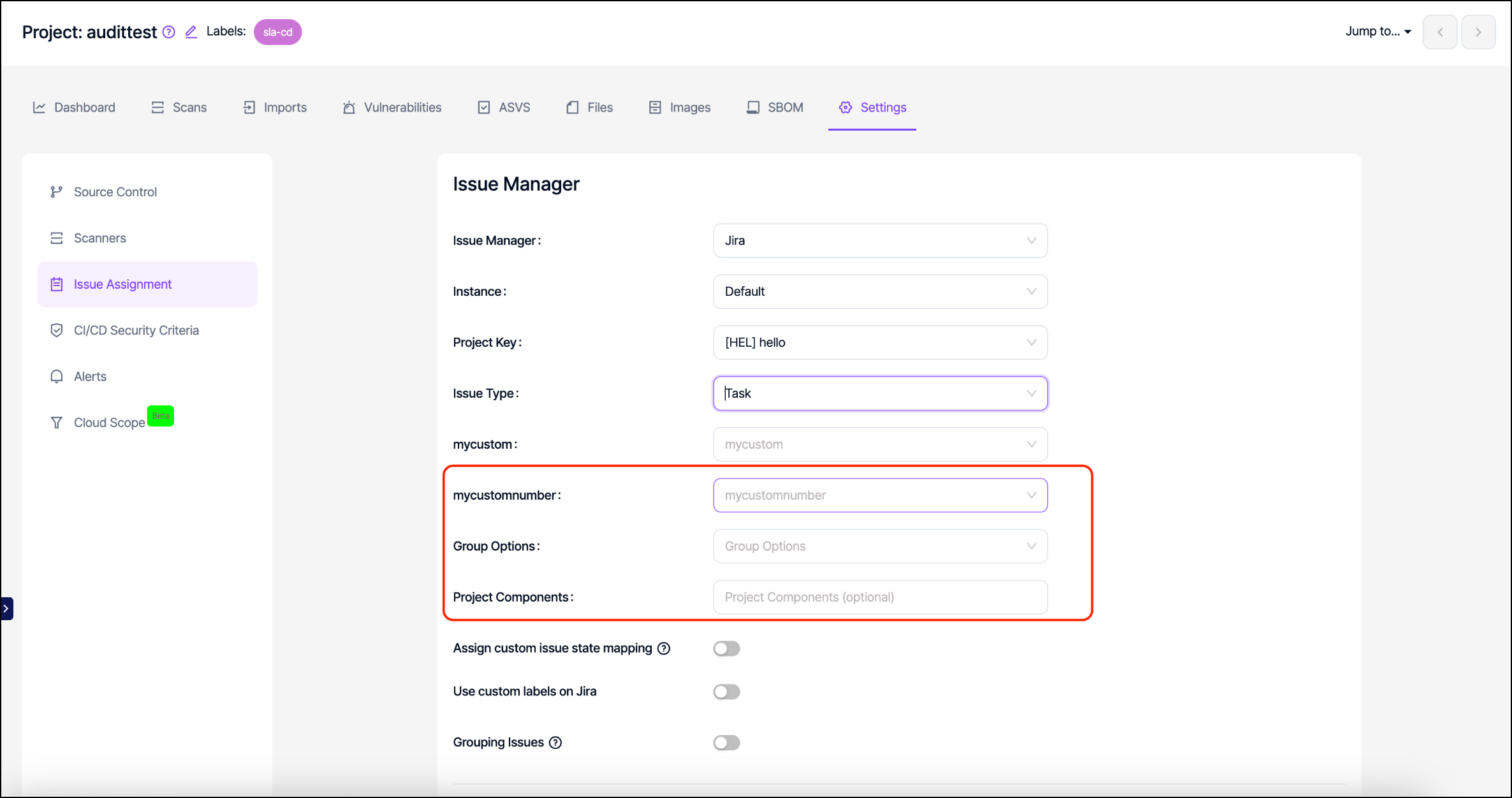
- Make sure that all custom fields that you have on Jira are listed on the Invicti AppSec UI under project settings.
- Under project issue assignment settings, make sure you select an issue path that doesn't belong to a forked project.
Which user will be assigned an issue when multiple assignee options are selected?
Specific users can be assigned as issue responsible within the teams. When a team is assigned to a project, Invicti AppSec automatically assigns the issues to this issue responsible based on the issue assignment criteria entered on the platform.
Suppose the committer when the committer is known box is checked under the Issue Assignment section in Project Settings. In that case, this supersedes all other users for vulnerabilities with a known committer.
If a specific user is also selected under the Issue Assignment section in Project Settings, this particular user supersedes the issue responsible for the team.
So the hierarchy is as follows for cases when all three are selected:
- Committer of the vulnerability
- Specific user selected under Project Settings
- Issue responsible chosen in the team
For cases when none of the above is applicable, Invicti AppSec assigns the issue to the token owner generated on the issue manager.
What happens when an issue is assigned to an Invicti AppSec user who is not active on the issue manager?
For Invicti AppSec to match users on Invicti AppSec and the issue manager, you must use the same email address on both platforms.
When you create an issue on your issue manager and assign it to an Invicti AppSec user that doesn't exist on your issue manager, Invicti AppSec automatically assigns the issue to the token owner used in the issue manager integration.
Do validation scans work for issues manually created through Invicti AppSec?
Yes, validation scans work for vulnerabilities automatically assigned an issue by Invicti AppSec or those manually sent to issue managers through Invicti AppSec. The only requirement is that the vulnerability should be discovered by an automated tool that's still active on Invicti AppSec.
What is the relationship between CVSS and severity categories on Invicti AppSec?
When the CVSS score of a vulnerability is manually changed, the severity category is automatically updated as follows:
- 0.0 - 4.0: low
- 4.0 - 7.0: medium
- 7.0 - 9.0: high
- 9.0 - 10.0: critical
When the severity of a vulnerability is manually changed, CVSS scores are automatically updated as follows:
- Low: 3.0
- Medium: 6.0
- High: 8.0
- Critical: 10.0
Invicti AppSec triggers the validation scan but can't reopen the issue on Jira, although it still appears in the validation scan results. What could be the reason?
The most likely reasons for this scenario are:
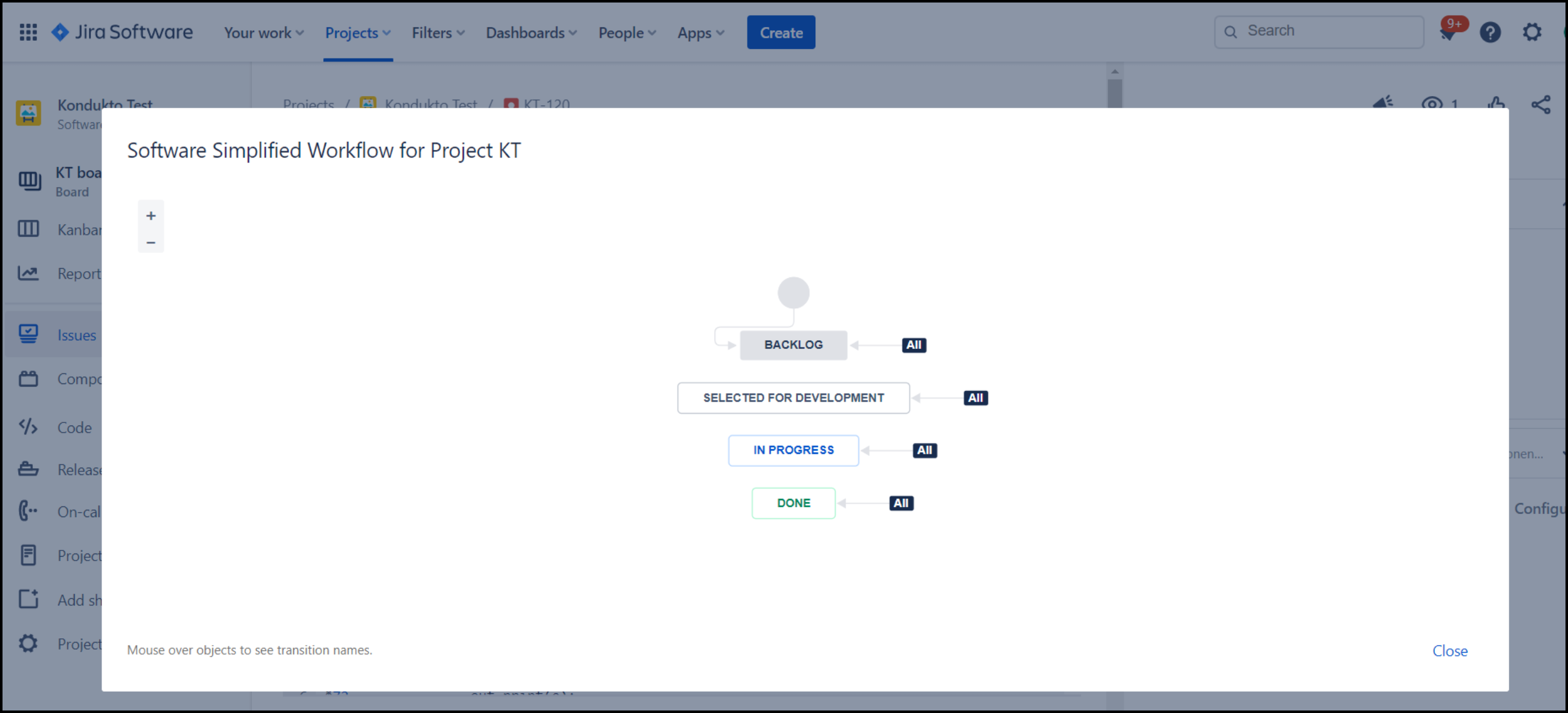
- The states chosen for opening and closing issues on Jira aren't linked to each other on the Jira workflow. In this case, as Invicti AppSec can't transition the state of the issue from one to another, it remains closed on Jira.
- Inaccurate selection of states to use when opening and closing issues on Jira. Unless the right states are selected on Invicti AppSec, Invicti AppSec won't be able to transition the state of the issues correctly.
How do PR checks work?
You can use Invicti AppSec in your PRs to prevent vulnerabilities from being carried forward to the target branch.
It's possible to achieve this functionality using the following command in KDT:
kdt scan -t (tool name) -p (project name) -b (branch name) -M (target branch name)
For example, let's assume we're merging a "feature" branch with the "develop" branch.
In this case, when a scan is run on the "feature" branch before merging the branch to the "develop" branch, Invicti AppSec takes the following actions:
- As a first step, Invicti AppSec checks if the same scanner discovers any vulnerabilities in the target branch (develop).
- Next, it ignores suppressed vulnerabilities (false positive / risk accepted) in the develop branch in the results of the scan that has been run on the feature branch.
- It also correlates the previous findings (discovered by the same scanner in the same project and branch) with new findings to classify the previously discovered as recurrent.
- For vulnerabilities previously assigned an issue on the develop branch, the related issue status is also available for the findings discovered on the feature branch.
Once the vulnerabilities are fixed in the feature branch, if a retest is needed, then the user has two options:
- To compare the latest findings of the feature branch against the previous findings in the same feature branch, the user doesn't need to take any action, as this is the default behavior of Invicti AppSec.
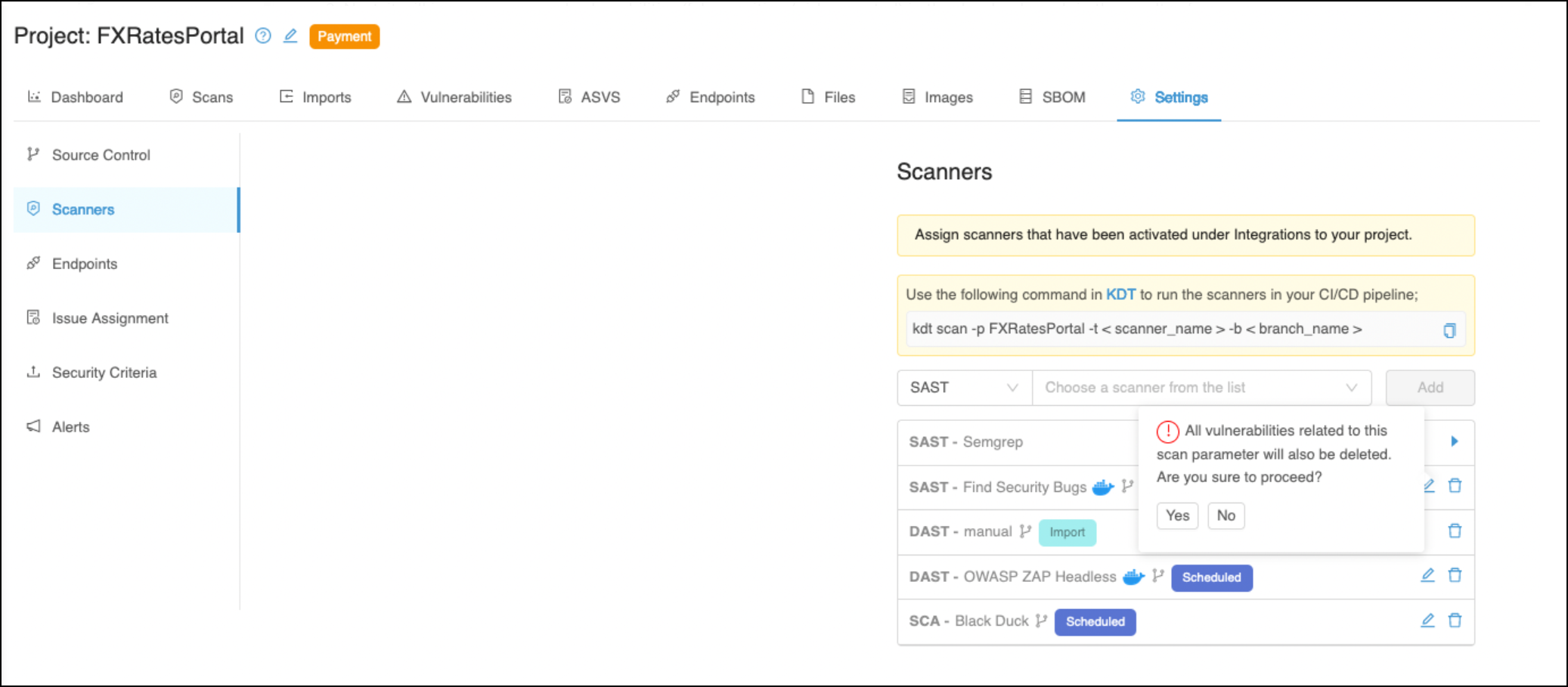
- To compare the latest findings of the feature branch against the latest findings in the develop branch, the previous scan configuration needs to be deleted, as seen in the screenshot below, before running a new PR check. This way, Invicti AppSec pulls the latest vulnerabilities in the develop branch again.
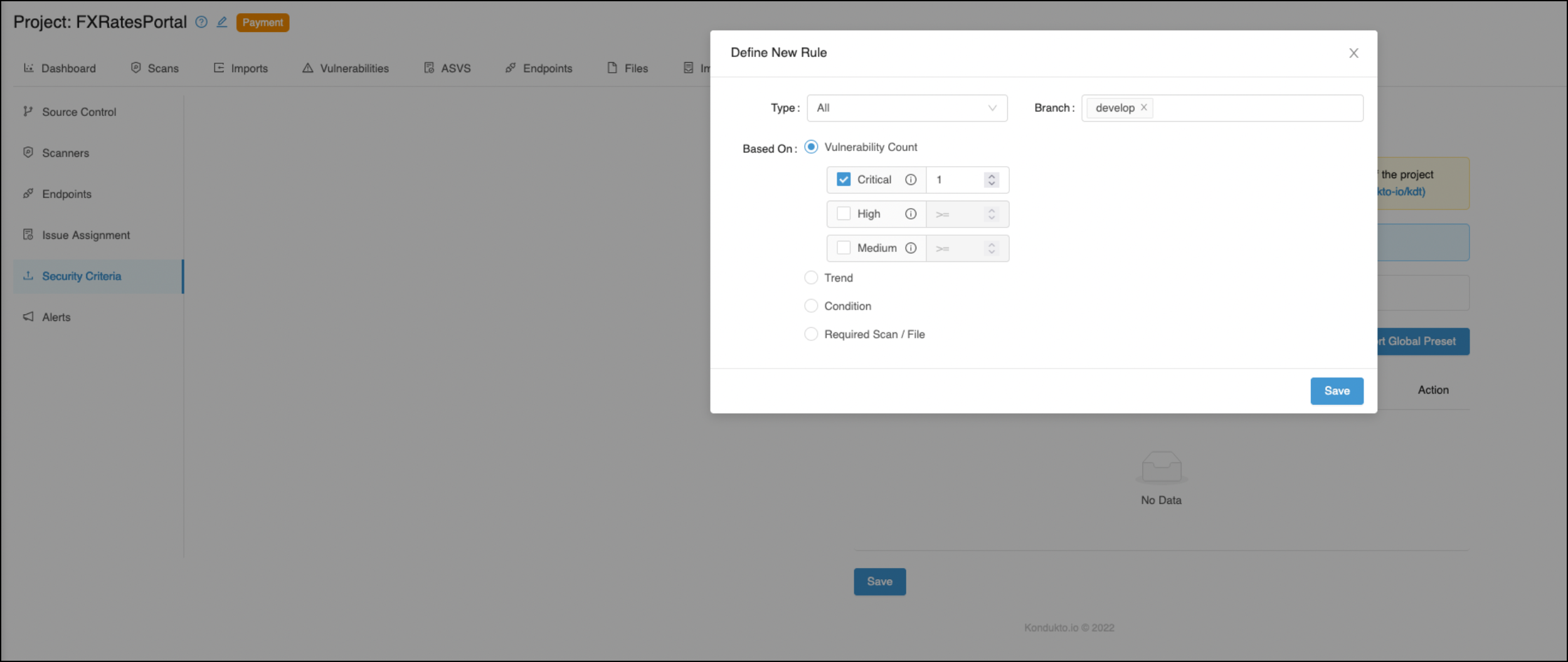
For PR checks, security criteria are also effective for target branches.
For example, suppose we don't want critical severity vulnerabilities carried forward to our development branch from the feature branch. In that case, we can specify the branch under Security Criteria as "develop," as seen in the screenshot below.
This way, Invicti AppSec searches for critical severity vulnerabilities on the scans run on the develop branch and the feature branch that is merged into the develop branch.
Which bi-directional actions are available to issue managers?
"FP" action via Jira
This feature of Invicti AppSec allows open issues to be closed as "FP" by admin users and "FP" request developer users via Jira. With these commands, users can manage the actions taken for open issues through a single platform.
When admin or team lead users write the necessary comments on the tickets on Jira, the current issue is marked as "FP" on Invicti AppSec.
When developer users send "FP" requests via Jira, admin users can see it and take action.
When a developer user makes the "FP" request to an issue by Invicti AppSec, it waits for the admin or team lead's approval. However, an admin or team lead user's "FP" request via Jira to the current issue is directly approved.
It works like False Positive logic in other suppression cases. You can see the meanings of these suppressors in the table below:
- kondukto-fp: used for findings that are false positives
- kondukto-wf: used for findings that won't be fixed
- kondukto-mit: used for findings for which there's already mitigation in place
- kondukto: used for sharing remediation advice
The syntax to be used on the Jira side is:
Bi-directional actions:
kondukto-fp: {description of the fp}kondukto-wf: {description of the wf}kondukto-mit: {description of the mit}kondukto: {description of the rem}
- The developer-level users aren't authorized to mark an issue as "FP" but just send a request that needs to be approved by a team lead or admin.
- For this feature, admin and team lead users have the same permission.
- Users must be registered with the same email address on both platforms.
- User profile visibility must be "Anyone" for the Contact - Email Address information.
Data retention
What is data retention?
As an ASOC platform, Invicti AppSec collects lots of data from various sources. Data retention is periodically checking and removing old data from the database. The reason is that old data is bloating the database, creating performance degradation in the overall application usage. For these reasons, data retention is a necessity.
Invicti AppSec data retention policy
Data retention periods on Invicti AppSec are as follows:
- Completed scans (1 year)
- Failed scans (7 days)
- Audit log (1 year)
- Disabled/Deleted Projects (7 days)
- Disabled/Deleted Teams (7 days)
- Disabled/Deleted Users (7 days)
- Disabled/Deleted Vulnerabilities (7 days)
- Disabled/Deleted Settings (7 days)
- Disabled/Deleted Scanparams (7 days)
- Disabled/Deleted Scans (7 days)
- Disabled/Deleted Products (7 days)
- Disabled/Deleted Labels (7 days)
- Disabled/Deleted Tokens (7 days)
- Disabled/Deleted Report Profiles (1 day)
How does "Add to an existing issue feature" work?
When "Grouping Issues" toggle is enabled under project settings, Invicti AppSec automatically groups SCA vulnerabilities that share the same package name into a single issue on the issue manager when creating issues automatically.
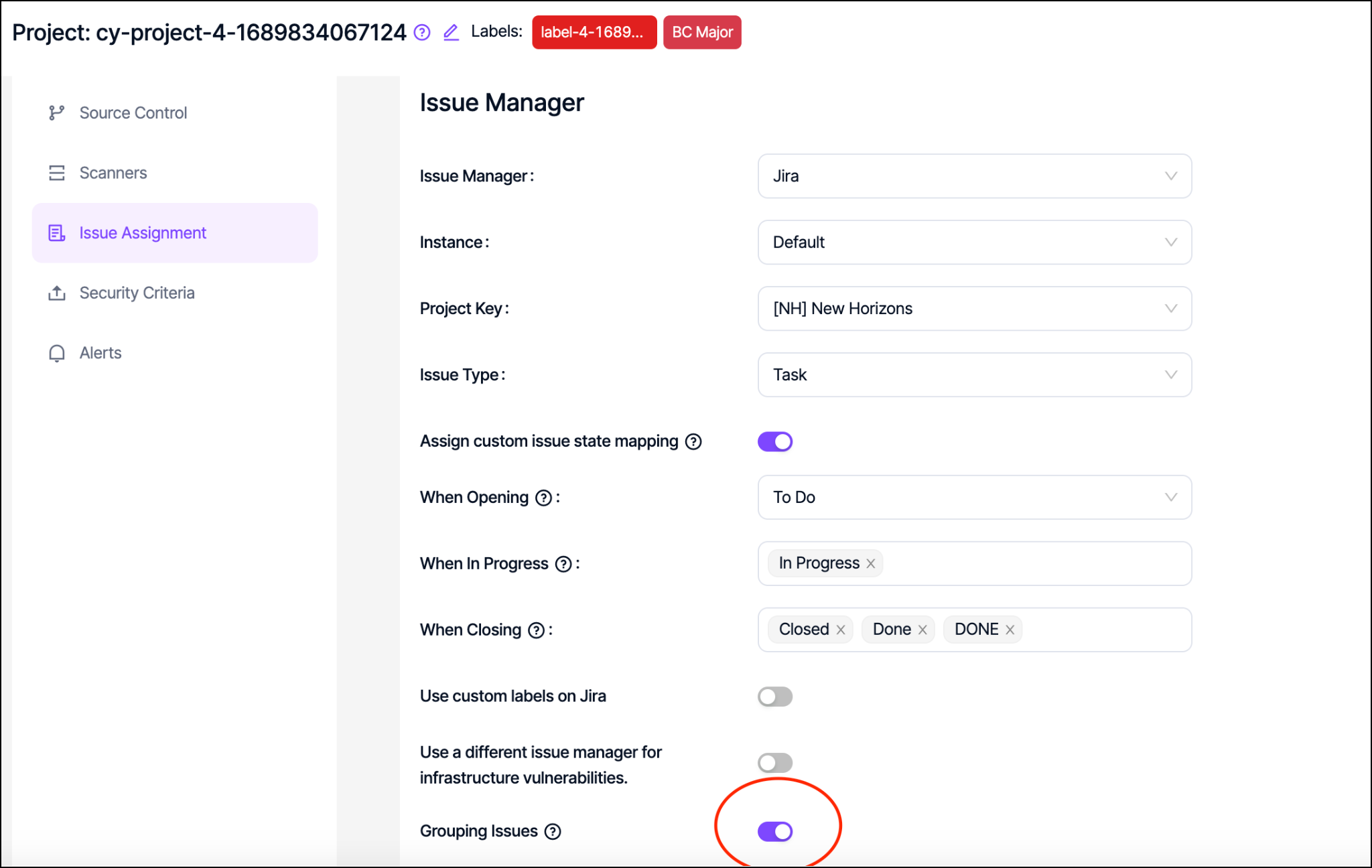
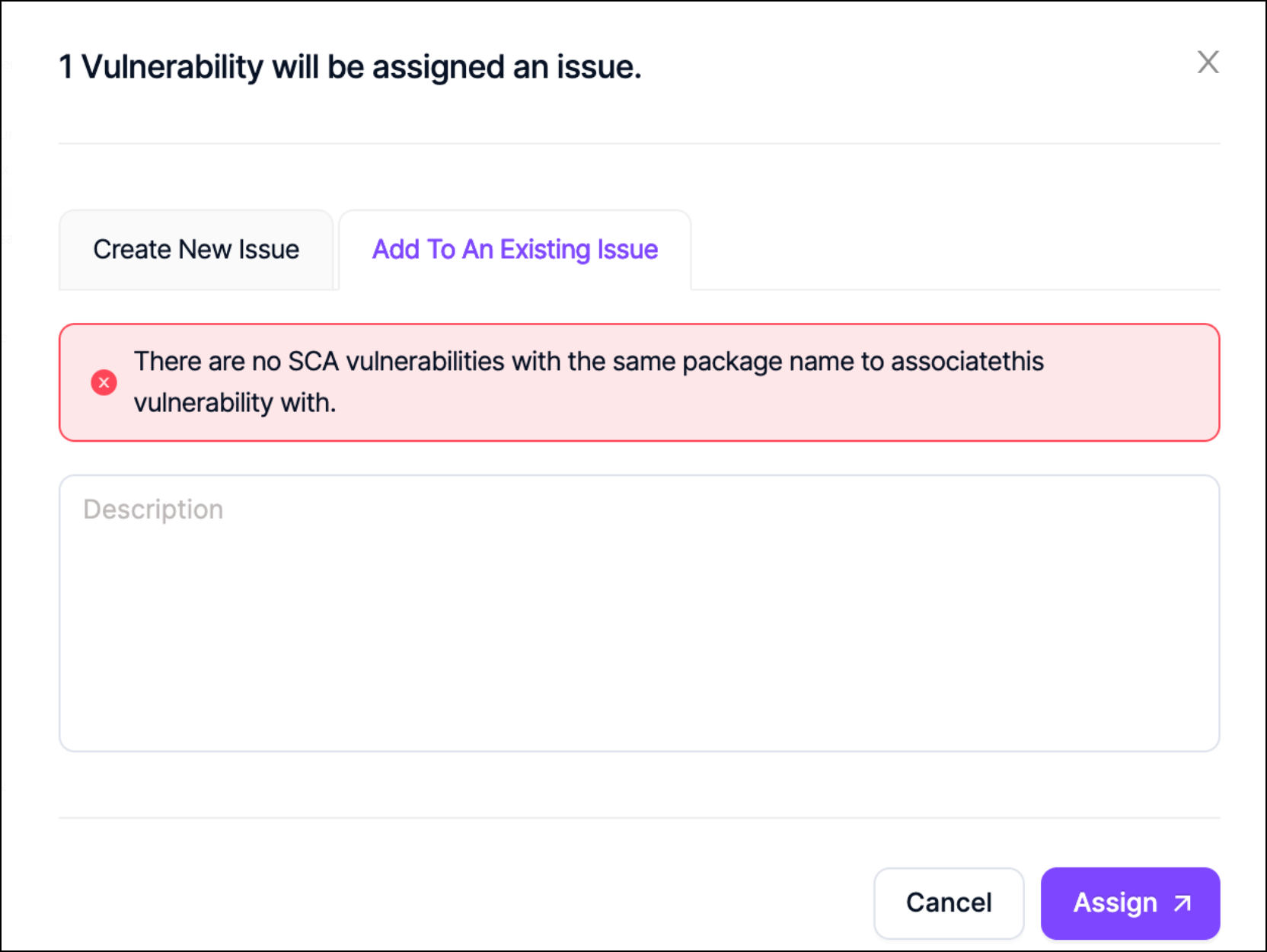
When this toggle is enabled, it's also possible to add a single SCA vulnerability to the issue of another SCA vulnerability with the same package name as a comment.
When a vulnerability is added to another issue as a comment, the status changes on the original issue are reflected on all grouped vulnerabilities. When the original issue is closed, validation scans can also be triggered depending on the configuration under project settings.
However if the status of the vulnerability is closed on Invicti AppSec, Invicti AppSec won't be able to transition the status of the issue to Done or Closed on the issue manager as there are multiple vulnerabilities grouped into one issue. In this case, Invicti AppSec waits for the status of all vulnerabilities to be "Closed" to close the issue on the issue manager.
If there are no other SCA vulnerabilities in the project with the same package name, then the following warning pops up.
I try to assign an issue in the vulnerability db section, but issues are not created. What can be the reason?
Please make sure that an issue manager is activated in the project of the vulnerability you're trying to assign an issue for.
If an issue manager isn't activated in the project, Invicti AppSec still tries to create an issue and you see the issue in the pending stage for 5 minutes and then it disappears.
Supported JIRA field types
- Number
- String
- Option
- Date
- Array
- Team
Invicti AppSec supports fields with the above types.
Need help?
Invicti Support team is ready to provide you with technical help. Go to Help Center