Package: Invicti AppSec Core (on-demand)
Technologies overview
Track and assess web technologies detected across your scanned projects using the All technologies page. This document provides an overview of the All technologies page in Invicti AppSec Core.
Why this matters
Outdated or vulnerable third-party technologies - such as web frameworks, libraries, and server software - are a common entry point for attackers. The All technologies page gives you a consolidated view of every technology identified across your scans, so you can quickly spot out-of-date versions and understand their risk before they're exploited.
All technologies
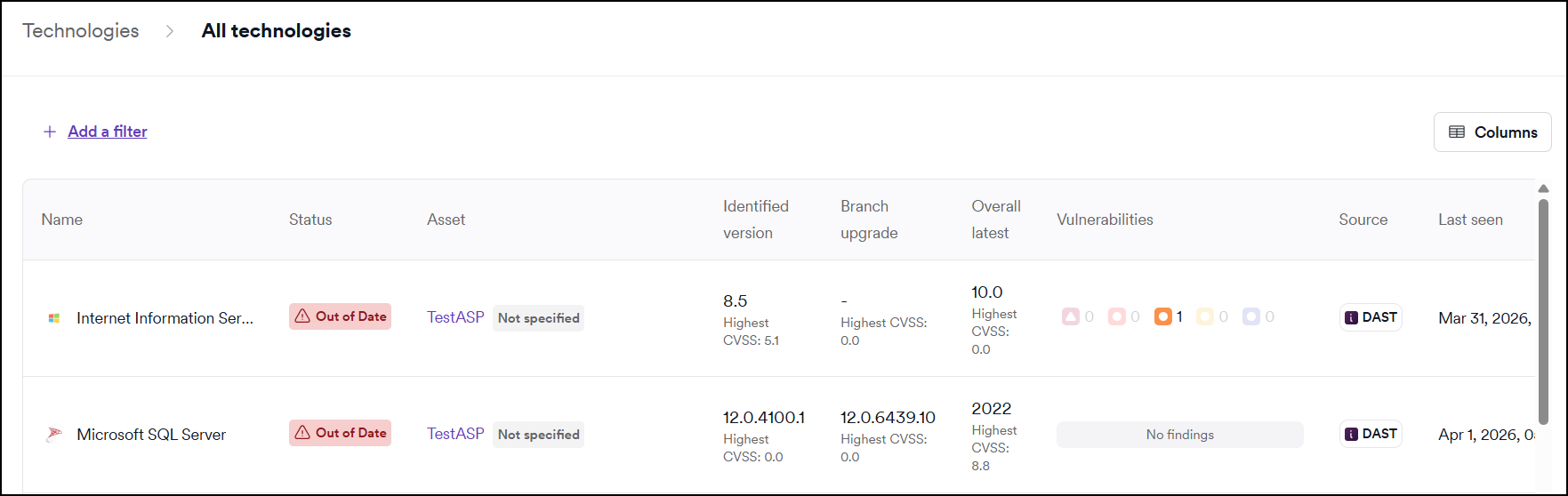
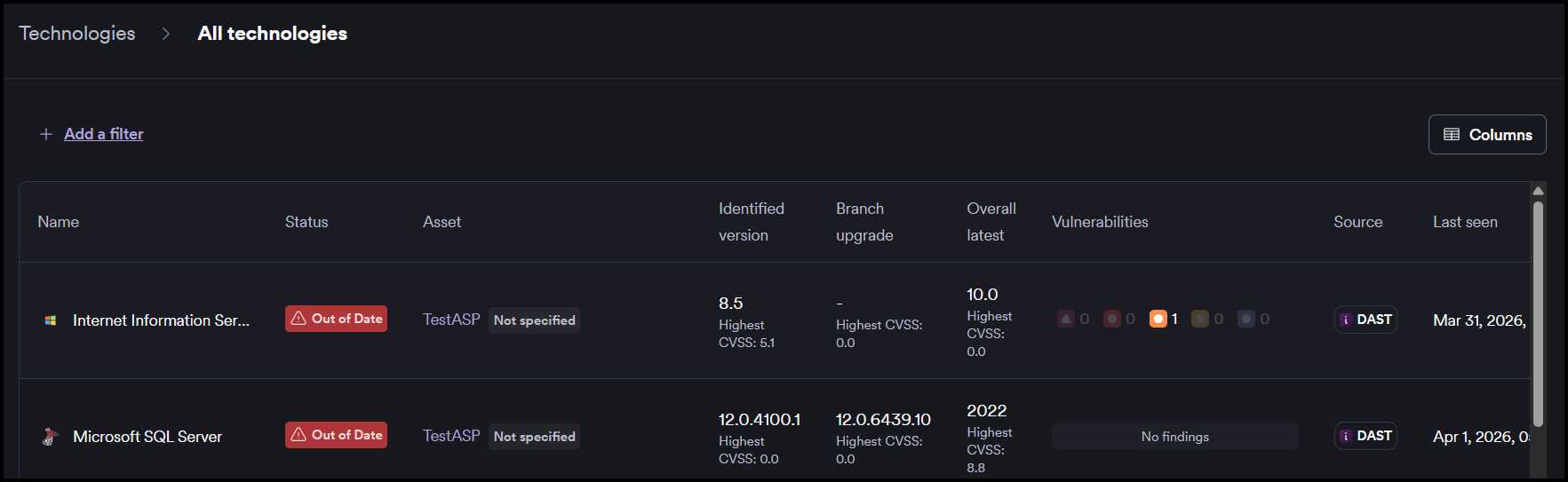
The All technologies page lists the technologies identified in your projects during scans, along with a status, version information with the highest CVSS score, number of found vulnerabilities, scan source, and the date it was last seen. To customize the columns displayed, click Columns.
Details
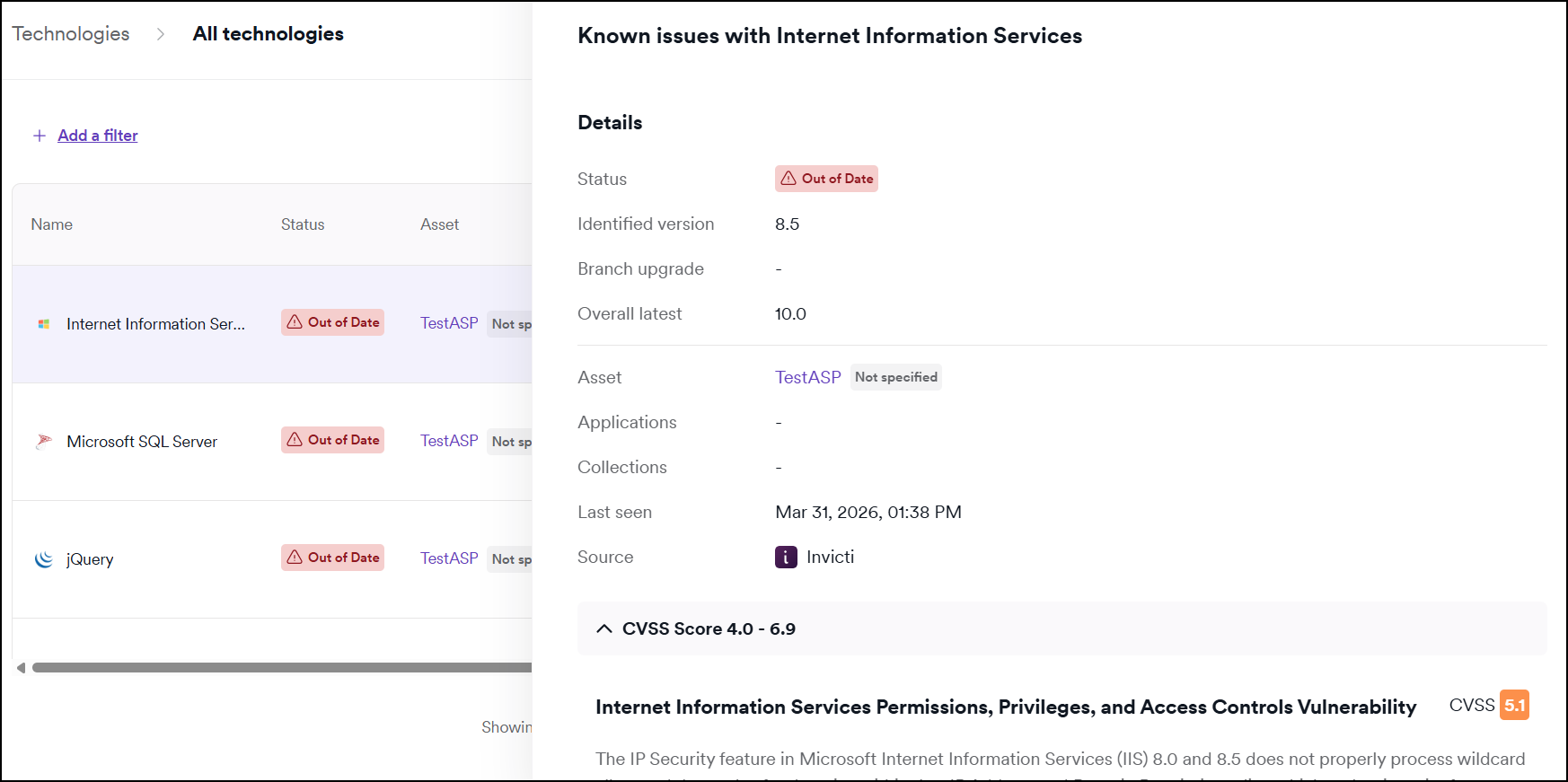
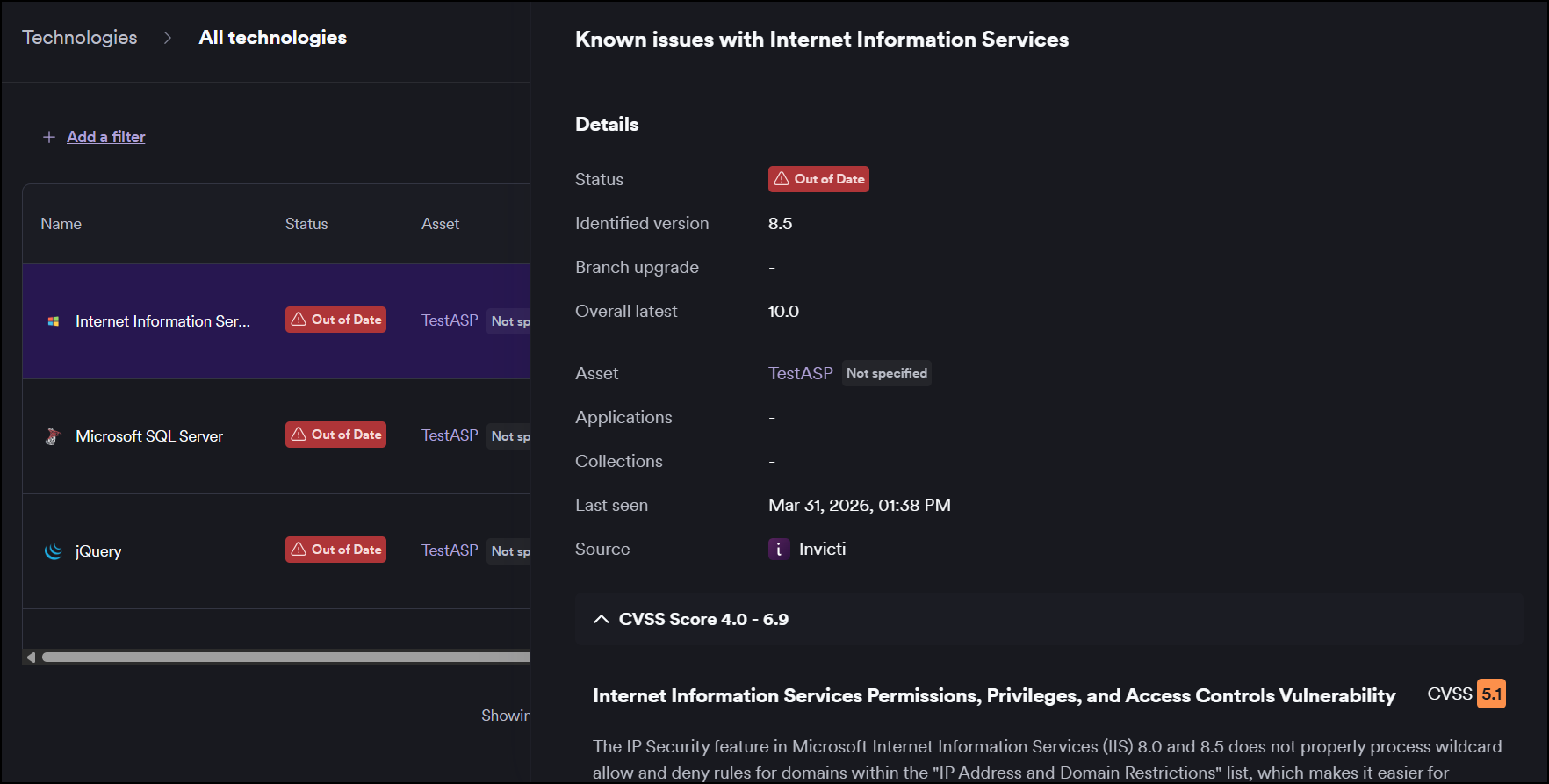
Click any technology to display the detail drawer with additional information on known vulnerabilities, divided according to the CVSS score.
Filtering
Filter the list to find the specific information you need. Click + Add a filter to display a list of filters. You can filter by the technology name, out-of-date or in-date status, technology version information, or the last seen date. Select multiple filters to further narrow the results.
Troubleshooting
A technology doesn't appear in the All technologies page
Technologies are discovered during scans. If a technology isn't listed, check that your project has at least one completed scan. If the scan completed but the technology is still missing, verify that the target was scanned successfully and that the relevant pages were in scope.
A technology shows an incorrect out-of-date status
The status is based on the version detected during the scan and the known vulnerability data at the time of the scan. If the status looks wrong, check the version information in the detail drawer and compare it against the current release of that technology. Re-running the scan can also refresh the version detection.
Filters don't return expected results
Filters are applied together - if you've selected multiple filters, all conditions must match for a technology to appear. Clear all filters and add them one at a time to narrow down which filter is excluding the results you expect.
Need help?
Invicti Support team is ready to provide you with technical help. Go to Help Center