Package: Invicti AppSec Enterprise (on-premise, on-demand)
Trivy Operator
Activate Trivy Operator in Invicti AppSec
- Navigate to your Invicti AppSec instance.
- Select Integrations from the left menu panel.
- Click Scanners under the Integrations section.
- Click the CS button and activate Trivy Operator.
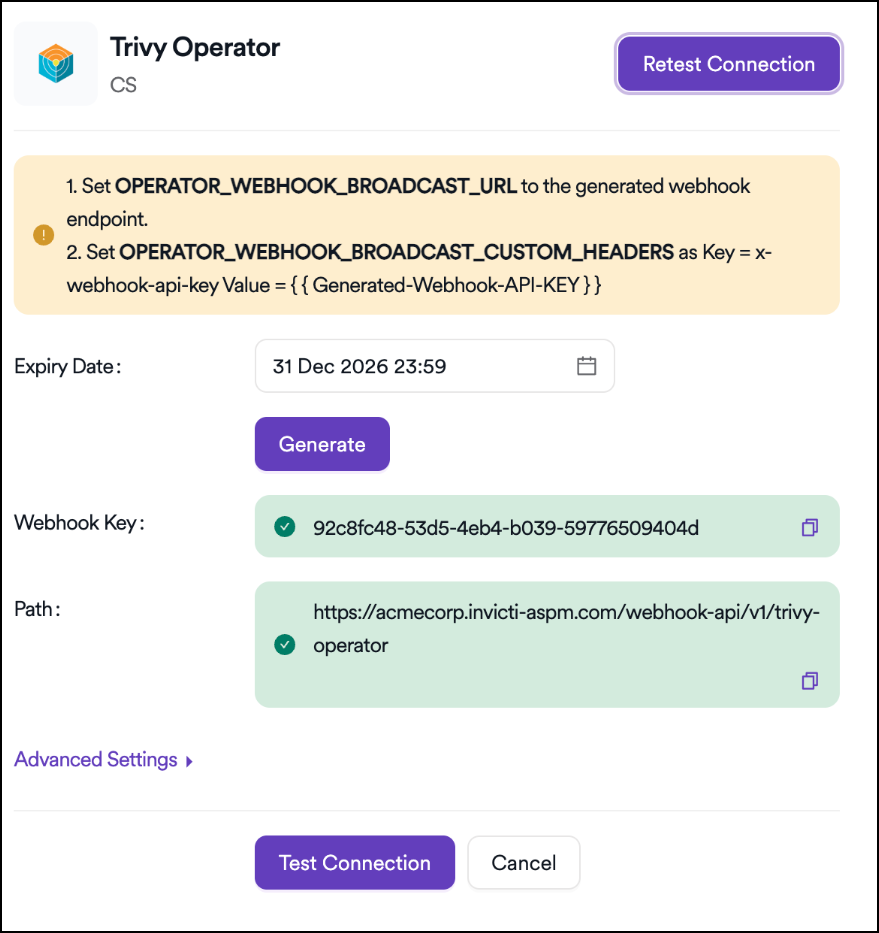
Generate webhook key
Select the Expiry Date for the Webhook Key you want to create and click the Generate button to generate the key.
To set the generated Webhook Key on the Trivy Operator running in Kubernetes, use the following command:
kubectl set env deployment/trivy-operator -n trivy-system  \
    OPERATOR_WEBHOOK_BROADCAST_URL="https://{INVICTI_AppSec_URL}/webhook-api/v1/trivy-operator"  \
    OPERATOR_WEBHOOK_BROADCAST_CUSTOM_HEADERS="x-webhook-api-key:{INVICTI_AppSec_WEBHOOK_KEY}"  \
    OPERATOR_WEBHOOK_BROADCAST_SKIP_SSL_VERIFY="true"
After running the above command in Kubernetes, click the Test Connection button to verify the connection.
Configure project settings
- Navigate to your Invicti AppSec instance.
- Select Projects from the left menu panel.
- Click Your Project under the Projects section.
- Select Settings on the custom project page.
- Select the Scanners category from the list.
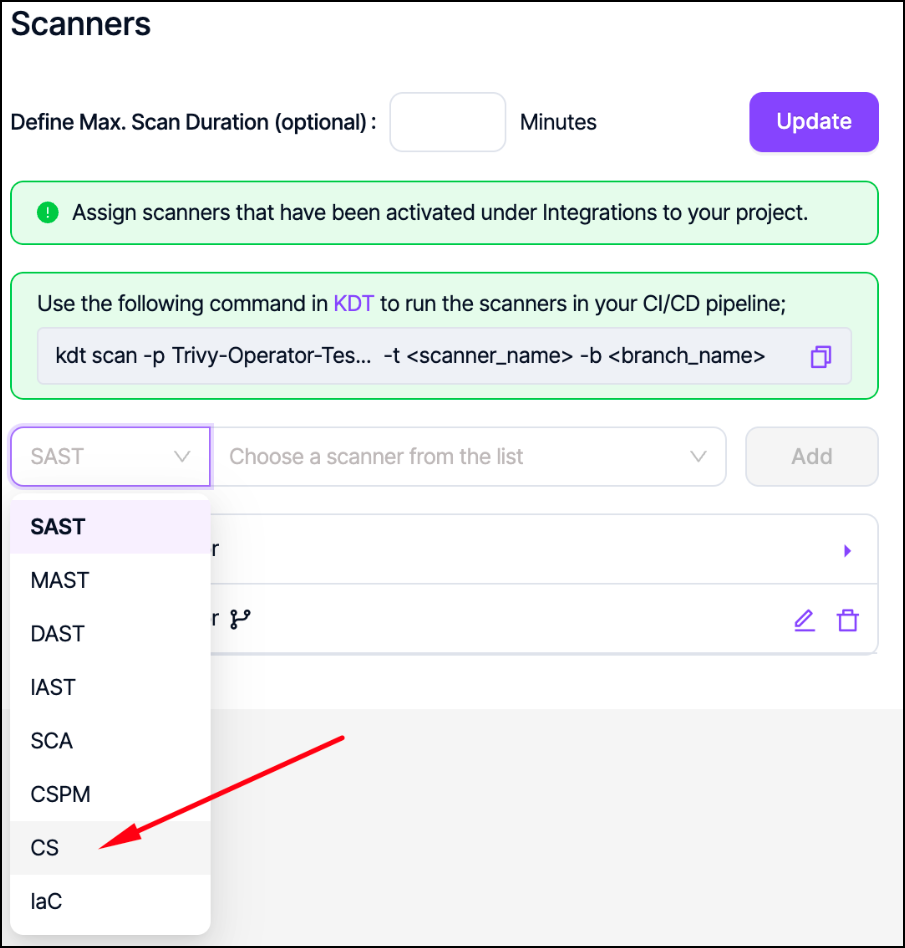
- Click CS and choose Trivy Operator.
On the displayed screen, select the CS category, then choose Trivy Operator, and click the Add button.
In the Trivy Operator scan settings, the relevant scopes should be added and saved. In this example, we specified the trivy-system namespace as the scope and saved the configuration.
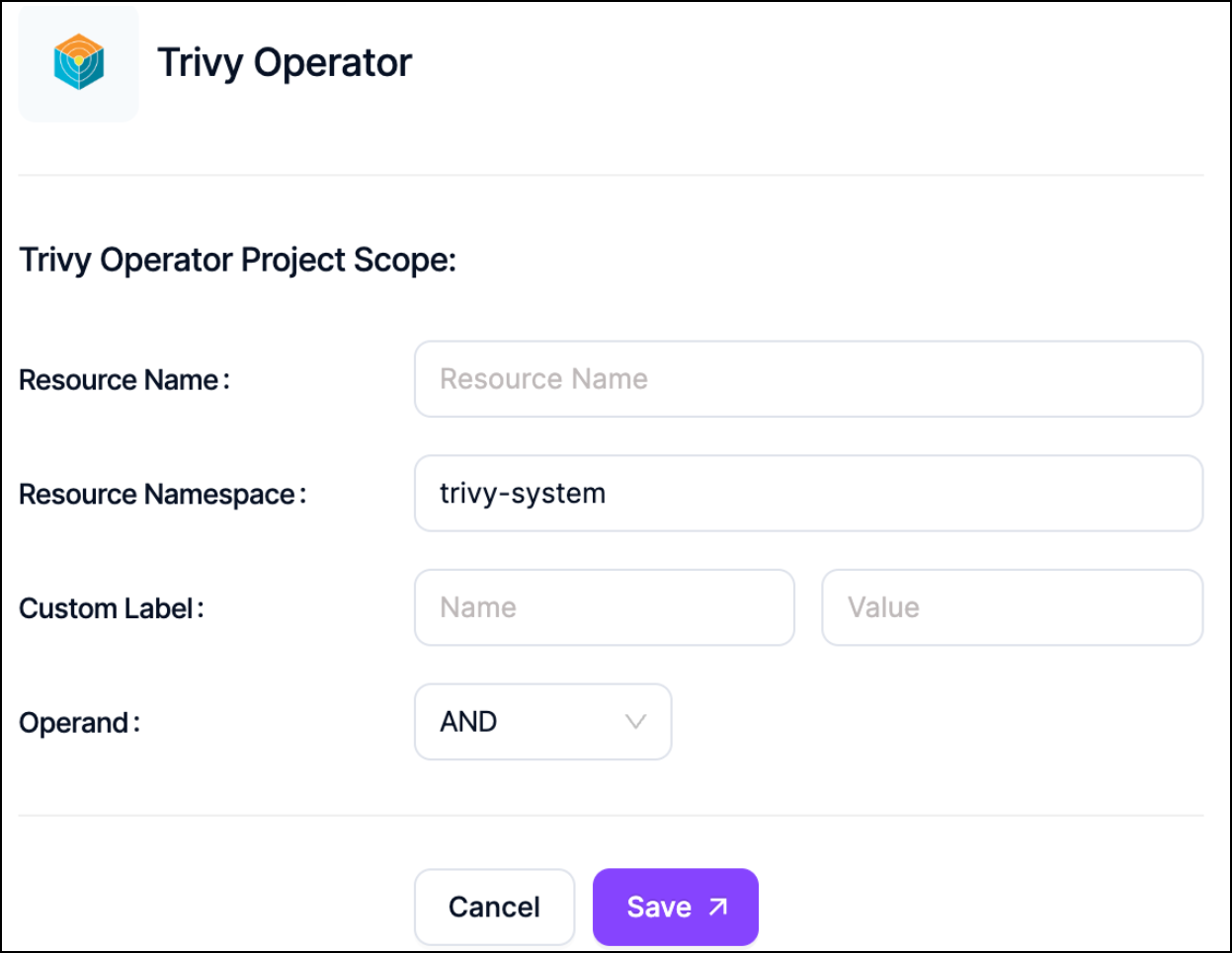
Verify configuration
To verify whether the configured environment variables have been set correctly, use the following command:
kubectl describe deployment trivy-operator -n trivy-system | grep -A10 "Environment:"
Run a test scan
To perform a test scan, run the following command to create a deployment with Nginx running on it:
kubectl create deployment nginx-test --image=nginx
Next, use the following command to start a scan on the deployment we created:
kubectl annotate deployment nginx-test trivy.security.aquasec.com/scan=enabled
You can use the following command to check if the vulnerability report has been generated:
kubectl get vulnerabilityreports -n trivy-system
We can verify that the report has been generated if we receive an output similar to the one below after running the command:
REPOSITORY               TAG      SCANNER   AGE
replicaset-nginx-test-574bc578fc-nginx              library/nginx            latest   Trivy
replicaset-trivy-operator-65888c9b-trivy-operator   aquasec/trivy-operator   0.23.0   Trivy
You can see the scan results of your created project displayed under the Vulnerabilities tab.

Need help?
Invicti Support team is ready to provide you with technical help. Go to Help Center