Add or remove application tags
Tags let you group related assets, applications, or collections by themes, environments (for example: production, staging), business units, teams, or locations. This helps you navigate large inventories more easily.
This document describes how to add or remove application tags in Invicti Platform.
Tag limitations
- Tag names may only contain letters, numbers, and a colon (:).
- A maximum of 20 tags per entity can be added.
- Maximum 20 characters per tag.
Add tags to one specific application
- Select Inventory > Applications from the left-side menu.
- Find the application for which you want to add the tags, then select the three-dot menu (⋮) on the right and select Edit application.

- In the Tags field, enter as many tags as needed. Remember to confirm each by pressing Enter.

- Once done, select Update application to save them.
Add tags to multiple applications
- Select Inventory > Applications from the left-side menu.
- Enable the checkboxes to specify the applications for which you want to add the tags.
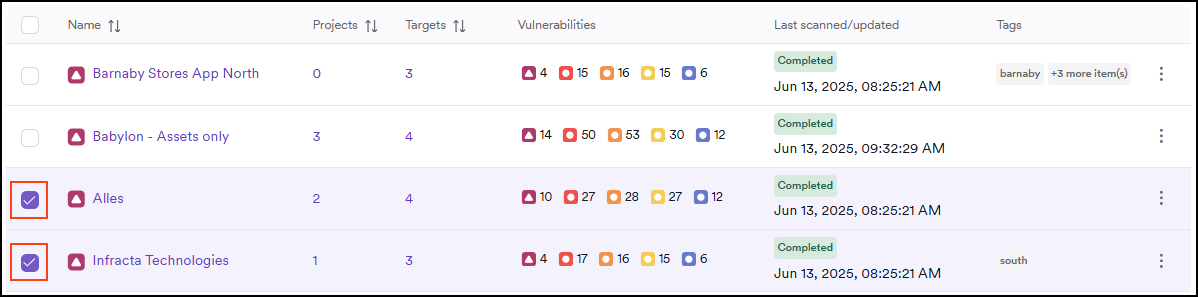
- In the Bulk actions drop-down, select Add tags.
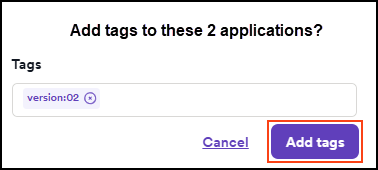
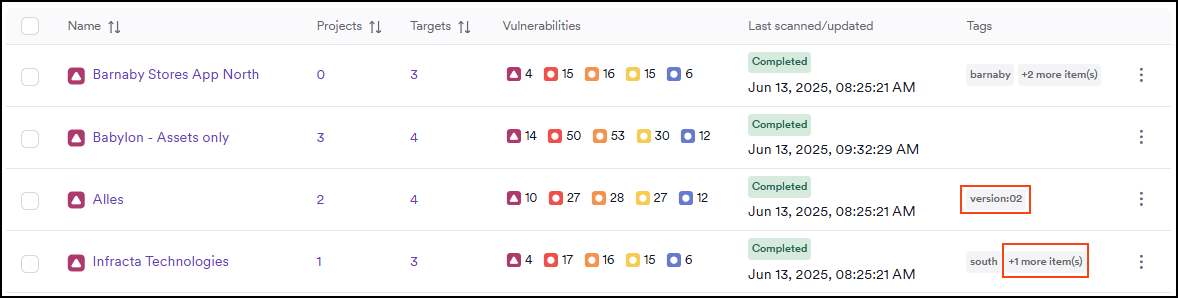
- The tags are added to the selected applications.
Remove tags from an application
There is no bulk action to remove tags from applications. To remove tags from an application, follow these steps:
- Select Inventory > Applications from the left-side menu.
- Find the application for which you want to remove the tags, then select the three-dot menu (⋮) on the right and select Edit application.
- In the Tags field, use the x next to the tag you want to remove.

- Once done, select Update application.

- The application tags have been removed.
Need help?
Invicti Support team is ready to provide you with technical help. Go to Help Center
Was this page useful?