Crawling options overview
This document explains the Crawling Options available in the configuration of your target website in Invicti Platform:
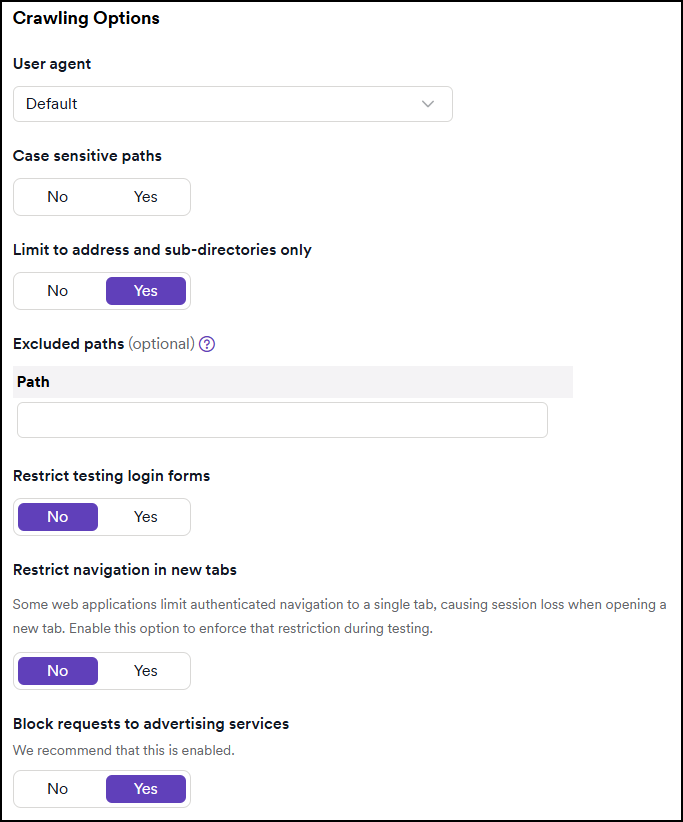
User agent
Each HTTP request sent by the crawler and scanner contains a "User Agent" string, including information that may identify the browser name and version (for example: Firefox or Opera), the rendering engine upon which the browser is based (for example: AppleWebKit), and the type of system which the browser is running on (for example: Android).
The web server may present different content depending on the content of the User Agent string. For advanced testing, you may need to run scans with different versions of the User Agent string to make sure that all parts of the target are scanned.
Apart from the default, a number of pre-set options are available.

Case sensitive paths
By default, Invicti Platform tries to automatically detect whether the target web server uses case-sensitive URLs. Most, but not all, web servers are case sensitive. In addition, some web applications can be configured to be case sensitive or insensitive using rewrite rules or other mechanisms.
If you need to force the crawling process to be case sensitive (to ensure accuracy and completeness for a target that you know is case sensitive) or insensitive (to reduce scan time for a target that you know is case insensitive), you can use this option.

Limit crawling to address and sub-directories only
This option is useful to limit the scope of the scan to part of the web application. By default, the option Limit to address and sub-directories only is enabled for new Targets.
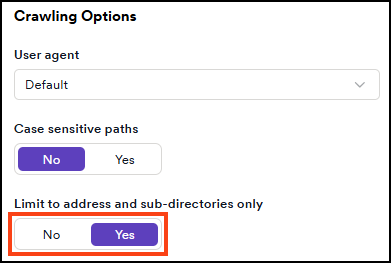
This option limits the scope of the scan up to the last forward slash (/) in the Target address.
Any Target URL with a path but without a trailing slash causes the crawler to consider the final part of the path to be a file and not a folder. The result is that the parent folder of that file is the real target URL. For example:
- The Target URL http://www.example.com/folder1/subfolder1/ with the option Limit to address and sub-directories only scans items beneath /folder1/subfolder1/ (without the option, you are scanning the full domain).
- The Target URL http://www.example.com/folder1/subfolder1 with the option Limit to address and sub-directories only scans items beneath /folder1/
Limit scan scope examples
Example 1
- Scan the full domain:
- Set the Target URL to http://www.example.com (with or without the trailing forward slash). In this case, the option Limit to address and sub-directories only has no effect on the scope of the scan.
Example 2
- Scan only part of the site or domain:
- Set the Target URL to http://www.example.com/part1/ (with the trailing forward slash) and turn on the option Limit to address and sub-directories only to limit the scope of the scan to only resources beneath the /part1/ folder.
- If you turn off the option Limit to address and sub-directories only, then any path specified in the target URL is ignored and you scan the full domain.
Therefore, if your Target URL is set to http://www.example.com/task/subtask, you can turn off the option Limit to address and sub-directories only to instruct the crawler to also look for resources in http://www.example.com/task/ and http://www.example.com.
Excluded paths
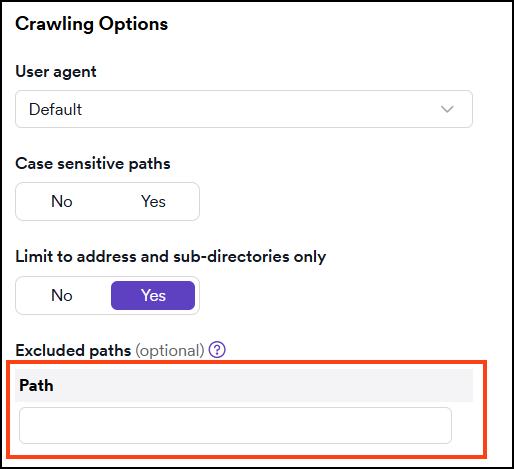
There are situations where you may need to configure Invicti Platform to exclude a portion of a web application from crawling and scanning. This might be required if the web application being scanned is too large, or if scanning a part of the site might trigger unwanted actions such as submitting data.
In such situations you can use regular expressions (RegEx) to exclude specific parts of the target. For more information, refer to the Exclude paths from scanning document.
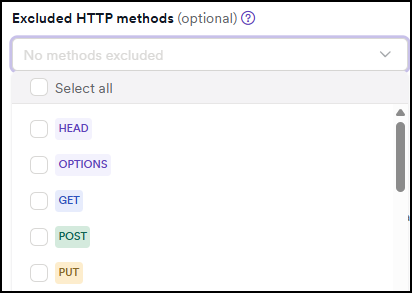
Excluded HTTP methods
This option allows you to choose the HTTP methods that you want to ignore during scanning. More than one option is selectable.
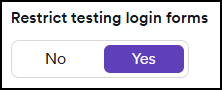
Restrict testing login forms
Select Yes to exclude login forms from the scan to prevent IP blocking.
Restrict navigation in new tabs
By default, Invicti Platform scans websites using multiple browser tabs. Some applications limit authenticated navigation to a single browser tab, thus causing a session loss when opening a new tab. Enable this option to restrict scanning to a single tab.

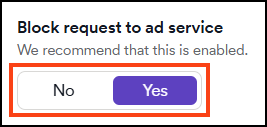
Block request to ad service
When you enable this option, Invicti Platform blocks any requests to ad services during the site crawl. Invicti enables this option by default.
Need help?
Invicti Support team is ready to provide you with technical help. Go to Help Center