Invicti OOB and Verified Badge
Invicti OOB enhances the reliability and precision of vulnerability scans by accurately detecting out-of-band vulnerabilities. The Verified badge is displayed for vulnerabilities with a 100% confidence rating.
This document explains how to identify vulnerabilities found by Invicti OOB and those marked with the Verified badge in the vulnerability results.
Invicti OOB
Invicti OOB enables Invicti to improve the accuracy and reliability of vulnerability scans by identifying out-of-band vulnerabilities (exploits reported back to the scanner). It integrates seamlessly with out-of-band checks and requires no installation or configuration; however, it does need internet access to bxss.me.
Refer to the trustlisting guidelines for more information:
- Trustlist requirements for the CA region
- Trustlist requirements for the EU region
- Trustlist requirements for the US region
- Consequences of scanning without trustlisting
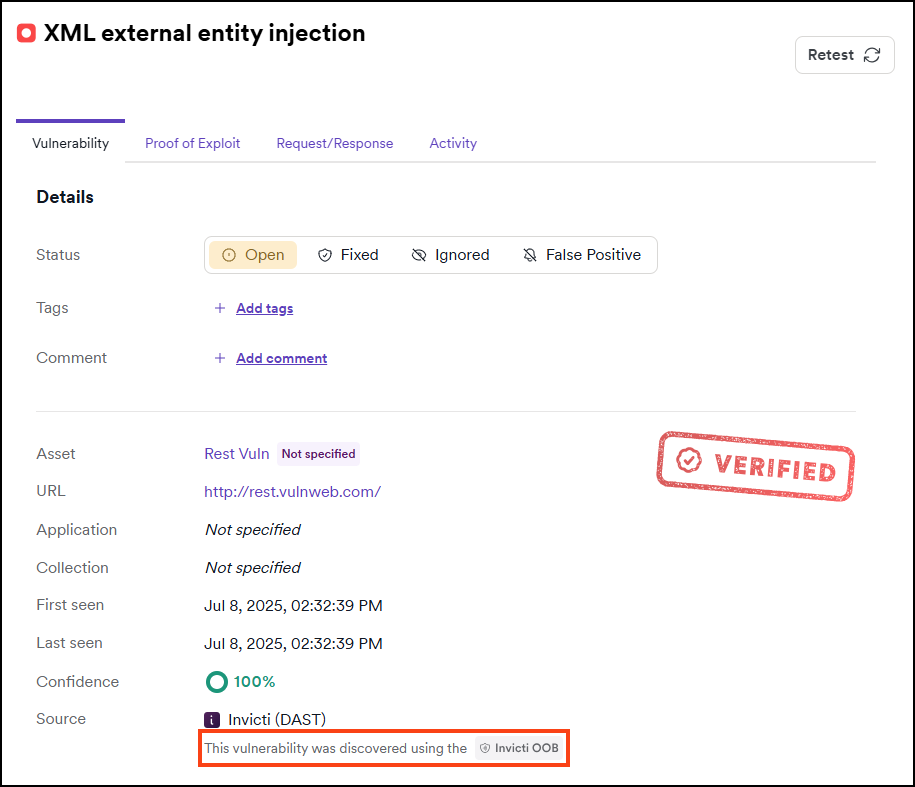
By default, all scans use Invicti OOB service, unless specific checks are excluded or the service is turned off. Without Invicti OOB, out-of-band detection isn't possible. Vulnerabilities verified through out-of-band testing are marked with the Invicti OOB label. Vulnerabilities detected with Invicti OOB are never false positives.
How to identify Invicti OOB-detected vulnerabilities
- Select Vulnerabilities from the left-side menu.
- In the View by Vulnerability list, look for the Invicti OOB icon.

- Click the selected vulnerability to display its details on the right-hand side. The information appears in the details.
Verified badge
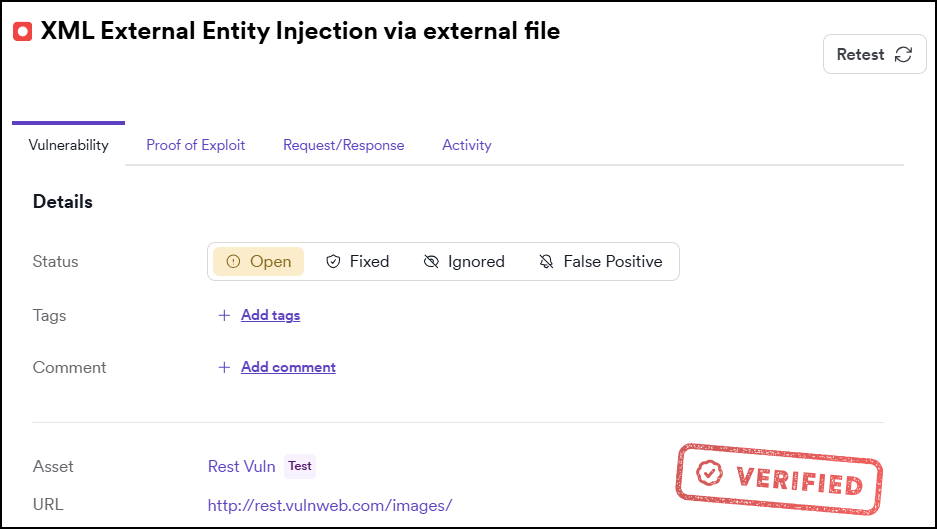
The Verified badge indicates vulnerabilities detected with 100% certainty during a scan, confirming their existence in the scanned web application and eliminating the need for manual verification.
Vulnerabilities not marked with the verified badge are generally valid; however, the detection method may prevent Invicti from being completely certain of their existence. Nonetheless, Invicti maintains a very low false positive rate.
How to identify vulnerabilities with the Invicti Verified badge
- Select Vulnerabilities from the left-side menu.
- Check the Confidence column for a value of 100% to identify the vulnerabilities.

- Click the selected vulnerability to display its details on the right-hand side. The Verified badge appears within the vulnerability details.
Need help?
Invicti Support team is ready to provide you with technical help. Go to Help Center