Get your API key
Deployment: Invicti Platform on-demand, Invicti Platform on-premises
This is part 2 of 5 in the API fundamentals series.
Previous: When to use the API | Next: Authenticate
Before you can interact with the Invicti Platform API, you need two essentials: an API key for authentication and access to the API documentation. This document explains how to get both from the same location in your user settings.
Invicti Platform provides a comprehensive REST API that allows you to access and manage Targets, scans, vulnerabilities, and reports programmatically. This enables you to integrate security testing into your existing tools and workflows.
Generate or copy your API key
Your API key serves as your authentication credential for all API requests. Each user has their own unique API key.
To generate or access your API key:
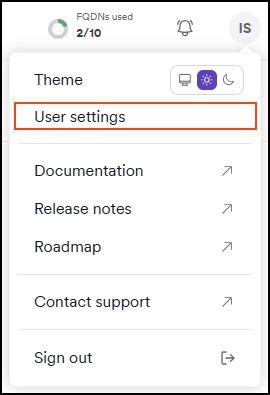
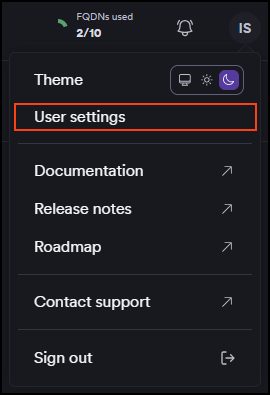
- Click your initials at the top right corner of the page, then select User settings.
-
Click API key in the left-side menu.
-
For new users: Click Generate new API key to create your first API key.
-
For existing users: Your current API key is shown as Hidden for security reasons. Click Copy to copy it to your clipboard.
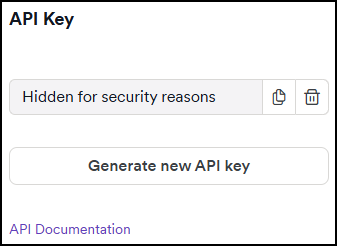
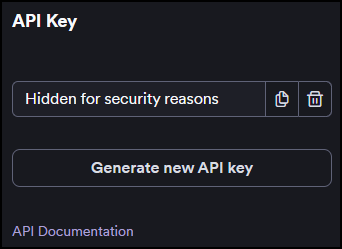
- If you need a new key: Use the trash can icon to delete your current key, then generate a new one.
- Never share your API key or commit it to version control
- Regenerate your key if you suspect it has been compromised
- Use environment variables to store your API key in applications and scripts
Access the API documentation
The interactive API documentation provides detailed information about all available endpoints, request/response formats, and allows you to test API calls directly in your browser.
To access the API documentation:
-
From the same API key page in your user settings, look for the API documentation section.
-
Click the link to the API documentation - this opens the interactive Swagger interface in a new tab.
-
The documentation is organized into sections:
- Inventory API: Manage targets and applications
- DAST API: Control dynamic security scanning operations
- Reports API: Generate and download scan reports
Understand the base URLs
All API requests require a base URL that depends on your deployment type:
Software as a Service (SaaS) deployments:
- US region:
https://platform.invicti.com - EU region:
https://platform-eu.invicti.com - Canada region:
https://platform-ca.invicti.com
On-premises deployments:
- Use the same URL you normally use to access your Invicti Platform interface
- Example:
https://your-company.invicti-instance.com
What's in the API documentation
The interactive documentation includes:
Endpoint details:
- HTTP methods (GET, POST, PUT, DELETE)
- Request URLs and required parameters
- Request body schemas with field descriptions
- Response formats and status codes
Interactive testing:
- "Try it out" functionality for each endpoint
- Pre-filled examples you can execute directly
- Real responses from your Invicti instance
Next steps
With your API key and documentation access ready, you're prepared to set up authentication:
→ Continue to Authenticate
Complete fundamentals series
- Overview
- Part 1: When to use the API
- Part 2: Get your API key ← You are here
- Part 3: Authenticate
- Part 4: Make your first call
- Part 5: Handle responses
Need help?
Invicti Support team is ready to provide you with technical help. Go to Help Center