Deployment: Invicti Platform on-demand, Invicti Platform on-premises
Secrets
The Secrets feature in Invicti Platform provides a secure central location for storing authentication credentials. Instead of entering credentials directly into scan configurations, you store them once as named secrets and reference them wherever they're needed.
This document explains how to add, use, edit, and delete secrets in Invicti Platform.
Why this matters
Entering credentials directly into scan configurations creates risks. Credentials get duplicated across many Targets, shared with unintended users, and remain active after team membership changes.
With secrets, you store a credential once and reference it by name in any scan configuration that needs it. When a password changes, you update it in one place and every configuration using that secret picks up the change automatically. Access control works at the secret level - you can restrict a credential to specific teams or users without touching individual scan settings.
Secret values are write-only: once saved, they can't be retrieved or displayed. This limits exposure to the credential itself.
Secrets overview
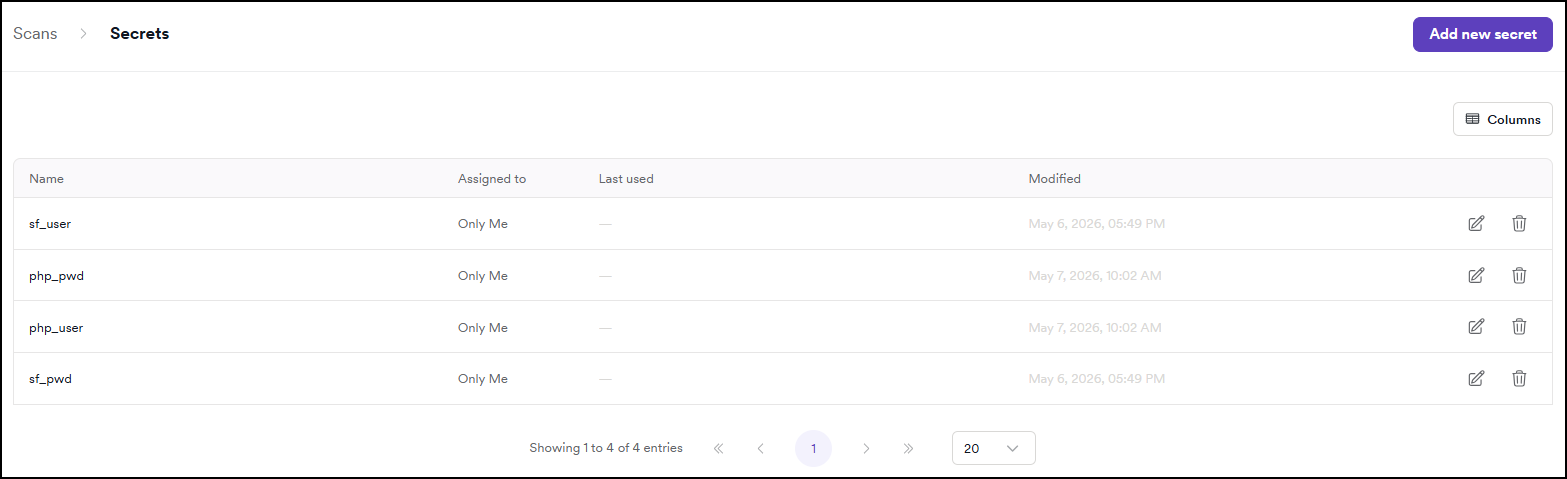
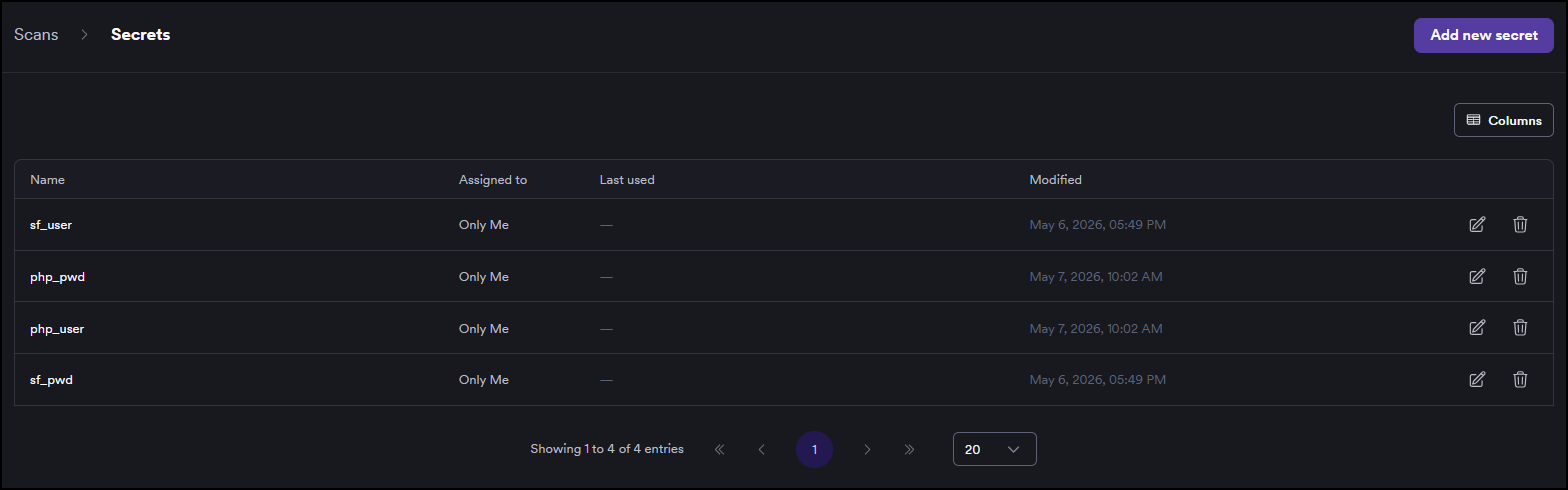
You access the Secrets page from Scans > Secrets in the left-side menu. The page lists all secrets you can access, with the following columns:
- Name - the identifier you assigned to the secret.
- Assigned to - who has access to the secret.
- Last used - the date the secret was last used in a scan.
- Modified - the date the secret was last updated.
Add a secret
- Select Scans > Secrets from the left-side menu.
- Click Add new secret.
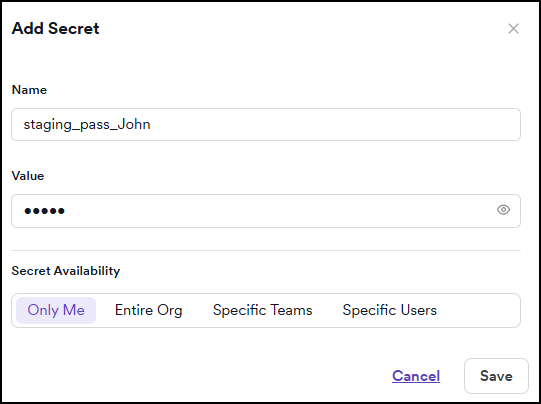
- Enter a Name for the secret. Use something descriptive that identifies the credential, for example,
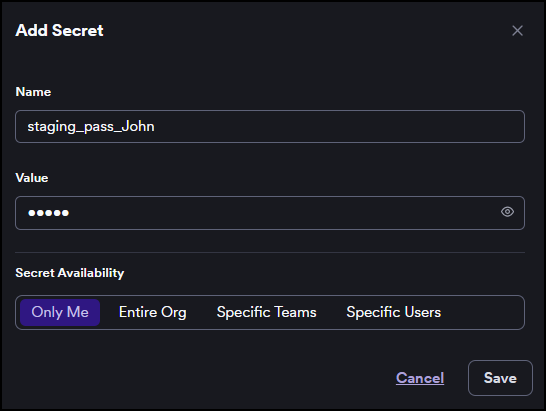
staging_pass_John. The name can contain only letters, numbers, hyphens, and underscores. - Enter the Value - the actual credential to store. The value is masked and can't be retrieved after saving.
- Under Secret availability, choose who can use this secret:
- Only me - only you can access the secret.
- Entire org - all users in your organization can access the secret.
- Specific teams - only users in the selected teams can access the secret. After selecting this option, click Assign teams, choose one or more teams from the list, and click Assign team to confirm.
- Specific users - only the selected users can access the secret. After selecting this option, click Assign users, choose one or more users from the list, and click Assign user (n) to confirm, where n is the number of selected users.
- Click Save.
You can now use the newly created secret with any target.
Use a secret
After you create a secret, reference it from a target's authentication settings and run a scan. Invicti injects the secret value at scan time, so the credential never appears in the target configuration.
You can use secrets with HTTP, Simple form, Login sequence recorder (LSR), and OAuth 2.0 authentication. For a full overview of all supported methods and how to configure each, refer to the Using secrets in scans document. For LSR, refer to the Login sequence with secrets document.
The following steps describe using a secret with Simple form authentication:
- Select Inventory > Targets from the left-side menu.
- Open the target you want to scan with a secret, then select Edit.
- Open the Authentication form and set Authentication method to Simple form.
- In the Username and Password fields, click the key icon and pick the secret you want to use. The field shows the secret name in
{{secretName}}format. - Click Save target configuration to store the reference, or click Save and scan to save and immediately launch a scan with the updated authentication.
To launch the scan separately for a secrets-enabled target, refer to the specific Scans documents. For a broader overview of authenticated scanning, refer to the Scan authenticated targets document.
Edit a secret
You can update a secret's value, availability level, and team or user assignments. The secret name can't be changed after creation.
- Select Scans > Secrets from the left-side menu.
- Click the pencil icon next to the secret you want to edit.
- To change the stored credential, enter a new value in the Value field. Leave it empty to keep the current value.
- Update Secret availability and assignments if needed.
- Click Save.
Delete a secret
If a target configuration references this secret, it stops working after you delete the secret.
- Select Scans > Secrets from the left-side menu.
- Click the trash icon next to the secret you want to delete.
- Type the secret name in the confirmation field.
- Click Delete.
Troubleshooting
An expected secret doesn't appear in the picker
The picker only lists secrets you have access to. If the secret was created with Only me, Specific teams, or Specific users availability, ask the secret owner to add you (or your team) under Secret availability, or to change the availability to Entire org. Refer to the Edit a secret section for the steps.
The secret value isn't visible or copyable
Secret values are write-only by design. Once saved, the value can't be retrieved or displayed - not even by the user who created it. If you've lost the original credential, edit the secret and enter a new value. Every target referencing the secret picks up the new value on the next scan.
A scan fails to authenticate after updating the secret value
Confirm the new value is correct by testing it directly against the application's login form. If the value is correct, confirm that the target's Authentication method still references the secret in {{secretName}} format and hasn't reverted to a plain value.
A scan fails after deleting a secret
Targets that referenced the deleted secret no longer have valid credentials and authenticate as anonymous. Recreate the secret with the same name and value, or edit each affected target's authentication settings to point at a different secret.
Need help?
Invicti Support team is ready to provide you with technical help. Go to Help Center