Deployment: Invicti Platform on-demand, Invicti Platform on-premises
Login sequence with secrets
This document explains how to configure secrets for use with the Login Sequence Recorder (LSR) in Invicti Platform so login sequences reference stored credentials instead of plain-text values.
When a login sequence references credentials - for example, a password entered in a change action or passed to a script - the .lsr file stores those values as plain text by default. Binding secrets to the LSR lets you replace those plain-text values with named references. Invicti resolves the actual credential at scan time, so the value never appears in the sequence file itself.
Why this matters
Login sequences often capture credentials as part of the recorded actions. Storing them as plain text inside the .lsr file means the credential is visible to anyone who can access the file or the target configuration. Binding a secret to the LSR keeps credentials in the central Secrets store, where access is controlled, and substitutes values only when a scan runs - the same way secrets work in other authentication methods.
Prerequisites
- A target with Login sequence recorder set as the authentication method.
- At least one secret created under Scans > Secrets. For instructions, refer to the Secrets document.
Configure secrets for the LSR
- Select Inventory > Targets from the left-side menu.
- Click the target you want to configure to open its settings page.
- Select Authentication from the left-side menu.
- Set Authentication method to Login sequence recorder.
- In the Secrets used in the Login Sequence section, add the secrets the login sequence uses:
- To use an existing secret, start typing its name and select it from the dropdown. Each selected secret appears as a
{{secretName}}chip. Repeat for each secret the sequence needs. - To create a new secret, click + Add secret, fill in the dialog, and click Save. The new secret is added to the selection automatically.
- To use an existing secret, start typing its name and select it from the dropdown. Each selected secret appears as a
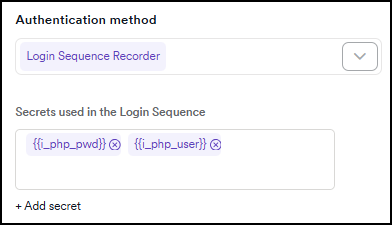
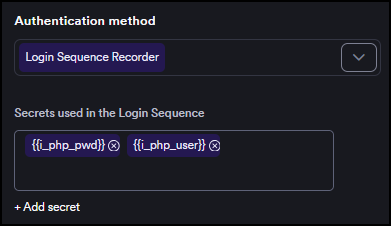
Binding secrets to the target makes them available to the login sequence. The sequence itself must also reference each secret by name - see the Use secrets in a login sequence section.
Use secrets in a login sequence
In the LSR editor, reference a bound secret by including its name as a {{secretName}} placeholder. The LSR resolves the actual value at playback time. You can place a placeholder in a change action - the most common case for username and password fields - or inside a script action when the login flow requires custom scripting.
In a change action
- New recording
- Existing sequence
Right-click any credential field during recording to insert a secret directly. The LSR types the actual credential into the field - so the login works during recording - and records the action as {{secretName}}, keeping the plain-text value out of the sequence file.
- In the LSR, navigate to the login page.
- Right-click the username field. In the context menu, select Insert secret value and choose the secret to use. The LSR types the credential into the field and records the action as
{{secretName}}.
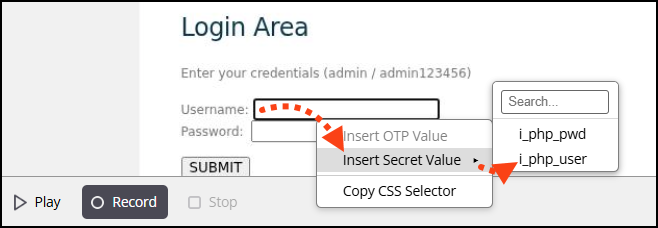
- Right-click the password field and repeat: select Insert secret value and choose the password secret.
- Complete the remaining login steps (for example, click Submit).
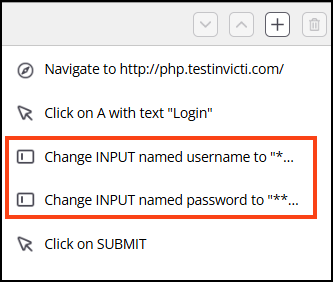
- Proceed through step 2. Record Restrictions and step 3. Detect User Session to configure session detection.
- Select Finish to save the sequence.
- Select Save target configuration or Save and scan to save the complete target settings.
The Insert secret value submenu lists only secrets bound to the target in the Secrets used in the Login Sequence field. If the submenu is empty, add the secrets there first, then reopen the LSR.
If you have a sequence that already contains plain-text credential values, open it in the LSR editor and replace those values directly.
- Open the sequence in the LSR editor.
- Click the
changeaction for the field whose value you want to replace (for example, the username or password action). - In Action properties, leave Target unchanged. In the Value field, replace the current plain-text value with
{{secretName}}, wheresecretNameis the exact name of the bound secret. - Repeat for each action that references a credential.
- Save the sequence.
- Select Save target configuration or Save and scan to save the complete target settings.
In a script action
A script action runs custom JavaScript inside the browser during the login sequence, letting you handle login flows that recorded actions alone can't capture. Include {{secretName}} as a string literal anywhere in the script where a credential is needed - the LSR replaces every occurrence with the actual secret value before the script runs.
- New recording
- Existing sequence
When adding a script action to a new sequence, write the script code using {{secretName}} placeholders from the start.
- In the LSR, add a
scriptaction at the point in the sequence where credentials are needed. - In Action properties, write the script using
{{secretName}}wherever a credential value is required. For example:
document.querySelector('#content > div.post > form > input[type="text"]:nth-child(1)').value = '{{i_php_user}}';
document.querySelector('#content > div.post > form > input[type="password"]:nth-child(3)').value = '{{i_php_pwd}}';
document.querySelector('#content > div.post > form > input[type="submit"]:nth-child(7)').click();
- Save the sequence.
- Select Save target configuration or Save and scan to save the complete target settings.
Replace i_php_user and i_php_pwd with the exact names of the secrets bound to the target in the Secrets used in the Login Sequence field. Replace the CSS selectors with the ones matching your target's login form - see the troubleshooting section if the script doesn't fill in the fields correctly.
If a script action already contains plain-text credential values, open it in the LSR editor and replace those values directly.
- Open the sequence in the LSR editor.
- Click the
scriptaction that contains the plain-text credential. - In Action properties, replace each plain-text credential value with
{{secretName}}, wheresecretNameis the exact name of the bound secret. - Repeat for any other credentials referenced in the script.
- Save the sequence.
- Select Save target configuration or Save and scan to save the complete target settings.
Troubleshooting
A secret doesn't appear in the search results
The search only shows secrets you have access to. If the secret was created with Only me, Specific teams, or Specific users availability, ask the owner to grant you access or change the availability setting. Refer to the Edit a secret section.
Bound secrets don't appear in the Insert secret value submenu
If you bound secrets to the target but they don't appear when you right-click a field during recording, delete the secrets and recreate them, then reopen the LSR. The LSR fetches the secrets list when it starts - secrets that existed before the current LSR session may not be picked up correctly.
A script action doesn't fill in form fields or submit the form
The CSS selectors in the script don't match the actual elements on the login page. Every site structures its form fields differently, so selectors that work on one target won't work on another. To get the correct selector for each field, right-click the element in the LSR browser and select Inspect. In the DevTools panel, right-click the highlighted element, then select Copy > Copy selector. Use that value in your document.querySelector() call.
Pre-defined script variables and secret placeholders are separate mechanisms
The Pre-defined script variables panel in Action properties is for hardcoded JavaScript variables only - it has no effect on {{secretName}} substitution. When you use {{secretName}} placeholders in the script code, the LSR resolves them from the secrets bound to the target, regardless of what appears in the pre-defined variables panel. Leave that panel empty when using secret placeholders.
The LSR uses the plain-text placeholder instead of the secret value
The placeholder in the action value must match the bound secret name exactly, including case, and must be wrapped in double curly braces: {{secretName}}. Open the action in Action properties, verify the value contains {{secretName}}, and confirm the same secret name appears as a chip in Secrets used in the Login Sequence on the target's authentication settings page.
Need help?
Invicti Support team is ready to provide you with technical help. Go to Help Center