Simple form authentication with OTP
This document explains how to configure One-Time Password (OTP) form authentication in Invicti Platform by extracting the secret key from a QR code. By scanning a QR code—typically shown when enabling Two-Factor Authentication (2FA) or Multi-Factor Authentication (MFA)—you can retrieve the required OTP secret key and apply it in your target settings.
- To configure Simple form authentication without OTP, refer to the Simple form authentication document.
- To configure Login sequence recording (LSR) with OTP, refer to the Login sequence with OTP document.
The guide provides a step-by-step walkthrough for obtaining the secret key and configuring OTP authentication to enable secure, authenticated scanning of your web application targets.
A QR code scanner that shows the data behind the QR code is required. In our example, we used Microsoft Lens on Android to scan the QR code.
Step 1: Retrieve the OTP secret key
- Go to the target web application and enable Two-factor Authentication (2FA) or Multi-factor Authentication (MFA) for the user account that Invicti is going to use when scanning the target web application.
- Scan the QR code displayed on the target web application using a QR code scanner that shows the data behind the QR code. (If using Microsoft Lens, change to Actions and select the QR CODE options before scanning the QR code).
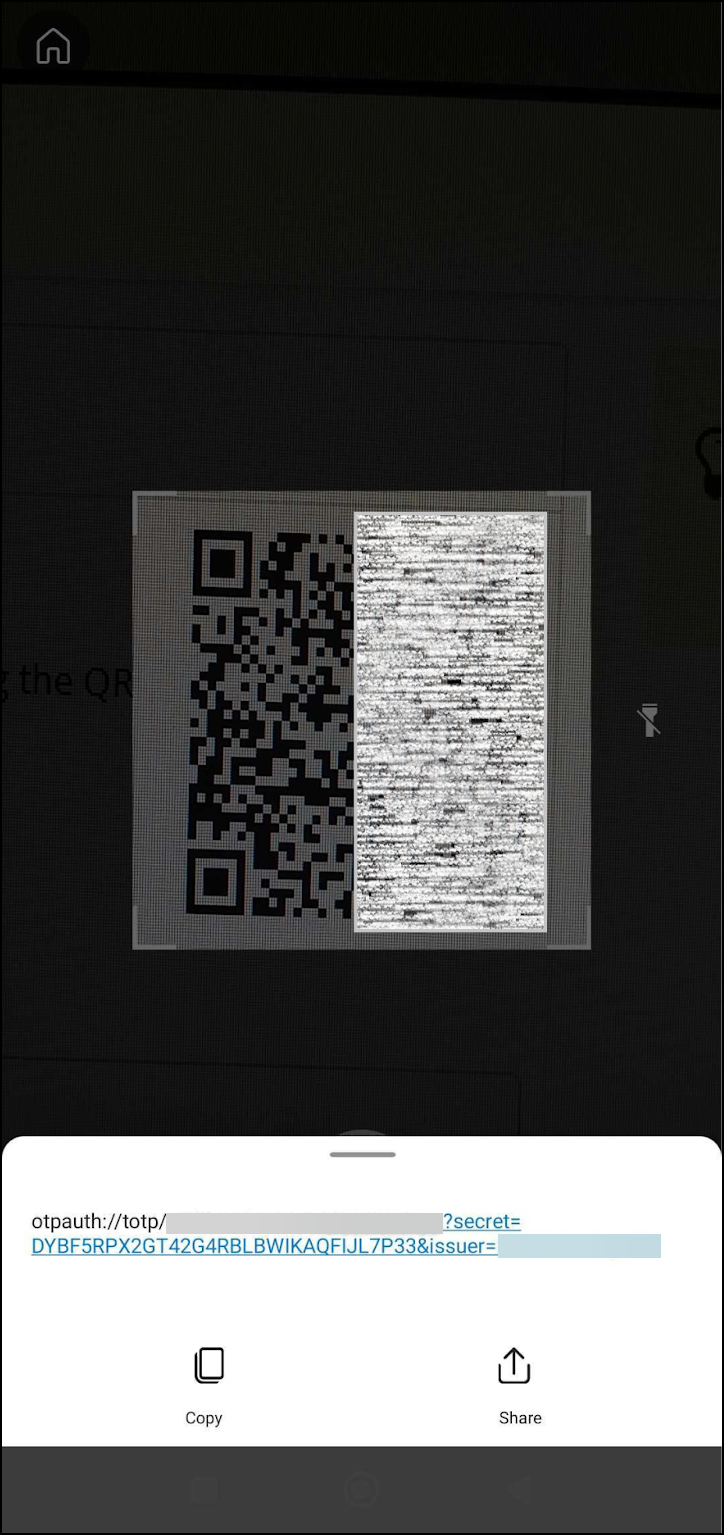
- Check that the QR code scanner has displayed the data. It should look something like this:
otpauth://totp/<user>?secret=<secret>&issuer=<issuer>. Additional information may be in the string, such as &digit=6, &period=30, and &algorithm=sha1, but the most important information to check for is TOTP authentication, and the secret key must be in Base32. - Copy the secret key so that you can enter it into Invicti in the next step.
Illustrative example
- In the image, the data string behind the QR code is: otpauth://totp/<user>?secret=DYBF5RPX2GT42G4RBLBWIKAQFIJL7P33&issuer=<issuer>
- This shows that the OTP type is TOTP and the secret key is: DYBF5RPX2GT42G4RBLBWIKAQFIJL7P33.
Step 2: Set up OTP in your target settings
- Select Inventory > Targets from the left-side menu.
- Choose the target for which you would like to add the OTP and select Edit.
- Open the Authentication section.
- Select Configure OTP.
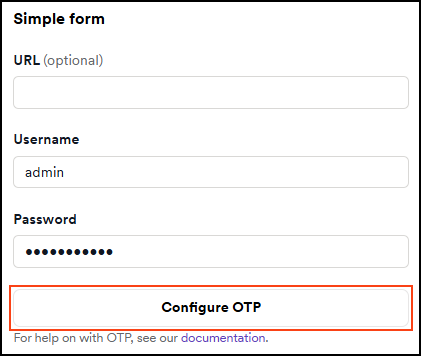
- Fill in the mandatory fields and select Save.
- Paste in the secret key that you retrieved after scanning the QR code.
- Leave the other details with the default settings unless your OTP authentication specified different values. (For example algorithm=sha256 in the string would necessitate selecting Sha256 for the Algorithm).
- Digit: This field sets the number of digits that are used for the length of the OTP.
- Period: This field sets the time (in seconds) after which an OTP is regenerated.
- Algorithm: This is the encryption option.
- Select Save.

- Select Save target configuration or Save and scan to confirm.

A success message confirms that the target is now configured for OTP form authentication when scanning.
Need help?
Invicti Support team is ready to provide you with technical help. Go to Help Center