Login sequence with OTP
This document explains how to use One-Time-Password (OTP) target authentication with login sequence recorder in Invicti Platform.
Prerequisites
- Create a target
- Set up OTP as shown in the linked document
Use OTP with a login sequence
Setting up OTP in conjunction with a new recorded login sequence requires some additional steps. Follow the instructions to ensure your login sequence correctly incorporates OTP.
- Select Inventory > Targets from the left-side menu.
- Choose the target for which you would like to configure Login sequence recording and select Edit.
- Click Authentication in the left-side menu to edit the settings.
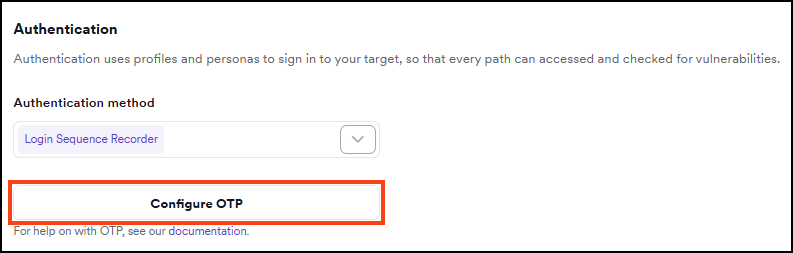
- In the Authentication method drop-down, select Login Sequence Recorder.
- Configure your target with the OTP secret key according to the preceding instructions.
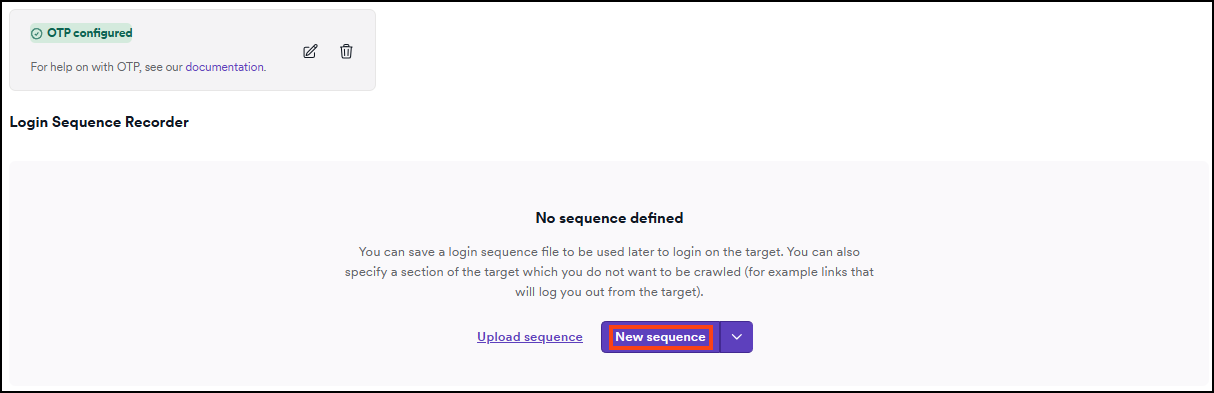
- Click New sequence to launch the Login sequence recorder.
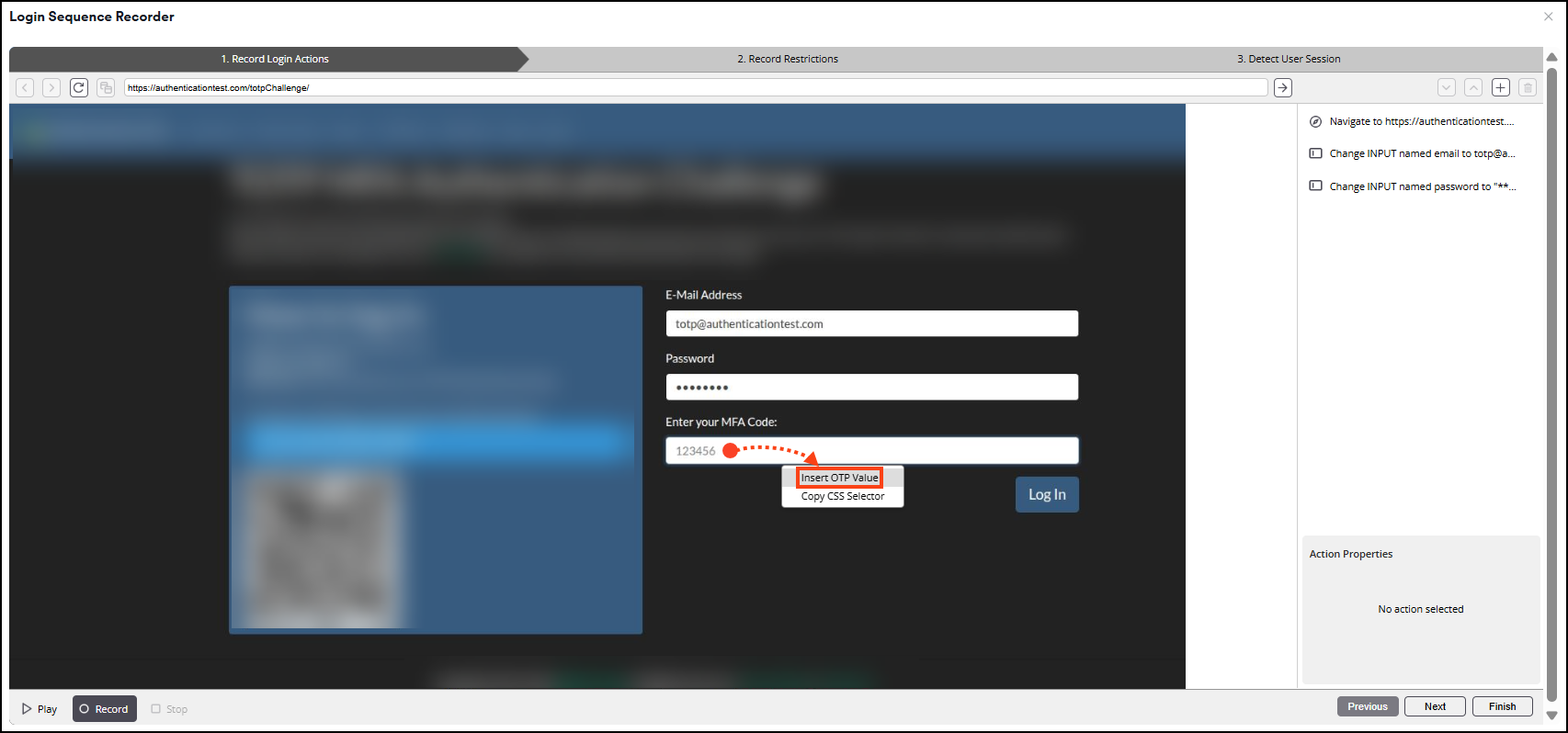
- In the LSR window, navigate to the login form and input the required login details (for example username and password).
- In the OTP (2FA/MFA) field, right-click and select Insert OTP Value. This tells the LSR to generate the OTP code and input it into the field. The recorded action in the right side panel shows the value as
{{otp}}.
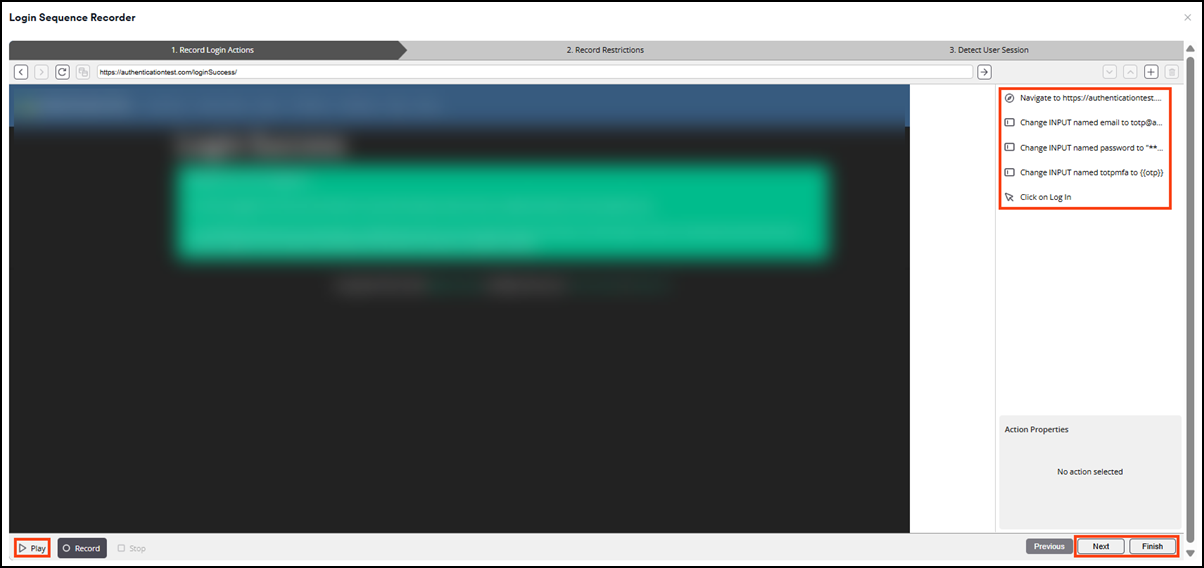
- Complete any other actions to perform a successful login and ensure these are recorded correctly in the LSR. Click Play in the bottom left corner to confirm the OTP is being generated into the flow correctly.
- Click Next and complete the login sequence recording by recording restrictions and detecting the user session. For more information, refer to the Record a login sequence document.
- Click Finish to save the LSR file to your target.
- Select Save target configuration or Save and scan to confirm.
Your target is now configured with a login sequence that includes OTP form authentication. The scanner will use this login sequence the next time you run a scan of this target.
Troubleshooting
How can I tell that OTP is configured correctly as part of the LSR flow
When viewing your saved login sequence the following things indicate there's an active OTP configuration:
- Right-click in any input field and the Insert OTP Value option is available.
- There is a recorded action with value
{{otp}}in the right-side panel, rather than the specific value you inserted in the field.
Need help?
Invicti Support team is ready to provide you with technical help. Go to Help Center
Was this page useful?