Scan tags
Scan tags let you label and organize scans for easier filtering and management. You can apply tags when creating a scan or add them to existing scans at any time.
Tag format
Tags follow a strict format:
- Only alphanumeric characters are allowed (
a–z,A–Z,0–9). - A single colon (
:) can be used as a separator to create akey:valuepair (for example,env:productionorteam:security). - Each tag can be up to 64 characters long.
- A scan can have up to 10 tags.
Add tags when creating a scan
When creating a new scan, a Tags field is available in the scan configuration form. Type a tag and press Enter, Tab, Space, or comma to confirm it. You can add multiple tags before saving.
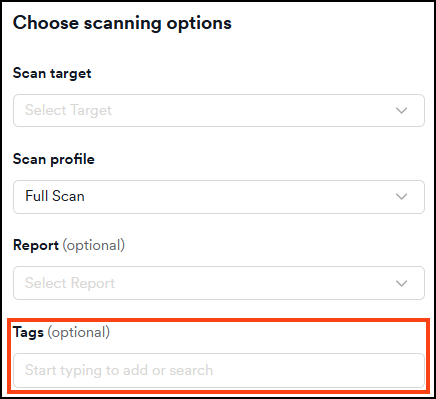
As you type, the field suggests existing tags that start with the characters you have entered, so you can reuse tags already in use across your scans. Suggestions only appear once you begin typing.
For more information on creating new scans, refer to the relevant documents.
Add tags to existing scans
You can manage tags on existing scans from two locations:
Scans page
View and add tags using the DAST scans, DAST scheduled scans, PCI ASV scans pages.
- Select one or more scans using the checkboxes.
- Click the Bulk actions drop-down and select Add tags.
- Enter the tags in the dialog and click Add tags to save the changes.
To edit scan tags, follow the steps from the Scan details section.
Scan details
View, add, and edit scan tags for a specific scan.
- Open the scan page and click the scan you want to edit.
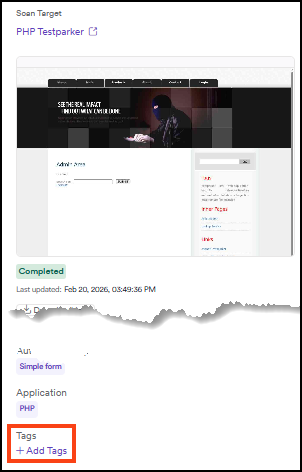
- In the Scan summary tab, navigate to the Tags section:
- If no tags exist, click Add tags to open the tag dialog and add tags.
- If tags already exist, click Edit tags to modify them. In edit mode, the saved tags replace the existing tag set.
Filter scans by tags
You can filter the DAST scans list by tag values using the filter option. The Tags filter supports the following match modes:
- Contains - returns scans that have a tag containing the entered value as a substring.
- Doesn't contain - excludes scans that have a matching tag.
- Equals - returns scans that have an exact tag match.
- Doesn't equal - excludes scans with that exact tag.
- Selecting a tag from the autocomplete dropdown applies an exact match.
- Typing a tag manually applies a substring match.
- You can combine multiple tag conditions.
Need help?
Invicti Support team is ready to provide you with technical help. Go to Help Center