Package: Invicti AppSec Enterprise (on-premise, on-demand)
Anthropic
Anthropic is an AI safety company that develops the Claude family of large language models, accessible via API. The Invicti AppSec integration with Anthropic enables AI-powered features — such as vulnerability remediation guidance and security analysis — by connecting to Claude models.
Purpose in Invicti AppSec
Anthropic is used in Invicti AppSec as an LLM Provider — supplying the language model that powers AI-assisted security features.
| Use Case | Description |
|---|---|
| AI remediation guidance | Generate fix recommendations for discovered vulnerabilities using Claude models |
| Security analysis | Use Claude's language models to assist in triage and prioritization of security findings |
Where it is used
| Page | Navigation Path | Purpose |
|---|---|---|
| Integrations — LLM Providers | Integrations › LLM Providers | Admin activation and model configuration |
Prerequisites
Before activating the integration, obtain an API key from your Anthropic account:
| Field | Description | Required |
|---|---|---|
| Token | Anthropic API key used to authenticate requests | Yes |
| Model | The Claude model to use (selected after a successful test connection) | Yes |
Obtain the API key (on the Anthropic side)
- Log in to your Anthropic account at
console.anthropic.com. - In the left sidebar, navigate to API Keys.
- Click Create Key and give it a descriptive name (e.g.,
invicti-AppSec). - Copy the key immediately — it won't be shown again after closing the dialog.
Activation steps
Step 1: Navigate to Integrations
From the left sidebar, click Integrations.
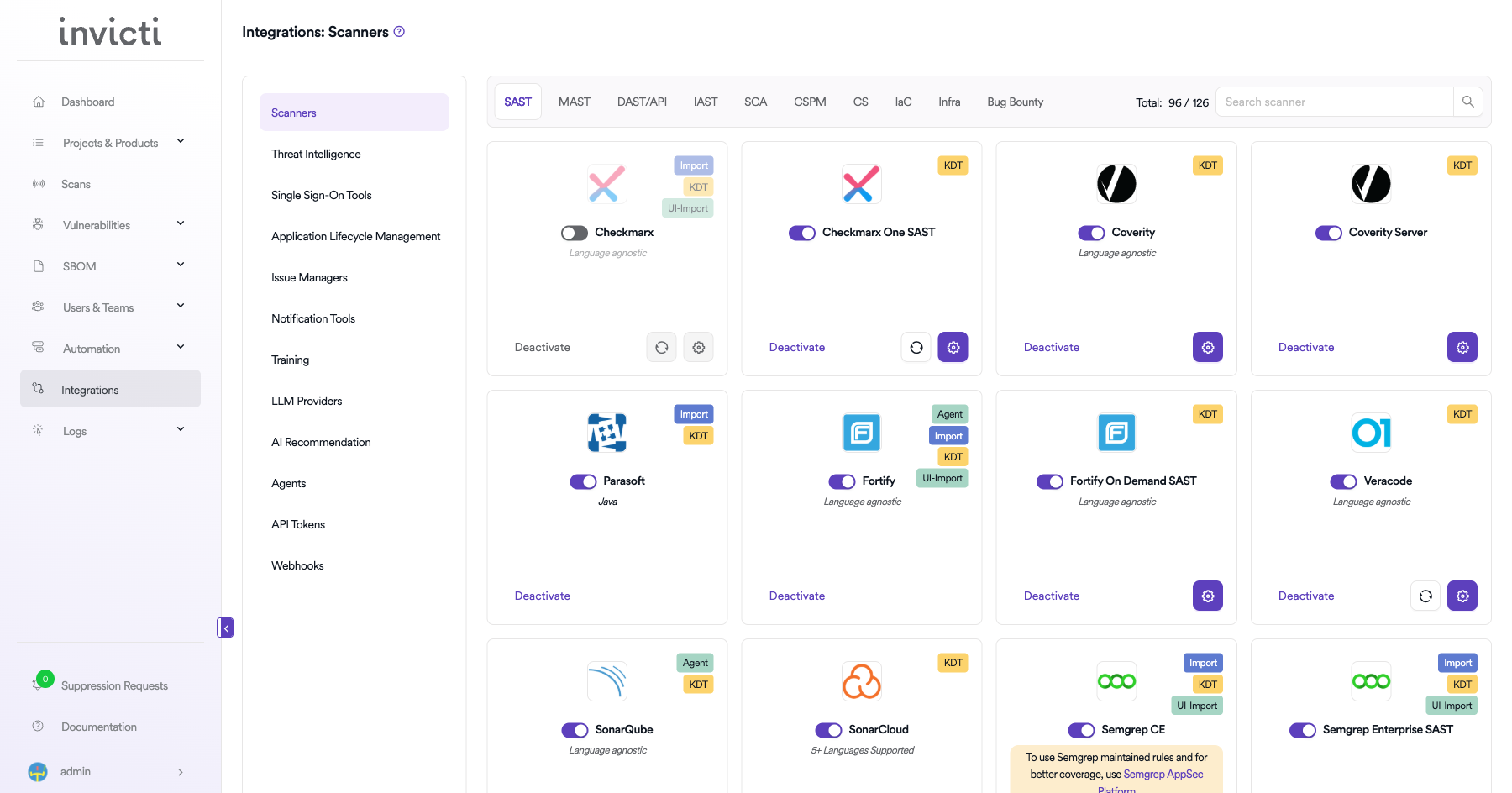
Step 2: Open the LLM Providers tab
On the Integrations page, click the LLM Providers tab.
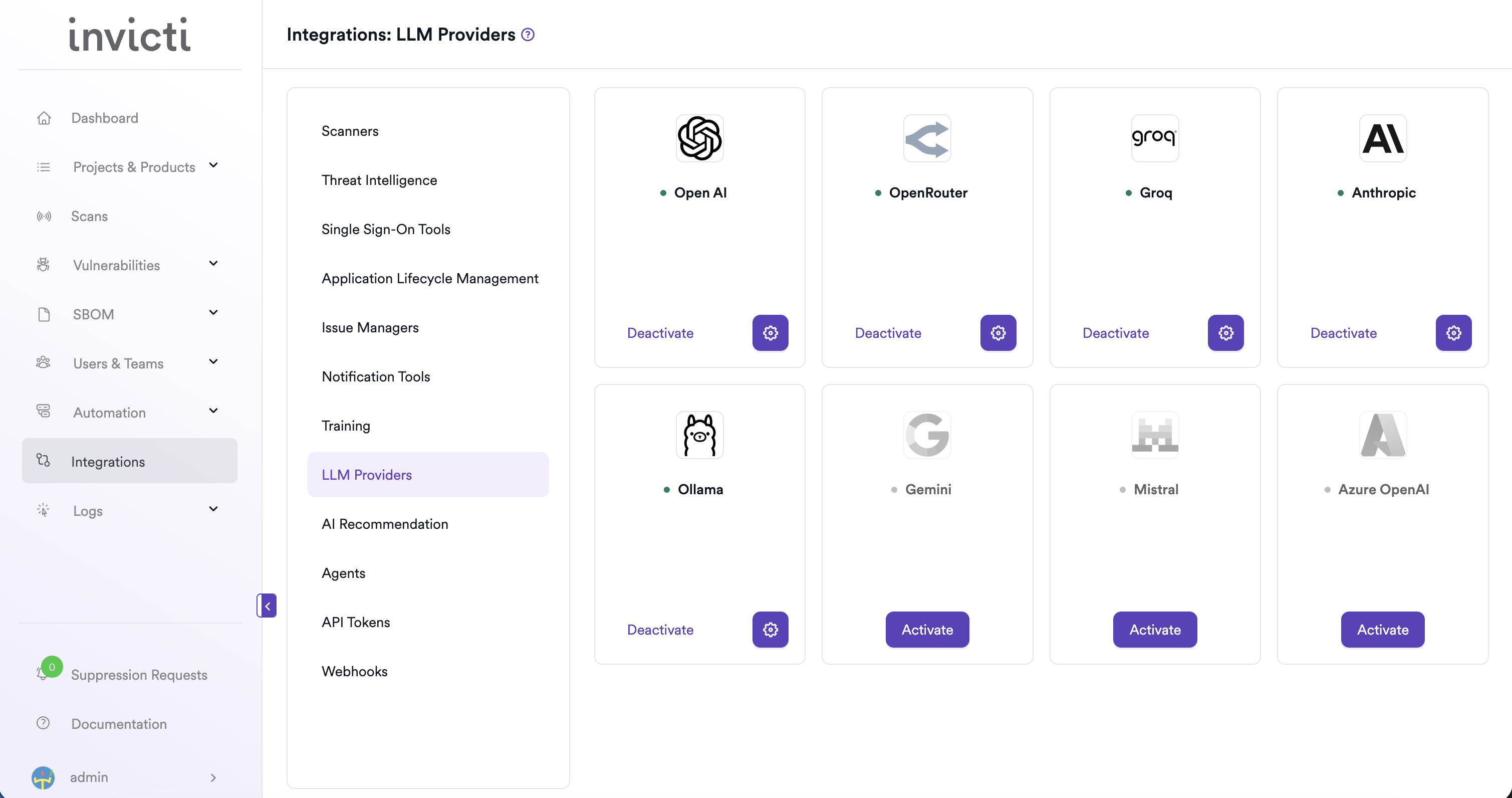
Step 3: Find and activate Anthropic
Locate the Anthropic card.
- If it isn't yet activated, click Activate to open the settings drawer.
- If it's already activated, click the gear icon to open the settings drawer and reconfigure.
Step 4: Fill in the required fields
In the settings drawer, enter your Anthropic API key:
| Field | Description | Required |
|---|---|---|
| Token | Your Anthropic API key | Yes |
Step 5: Test the connection
Click Test Connection. A green "Connection successful" message confirms that Invicti AppSec can reach the Anthropic API with the provided key. The Model dropdown appears automatically after a successful test.
Step 6: Select a model
From the Model dropdown, select the Claude model you want to use for AI features in Invicti AppSec (e.g., claude-opus-4-5, claude-sonnet-4-5).
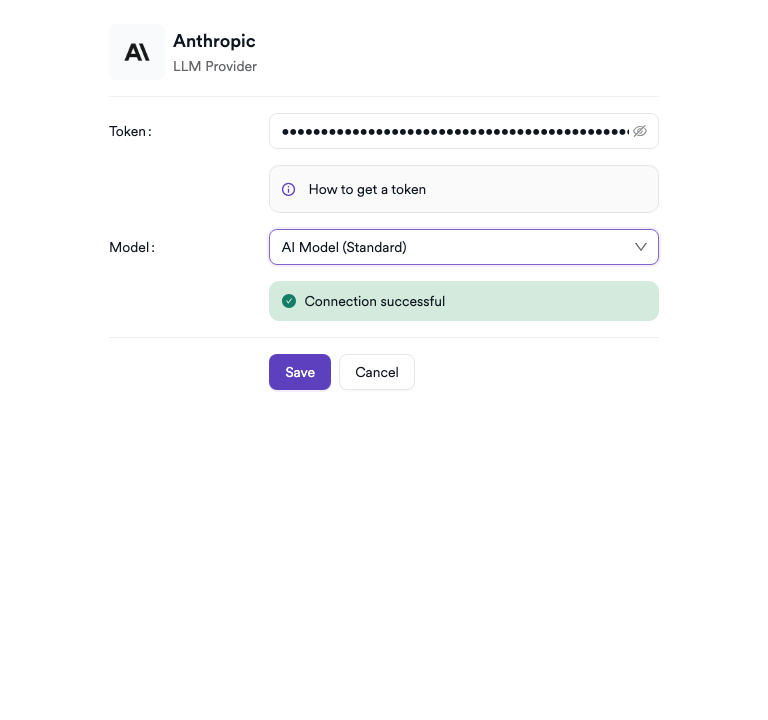
Step 7: Save
Click Save to complete the activation.
Summary
| Step | Action |
|---|---|
| 1 | Navigate to Integrations from the sidebar |
| 2 | Select the LLM Providers tab |
| 3 | Find Anthropic and click Activate (or the gear icon) |
| 4 | Enter your Anthropic API key in the Token field |
| 5 | Click Test Connection — verify the success message |
| 6 | Select a Model from the dropdown |
| 7 | Click Save |
Troubleshooting
| Issue | Resolution |
|---|---|
| Connection failed | Verify the API key is correct and hasn't been revoked. Regenerate it from the Anthropic console if needed. |
| Invalid API key | Ensure the key starts with sk-ant- and was copied in full without extra spaces or characters. |
| No models available | Confirm your Anthropic account has active API access. New accounts may need approval before accessing Claude models. |
| 401 Unauthorized | The API key may have expired or been disabled. Generate a new key and update the configuration. |
| Rate limit errors | Your Anthropic account may have usage quota restrictions. Check your limits in the Anthropic console and upgrade your plan if needed. |
Need help?
Invicti Support team is ready to provide you with technical help. Go to Help Center