Package: Invicti AppSec Enterprise (on-premise, on-demand)
OpenAI
OpenAI is an AI research and deployment company that provides access to powerful large language models (LLMs) such as the GPT series via API. The Invicti AppSec integration with OpenAI enables AI-powered features — such as vulnerability remediation guidance and security analysis — by connecting to OpenAI's language models.
Purpose in Invicti AppSec
OpenAI is used in Invicti AppSec as an LLM Provider — supplying the language model that powers AI-assisted security features.
| Use Case | Description |
|---|---|
| AI remediation guidance | Generate fix recommendations for discovered vulnerabilities using OpenAI models |
| Security analysis | Use OpenAI's language models to assist in triage and prioritization of security findings |
Where it is used
| Page | Navigation Path | Purpose |
|---|---|---|
| Integrations — LLM Providers | Integrations › LLM Providers | Admin activation and model configuration |
Prerequisites
Before activating the integration, obtain an API key from your OpenAI account:
| Field | Description | Required |
|---|---|---|
| Token | OpenAI API key used to authenticate requests | Yes |
| Model | The OpenAI model to use (selected after a successful test connection) | Yes |
Obtain the API key (on the OpenAI side)
- Log in to your OpenAI account at
platform.openai.com. - Click your profile icon in the top-right corner, then select API keys (or navigate to Settings › API keys).
- Click Create new secret key and give it a descriptive name (e.g.,
invicti-AppSec). - Copy the key immediately — it won't be shown again after closing the dialog.
Activation steps
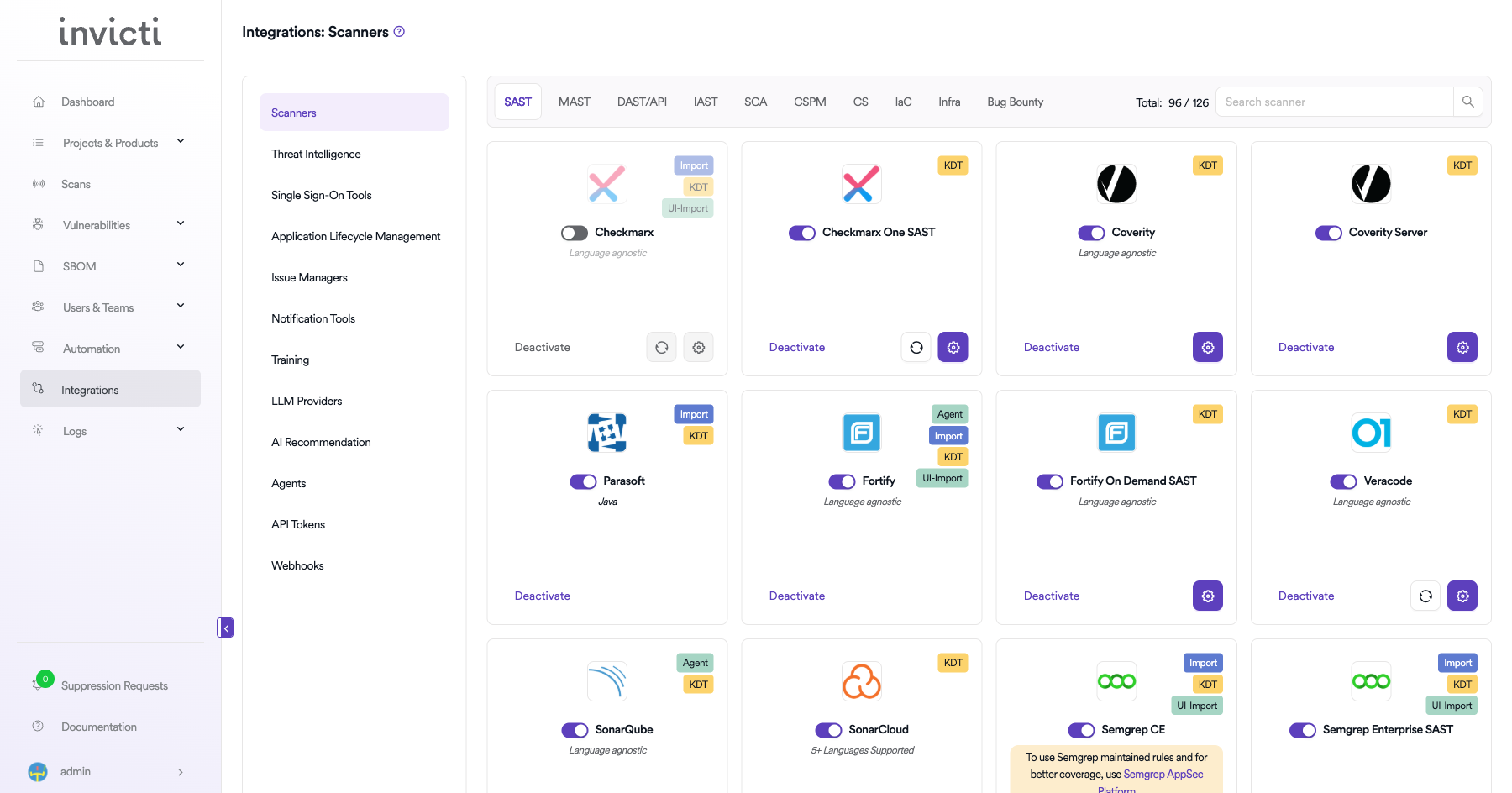
Step 1: Navigate to Integrations
From the left sidebar, click Integrations.
Step 2: Open the LLM Providers tab
On the Integrations page, click the LLM Providers tab.
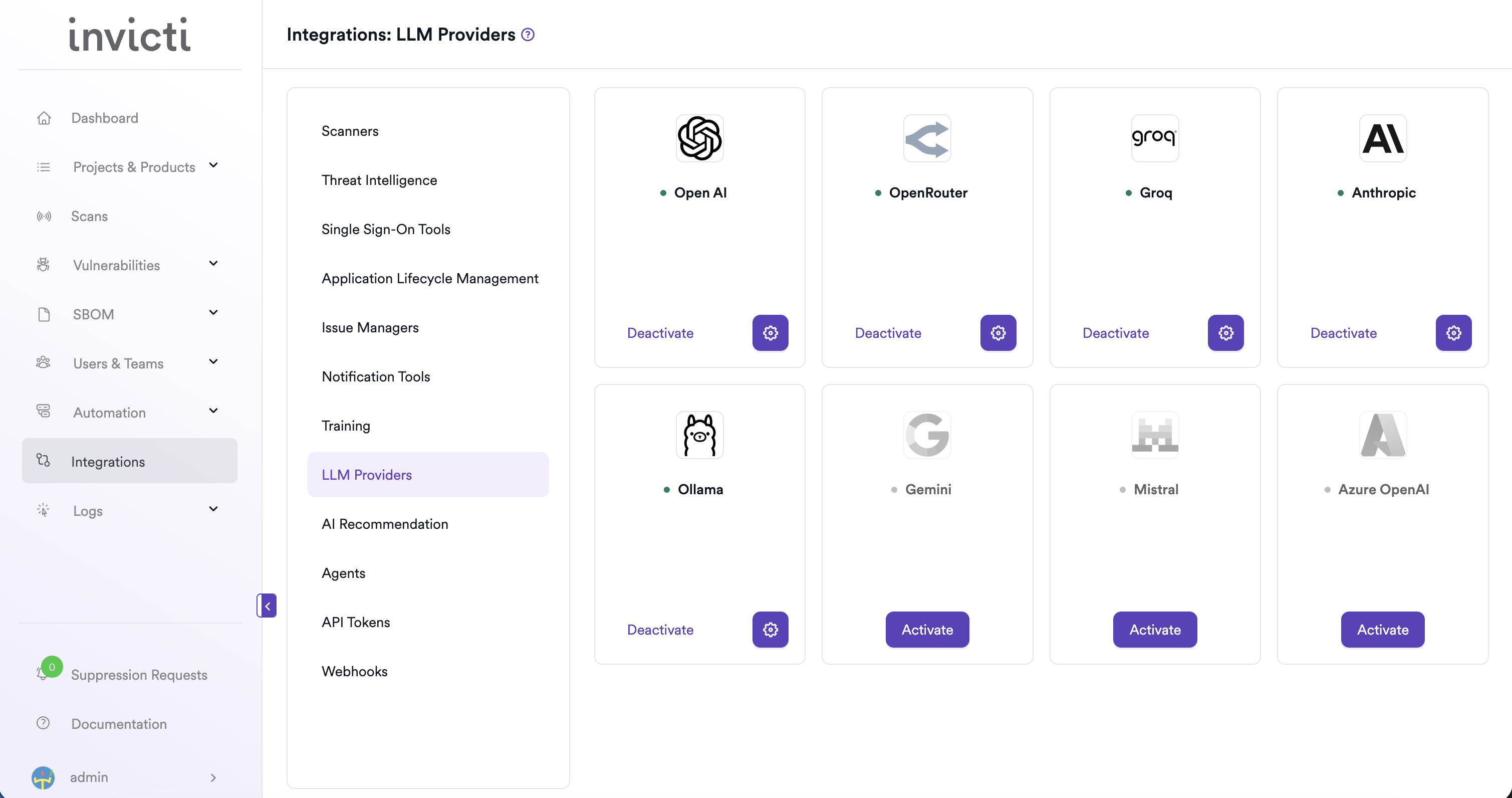
Step 3: Find and activate OpenAI
Locate the OpenAI card.
- If it isn't yet activated, click Activate to open the settings drawer.
- If it's already activated, click the gear icon to open the settings drawer and reconfigure.
Step 4: Fill in the required fields
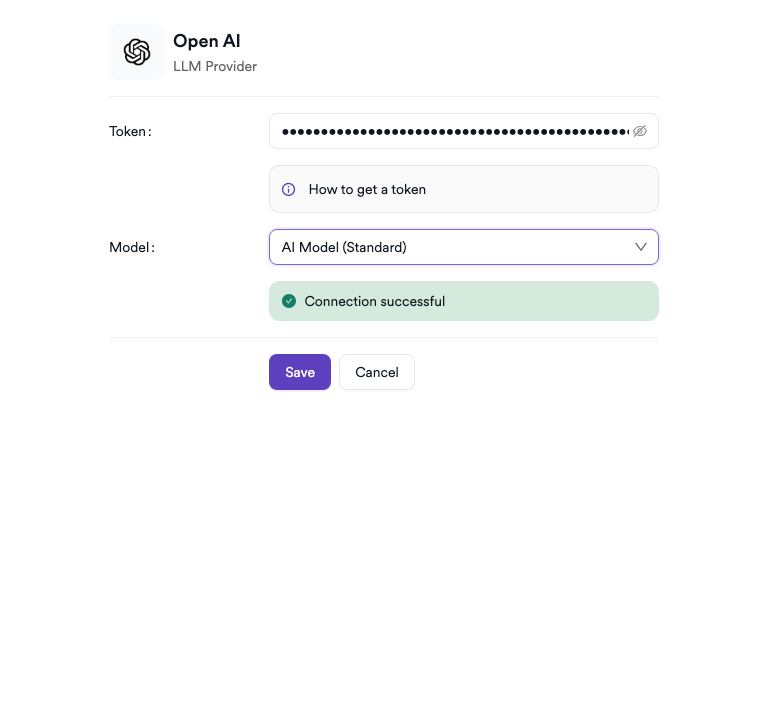
In the settings drawer, enter your OpenAI API key:
| Field | Description | Required |
|---|---|---|
| Token | Your OpenAI API key | Yes |
Step 5: Test the connection
Click Test Connection. A green "Connection successful" message confirms that Invicti AppSec can reach OpenAI with the provided key. The Model dropdown appears automatically after a successful test.
Step 6: Select a model
From the Model dropdown, select the OpenAI model you want to use for AI features in Invicti AppSec (e.g., gpt-4o, gpt-4-turbo).
Step 7: Save
Click Save to complete the activation.
Summary
| Step | Action |
|---|---|
| 1 | Navigate to Integrations from the sidebar |
| 2 | Select the LLM Providers tab |
| 3 | Find OpenAI and click Activate (or the gear icon) |
| 4 | Enter your OpenAI API key in the Token field |
| 5 | Click Test Connection — verify the success message |
| 6 | Select a Model from the dropdown |
| 7 | Click Save |
Troubleshooting
| Issue | Resolution |
|---|---|
| Connection failed | Verify the API key is correct and hasn't been revoked. Regenerate it from the OpenAI platform if needed. |
| Invalid API key | Ensure the key starts with sk- and was copied in full without extra spaces. |
| No models available | Confirm your OpenAI account has access to at least one model. Some models require explicit access requests or a paid plan. |
| 401 Unauthorized | The API key may have expired or has insufficient permissions. Generate a new key and update the configuration. |
| Rate limit errors | Your OpenAI account may have usage quota restrictions. Check your limits on platform.openai.com and upgrade your plan if needed. |
Need help?
Invicti Support team is ready to provide you with technical help. Go to Help Center