Package: Invicti AppSec Enterprise (on-premise, on-demand)
Ollama
Ollama is an open-source tool for running large language models locally on your own infrastructure. The Invicti AppSec integration with Ollama enables AI-powered features — such as vulnerability remediation guidance and security analysis — by connecting to a self-hosted Ollama instance, keeping all data within your own environment.
Purpose in Invicti AppSec
Ollama is used in Invicti AppSec as an LLM Provider — supplying the language model that powers AI-assisted security features from a self-hosted deployment.
| Use Case | Description |
|---|---|
| AI remediation guidance | Generate fix recommendations for discovered vulnerabilities using locally hosted models |
| Security analysis | Use self-hosted language models to assist in triage and prioritization of security findings |
| Air-gapped / private deployments | Run AI features entirely within your own infrastructure without sending data to external providers |
Where it is used
| Page | Navigation Path | Purpose |
|---|---|---|
| Integrations — LLM Providers | Integrations › LLM Providers | Admin activation and model configuration |
Prerequisites
Before activating the integration, ensure your Ollama instance is running and reachable from Invicti AppSec:
| Field | Description | Required |
|---|---|---|
| URL | The URL of your running Ollama instance (e.g., http://localhost:11434) | Yes |
| Model | The Ollama model to use (selected after a successful test connection) | Yes |
Ollama doesn't require an API key — authentication is based on network access to the Ollama endpoint. Ensure the Ollama instance is network-accessible from the Invicti AppSec host.
Set up Ollama
- Install Ollama by following the instructions at ollama.com.
- Pull at least one model, for example:
ollama pull llama3 - Start the Ollama server:
ollama serve - By default, Ollama listens on
http://localhost:11434. If Invicti AppSec runs on a different host, configure Ollama to bind to an accessible address and ensure the port is reachable.
Activation steps
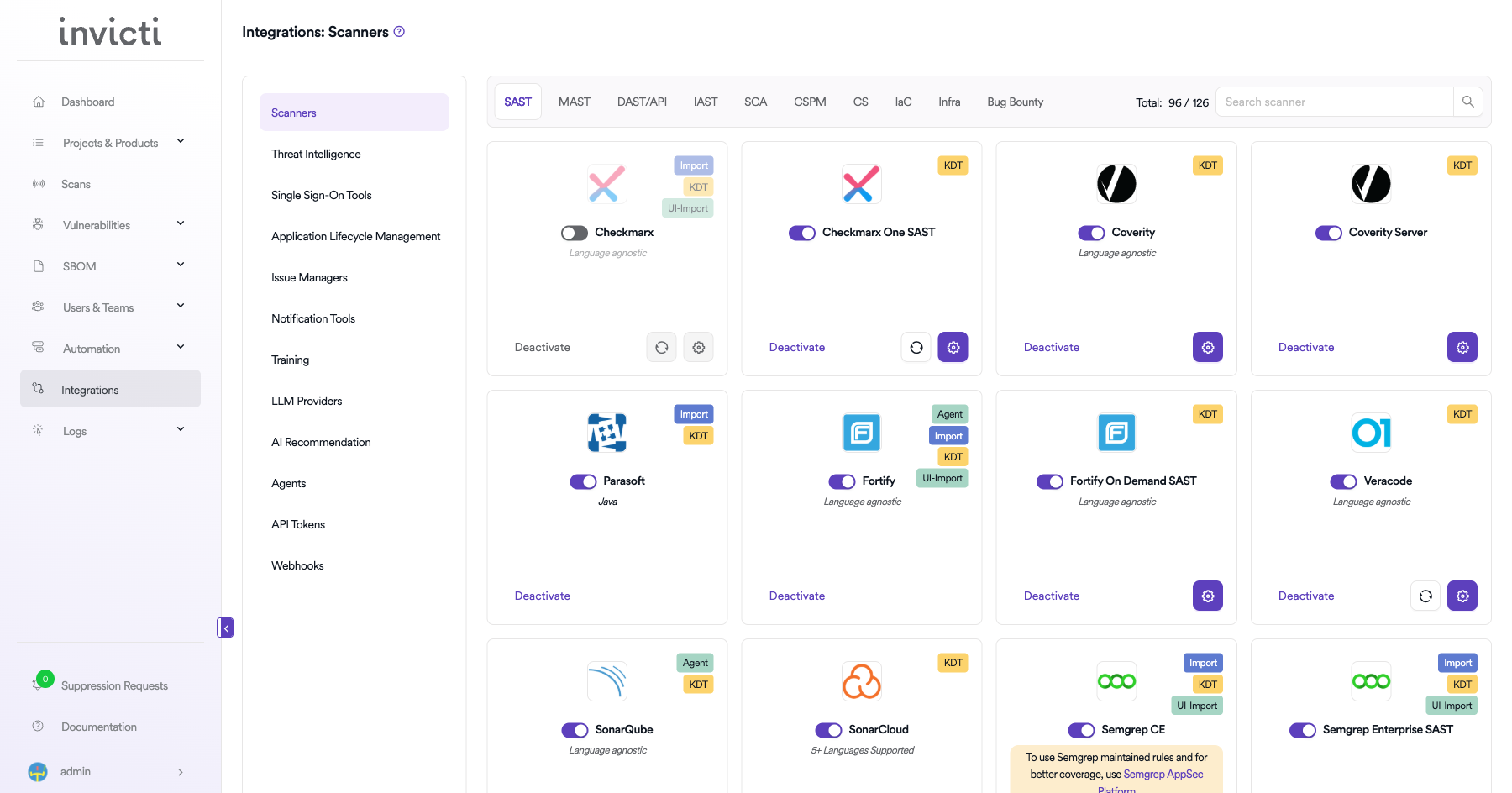
Step 1: Navigate to Integrations
From the left sidebar, click Integrations.
Step 2: Open the LLM Providers tab
On the Integrations page, click the LLM Providers tab.
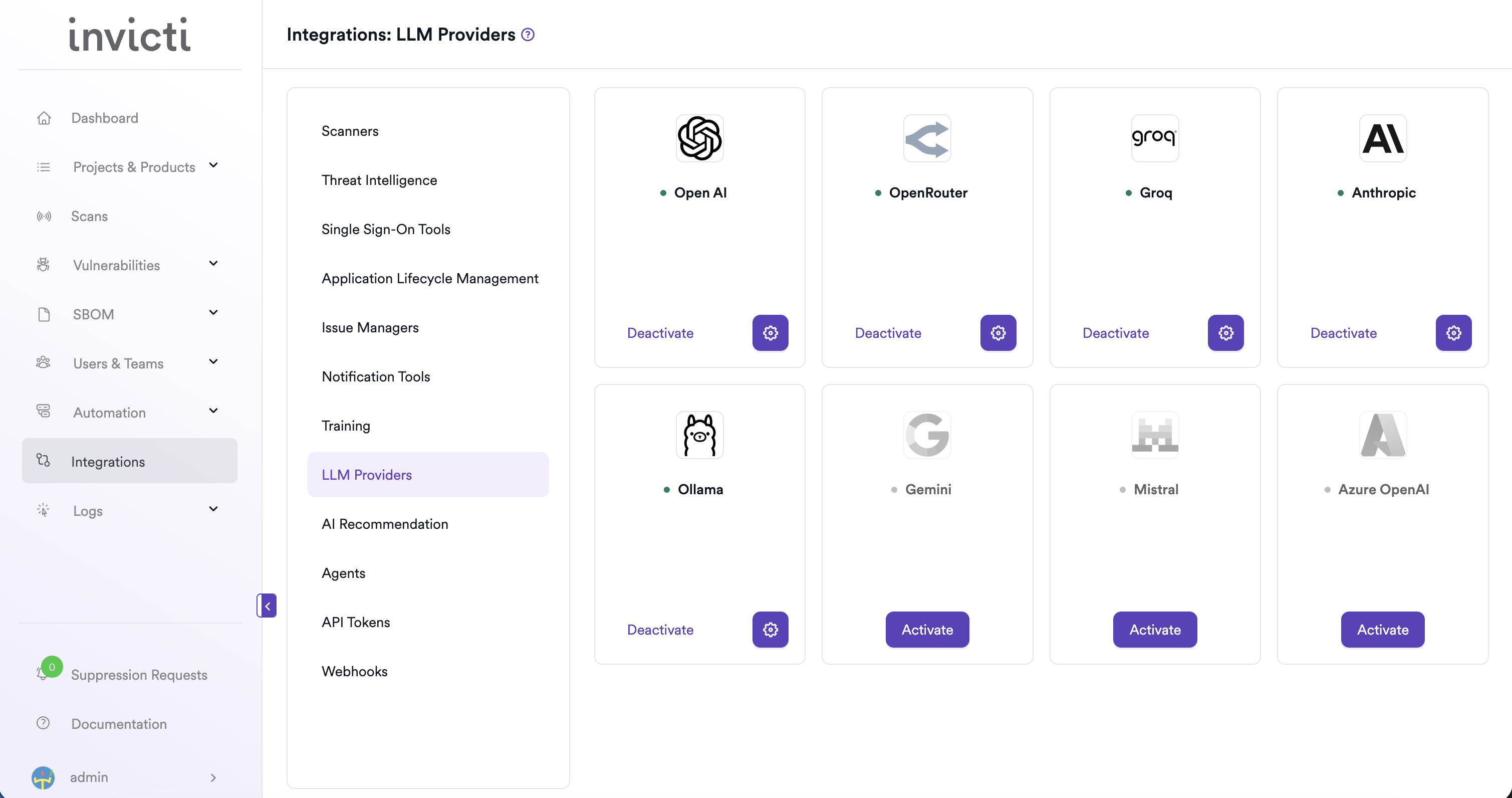
Step 3: Find and activate Ollama
Locate the Ollama card.
- If it isn't yet activated, click Activate to open the settings drawer.
- If it's already activated, click the gear icon to open the settings drawer and reconfigure.
Step 4: Fill in the required fields
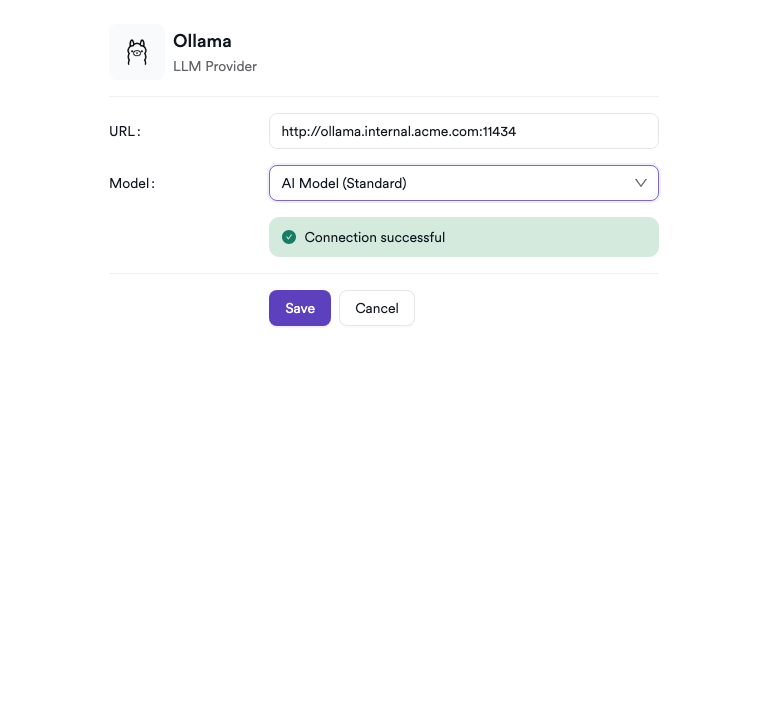
In the settings drawer, enter the URL of your Ollama instance:
| Field | Description | Required |
|---|---|---|
| URL | The base URL of your Ollama server (e.g., http://your-host:11434) | Yes |
Step 5: Test the connection
Click Test Connection. A green "Connection successful" message confirms that Invicti AppSec can reach your Ollama instance. The Model dropdown appears automatically after a successful test, listing the models available on your Ollama server.
Step 6: Select a model
From the Model dropdown, select the model you want to use for AI features in Invicti AppSec. Only models that are already pulled on your Ollama instance appear.
Step 7: Save
Click Save to complete the activation.
Summary
| Step | Action |
|---|---|
| 1 | Navigate to Integrations from the sidebar |
| 2 | Select the LLM Providers tab |
| 3 | Find Ollama and click Activate (or the gear icon) |
| 4 | Enter the URL of your Ollama instance |
| 5 | Click Test Connection — verify the success message |
| 6 | Select a Model from the dropdown |
| 7 | Click Save |
Troubleshooting
| Issue | Resolution |
|---|---|
| Connection failed | Verify that the Ollama server is running and that the URL is correct. Check network connectivity between Invicti AppSec and the Ollama host. |
| No models available | Ensure at least one model has been pulled on your Ollama instance (ollama list). Pull a model using ollama pull <model-name>. |
| URL not reachable | If Ollama is running on a different host, confirm it's bound to a non-localhost address and that firewalls allow traffic on port 11434 (or your configured port). |
| Invalid URL | Ensure the URL includes the scheme (http:// or https://) and the correct port. |
| SSL / certificate error | If Ollama is running behind HTTPS with a self-signed certificate, configure your environment to trust the certificate or use HTTP for internal connections. |
Need help?
Invicti Support team is ready to provide you with technical help. Go to Help Center