Package: Invicti AppSec Core (on-demand)
AppSec Core scanners overview
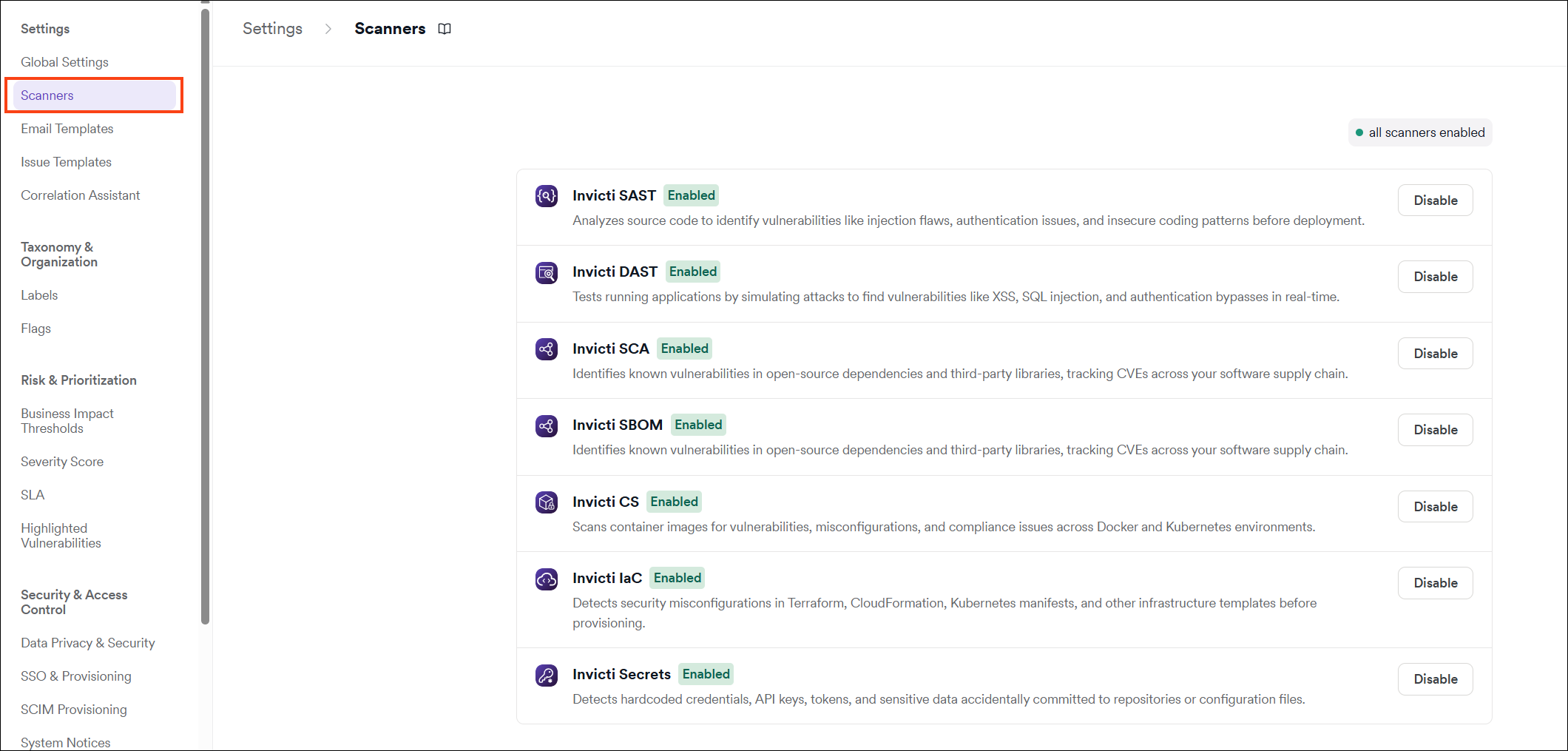
Invicti AppSec Core includes six security scanners that are automatically activated with the package. These scanners provide comprehensive coverage across your application security posture, from source code analysis to runtime vulnerability detection.
Included scanners
| Scanner | Type | Description |
|---|---|---|
| Invicti SAST | Static Application Security Testing | Analyzes source code to identify security vulnerabilities without executing the application. |
| Invicti DAST/API | Dynamic Application Security Testing | Tests running applications and APIs for vulnerabilities by simulating real-world attacks. |
| Invicti SCA | Software Composition Analysis | Identifies vulnerabilities in open-source libraries and third-party dependencies. |
| Invicti CS | Container Security | Scans container images for known vulnerabilities and misconfigurations. |
| Invicti IaC | Infrastructure as Code | Analyzes infrastructure configuration files to detect security misconfigurations. |
Scanner workflow
The scanner workflow for AppSec Core consists of three steps:
Step 1: Scanners are automatically activated
All six AppSec Core scanners are automatically activated with your package. No manual activation is required.
Unlike third-party scanner integrations, AppSec Core scanners don't need to be activated under Integrations. They are ready to use as soon as your AppSec Core package is provisioned.
Step 2: Scanners are automatically added to new projects
For AppSec Core the scanners are automatically added to all new projects.
Step 3: Configure or amend scanner settings
AppSec Core scanners come pre-configured with default settings that cover most use cases. If you need to amend the scan schedule or other settings, follow the steps in Configure scanners: Configure or amend scanner configuration.
Manage scanners
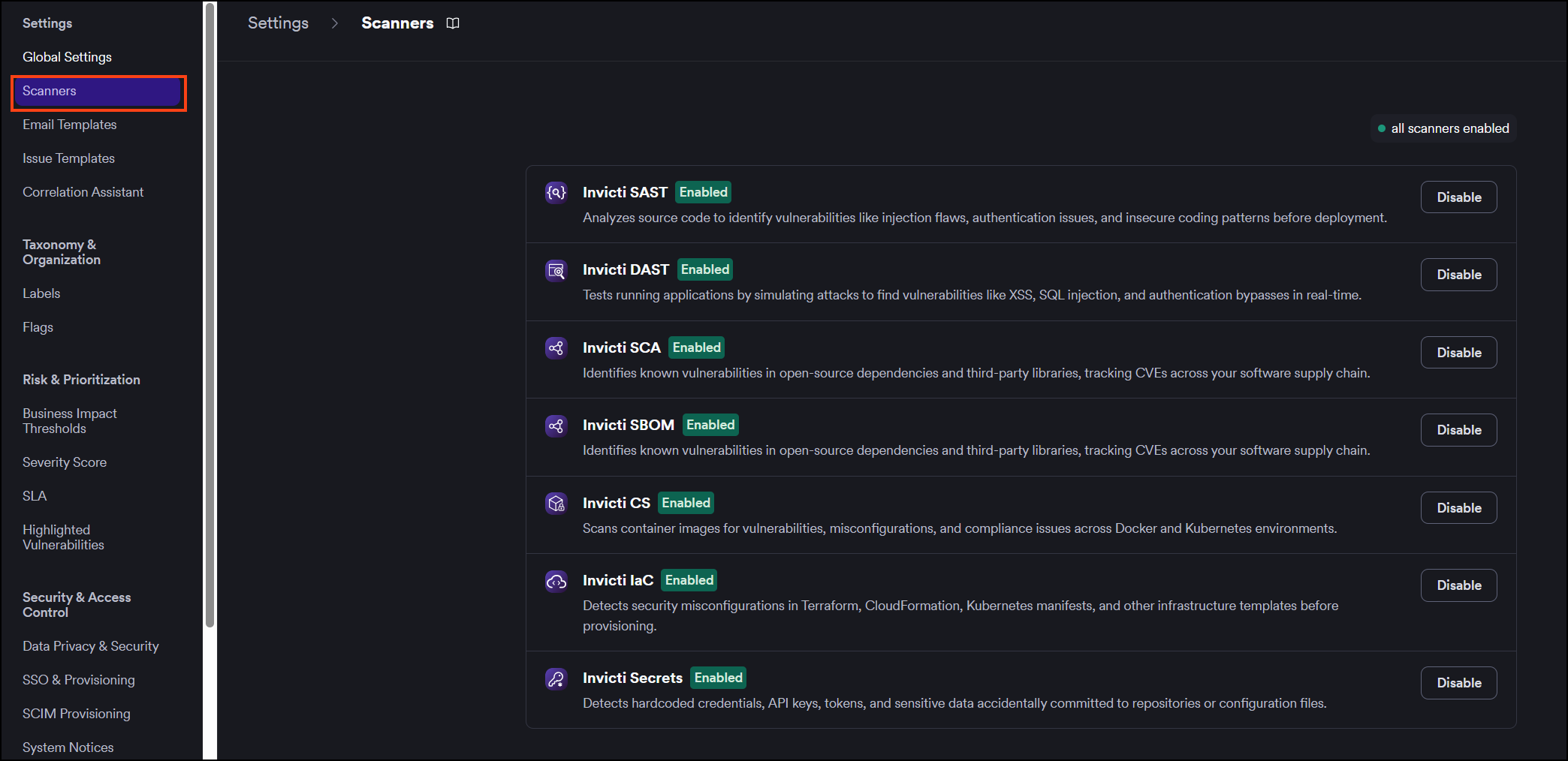
Preconfigured scanners can be managed from the Settings page. You can temporarily turn a scanner off without removing its existing configuration. When needed, the integration can be turned on again at any time.
Need help?
Invicti Support team is ready to provide you with technical help. Go to Help Center