Package: Invicti AppSec Core (on-demand)
Committer benchmark overview
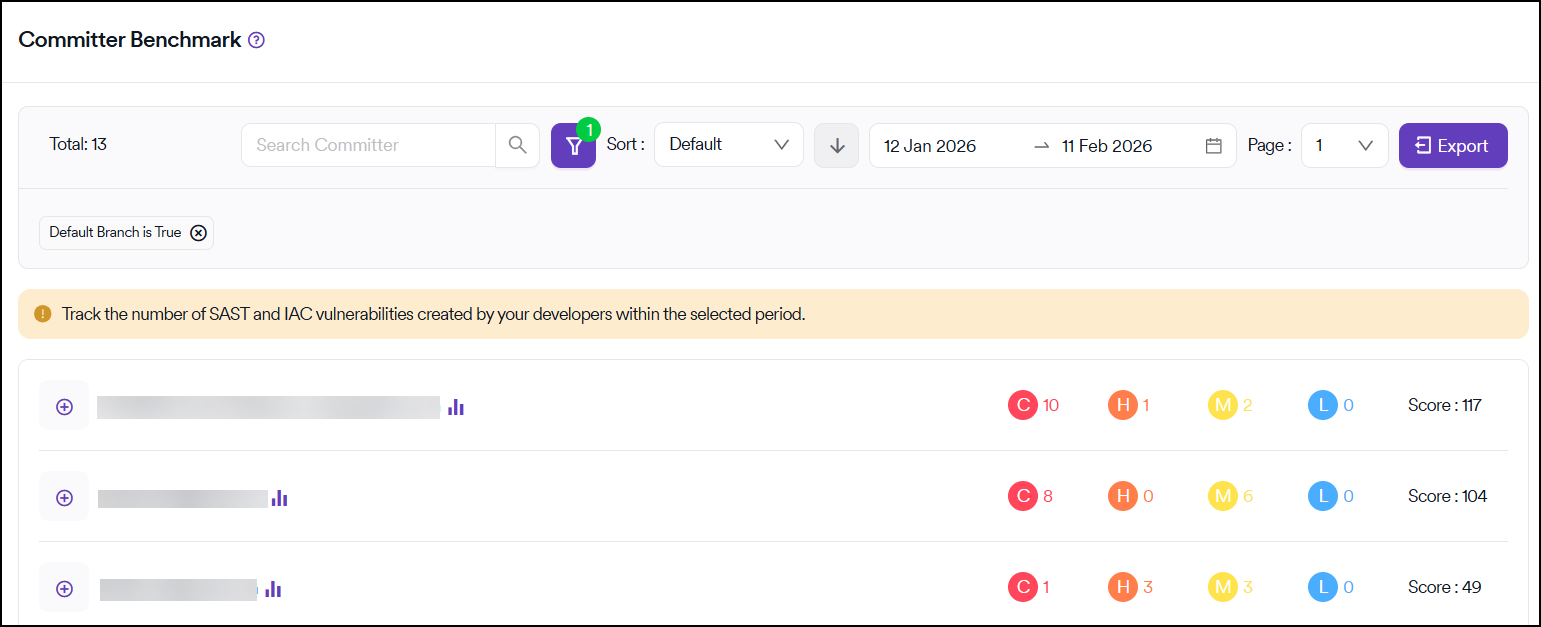
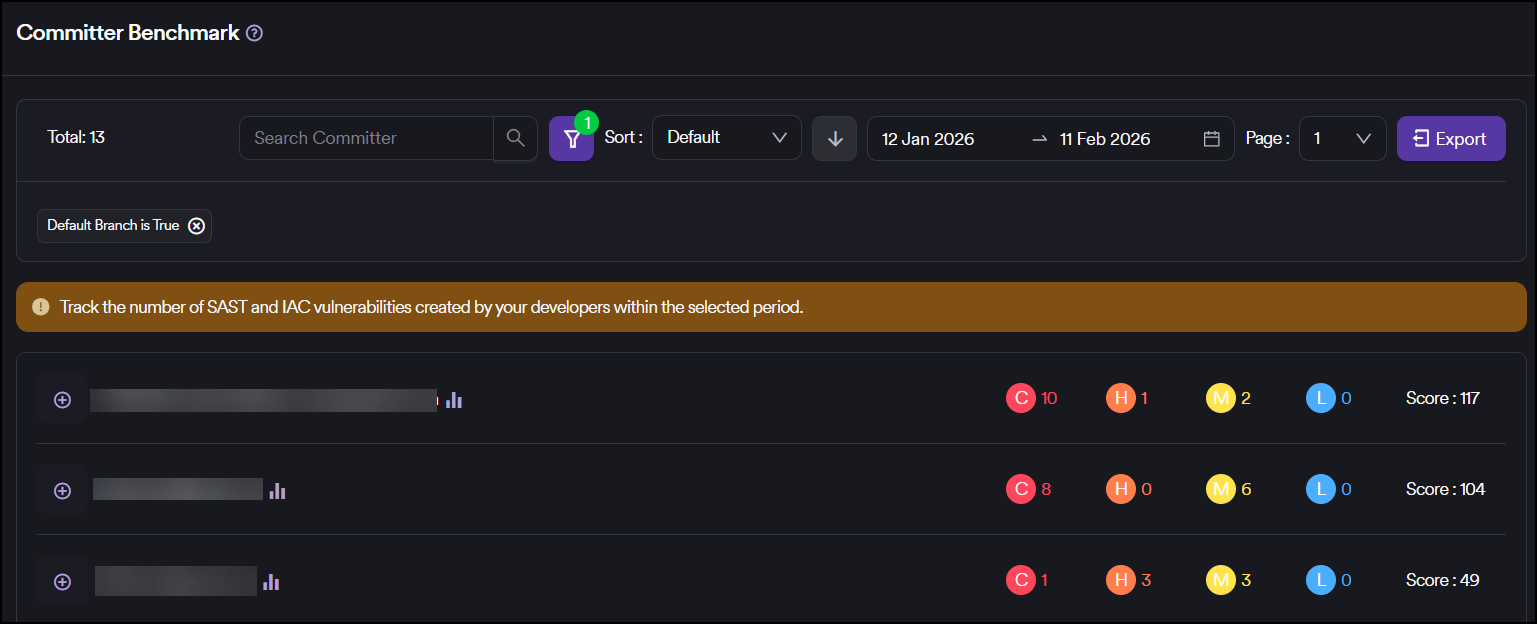
This screen allows you to track vulnerabilities created by each developer within a selected period, with closed vulnerabilities being excluded from this view. The score found on the rightmost side of each committer row is computed in a manner similar to the risk score.
Filtering and sorting
You can filter the table and labels by projects, teams, and committers using the search box in the top row, highlighted in light blue. Additionally, you can sort by committer and score. The default date range is set to the last 30 days but can be altered using the date picker located in the same row. For more information, see Filter and sort.
View vulnerability details
You can click the number of vulnerabilities in each severity category in each row to view a list of the vulnerabilities falling under that category.
Export data
The Export button helps you get a list of all vulnerabilities that the table displays in CSV format.
Developer vulnerability analysis
You can view the distribution of vulnerabilities created by a specific developer, categorized based on CWE Name and OWASP Top-10 categories, along with the programming language information, by clicking the chart icon next to each committer.
Training assignment
If an e-learning platform has been activated under the Training section in Integrations, the logo of the e-learning platform appears in the top right corner to assign the relevant course to the developer directly from the Invicti AppSec UI.
When a user is already registered to the e-learning platform with the same email address, the Assign Training button becomes clickable, enabling the assignment of courses to developers within the same window.
Need help?
Invicti Support team is ready to provide you with technical help. Go to Help Center