Package: Invicti AppSec Enterprise (on-premise, on-demand)
Semgrep CE Config
Semgrep CE (Community Edition) Config is an open-source static analysis tool that scans code and Infrastructure as Code configurations using configurable rule sets. It supports a wide range of languages and frameworks, and allows teams to define custom rules or use community-contributed rule sets. In Invicti AppSec, Semgrep CE Config runs as a Docker container on the Invicti agent, clones your repository, and scans it using the configured rule set.
Semgrep CE Config is an Agent/KDT-based scanner. It runs as a Docker container on the Invicti AppSec agent. Docker must be installed and running on the agent host. No external credentials are required.
Prerequisites
| Requirement | Description |
|---|---|
| Invicti AppSec Agent | An Invicti AppSec agent must be installed and running on the target host |
| Docker | Docker must be installed and the Docker daemon must be running on the agent host |
| Repository | The project must have a Git repository with source code or IaC files to scan |
| Ruleset | A Semgrep rule set URL, file path within the repository, or a configured rule repository (My Rules) |
Step 1: Navigate to Integrations
From the left sidebar menu, click on Integrations.

Step 2: Select the IaC Tab
On the Integrations > Scanners page, click on the IaC tab.

Step 3: Find and Activate Semgrep CE Config
Scroll through the list of IaC scanners to find Semgrep CE Config.
- If Semgrep CE Config is not activated, click the Activate button to enable the integration.
The scan method badge on the Semgrep CE Config card shows KDT, indicating scans are triggered through the Kondukto CLI tool.
Step 4: Configure Connection Settings
Click the gear icon on the Semgrep CE Config card to open the settings panel.
Semgrep CE Config does not require external API credentials. If you want to use My Rules (a custom rule repository), you can configure a source control repository connection in the settings panel.
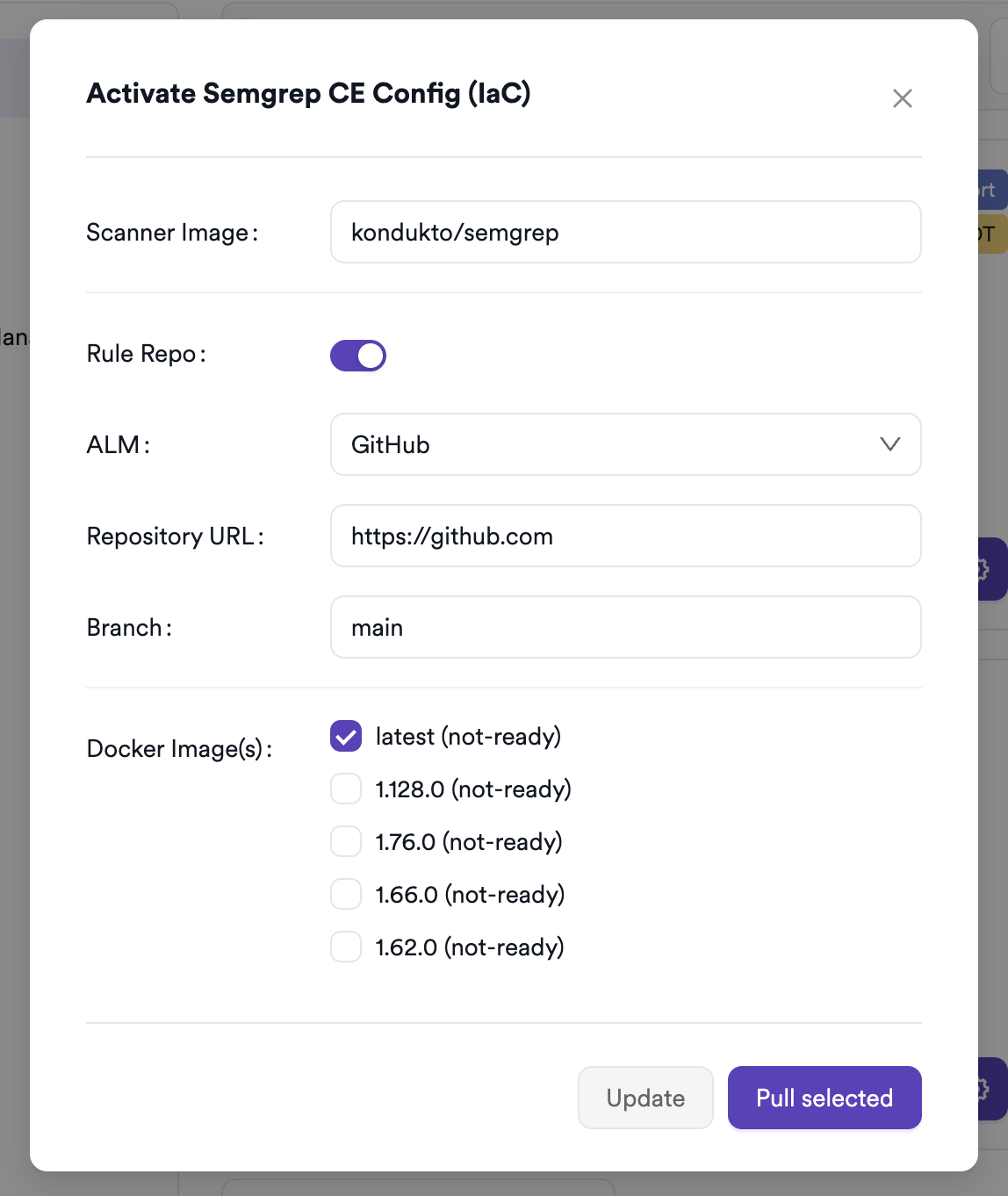
Summary
| Step | Action |
|---|---|
| 1 | Navigate to Integrations from the sidebar |
| 2 | Select the IaC tab |
| 3 | Activate Semgrep CE Config |
| 4 | No credentials required — optionally configure a rule repository for My Rules |
Create a Scan
Navigate to Project Scanners
- Open a project in Invicti AppSec.
- Go to Settings > Scanners.
- Click Add Scanner.
Add Semgrep CE Config Scanner
- Select IaC as the scanner type.
- Choose Semgrep CE Config from the scanner list.
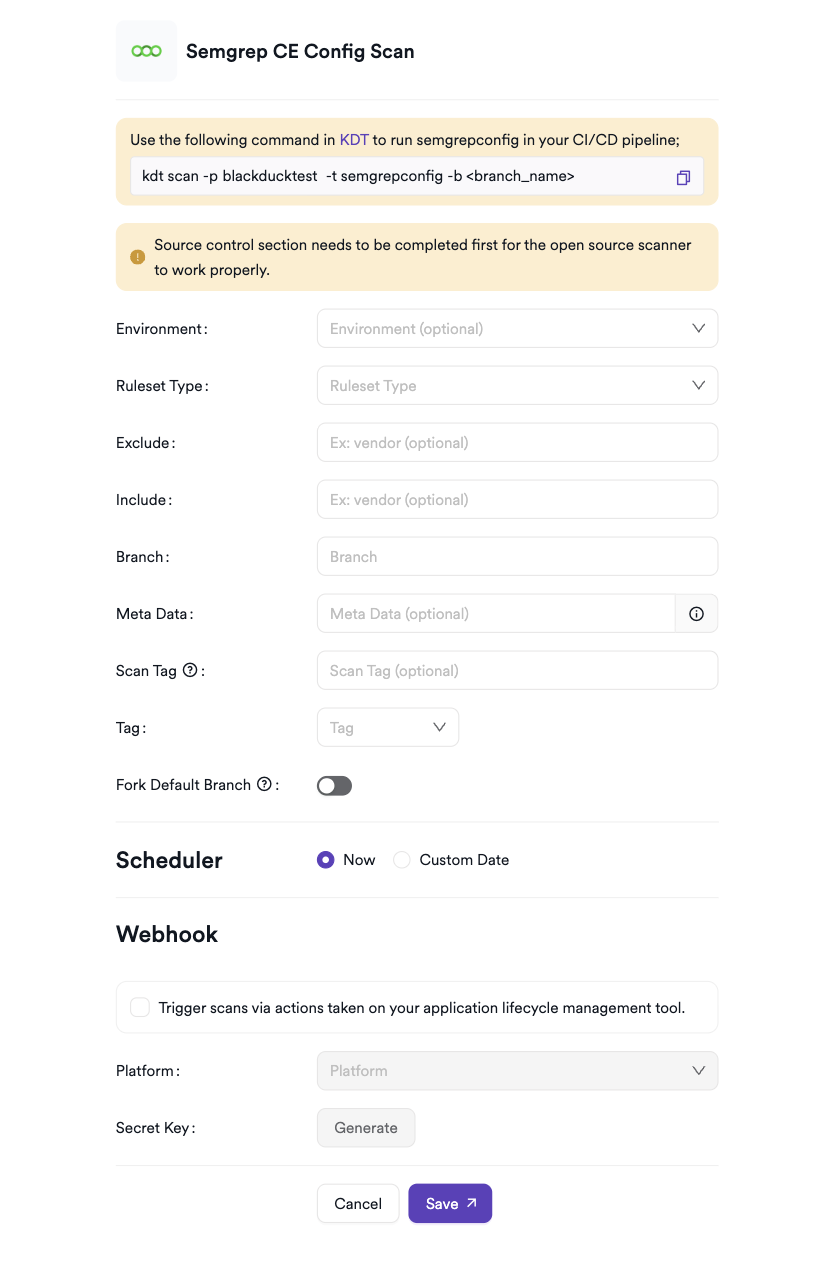
- Click Add to open the scan configuration drawer.
Scan Configuration Fields
| Field | Description | Required |
|---|---|---|
| Environment | Associate the scan with a feature environment | No |
| Ruleset Type | Select the source of Semgrep rules to use | Yes |
| Ruleset / Ruleset URL / Rules Path | The rule set value — a URL, file path, or directory depending on Ruleset Type | Yes |
| Exclude | Comma-separated glob patterns for files or directories to exclude from scanning | No |
| Include | Comma-separated glob patterns for files or directories to include in scanning | No |
| Default Branch | Use the project's default branch (management scans only) | No |
| Branch | The source code branch to scan | Yes (unless Default Branch is enabled) |
| Meta Data | Additional metadata to tag the scan | No |
| Scan Tag | Free-text tag to identify or group scans | No |
| Tag | Docker image tag for the Semgrep CE Config container | Yes |
| Fork Scan | Findings in the scanned branch are compared against findings in the default branch to remove pre-existing vulnerabilities (not available for management scans) | No |
Ruleset Type Options
| Ruleset Type | Description | Input Format |
|---|---|---|
| Ruleset URL | A publicly accessible Semgrep rule set URL | https://semgrep.dev/p/example |
| Ruleset Path | A path to a rule file or directory inside the scanned repository | .semgrep/rules |
| My Rules | A custom rule repository previously configured in the integration settings | Directory path within the repository (e.g., / for root) |
Exclude accepts glob patterns separated by commas (e.g., vendor,tests). Files and directories matching these patterns will be skipped during scanning.
Include accepts glob patterns separated by commas (e.g., src). Only files matching these patterns will be scanned.
My Rules is only available if a source control repository has been configured in the Semgrep CE Config integration settings. If no repository has been added, the My Rules option will be disabled.
Scheduler
Enable the Scheduler toggle to automatically re-run the Semgrep CE Config scan on a recurring schedule.
Webhook (Optional)
Add a webhook URL to receive scan completion notifications.
KDT Command
kdt scan -p <project_name> -t semgrepconfig -b <branch_name>
Troubleshooting
Scan Issues
| Issue | Resolution |
|---|---|
| Docker not found | Install Docker on the agent host and ensure the Docker daemon is running (systemctl start docker). |
| Image pull failed | Ensure the agent host has internet access to pull the Semgrep Docker image from Docker Hub. Check proxy settings if needed. |
| Repository not reachable | Verify that the project has a Git repository configured and the agent can clone it. |
| Ruleset URL unreachable | Ensure the rule set URL is publicly accessible from the agent host. Check network and firewall settings. |
| Ruleset Path not found | Verify that the specified path exists in the scanned repository and that the file or directory contains valid Semgrep YAML rules. |
| My Rules option disabled | Configure a source control repository in the Semgrep CE Config integration settings before selecting My Rules. |
| No findings returned | Confirm the ruleset matches the language or IaC format of the scanned files. Check Exclude/Include patterns — overly restrictive settings may skip all files. |
| Scan not starting | Verify the scanner is activated and the Docker tag is correctly selected in the scan configuration. |
Best Practices
- Pin the Semgrep Docker image to a specific version tag to ensure reproducible scan results across agent restarts.
- Use Ruleset URL with an official Semgrep registry URL (e.g.,
https://semgrep.dev/p/terraform) to scan IaC files with maintained community rules. - Use Ruleset Path when storing custom Semgrep rules inside the scanned repository to keep rules versioned alongside the code.
- Use My Rules when maintaining a centralized rule repository shared across multiple projects.
- Configure Exclude patterns to skip vendor directories, third-party dependencies, or generated code.
- Use the Scheduler to run Semgrep scans on every branch update to catch security issues early.
Limitations
- Semgrep CE Config requires Docker to be available on the Invicti AppSec agent host — it cannot run in environments where Docker is unavailable.
- The My Rules option requires a source control integration to be configured in the settings panel — it is not available without a connected rule repository.
- Only languages and file formats supported by Semgrep CE are scanned; unsupported file types are silently skipped.
- Requires a Git repository to be connected to the project.
- Semgrep CE Config does not support Semgrep proprietary rules (Pro rules) — only open-source and community rules are available in the CE edition.
Need help?
Invicti Support team is ready to provide you with technical help. Go to Help Center