Package: Invicti AppSec Enterprise (on-premise, on-demand)
Snyk IaC
Snyk IaC is a cloud-native security tool that scans Infrastructure as Code configurations for misconfigurations and compliance violations across Terraform, Kubernetes, Helm, CloudFormation, and other IaC formats. In Invicti AppSec, the Snyk IaC integration connects to your Snyk account to import IaC security findings into your projects.
Prerequisites
| Field | Description |
|---|---|
| Token | Snyk API token |
| Region | Snyk SaaS region endpoint |
Get API Credentials (on Snyk Side)
- Log in to your Snyk account at https://app.snyk.io (or your regional Snyk URL).
- Click your profile avatar in the top-right corner and select Account Settings.
- Under the Auth Token section, click Click to show to reveal your API token.
- Copy the API Token value.
Step 1: Navigate to Integrations
From the left sidebar menu, click on Integrations.

Step 2: Select the IaC Tab
On the Integrations > Scanners page, click on the IaC tab.

Step 3: Find and Activate Snyk IaC
Scroll through the list of IaC scanners to find Snyk IaC.
- If Snyk IaC is not activated, click the Activate button to enable the integration.
Step 4: Configure Connection Settings
Click the gear icon on the Snyk IaC card to open the settings panel. Fill in the required fields:
| Field | Description | Required |
|---|---|---|
| Token | Snyk API token from your account settings | Yes |
| Region | Snyk SaaS region endpoint | Yes |
Available regions:
| Region | Description |
|---|---|
SNYK-US-01 (https://app.snyk.io) | United States — Primary |
SNYK-US-02 (https://app.us.snyk.io) | United States — Secondary |
SNYK-EU-01 (https://app.eu.snyk.io) | Europe (Frankfurt, Germany) |
SNYK-AU-01 (https://app.au.snyk.io) | Australia |
SNYK-GOV-01 (https://app.snykgov.io) | Snyk for Government |
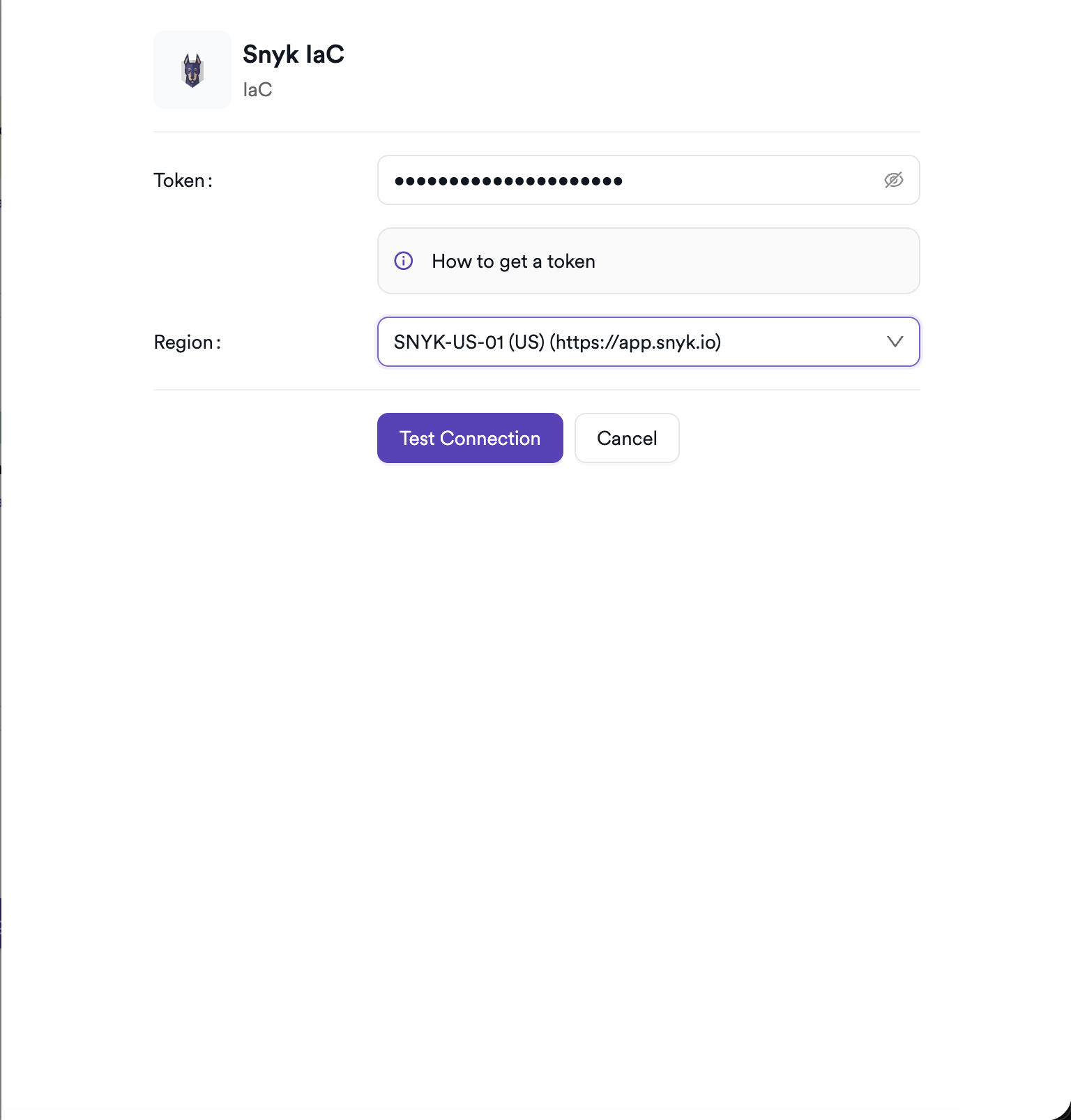
Step 5: Test the Connection
Click Test Connection. A green Connection successful message confirms that Invicti AppSec can authenticate with the Snyk API.
Summary
| Step | Action |
|---|---|
| 1 | Navigate to Integrations from the sidebar |
| 2 | Select the IaC tab |
| 3 | Activate Snyk IaC |
| 4 | Enter API Token and select Region |
| 5 | Test the connection |
Create a Scan
Navigate to Project Scanners
- Open a project in Invicti AppSec.
- Go to Settings > Scanners.
- Click Add Scanner.
Add Snyk IaC Scanner
- Select IaC as the scanner type.
- Choose Snyk IaC from the scanner list.
- Click Add to open the scan configuration drawer.
Scan Configuration Fields
| Field | Description | Required |
|---|---|---|
| Environment | Associate the scan with a feature environment | No |
| Organization | Select the Snyk organization to import findings from | Yes |
| Project | Select the Snyk IaC project within the organization | Yes |
| Meta Data | Additional metadata to tag the scan | No |
| Scan Tag | Free-text tag to identify or group scans | No |
| Fork Scan | Findings in the scanned branch are compared against findings in the default branch to remove pre-existing vulnerabilities (not available for management scans) | No |
Snyk IaC scans are associated with a fixed branch value of master. Branch selection is not available for this scanner — findings are pulled directly from the selected Snyk project.
Organization and Project are loaded dynamically from your Snyk account using the configured API token. Select the organization first to populate the project list.
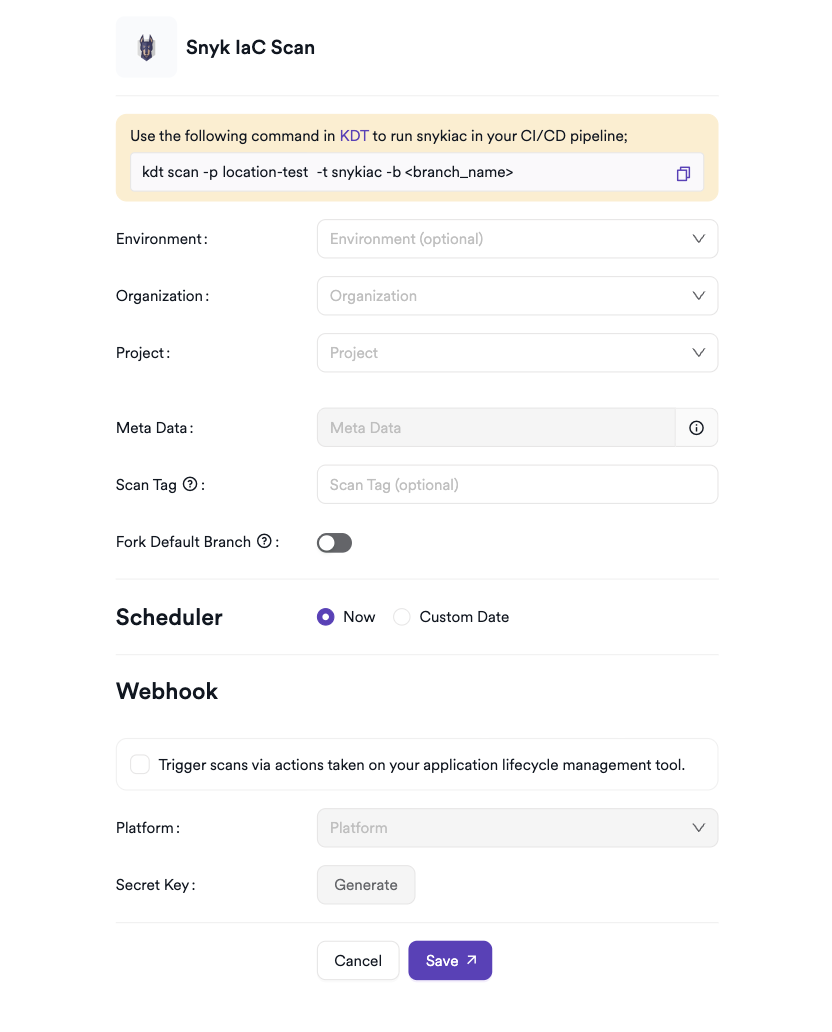
Scheduler
Enable the Scheduler toggle to automatically re-run the Snyk IaC scan on a recurring schedule.
Webhook (Optional)
Add a webhook URL to receive scan completion notifications.
KDT Command
kdt scan -p <project_name> -t snykiac -b master
Troubleshooting
Connection Fails
| Issue | Resolution |
|---|---|
| Invalid token | Verify the API token in your Snyk account under Account Settings > Auth Token. |
| Incorrect region | Ensure the selected region matches the Snyk environment your account belongs to. Check the URL you use to access the Snyk console. |
| Token lacks permissions | Ensure the API token belongs to a user with access to the relevant Snyk organizations and IaC projects. |
Scan Issues
| Issue | Resolution |
|---|---|
| No organizations listed | Verify the API token is valid and the user has access to at least one Snyk organization. |
| No projects listed | Confirm that the selected organization contains Snyk IaC projects. Snyk IaC projects must be imported into Snyk before they appear here. |
| No findings imported | Verify that the Snyk IaC project has completed analysis and contains findings. Check that the project type is IaC in Snyk. |
| Scan not starting | Verify the scanner is activated and the connection test passes in the integration settings. |
Best Practices
- Use a dedicated Snyk service account token for Invicti AppSec with read-only access — avoid using personal user tokens.
- Rotate the API token periodically and update the integration settings in Invicti AppSec accordingly.
- Select the correct region matching your Snyk SaaS environment to avoid authentication failures.
- Map each Invicti AppSec project to a specific Snyk IaC project to keep findings scoped to the relevant service or team.
- Use the Scheduler to keep IaC findings up to date alongside your Snyk scanning cadence.
Limitations
- Snyk IaC in Invicti AppSec imports findings from existing Snyk IaC projects — it does not trigger new Snyk scans.
- Only findings from projects accessible to the provided API token are available for import.
- Branch selection is not supported — findings are always imported from the selected Snyk project regardless of branch.
- Requires an active Snyk subscription with IaC scanning capabilities enabled.
Need help?
Invicti Support team is ready to provide you with technical help. Go to Help Center