Package: Invicti AppSec Enterprise (on-premise, on-demand)
Tenable.io VM
Tenable.io VM (Vulnerability Management) is a cloud-based vulnerability management platform. In Invicti AppSec, the integration imports vulnerability findings from Tenable.io into your projects by binding to existing Tenable.io scans.
Prerequisites
| Field | Description |
|---|---|
| User Key | Tenable.io API access key (user key) |
| Secret Key | Tenable.io API secret key paired with the User Key |
Get API keys (on Tenable.io side)
- Log in to the Tenable.io console.
- Navigate to Settings > My Account > API Keys.
- Click Generate to create a new Access Key and Secret Key pair.
- Copy both the Access Key (User Key) and Secret Key immediately — the secret is shown only once.
Refer to the Token Instructions link displayed in the Invicti AppSec settings panel for additional guidance on generating Tenable.io API credentials.
Step 1: Navigate to Integrations
From the left sidebar menu, click Integrations.
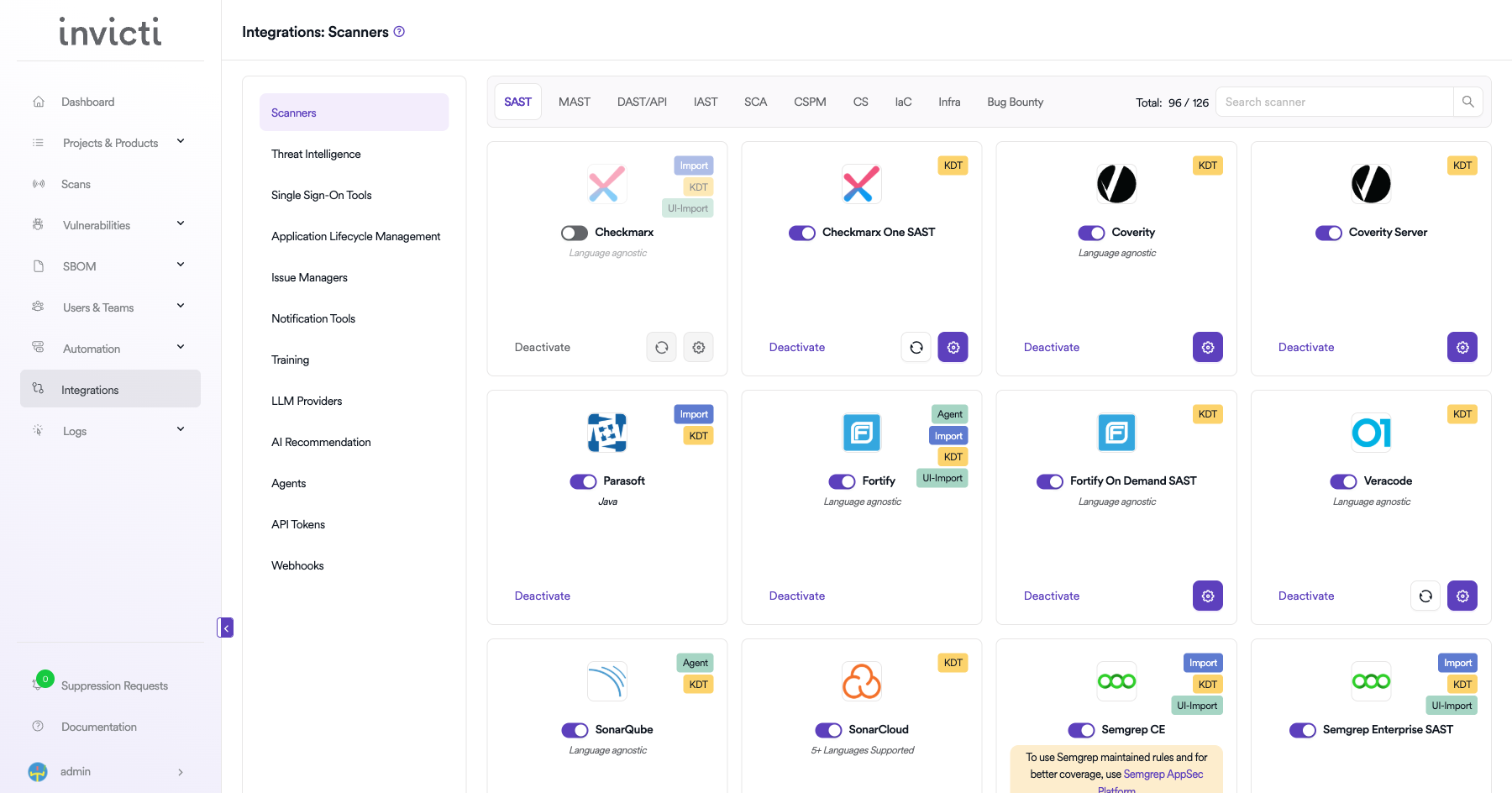
Step 2: Select the Infra tab
On the Integrations > Scanners page, click the Infra tab.
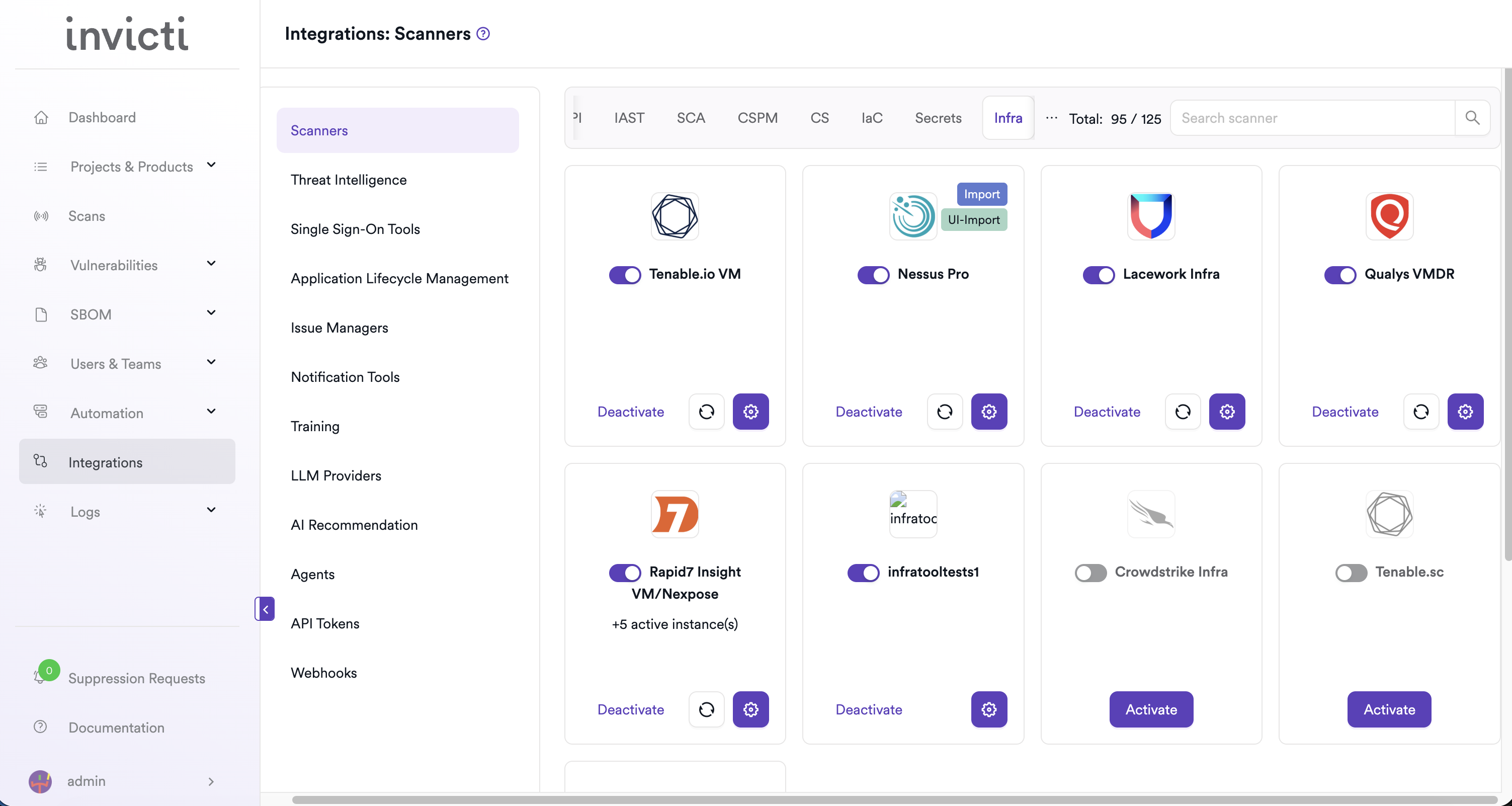
Step 3: Find and activate Tenable.io VM
Scroll through the list of Infra scanners to find Tenable.io VM.
- If Tenable.io VM is not activated, click Activate to enable the integration.
Step 4: Configure connection settings
Click the gear icon on the Tenable.io VM card to open the settings panel. Fill in the required fields:
| Field | Description | Required |
|---|---|---|
| User Key | Tenable.io API Access Key | Yes |
| Secret Key | Tenable.io API Secret Key paired with the User Key | Yes |
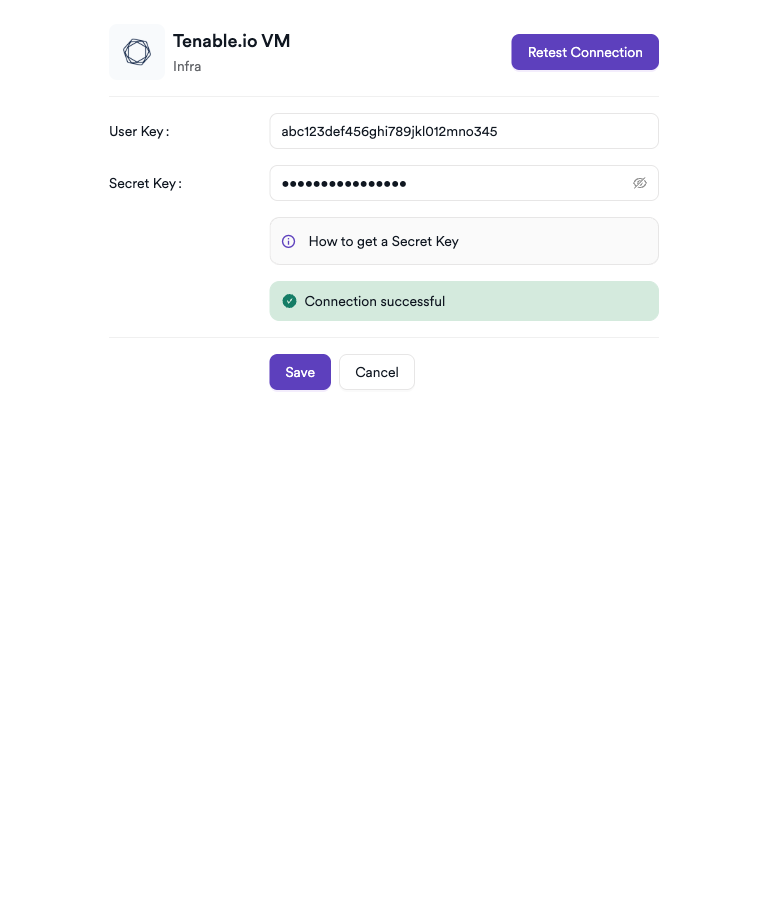
Step 5: Test the connection
Click Test Connection. A green Connection successful message confirms that Invicti AppSec can authenticate with the Tenable.io API.
Summary
| Step | Action |
|---|---|
| 1 | Navigate to Integrations from the sidebar |
| 2 | Select the Infra tab |
| 3 | Activate Tenable.io VM |
| 4 | Enter User Key and Secret Key |
| 5 | Test the connection |
Create a scan
Navigate to project scanners
- Open a project in Invicti AppSec.
- Go to Settings > Scanners.
- Click Add Scanner.
Add Tenable.io VM scanner
- Select Infra as the scanner type.
- Choose Tenable.io VM from the scanner list.
- Click Add to open the scan configuration drawer.
Scan configuration fields
| Field | Description | Required |
|---|---|---|
| Profile Name | a name to identify this scan configuration | Yes |
| Bind to | select the Tenable.io VM scan to bind to | Yes |
| Meta Data | additional metadata to tag the scan | Yes |
| Scan Tag | free-text tag to identify or group scans | No |
| Start Scan | toggle to trigger the Tenable.io scan immediately | No |
| Severity+ | increase severity of imported findings by one level | No |
| Severity- | decrease severity of imported findings by one level | No |
When you select a scan from the Bind to dropdown, the drawer displays the scan's targets, tags, agents, and policy details for reference. Severity+ and Severity- are mutually exclusive — only one can be enabled at a time.
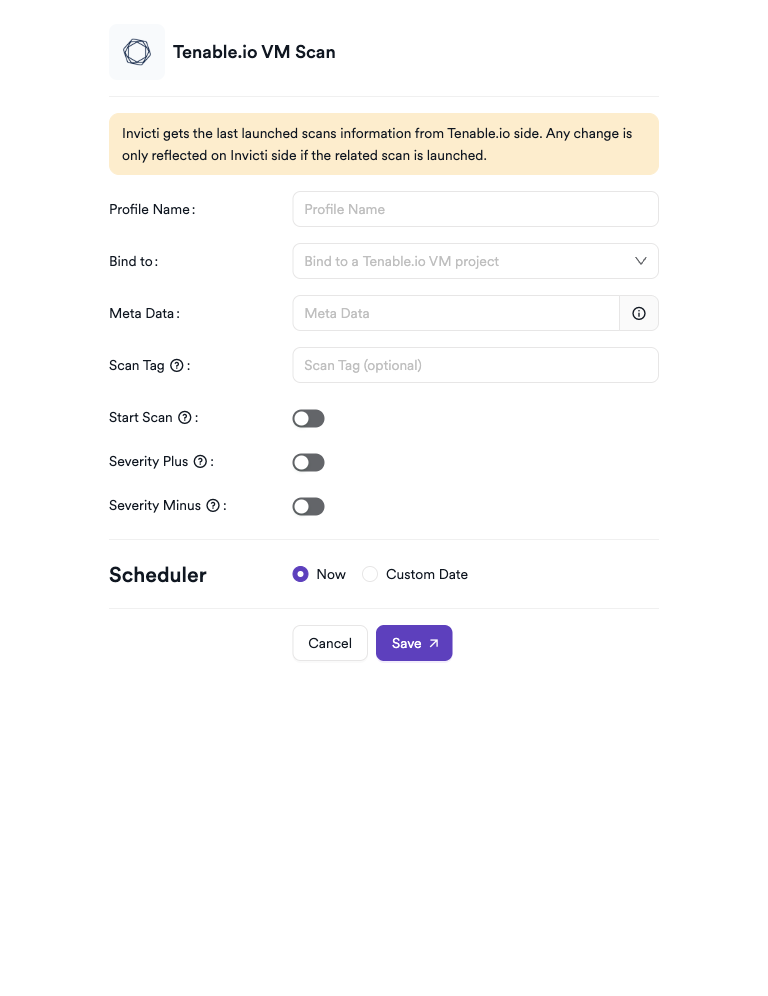
Scheduler
Enable the Scheduler toggle to automatically run Tenable.io VM scans on a recurring schedule.
Webhook (optional)
Add a webhook URL to receive scan completion notifications.
KDT command
kdt scan -p <project_name> -t tenableiovm -b -
Troubleshooting
Connection fails
| Issue | Resolution |
|---|---|
| Invalid User Key or Secret Key | verify the API keys in the Tenable.io console under Settings > My Account > API Keys. Regenerate if needed. |
| Permission denied | ensure the API key belongs to a user with access to vulnerability management data. |
| Secret not available | the secret key is shown only at creation — generate a new key pair if the original wasn't saved. |
Scan issues
| Issue | Resolution |
|---|---|
| No scans available in Bind to dropdown | ensure at least one completed scan exists in your Tenable.io account and the API key has access to it. |
| Scan shows no findings | the selected Tenable.io scan may have no vulnerabilities, or the scan may not have completed. Check the Tenable.io console. |
| Scan not starting | verify the scanner is activated and the connection test passes in the integration settings. |
Best practices
- Use a dedicated API key for Invicti AppSec with the minimum required permissions rather than reusing credentials shared with other tools.
- Rotate API keys periodically and update the integration settings in Invicti AppSec accordingly.
- Bind each Invicti AppSec project to the Tenable.io scan that covers its production infrastructure for accurate vulnerability data.
- Use the Scheduler to align Invicti AppSec polling with your Tenable.io scan cadence so findings always reflect the latest state.
Limitations
- Tenable.io VM in Invicti AppSec imports findings from existing Tenable.io scans — it doesn't create new Tenable.io scans (unless Start Scan is enabled).
- Only scans accessible via the provided API key are available for selection.
- Agent-based and cloud connector findings are imported only if the bound scan includes them.
Need help?
Invicti Support team is ready to provide you with technical help. Go to Help Center