Package: Invicti AppSec Core (on-demand)
Track ASVS compliance for a target
Track your target's compliance against the OWASP Application Security Verification Standard (ASVS) to see which security controls your application meets and which still need work. ASVS tracking starts as soon as you assign a business impact level to the target.
This document walks you through enabling ASVS for a target, setting control statuses, and reviewing compliance across your projects.
Why this matters
ASVS is an OWASP standard that defines the security controls required to build secure applications. Without ASVS tracking, you have no structured view of which of these controls your application meets. Enabling ASVS at the right level gives you a tailored checklist tied to your target's risk profile, so you can prioritize the controls that matter most for high-impact applications and demonstrate compliance against a recognized OWASP standard.
Enable ASVS for a target
To enable ASVS tracking for a target, set its business impact level. The level you choose determines which ASVS controls apply to the target.
-
Select Targets from the left-side menu.
-
Locate the target and click the pencil icon to open the Target info dialog.
-
In the Business impact field, select a level. The level determines which ASVS controls apply:
Business impact ASVS level High or Critical ASVS Level 3 Medium ASVS Level 2 Low ASVS Level 1 None or Calculate automatically ASVS not enabled Higher ASVS levels include a broader and more stringent set of security controls. Invicti AppSec automatically removes controls that aren't applicable to the selected level from the ASVS checklist.
-
Click Save.
ASVS is now enabled for the target. The ASVS compliance chart on the target dashboard begins tracking control status.
Selecting Calculate automatically or None doesn't enable ASVS. You must set a specific impact level.
Set control status
The target's ASVS tab is where you view individual ASVS controls and change their status. Invicti AppSec sets most statuses automatically from scan findings; you set the rest manually.
To open the tab:
- Select Inventory > Targets from the left-side menu.
- Open your target.
- Click the ASVS tab.
Controls are grouped by category (for example, V1 Architecture, Design and Threat Modeling) and subcategory (for example, V1.1 Secure Software Development Lifecycle), each showing Valid and Total Applicable counts. Expand a category, then a subcategory, to see individual controls.
Each control's status dropdown is set to one of:
- Valid - the target satisfies the control. The security measure described by the control is implemented and working as ASVS requires.
- Not valid - the target doesn't satisfy the control. The security measure is missing, incomplete, or contradicted by an open vulnerability with a matching CWE.
- Choose - the control hasn't been evaluated yet, automatically or manually.
Automatic updates from findings
Once ASVS is enabled, Invicti AppSec keeps control statuses in sync with the target's vulnerabilities. The sync starts as soon as business impact is set - no separate setting is required.
- A vulnerability with a matching CWE ID flips the corresponding ASVS control to Not valid.
- The control stays Not valid until one of the following:
- The vulnerability is marked Won't fix or False positive.
- The vulnerability is fixed and transitions to Closed in a subsequent scan.
Manual updates
For controls that aren't covered by automatic sync, use the dropdown next to the control on the ASVS tab to select Valid or Not valid.
A control that's been set automatically (linked to a CWE ID with a matching open vulnerability) can't be overridden manually. Resolve or suppress the underlying vulnerability first.
Track ASVS compliance
You can review ASVS compliance from two places in Invicti AppSec: the target dashboard for control-level detail, and the AppSec dashboard for a roll-up across all projects.
Target dashboard
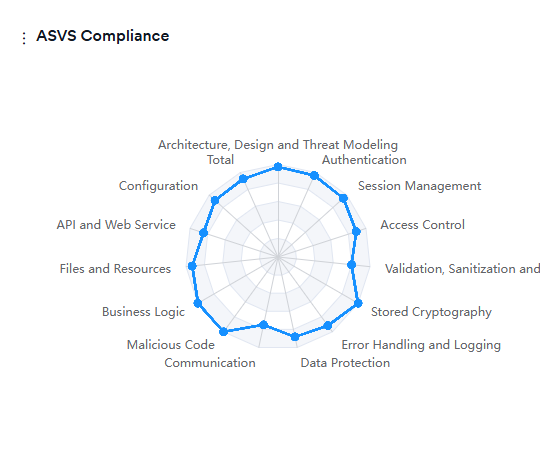
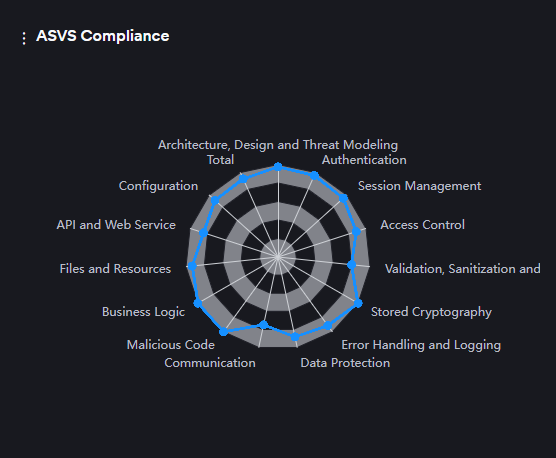
The ASVS compliance chart on the target dashboard displays the ratio of Valid controls to the total Applicable controls (Valid + Not valid) per ASVS category. Use this chart to identify areas where the target falls short of the required security verification level. For the control-by-control breakdown, see Set control status.
AppSec overview dashboard
The main AppSec dashboard includes a Failing ASVS counter in the project metrics panel. The counter shows the number of projects that don't meet their assigned ASVS compliance criteria. Click the counter to open a filtered list of those projects.
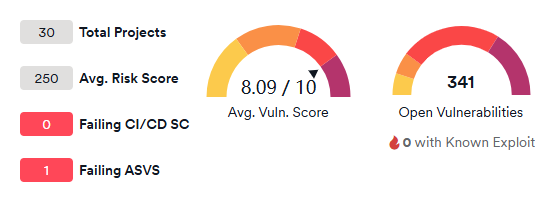
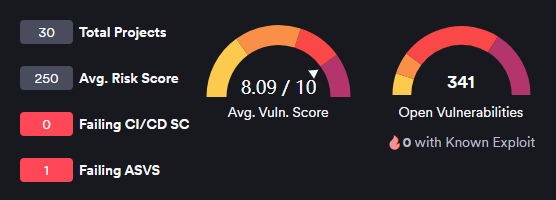
Use this view to spot projects that need attention without opening each target individually.
Troubleshooting
The ASVS compliance chart doesn't appear after I set a business impact
Check that you selected a specific impact level (Low, Medium, High, or Critical). Selecting None or Calculate automatically doesn't enable ASVS, and the compliance chart doesn't appear on the target dashboard.
A control is stuck as Not valid even though I fixed the underlying vulnerability
Automatically validated controls only update after the linked vulnerability transitions to Closed in a subsequent scan, or is marked as Won't fix or False positive. Run a new scan against the target and confirm the vulnerability moves to Closed. The ASVS control updates automatically once the scan completes.
I can't manually change a control's status
Controls linked to a CWE ID with a matching open vulnerability can't be overridden manually. Resolve or suppress the underlying vulnerability first - then you can set the control status manually if needed.
Need help?
Invicti Support team is ready to provide you with technical help. Go to Help Center