Configuring Auto Send To Actions in Invicti Standard
Send To Actions configure elements that will be automatically triggered when a vulnerability is found. Send To Actions can be configured to trigger only for certain severities of vulnerability, or only for confirmed vulnerabilities rather than for possible vulnerabilities.
Once the Send To Action is configured, users can then configure Auto Send To actions.
This topic will explain how to configure auto Send To Actions in Invicti Standard.
For further information on how to configure the UI for custom Send to Actions, see Configuring the User Interface for Custom Send To Actions in Invicti Standard.
Automatic Send To Actions Fields
This table lists and explains the fields in the Automatic Send to Actions section.
| Field | Description |
|---|---|
| Send To Actions | This is the Send To Actions issue tracking system or method. |
| Severities | This is the vulnerability severity level dropdown:
|
| Only Confirmed | This is to send only confirmed vulnerabilities. |
How to Configure the Auto Send To Actions in Invicti Standard
- Open Invicti Standard.
- In the Home tab, click Scan Policy Editor. The Scan Policy Editor dialog is displayed.
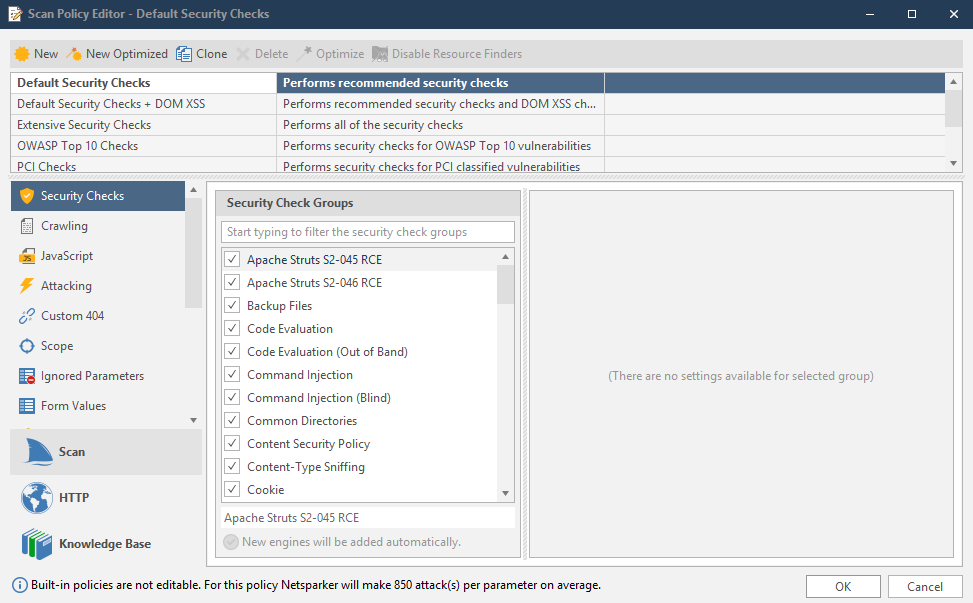
- Click the Auto Send To tab. The Automatic Send to Actions section is displayed.
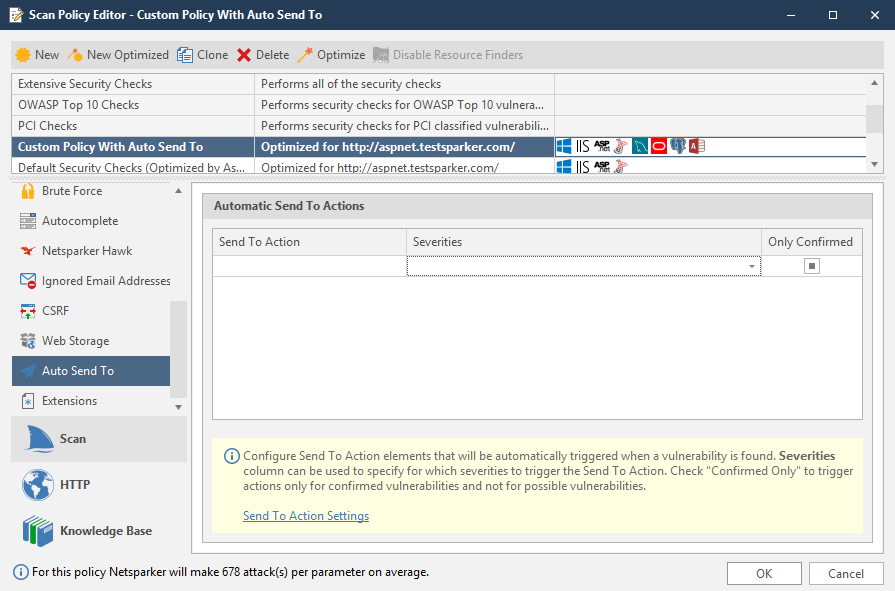
Auto Send To cannot be configured for built-in policies. Either create a new policy or clone an existing one.
- Click into the Send To Action list, and from the dropdown, select an item.
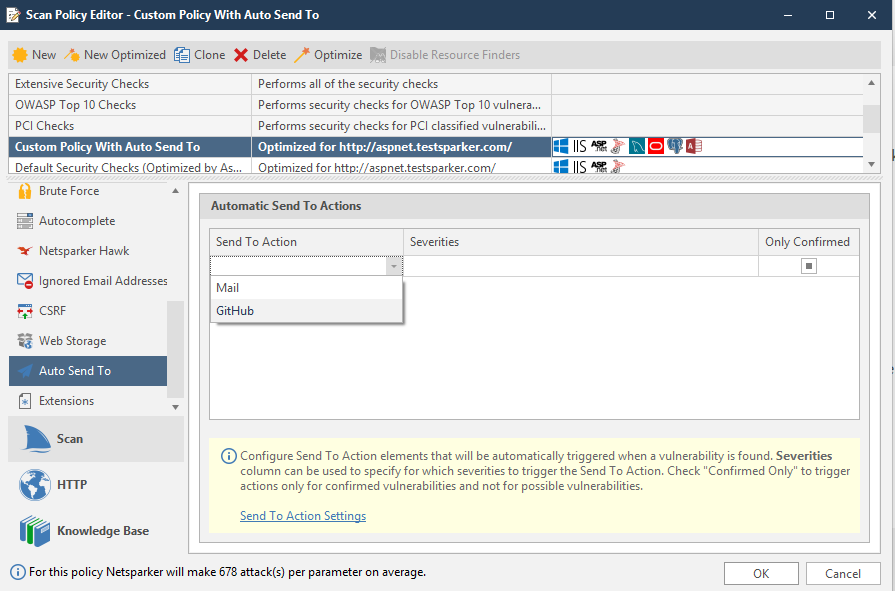
If the list is empty, click the Send To Action Settings link in the yellow help text box, to add a Send To Action.
- From the Severities dropdown, select one or more items (see Severity Levels).
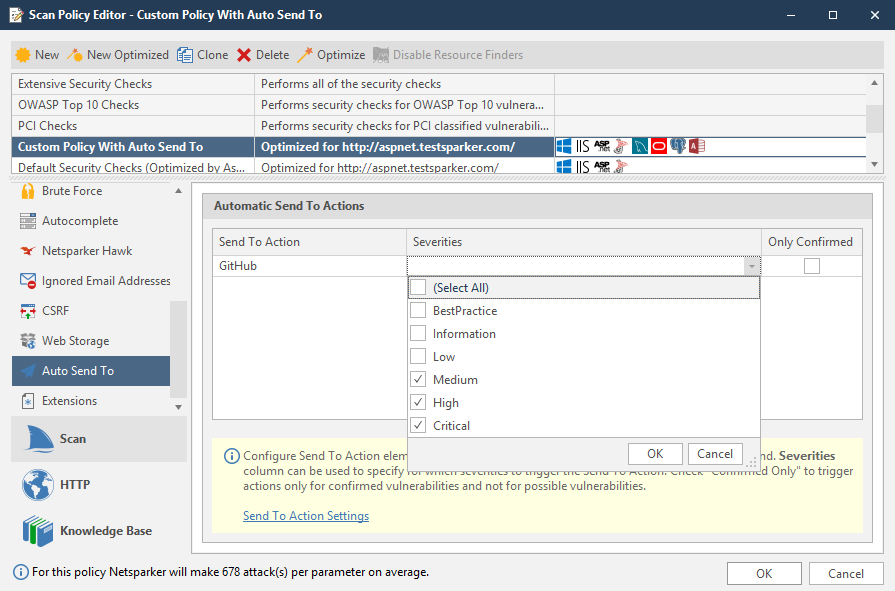
- If you want to send only confirmed vulnerabilities, enable the Only Confirmed checkbox.
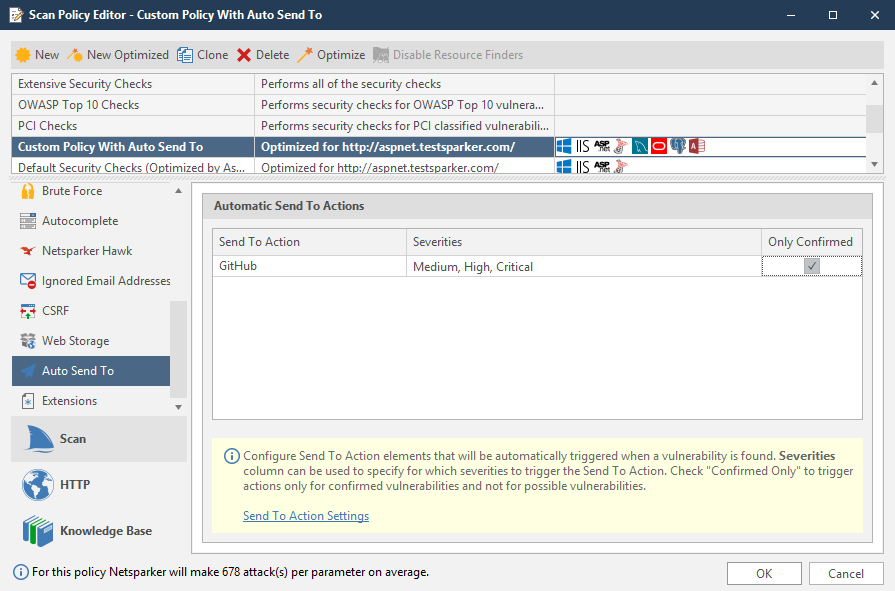
- Click OK.
Need help?
Invicti Support team is ready to provide you with technical help. Go to Help Center