Use filters in Invicti Enterprise
Filters help you quickly find the correct information by narrowing down large datasets to display only the most relevant results. They save time and allow you to focus on what you need. This document explains how to use filters in Invicti Enterprise.
How to use filters in Invicti Enterprise
The following example shows how to apply filters on the Scans > Recent Scans page, though the steps are the same for each page where you can use filters. A list of all pages with filtering options is at the end of this document.
- Open any page that uses filters. The filters are located at the top of the table.

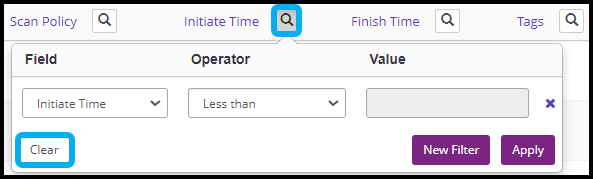
- To clear all existing filters, select the magnifying glass next to any header column and click Clear.
- Select New Filter.

- In the Field, Operator, and Value fields, select or enter the appropriate values. The Field and Operator fields are drop-downs, while the Value field can be a drop-down or a text entry.
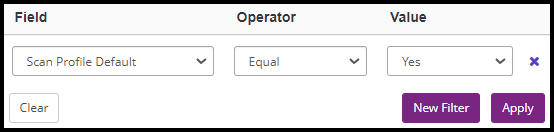
Refer to the Filter options further down to learn more about the Operator field options.
- Repeat steps 3 and 4 as needed to create more detailed filters.
- Click Apply to activate the filter.
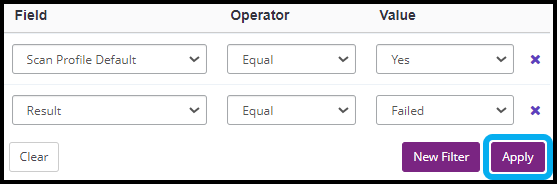
The table is now filtered according to the criteria set in the new filter.
The filters aren't saved and revert to the default settings when you leave the page and return.
Filter options
Most columns can be filtered using a customizable combination of fields, operators, and values. The available fields and values depend on the specific page you are viewing.
These are the operator options:
-
Equal: Use this operator for exact matches.
-
Not Equal: Use this operator to exclude results that match exactly.
-
Contains: Use this operator to include results where the filtered column contains the specified value.
-
Not Contains: Use this operator to exclude results where the filtered column contains the specified value.
-
Starts with: Use this operator to filter for columns that begin with the specified value.
-
Ends with: Use this operator to filter for columns that end with the specified value.
-
Less than: Use this operator to filter columns with numeric or date-time values that are less than the specified value.
-
Less than or equal: Use this operator to filter columns with numeric or date-time values that are less than or equal to the specified value.
-
Greater than or equal: Use this operator to filter columns with numeric or date-time values that are greater than or equal to the specified value.
-
Greater than: Use this operator to filter columns with numeric or date-time values that are greater than the specified value.
Pages using filters
- Discovery > Discovered websites
- Targets > Targets
- Targets > Manage groups
- Scans > Scan profiles
- Scheduling > Scheduled scans
- Issues > To do
- Issues > Waiting for retest
- Issues > Addressed issues
- Issues > All issues
- Technologies > Recent technologies
- Policies > Scan policies
- Policies > Report policies
- Notifications > Manage notifications
- Integrations > Manage integrations
- Integrations > Manage user mappings
- Team > Manage teams
- Team > Manage roles
- Team > Manage members
- Team > Invitations
- Activity > Activity logs
- Agents > Manage agents
- Agents > Manage groups
- Agents > Manage verifiers
Need help?
Invicti Support team is ready to provide you with technical help. Go to Help Center